
1. Introduction
The RME Fireface UCX II is an advanced audio interface designed for professional studio and live recording environments. Its ultra-compact form factor ensures portability without compromising on performance. With 40 channels of audio, it provides ample capacity for demanding projects. The device features Plug and Play technology for straightforward installation and operation, catering to both experienced professionals and new users.
This manual provides detailed instructions for setting up, operating, and maintaining your Fireface UCX II, ensuring you can fully leverage its capabilities for all your recording needs.
2. Key Features
- Convenient Control: Easily manage all device functions directly from the intuitive front panel.
- High-Quality Audio: Features 40 channels and an integrated digital recorder, allowing direct playback of your sessions.
- Dependable Mixing: Capable of replacing an external mixer, enabling the creation of multiple latency-free monitor mixes with integrated EQ, Dynamics, and Reverb.
- Premium Construction: Equipped with DC-coupled line-level outputs, supporting CV and Gate Voltage control for expanded connectivity.
- Accurate Data Transfer: Facilitates high-fidelity analog and digital audio data transfer to both Windows and Mac computers.
3. Setup Guide
Setting up your RME Fireface UCX II is designed to be straightforward. Follow these steps to get your audio interface ready for use.
3.1 Unboxing and Initial Inspection
Carefully remove all components from the packaging. Verify that all items listed in the packing slip are present and inspect the unit for any signs of damage. The Fireface UCX II is a compact device, designed for easy integration into your setup.

Figure 3.1: Front and rear view of the RME Fireface UCX II, showcasing its compact design and comprehensive connectivity options.
3.2 Connecting to Your Computer
The Fireface UCX II connects to your computer via USB. Ensure your computer meets the minimum system requirements for optimal performance. The device supports both Windows and Mac operating systems.
- Connect the provided USB cable from the Fireface UCX II's USB port to an available USB port on your computer.
- Connect the power supply to the DC input on the rear of the unit and plug it into a power outlet.
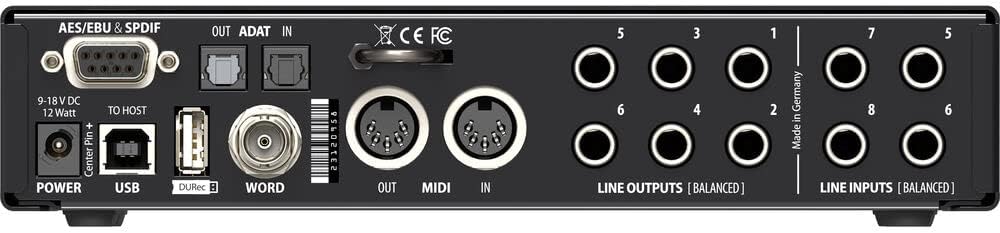
Figure 3.2: Detailed view of the rear panel of the Fireface UCX II, highlighting the USB, MIDI, Word Clock, and balanced line input/output connections.
3.3 Driver Installation and Software Setup
For optimal performance and access to all features, it is crucial to install the latest drivers and the TotalMix FX software from the official RME website. TotalMix FX provides comprehensive routing and monitoring options for your interface.
- Visit the RME website and navigate to the support section for the Fireface UCX II.
- Download and install the latest drivers compatible with your operating system.
- Download and install TotalMix FX. This software allows for advanced control over the interface's internal mixer, effects, and routing.
Video 3.1: An overview of the RME Fireface UCX II 40-Channel USB Audio Interface, demonstrating its features and connectivity.
4. Operating the Fireface UCX II
The Fireface UCX II offers extensive control and flexibility for your audio production needs.
4.1 Front Panel Controls
The front panel provides direct access to essential functions. It includes two mic/line preamps with XLR/quarter-inch combo inputs, allowing for versatile microphone and instrument connections. These inputs also support 48V phantom power for condenser microphones.

Figure 4.1: Close-up of the Fireface UCX II front panel, showing the mic/line inputs, instrument inputs, and control knobs for gain and navigation.
4.2 Input and Output Connectivity
Beyond the front panel, the rear of the unit features a comprehensive set of 10 analog balanced line inputs and outputs. This allows for integration with a wide range of external studio equipment, including your preferred microphone preamps, enabling simultaneous multi-track recording.
The Fireface UCX II also includes MIDI I/O and Word Clock for synchronization with other digital audio devices, ensuring precise timing in your setup. The DC-coupled line outputs provide CV and Gate Voltage control, expanding possibilities for integration with modular synthesizers and other voltage-controlled gear.
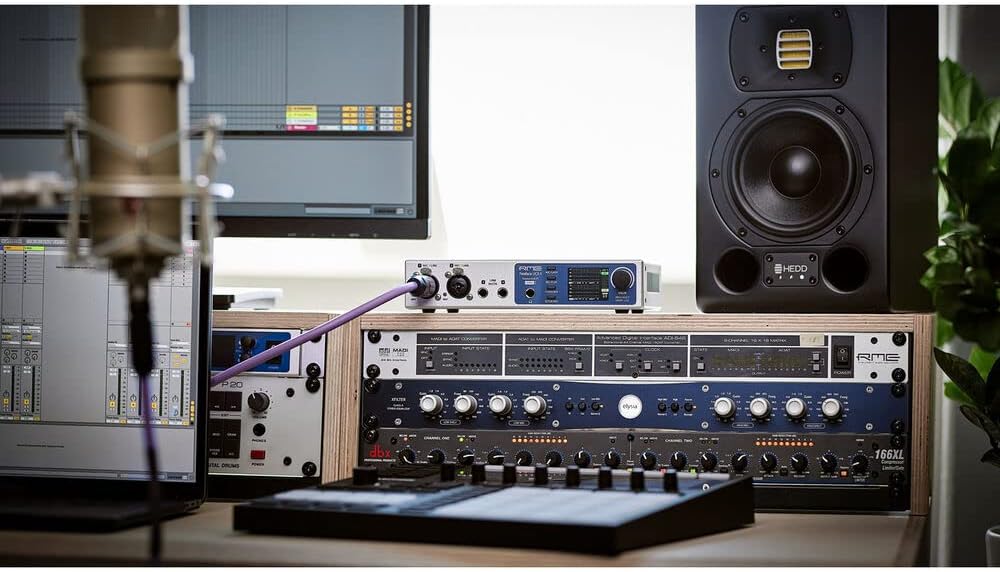
Figure 4.2: The Fireface UCX II integrated into a professional studio rack setup, demonstrating its compact size among other audio equipment.

Figure 4.3: The Fireface UCX II connected to an iPad, illustrating its capability for direct mixing and control via tablet devices.
4.3 Integrated Digital Recorder (DURec)
The integrated digital recorder (DURec) allows for direct recording to a USB storage device, providing a standalone recording solution without the need for a computer. This feature is ideal for capturing live performances or quick ideas.
The Fireface UCX II's internal processing capabilities enable you to create multiple latency-free monitor mixes, complete with EQ, dynamics, and reverb, directly within the unit, effectively replacing the need for an external mixer in many scenarios.

Figure 4.4: The Fireface UCX II in use with a guitar, demonstrating its application for recording instruments.

Figure 4.5: The Fireface UCX II positioned with a synthesizer, illustrating its versatility for electronic music production and control of external gear.
5. Maintenance
To ensure the longevity and optimal performance of your RME Fireface UCX II, regular maintenance is recommended:
- Cleaning: Use a soft, dry cloth to wipe down the exterior of the unit. Avoid abrasive cleaners or solvents that could damage the finish or internal components.
- Ventilation: Ensure the unit has adequate ventilation to prevent overheating. Do not block the ventilation slots.
- Cable Management: Keep cables organized and free from kinks or excessive tension to prevent damage to connectors and ports.
- Software Updates: Periodically check the RME website for firmware and driver updates. Keeping your software up-to-date ensures compatibility and access to the latest features and performance enhancements.
6. Troubleshooting
If you encounter issues with your Fireface UCX II, consider the following common troubleshooting steps:
- No Power:
- Verify the power adapter is securely connected to the unit and a working power outlet.
- Ensure the power outlet is active.
- No Audio Input/Output:
- Check all audio cable connections to ensure they are secure and correctly routed.
- Confirm that the correct input/output channels are selected in your DAW and TotalMix FX.
- Verify input gain levels are appropriately set on the front panel and in TotalMix FX.
- Ensure phantom power (48V) is enabled for condenser microphones.
- Connectivity Issues (USB):
- Try connecting the USB cable to a different USB port on your computer.
- Ensure the latest RME drivers are installed. Reinstalling drivers can sometimes resolve connectivity problems.
- Restart your computer and the Fireface UCX II.
- Software Glitches (TotalMix FX):
- Close and reopen TotalMix FX.
- Ensure TotalMix FX is the latest version.
- Consult the TotalMix FX manual for specific routing or mixing issues.
For persistent issues, refer to the detailed troubleshooting section in the full RME Fireface UCX II user manual available on the RME website or contact RME technical support.
7. Specifications
| Feature | Detail |
|---|---|
| Brand | RME |
| Model Number | FF UCX II |
| Number of Channels | 40 |
| Connectivity Technology | USB |
| Connector Type | USB 2.0 |
| Compatible Devices | Personal Computer |
| Operating System | Windows (and Mac via drivers) |
| Item Weight | 2 pounds |
| Product Dimensions | 14 x 4 x 8 inches |
| Date First Available | November 11, 2021 |
8. Warranty Information
Specific warranty details for the RME Fireface UCX II are typically provided with the product packaging or can be found on the official RME website. It is recommended to register your product upon purchase to ensure full warranty coverage and access to support services. Please retain your proof of purchase for any warranty claims.
9. Support
For technical assistance, product registration, or further information regarding your RME Fireface UCX II, please visit the official RME website. The website offers a comprehensive knowledge base, FAQs, driver downloads, and contact information for customer support.
RME Official Website: www.rme-audio.de


