
1. Introduction
This manual provides detailed instructions for the setup, operation, and maintenance of your SINWE Podcast Equipment Bundle F998 Livestream Microphone Set. This all-in-one kit is designed to enhance your audio recording and streaming experience for various applications including podcasting, live streaming, music recording, and voice-overs.
2. What's in the Box
The SINWE Podcast Equipment Bundle includes the following components:
- Podcast Audio Mixer ×1
- Condenser Microphone ×1
- Microphone Tripod Stand ×1
- Earphone ×1
- XLR Cable ×1
- 3.5mm Audio Cable ×2
- USB Type-C Cable ×1
- Foam Mic Cover ×1
- Hook & Loop Fasteners ×1

Image: All components of the SINWE Podcast Equipment Bundle, including the microphone, mixer, cables, and accessories.
3. Setup Instructions
3.1. Microphone Assembly
- Attach the condenser microphone to the shock mount.
- Secure the pop filter to the microphone stand or boom arm, positioning it between the microphone and your mouth.
- Place the foam mic cover over the microphone head to reduce plosives and wind noise.

Image: Detailed view of the professional condenser microphone, highlighting its metal screen, 15mm diaphragm, and upgraded chipset for high-quality audio capture.
3.2. Microphone Stand Setup
- For the tripod stand: Extend the legs of the tripod and place it on a stable surface. Attach the microphone assembly to the tripod.
- For the boom arm: Secure the clamp base of the boom arm to the edge of your desk. Insert the boom arm into the clamp and adjust its position and height using the tightening knobs to suit your recording needs. Attach the microphone assembly to the boom arm.

Image: The condenser microphone mounted on its desktop tripod stand, ready for use.
3.3. Connecting to the Audio Mixer
- Connect the XLR cable from the microphone to the 'Condenser Mic' input on the audio mixer.
- Plug your earphones into the 'Earphone' or 'Headset' jack on the mixer for real-time audio monitoring.
- Connect the audio mixer to your computer or smartphone using the provided USB Type-C cable (for PC/OTG Live) or 3.5mm audio cables (for Live1, Live2, Accompaniment). Adapters may be required for some smartphones.
- Ensure all connections are secure.
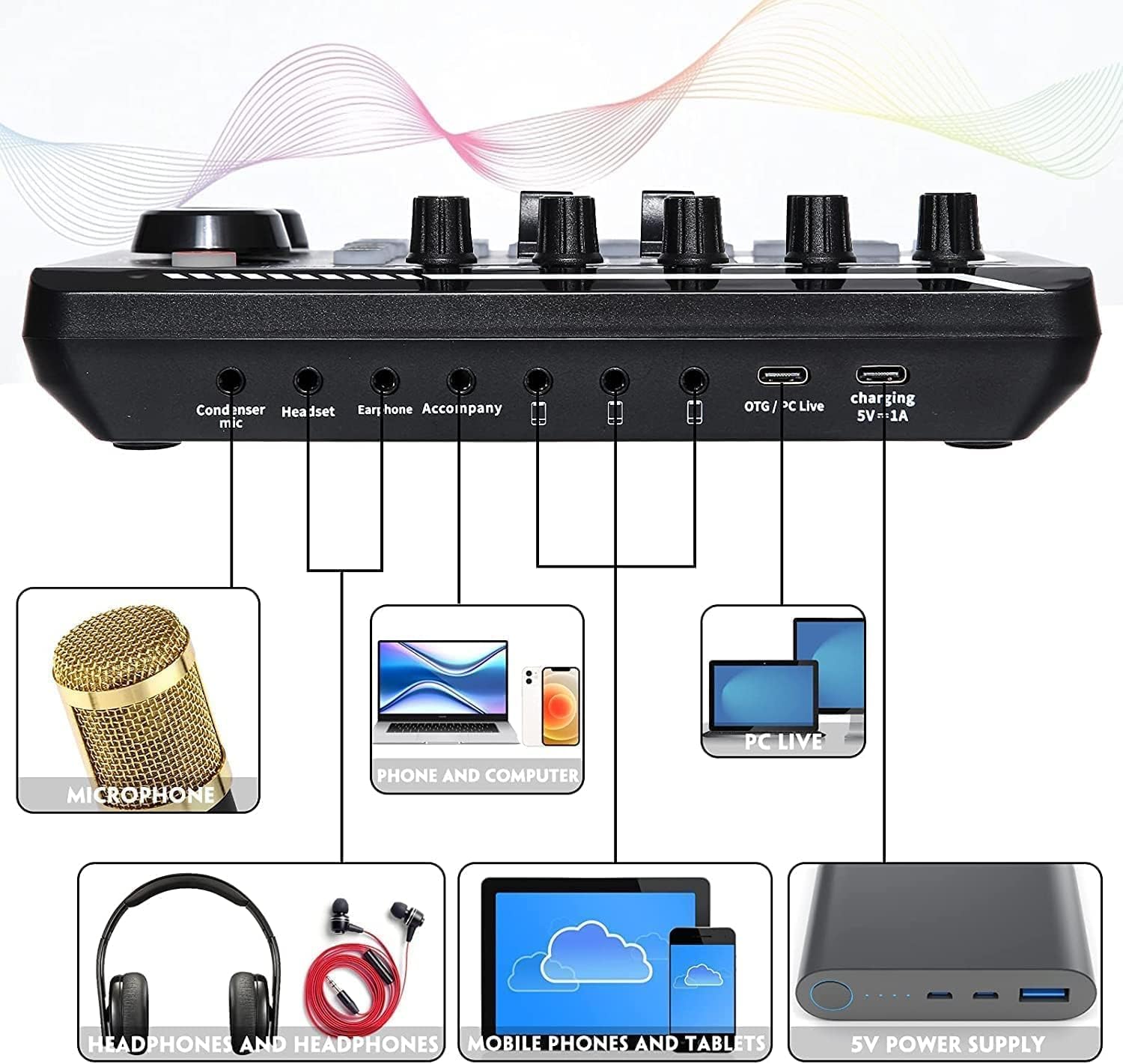
Image: The rear panel of the audio mixer, detailing the various ports for condenser microphones, headsets, earphones, accompaniment, and live streaming connections.
3.4. Software and Device Connection
After physical connections, ensure your computer or smartphone recognizes the audio mixer. For computers, select the 'B1 USB Audio' device for both input and output in your sound settings. For streaming software like Audacity, OBS, Twitch, YouTube, or Zoom, select the mixer as your audio input/output device.
Video: A detailed guide on how to connect and use the SINWE podcast mixer with various software applications like Audacity, OBS, Twitch, YouTube, and Zoom.
4. Operating the Audio Mixer
4.1. Power On/Off
Press and hold the power button on the mixer for a few seconds to turn it on or off. The indicator lights will illuminate when powered on.
4.2. Adjusting Audio Levels
Use the rotary knobs to adjust the following:
- MIC: Adjusts the microphone input volume.
- TREBLE: Adjusts the high-frequency response of the microphone.
- MID: Adjusts the mid-range frequency response of the microphone.
- BASS: Adjusts the low-frequency response of the microphone.
- ECHO: Controls the reverb effect level.
- RECORD: Adjusts the recording volume.
- ACCOMPANY: Adjusts the volume of background music or accompaniment.
- MONITOR: Adjusts the headphone monitoring volume.

Image: The SINWE F998 audio mixer's main control panel, showing knobs for Treble, Mid, Bass, Mic, Echo, Record, Accompaniment, and Monitor, along with various effect buttons.
4.3. Special Functions and Effects
The mixer features dedicated buttons for various functions and sound effects:
- Elimination: One-key to eliminate original vocals from music.
- Denoise: Reduces external noise for clearer sound.
- Voice Over: Automatically lowers background music volume when speaking.
- Internal Play: Allows sound played on the computer to be recorded back to the computer.
- Voice Changer: Four modes available (Female, Child, Monster, Male).
- Recording Modes: Seven modes including Primal Sound, Recording Studio, Pro, Pop, MC, Dodge, and Karaoke.
- Fixed Background Special Effects: 16 kinds of fixed sound effects (e.g., Cheer, Din, Kiss, Gunshot, Yell, Laughter, PUBG, Awesome, Dindin).
Video: A quick overview of the F998 Podcast Equipment, demonstrating its various sound effects and voice changing capabilities.
4.4. Bluetooth Connection
The mixer supports Bluetooth connectivity for accompaniment music. Turn on Bluetooth on your mobile device and search for the mixer. Once connected, you can play music wirelessly through the mixer.
5. Device Compatibility
The SINWE Podcast Equipment Bundle is compatible with a wide range of devices and operating systems:
- Operating Systems: Windows, Mac OS.
- Devices: Laptops, Personal Computers, iPads, iPhones, and other smartphones. (Note: Adapters may be required for some mobile devices, not included).
- Multi-Device Streaming: Connect up to three mobile phones simultaneously for live streaming on different platforms.

Image: The audio mixer demonstrating wide compatibility with laptops, PCs, Android/iOS devices, tablets, and MP3/MP4 players, suitable for various live streaming apps.
6. Troubleshooting
- No Sound from Microphone:
Ensure the microphone is correctly connected to the 'Condenser Mic' input. Check if the 48V phantom power is activated (if applicable for your microphone). Verify microphone volume knob is turned up. - No Sound Output from Headphones/Speakers:
Ensure headphones are properly plugged into 'Earphone' or 'Headset' jacks. Check the 'Monitor' volume knob. Verify the mixer is selected as the output device in your computer/software settings. - Device Not Recognized by Computer/Software:
Ensure the USB Type-C cable is securely connected. Try a different USB port or cable. Restart your computer and the mixer. Check your computer's sound settings to ensure 'B1 USB Audio' is selected. - Audio Distortion or Noise:
Lower the microphone input volume ('MIC' knob) to prevent clipping. Use the 'Denoise' function. Ensure all cables are securely connected and not damaged. Avoid placing the mixer near strong electromagnetic interference sources. - Bluetooth Connection Issues:
Ensure the mixer's Bluetooth is enabled. Turn off and on Bluetooth on your mobile device. Ensure no other devices are connected to the mixer via Bluetooth.
7. Specifications
| Feature | Detail |
|---|---|
| Item Weight | 1.98 pounds (900 Grams) |
| Product Dimensions | 4.72 x 7.67 x 1.96 inches (4.72"D x 7.67"W x 1.96"H) |
| Item Model Number | Livestream Microphone Set |
| Connectivity Technology | Auxiliary, Bluetooth, USB |
| Connector Type | 3.5 mm Jack |
| Material Type | Stainless Steel |
| Hardware Platform | Laptop, PC |
| Power Source | Corded Electric |
| Number of Channels | 2 |
8. Warranty and Support
SINWE offers a 45-day replacement or refund guarantee for this product. If you encounter any queries or concerns regarding your Podcast Equipment Bundle, please do not hesitate to contact our customer support team. We are committed to providing you with the best possible live broadcast equipment and assistance.