
AOSHIDA U18
Gustard DDC-U18 Digital Interface User Manual
Model: U18
1. Introduction
The Gustard DDC-U18 is a high-performance digital interface designed to enhance your audio experience. It features advanced technologies such as the XMOS XU216 solution, ground isolation, and precision clocking to deliver pristine audio signals. This manual provides detailed instructions for setting up, operating, and maintaining your DDC-U18.
2. Product Features
- XMOS XU216 Solution: Utilizes a 16-core XMOS XU216 chip, supporting DSD512 and PCM768K for high-resolution audio processing.
- Full Ground Isolation: Incorporates a PCB physical isolation design and 200Mbps fully isolated chip to eliminate interference from connected PCs.
- LPLD Digital Shaping Technology: Reshapes the IIS signal after isolation to minimize additive jitter.
- Advanced Clocking System: Features second-generation ultra-low noise clock synthesis technology with external 10M frequency thermostatic clock support (K2 module). The clock power supply uses LT3045 ultra-low noise LDO for superior performance (0.8 uVrms broadband noise).
- Hi-End Audio Crystals: Equipped with two Accusilicon AS338 series Hi-End level audio crystals, packaged with nitrogen gas and 100% phase noise meter QC, ensuring ultra-low jitter (as low as 38fs).
- Configurable IIS-H Output: Offers four adjustable IIS line sequences, with the Gustard line sequence as default. Users can switch modes and DSD flags.
3. Package Contents
Upon opening the package, please verify that all items listed below are present and in good condition:
- Gustard DDC-U18 Digital Interface Unit
- USB Cable
- AC Power Cable
- User Manual (this document)
Video: Unboxing the Gustard DDC-U18, showing the unit, USB cable, and AC power cable included in the package.
4. Controls and Interfaces
Familiarize yourself with the front and rear panels of the DDC-U18:
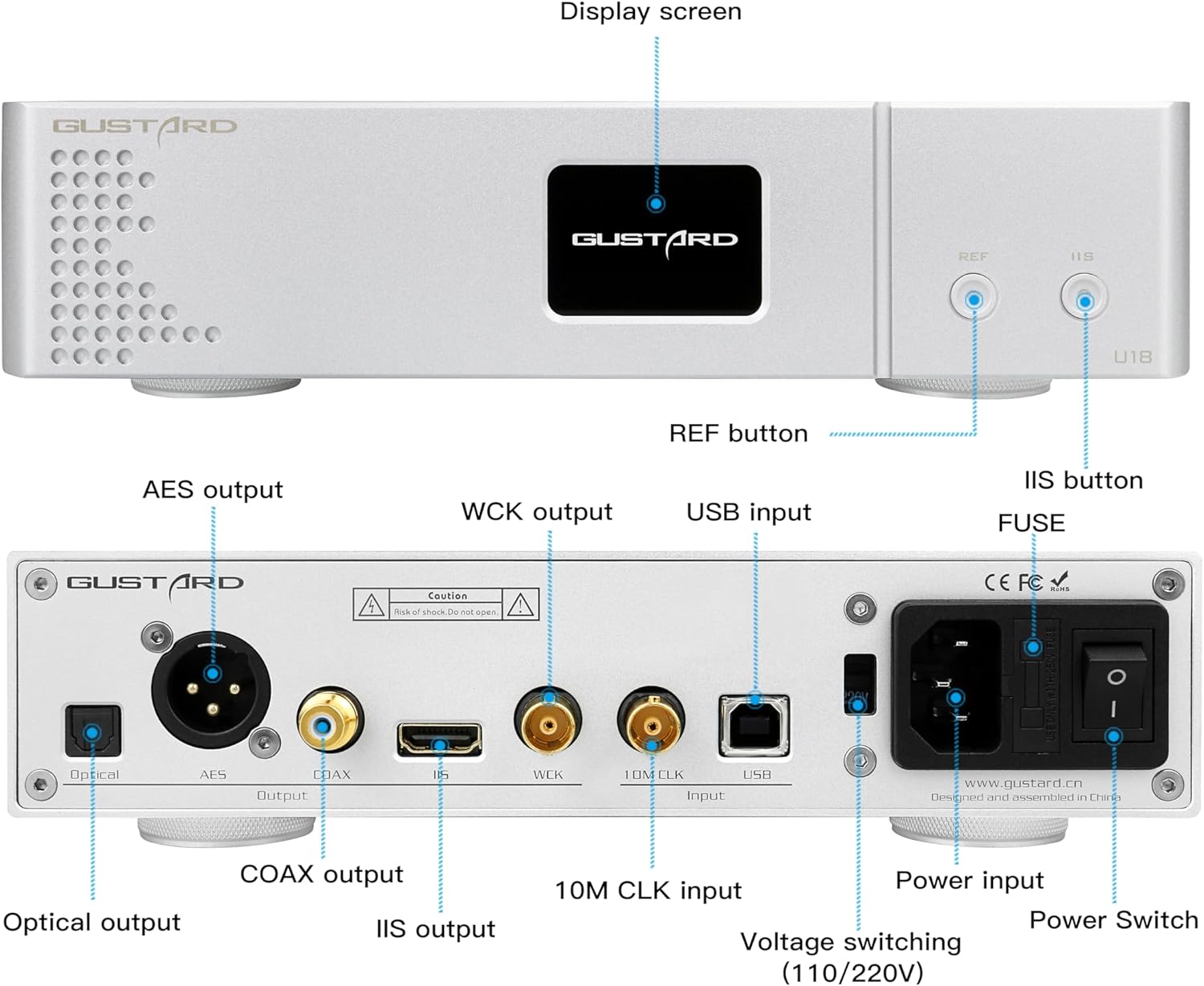
Image: Front and rear panel overview of the Gustard DDC-U18, highlighting key controls and input/output ports.
Front Panel:
- Display Screen: Shows current status and settings.
- REF Button: Short press to switch mode, long press to switch DSD flag.
- IIS Button: Used for IIS related settings.
Rear Panel:
- Digital Input:
- USB Interface: USB Type-B female port, USB2.0 compatible.
- 10M BNC Input Interface: Input impedance 50Ω, 0dBm-20dBm.
- Digital Output:
- COAX Coaxial Interface: Output impedance 75Ω, output level 500mVP-P@75Ω load, supports 24bit 44.1k-384k/DoP64-128.
- AES XLR Interface: Output impedance 110 ohms, output level 2.1VP-P@110 ohms load, supports 24bit 44.1k-384k/DoP64-128.
- OPTICAL TOSLINK Interface: Supports 24bit 44.1k-192k/DoP64.
- WORD CLOCK INTERFACE: Output impedance 75Ω, output level 3.3-5V P-P@100kΩ load. Word clock output frequency: PCM:44.1k-768k, DSD:2.82m-22.57M.
- IIS over HDMI Interface (non-standard HDMI): LVDS output level: PCM:32bit 44.1k-768k, DSD 2.82m-22.57m (dsd64-dsd512).
- AC Power Supply: AC 115V/230V 50/60Hz.
- Power Switch: On/Off control for the unit.
- Fuse: For electrical protection.

Image: Detailed diagram of the IIS-H configurable pinout with four modes. This is a non-standard HDMI interface.
5. Setup
- Placement: Place the DDC-U18 on a stable, flat surface, away from direct sunlight, heat sources, and excessive moisture. Ensure adequate ventilation around the unit.
- Power Connection: Connect the supplied AC power cable to the power input on the rear panel of the DDC-U18 and then to a suitable wall outlet. The unit supports both 115V and 230V power supplies.
- USB Connection: Connect your computer or audio source to the USB Type-B input on the rear panel using the provided USB cable.
- Output Connection: Connect the DDC-U18 to your DAC (Digital-to-Analog Converter) or other audio equipment using the appropriate digital output (COAX, AES, OPTICAL, WORD CLOCK, or IIS over HDMI). Ensure the correct cable type is used for each connection.
- Driver Installation (for PC users): For optimal performance with Windows operating systems, it is recommended to install the dedicated USB driver. This driver can typically be found on the manufacturer's official website. For macOS and Linux, drivers are usually not required.
6. Operating Instructions
- Power On: Flip the power switch on the rear panel to the 'ON' position. The front display screen will illuminate.
- Input Selection: The DDC-U18 automatically detects the active input. Ensure your audio source is playing.
- IIS Configuration: If using the IIS over HDMI output, you may need to configure the IIS line sequence to match your DAC.
- Short press the REF button to switch between the four available IIS modes.
- Long press the REF button to switch the DSD flag.
- Refer to your DAC's manual to confirm the correct decoding line sequence and adjust the DDC-U18 accordingly.
- Audio Playback: Start playback from your connected audio source. The DDC-U18 will process the digital signal and output it to your connected DAC.
7. Specifications
| Feature | Detail |
|---|---|
| Digital Input (USB) | USB Type-B female port, USB2.0 |
| Digital Input (10M BNC) | Input impedance 50Ω, 0dBm-20dBm |
| Digital Output (COAX) | 75Ω, 500mVP-P@75Ω load, 24bit 44.1k-384k/DoP64-128 |
| Digital Output (AES XLR) | 110 ohms, 2.1VP-P@110 ohms load, 24bit 44.1k-384k/DoP64-128 |
| Digital Output (OPTICAL) | 24bit 44.1k-192k/DoP64 |
| Digital Output (WORD CLOCK) | 75Ω, 3.3-5V P-P@100kΩ load, PCM:44.1k-768k, DSD:2.82m-22.57M |
| Digital Output (IIS over HDMI) | LVDS, PCM:32bit 44.1k-768k, DSD 2.82m-22.57m (dsd64-dsd512) |
| Power Supply | AC 115V/230V 50/60Hz |
| Power Consumption | <10W |
| Dimensions (W*H*D) | 220mm * 50mm * 170mm (excluding protruding parts) |
| Weight | 2.5Kg (including package) |

Image: Internal view of the Gustard DDC-U18 highlighting key components such as the XMOS XU216 chip, K2 clock module, LT3045 regulator, and Nichicon Fine Gold capacitors.
8. Troubleshooting
| Problem | Possible Cause | Solution |
|---|---|---|
| No power | Power cable not connected; Power switch off; Blown fuse. | Ensure power cable is securely connected. Turn on the power switch. Check and replace the fuse if necessary. |
| No sound output | Incorrect input/output selection; Incorrect IIS configuration; Driver issue (PC). | Verify correct input source is selected on the DDC-U18 and DAC. Adjust IIS pinout if using IIS-H output. Reinstall USB driver for PC. |
| Intermittent audio or noise | Loose cable connections; Interference from other devices; Ground loop. | Check all cable connections. Move the unit away from potential interference sources. Ensure proper grounding. |
| DSD playback issues | Incorrect DSD flag setting; DAC not supporting DSD format. | Long press the REF button to switch the DSD flag. Confirm your DAC supports the DSD format being sent. |
9. Maintenance
- Cleaning: Use a soft, dry cloth to clean the exterior of the unit. Do not use liquid cleaners or aerosols.
- Ventilation: Ensure the ventilation holes are not blocked to prevent overheating.
- Storage: If storing the unit for an extended period, disconnect it from the power supply and store it in a cool, dry place.
10. Warranty and Support
This product is covered by a manufacturer's warranty. For specific warranty terms and conditions, please refer to the warranty card included with your product or contact your retailer.
For technical support, troubleshooting assistance, or any other inquiries, please contact Aoshida Audio-US customer service. They offer 24-hour online service and a 30-day return policy. A one-year free repair period or more may apply depending on the brand and product.
Aoshida Service Email: service@aoshida-audio.com
Related documentsU18

Ask a question about this manual
Ask about setup, troubleshooting, compatibility, parts, safety, or missing instructions. Manuals+ will review the question and use this page’s manual context to help answer it.