
FOXWELL NT630 Plus
FOXWELL NT630 Plus OBD2 Scanner ABS Auto Bleed Scan Tool User Manual
Model: NT630 Plus
1. Introduction
The FOXWELL NT630 Plus is a professional diagnostic scan tool designed for automotive technicians and enthusiasts. It provides comprehensive diagnostic functions for Anti-lock Braking System (ABS) and Supplemental Restraint System (SRS) faults, along with full OBD2 engine diagnostics. Key features include ABS auto bleed, airbag light reset, Steering Angle Sensor (SAS) adjustment, and oil light reset. This manual provides detailed instructions for the proper use and maintenance of your NT630 Plus device.
2. Safety Information
Always observe the following safety precautions when using the NT630 Plus to prevent personal injury or damage to the vehicle or the device:
- Perform automotive testing in a well-ventilated area.
- Wear appropriate eye protection and protective clothing.
- Keep the device dry and clean. Avoid exposure to moisture, oil, or grease.
- Do not operate the device while driving.
- Ensure the vehicle's ignition is off before connecting or disconnecting the diagnostic tool.
- Refer to the vehicle's service manual for specific diagnostic procedures and safety warnings.
3. Package Contents
Verify that all items are present in your NT630 Plus package:
- FOXWELL NT630 Plus Main Unit
- Diagnostic Cable (OBD-II connector)
- USB Cable for updates
- User Manual / Quick Start Guide
- Protective Carrying Case

Figure 3.1: FOXWELL NT630 Plus package contents. This image displays the NT630 Plus diagnostic tool, its diagnostic cable, a USB cable, a quick start guide, and a protective carrying case.
4. Device Overview
The NT630 Plus features a clear color display, intuitive button layout, and a robust design for professional use.

Figure 4.1: FOXWELL NT630 Plus device. This image shows the diagnostic tool with its screen displaying menu options for OBD/EOBD, DTC Lookup, Review Data, and Setup. Below the screen are navigation buttons (Read, Erase, I/M, Help, Back, Enter) and directional arrows.
4.1. Main Unit Components
- LCD Display: Shows test results, menu options, and operating status.
- Function Buttons: Navigate menus, select options, and perform diagnostic functions (e.g., READ, ERASE, I/M, HELP).
- Directional Buttons: Move the cursor up, down, left, or right.
- OBD-II Connector: Connects the tool to the vehicle's Data Link Connector (DLC).
- USB Port: For connecting to a computer for software updates.
5. Setup
Follow these steps to prepare your NT630 Plus for use:
5.1. Connecting to the Vehicle
- Locate the vehicle's 16-pin Data Link Connector (DLC). This is usually located under the dashboard on the driver's side.
- Ensure the vehicle's ignition is in the OFF position.
- Connect the diagnostic cable from the NT630 Plus to the vehicle's DLC. The tool will power on automatically once connected.

Figure 5.1: OBD2 16-pin extension cable. This image shows a black extension cable with a male 16-pin connector on one end and a female 16-pin connector on the other, designed to extend the reach of diagnostic tools.
5.2. Using the Extension Cable (Optional)
If the vehicle's DLC is in a hard-to-reach location, you can use the provided OBD2 extension cable.
- Connect the male end of the extension cable to the vehicle's DLC.
- Connect the diagnostic cable from the NT630 Plus to the female end of the extension cable.

Figure 5.2: Male OBD2 connector. This image provides a close-up view of the male 16-pin connector of an OBD2 extension cable, which plugs into the vehicle's DLC.

Figure 5.3: Female OBD2 connector. This image shows a close-up of the female 16-pin connector of an OBD2 extension cable, into which the diagnostic tool's cable connects.
6. Operating Instructions
Once connected, the NT630 Plus will power on and display the main menu. Use the directional buttons to navigate and the ENTER button to select options.
6.1. OBD2 Engine Diagnostics
This function allows you to read and clear engine fault codes, view live data, and perform other standard OBD2 tests.
- From the main menu, select OBD/EOBD.
- Choose the desired function (e.g., Read Codes, Erase Codes, Live Data).
- Follow the on-screen prompts to complete the diagnostic process.
6.2. ABS (Anti-lock Braking System) Diagnostics
The NT630 Plus can diagnose ABS system faults and perform special functions like auto bleed.
- From the main menu, select ABS.
- Select the vehicle make, model, and year.
- Choose the desired function:
- Read Codes: Retrieve current, pending, and historic ABS fault codes.
- Erase Codes: Clear ABS fault codes after repairs.
- Live Data: View real-time data from ABS sensors.
- ABS Auto Bleed: Perform automated bleeding procedures for the ABS system.
- Follow the on-screen instructions carefully for each procedure.

Figure 6.1: ABS Bleeding Process. This diagram illustrates the importance of removing air from the brake pads for safe driving, showing the process after adding or replacing brake oil and after replacing the ABS pump. It highlights the brake pedal position and a warning light on the dashboard.
6.3. SRS (Supplemental Restraint System) Diagnostics
Diagnose airbag system faults and reset the airbag light.
- From the main menu, select SRS.
- Select the vehicle make, model, and year.
- Choose to Read Codes or Erase Codes for the SRS system.
- Follow the on-screen instructions.
6.4. Special Functions
The NT630 Plus supports various special service functions:
- SAS (Steering Angle Sensor) Adjustment: Calibrate the steering angle sensor after repairs or replacements.
- Oil Light Reset: Reset the oil service light after an oil change.
- EPB (Electronic Parking Brake) Release: Release the electric parking brake for brake pad replacement.
6.5. Bidirectional Control / Active Test
This function allows the tool to send commands to vehicle systems to perform specific tests, such as activating ABS solenoids or motors.
- From the main menu, select the relevant system (e.g., ABS, SRS).
- Look for options like Active Test or Bidirectional Control.
- Select the specific component or function to test (e.g., ABS Motor Test, Actuator Tests).
- Follow the on-screen instructions and observe the vehicle's response.
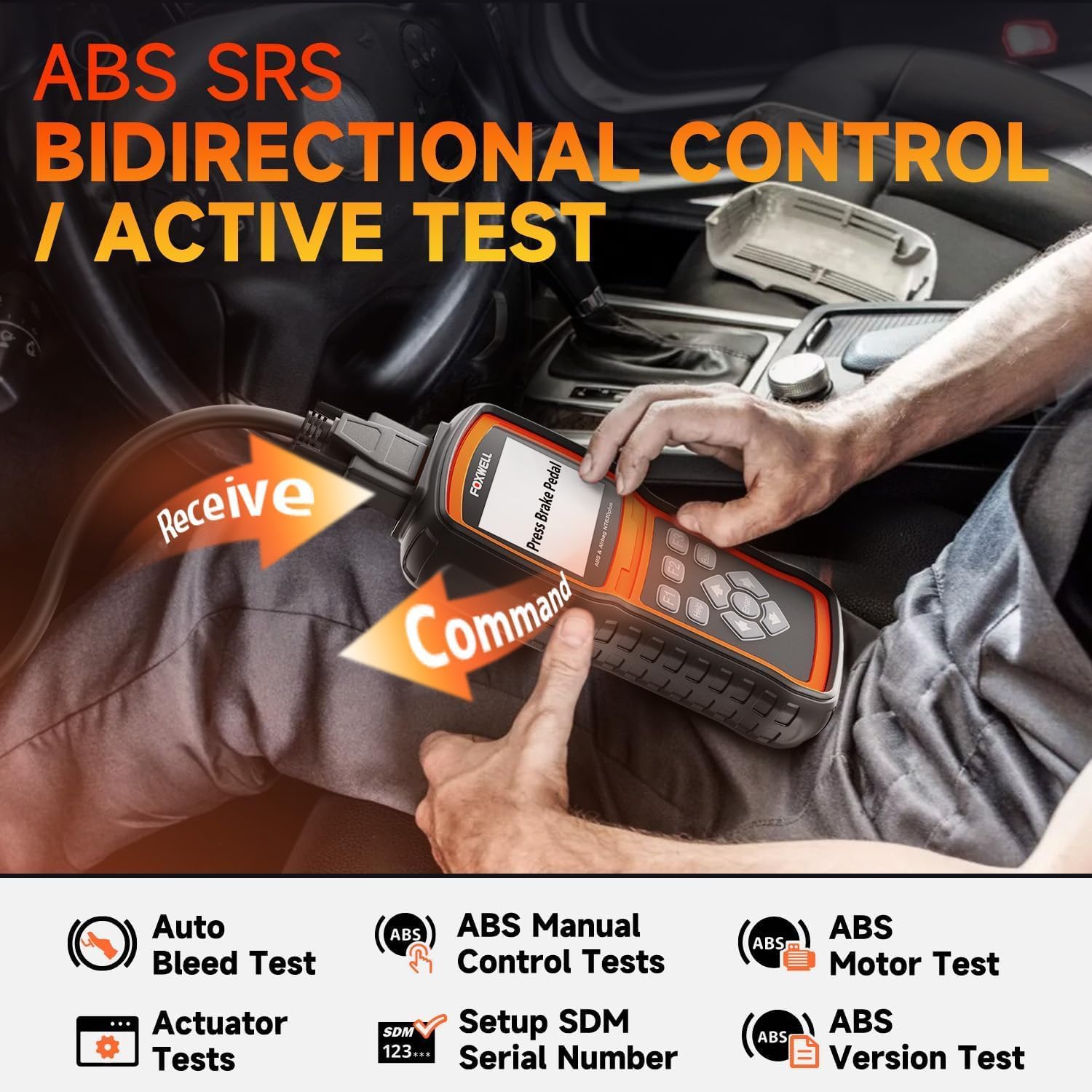
Figure 6.2: Bidirectional Control / Active Test. This image shows a user operating the NT630 Plus scanner, connected to a vehicle, performing a bidirectional control test. Arrows illustrate the command being sent from the scanner to the vehicle and data being received back, demonstrating active testing capabilities for ABS and SRS systems.
7. Maintenance
Proper maintenance ensures the longevity and optimal performance of your NT630 Plus.
- Cleaning: Use a soft, damp cloth to clean the device. Do not use abrasive cleaners or solvents.
- Storage: Store the device in its protective carrying case in a dry, cool environment when not in use.
- Software Updates: Regularly update the device software by connecting it to a computer via the USB cable. Visit the FOXWELL official website for the latest update tools and instructions. Updates often include new vehicle coverage and bug fixes.
8. Troubleshooting
If you encounter issues with your NT630 Plus, refer to the following common problems and solutions:
- Device does not power on:
- Ensure the diagnostic cable is securely connected to the vehicle's DLC.
- Check the vehicle's battery voltage; the device draws power from the vehicle.
- "Unable to connect" message:
- Verify the ignition is ON (engine off or running, as required by the test).
- Check for loose connections at the DLC and the device.
- Ensure the vehicle supports the specific diagnostic protocol.
- Try connecting to a different vehicle to rule out a vehicle-specific issue.
- Screen freezes or device is unresponsive:
- Disconnect the device from the vehicle and reconnect it.
- Perform a software update to ensure the latest firmware is installed.
9. Specifications
| Feature | Description |
|---|---|
| Brand Name | FOXWELL |
| Model | NT630 Plus |
| Power Source | Vehicle's OBD-II port (Adapter) |
| Display | Color LCD |
| Connectivity | OBD-II 16-pin, USB |
| Functions | OBD2, ABS, SRS, ABS Auto Bleed, SAS Adjustment, Oil Reset, EPB Release, Bidirectional Control |
10. Warranty and Support
The FOXWELL NT630 Plus comes with a standard manufacturer's warranty. For specific warranty details, please refer to the warranty card included in your package or visit the official FOXWELL website. For technical support, software updates, or any inquiries, please contact FOXWELL customer service through their official channels.
Website: www.foxwelltech.com
Related documentsNT630 Plus


Ask a question about this manual
Ask about setup, troubleshooting, compatibility, parts, safety, or missing instructions. Manuals+ will review the question and use this page’s manual context to help answer it.