
Logitech C930s Pro HD Webcam User Manual
Model: 960-001403
Brand: Logitech
1. Setup Guide
1.1 What's in the Box
- Webcam with attached 5 ft (1.5 m) USB-A cable
- Attachable privacy shutter
- User documentation

Image: The Logitech C930s Pro HD Webcam, its attached USB-A cable, the detachable privacy shutter, and user documentation are neatly arranged, showing all included components.
1.2 Connecting Your Webcam
The Logitech C930s Pro HD Webcam is designed for easy plug-and-play setup. Follow these steps to connect your webcam:
- Unfold the universal mounting clip on the webcam.
- Place the webcam on your monitor, laptop, or a tripod. Ensure the clip is securely resting on the top edge of your display, with the front lip flush with the screen.
- Plug the USB-A cable from the webcam into an available USB port on your computer (PC or Mac).
- The webcam should be automatically recognized by your operating system (Windows, macOS, ChromeOS) and ready for use with most video conferencing applications.

Image: A clear front view of the Logitech C930s Pro HD Webcam, highlighting its lens and sleek design, ready for mounting.
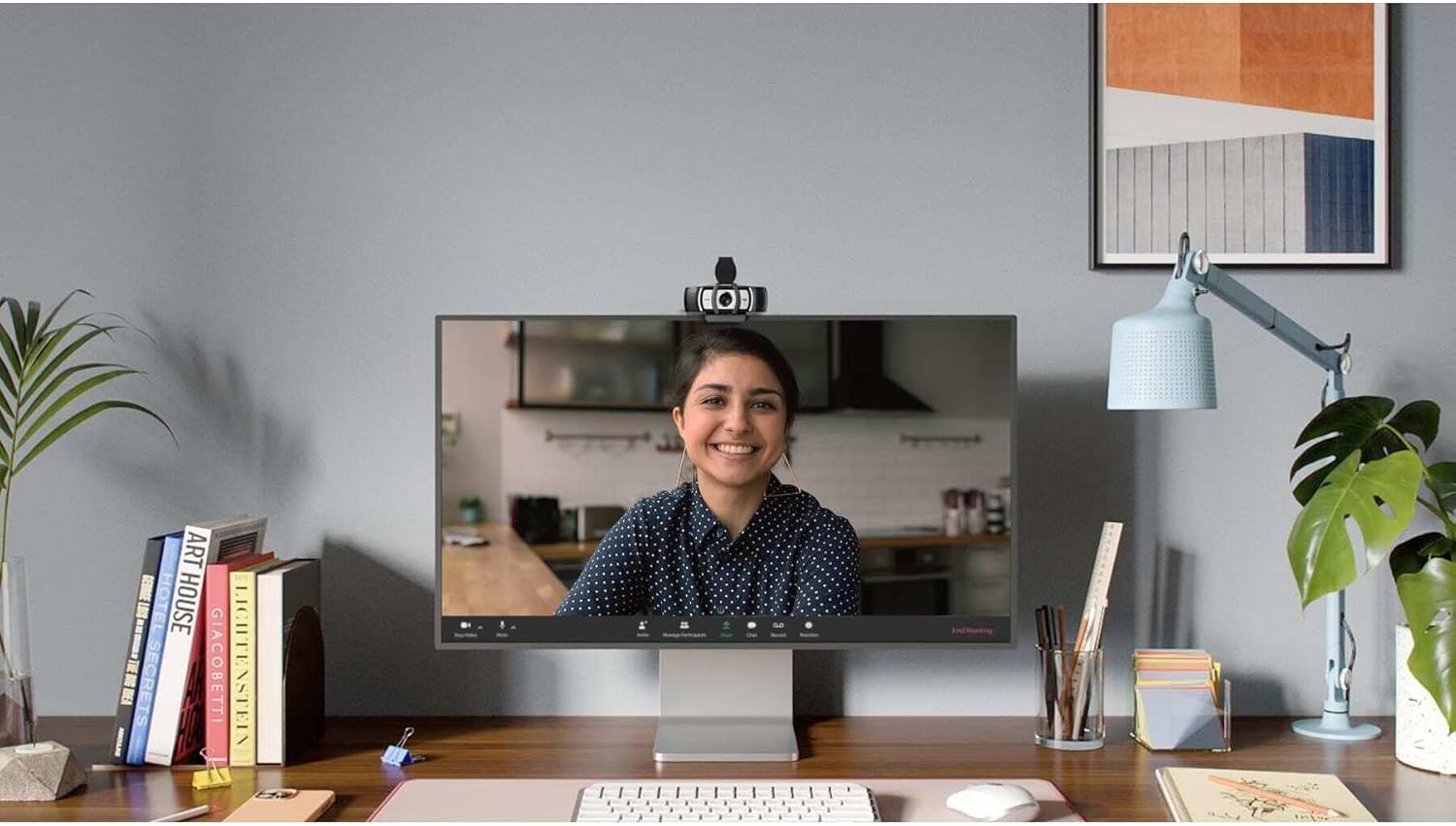
Image: The Logitech C930s Pro HD Webcam is shown mounted securely on top of a computer monitor, demonstrating its typical placement for video calls.
1.3 Installing Software (Optional)
For advanced features and customization, download and install the Logi Tune or G HUB software from the official Logitech website. This software allows you to:
- Adjust camera settings such as brightness, contrast, and white balance.
- Utilize 4x HD zoom, pan, and tilt capabilities.
- Receive automated firmware updates.
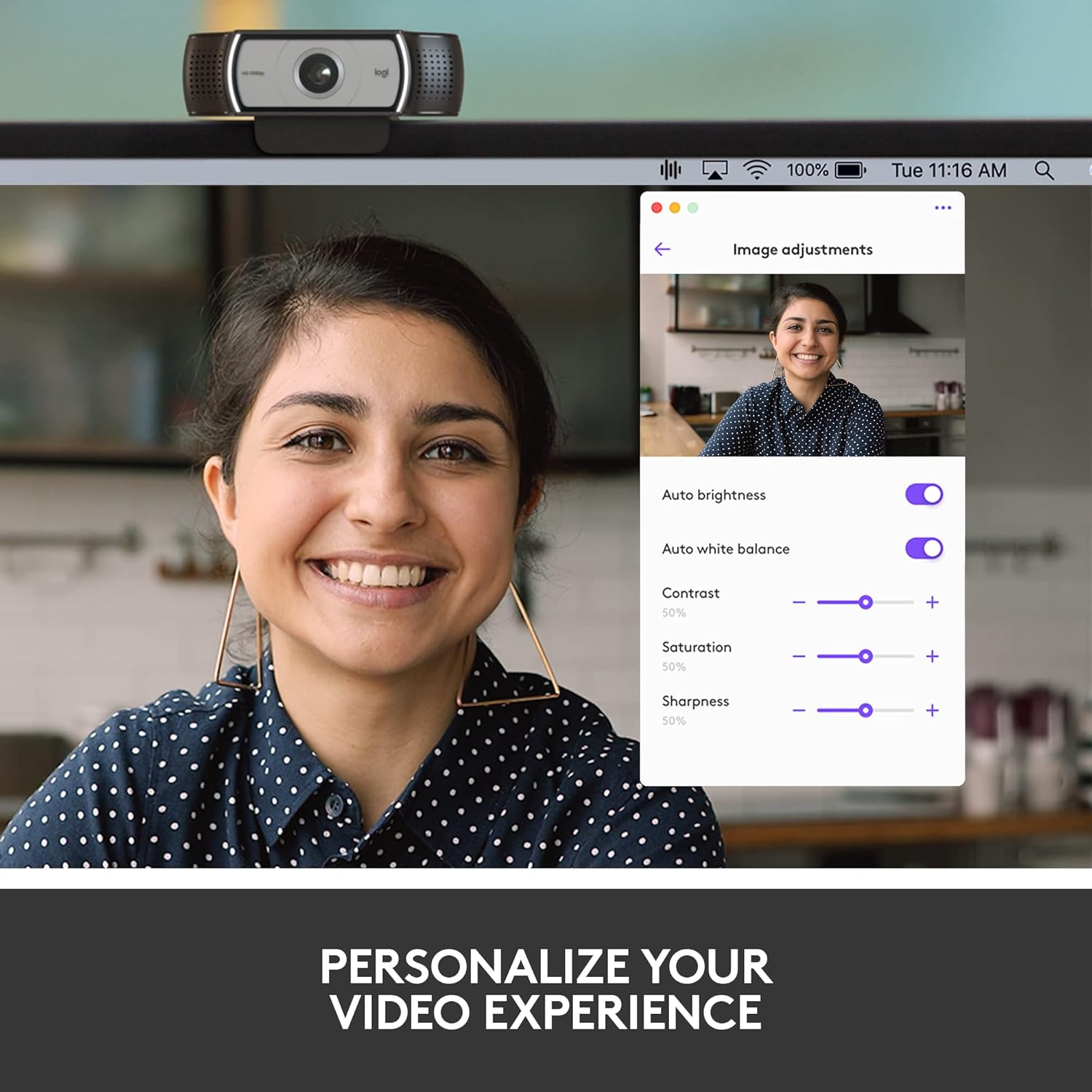
Image: A screenshot of the Logi Tune software interface, showing various image adjustment options like auto brightness, white balance, contrast, saturation, and sharpness, allowing users to personalize their video experience.
2. Operating Your Webcam
2.1 Video Quality Features
The C930s Pro HD Webcam is equipped with features to ensure high-quality video output:
- Full HD 1080p Video: Delivers crystal-clear video calls at 1080p resolution.
- RightLight 2 Technology: Automatically adjusts lighting to compensate for low light or backlighting, ensuring you look your best.
- Wide 90° Field of View: Allows you to include more of your surroundings or multiple participants in the frame.
- Up to 60 Frames Per Second (fps): Provides smooth and vivid recordings, ideal for dynamic presentations or streaming.

Image: A person smiling during a video call, with text overlay stating "1080P LETS YOU LOOK YOUR BEST ON VIDEO CALLS", illustrating the high-definition video capability.
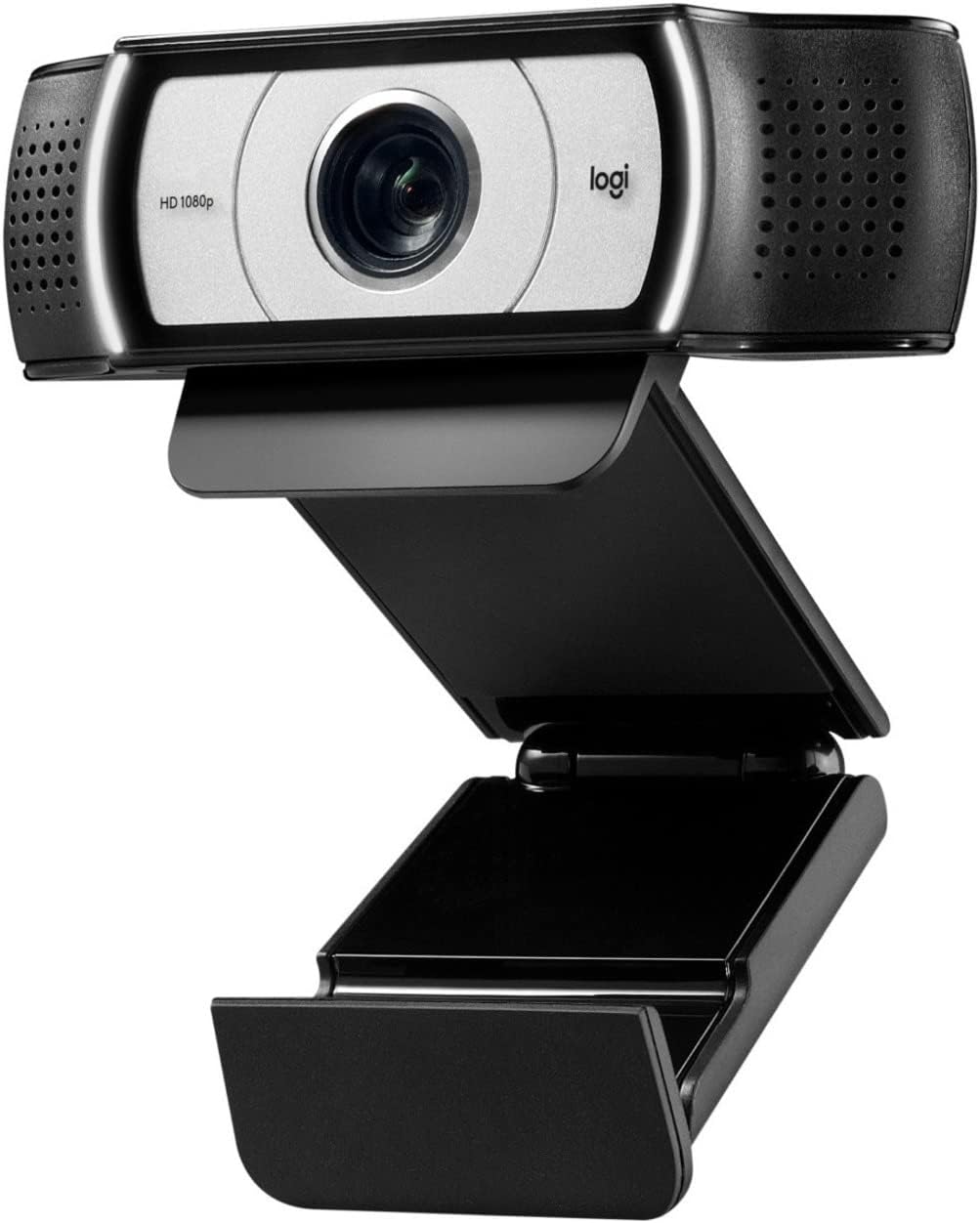
Image: A side-by-side comparison showing a person's face, with one side appearing darker and the other brighter, accompanied by text "HD RESOLUTION WITH AUTO LIGHT CORRECTION", demonstrating the webcam's ability to improve image quality in various lighting conditions.

Image: A person's face with white bracket lines around it, indicating the ability to "FRAME YOURSELF PERFECTLY" using the webcam's field of view and zoom features.

Image: A computer screen displaying a business graph, with text overlay "UP TO 60 FPS HIGH FRAME RATE", indicating the webcam's capability for smooth video capture.
2.2 Audio Features
The C930s Pro HD Webcam ensures clear audio capture:
- Dual Omnidirectional Mics: Capture your voice clearly from up to one meter away, making conversations natural and easy to hear.

Image: The Logitech C930s Pro HD Webcam with stylized sound waves emanating from its sides, accompanied by the text "COMMUNICATE WITH EXCEPTIONAL CLARITY", highlighting its dual microphone capability.
2.3 Using the Privacy Shutter
The attachable privacy shutter provides physical security for your webcam:
- To cover the lens, simply flip the shutter down.
- To expose the lens for use, flip the shutter up.

Image: A detailed diagram of the Logitech C930s Pro HD Webcam, pointing out key features such as the attachable privacy shade, ultra-wide 90° dFOV, dual mics, auto light correction, and versatile mounting options.
3. Maintenance
To ensure the longevity and optimal performance of your Logitech C930s Pro HD Webcam, follow these maintenance guidelines:
- Cleaning the Lens: Gently wipe the lens with a soft, lint-free cloth. Avoid using abrasive cleaners or solvents that could damage the lens coating.
- Cleaning the Body: Use a soft, damp cloth to clean the exterior of the webcam. Do not submerge the webcam in water or use excessive moisture.
- Storage: When not in use, especially during transport, use the privacy shutter to protect the lens from dust and scratches. Store the webcam in a cool, dry place.
- Cable Care: Avoid sharp bends or kinks in the USB cable to prevent internal damage.
4. Troubleshooting
If you encounter issues with your Logitech C930s Pro HD Webcam, try the following solutions:
| Problem | Possible Solution |
|---|---|
| No video or image |
|
| Poor image quality (blurry, dark, grainy) |
|
| No audio or poor audio quality |
|
| Webcam not recognized by computer |
|
For more detailed troubleshooting, please refer to the official User Manual (PDF).
5. Specifications
| Feature | Detail |
|---|---|
| Brand | Logitech |
| Series | Logitech C930s Pro HD Webcam |
| Item Model Number | 960-001403 |
| Max Screen Resolution | FHD (1080p) |
| Video Capture Resolution | 1080p |
| Hardware Platform | Mac, PC, Laptop |
| Item Weight | 5.7 ounces |
| Product Dimensions (LxWxH) | 2.8 x 3.7 x 1.69 inches |
| Color | Black / Silver |
| Rear Webcam Resolution | 2 MP |
| Photo Sensor Technology | Other |
| Maximum Focal Length | 1 |
| Maximum Aperture | 2 f |
| Flash Memory Type | SD |
| Video Capture Format | MP4 |
| Supported Audio Format | MP3, AAC |
| Screen Size | 2.4 Inches |
| Connectivity Technology | USB |
6. Warranty and Support
6.1 Product Warranty
The Logitech C930s Pro HD Webcam comes with a 1-year limited hardware warranty from the date of purchase. This warranty covers defects in materials and workmanship under normal use.
For full terms and conditions of the warranty, please refer to the documentation included with your product or visit the official Logitech support website.
6.2 Customer Support
For technical assistance, product registration, or to access the latest drivers and software, please visit the official Logitech support website. You can also find frequently asked questions and community forums there.
A comprehensive User Manual in PDF format is available for download: Logitech C930s Pro HD Webcam User Manual (PDF).
