
Targus AKB867US
Targus Multi-Device Bluetooth Keyboard User Manual
Model: AKB867US
1. Introduction
This manual provides detailed instructions for the setup, operation, and maintenance of your Targus Multi-Device Bluetooth Keyboard with Tablet/Phone Cradle (Model AKB867US). Please read this manual thoroughly before using the product to ensure proper functionality and to maximize your user experience. This keyboard is designed for seamless connectivity across multiple devices and operating systems, offering a versatile solution for your computing needs.
2. Safety Information
- Do not expose the keyboard to extreme temperatures, humidity, or liquids.
- Avoid dropping or subjecting the keyboard to strong impacts.
- Use only specified battery types (AAA) and ensure correct polarity during installation.
- Keep the keyboard away from strong magnetic fields.
- Do not attempt to disassemble or repair the keyboard yourself. Refer all servicing to qualified personnel.
- Dispose of batteries according to local regulations.
3. Package Contents
Verify that all items are present in your package:
- Targus Multi-Device Bluetooth Keyboard (AKB867US)
- 2 x AAA Batteries (may be pre-installed or included separately)
- User Manual (this document)
4. Product Overview
The Targus Multi-Device Bluetooth Keyboard is designed for enhanced productivity and convenience, featuring a built-in cradle for your tablet or smartphone and the ability to connect to up to three devices simultaneously.
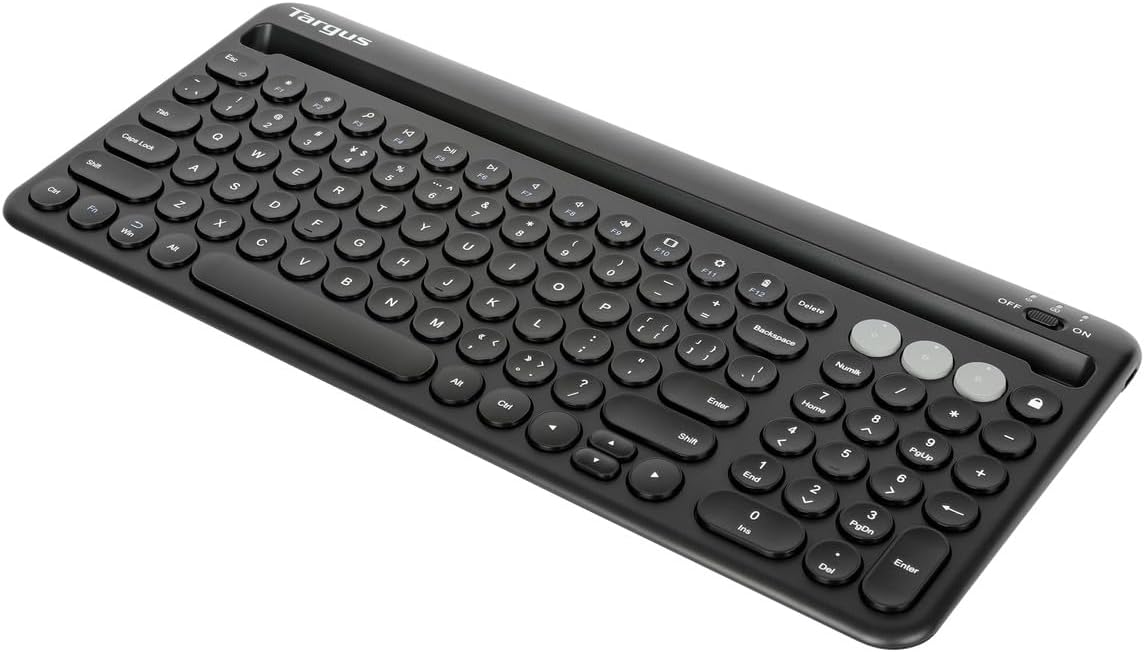
Figure 4.1: Top-down view of the Targus Multi-Device Bluetooth Keyboard.
4.1 Key Features
- Multi-Device Connectivity: Connect and switch between up to three Bluetooth-enabled devices (e.g., laptop, tablet, smartphone).
- Integrated Cradle: A dedicated slot conveniently holds your tablet or phone, providing an optimal viewing angle for typing.
- Antimicrobial Protection: Features DefenseGuard™ Antimicrobial Protection, creating a cleaner surface and lasting the life of the product.
- Broad Compatibility: Works seamlessly with Chrome OS, Windows, macOS, iOS, and Android operating systems.
- Reliable Bluetooth 5.1: Ensures stable and energy-efficient wireless connection.

Figure 4.2: Keyboard with a smartphone positioned in the integrated cradle.

Figure 4.3: Keyboard with a tablet positioned in the integrated cradle.

Figure 4.4: DefenseGuard™ Antimicrobial Protection details.

Figure 4.5: Key features and components of the keyboard.

Figure 4.6: Operating system compatibility.
5. Setup
5.1 Battery Installation
The Targus Multi-Device Bluetooth Keyboard requires two (2) AAA batteries for operation. These may be included in your package.
- Locate the battery compartment cover on the underside of the keyboard.
- Slide the cover open in the direction indicated by the arrow.
- Insert two AAA batteries, ensuring the positive (+) and negative (-) terminals align correctly with the markings inside the compartment.
- Close the battery compartment cover securely.
The keyboard features a convenient battery life indicator. When the battery is low, the indicator light will flash, signaling that the batteries need to be replaced soon.
5.2 Bluetooth Pairing
The keyboard can be paired with up to three devices. Follow these steps to pair your keyboard:
- Turn On the Keyboard: Slide the ON/OFF switch located on the top right of the keyboard to the "ON" position. The power indicator light will illuminate briefly.
- Select a Channel: Press one of the Bluetooth channel keys (BT1, BT2, or BT3) located above the numeric keypad. The corresponding indicator light will flash slowly.
- Enter Pairing Mode: Press and hold the selected Bluetooth channel key (BT1, BT2, or BT3) for 3-5 seconds until its indicator light begins to flash rapidly. This indicates the keyboard is in pairing mode.
- Enable Bluetooth on Your Device: On your computer, tablet, or smartphone, go to the Bluetooth settings.
- Search for Devices: Your device will scan for available Bluetooth devices. Look for "Targus Keyboard" or a similar name in the list.
- Connect: Select the Targus Keyboard from the list. Your device may prompt you to enter a pairing code displayed on your screen. Type this code on the Targus keyboard and press Enter.
- Pairing Confirmation: Once successfully paired, the indicator light on the keyboard will stop flashing and remain solid for a few seconds before turning off. The keyboard is now connected to your device.
- Pairing Additional Devices: To pair with a second or third device, repeat steps 2-7, selecting a different Bluetooth channel key (BT2 or BT3) each time.
6. Operating Instructions
6.1 Switching Between Devices
After pairing your keyboard with multiple devices, you can easily switch between them by simply pressing the corresponding Bluetooth channel key (BT1, BT2, or BT3). The keyboard will automatically connect to the last device paired on that channel.
6.2 Function Keys
The keyboard features a row of function keys (F1-F12) that also serve as multimedia and system control keys. To use the secondary function (e.g., volume control, media playback), press the Fn key simultaneously with the desired function key.
| Key | Primary Function | Secondary Function (with Fn) |
|---|---|---|
| F1 | Standard F1 | Home |
| F2 | Standard F2 | Search |
| F3 | Standard F3 | Brightness Down |
| F4 | Standard F4 | Brightness Up |
| F5 | Standard F5 | Previous Track |
| F6 | Standard F6 | Play/Pause |
| F7 | Standard F7 | Next Track |
| F8 | Standard F8 | Mute Volume |
| F9 | Standard F9 | Volume Down |
| F10 | Standard F10 | Volume Up |
| F11 | Standard F11 | Lock Screen |
| F12 | Standard F12 | Screenshot |
Note: Function key behavior may vary slightly depending on the operating system and specific device.
6.3 Operating System Compatibility
The Targus Multi-Device Bluetooth Keyboard is designed to be compatible with a wide range of operating systems, including:
- Windows®
- macOS®
- iOS® (for iPhone and iPad)
- Android™
- Chrome OS™
The keyboard automatically detects the connected operating system and adjusts its layout and special keys (e.g., Command/Windows, Option/Alt) accordingly for optimal performance.
7. Maintenance
7.1 Cleaning the Keyboard
To maintain the cleanliness and functionality of your keyboard, especially benefiting from its DefenseGuard™ Antimicrobial Protection, follow these guidelines:
- Turn off the keyboard before cleaning.
- Use a soft, lint-free cloth slightly dampened with water or a mild, non-abrasive cleaning solution.
- Avoid spraying cleaners directly onto the keyboard.
- Do not use harsh chemicals, solvents, or abrasive cleaners, as these may damage the surface or the antimicrobial coating.
- For debris between keys, use compressed air or a soft brush.
7.2 Battery Replacement
When the battery indicator light flashes, it's time to replace the AAA batteries. Refer to Section 5.1 for detailed instructions on battery installation.
8. Troubleshooting
If you encounter issues with your Targus Multi-Device Bluetooth Keyboard, please refer to the following common problems and solutions:
8.1 Keyboard Does Not Connect or Respond
- Check Power: Ensure the keyboard is turned ON and the batteries are not depleted. Replace batteries if necessary.
- Bluetooth On: Verify that Bluetooth is enabled on your device (computer, tablet, smartphone).
- Re-pair Device: If the connection is lost, try re-pairing the keyboard with your device. Go to your device's Bluetooth settings, forget/remove the keyboard, and then follow the pairing steps in Section 5.2.
- Distance: Ensure the keyboard is within the effective Bluetooth range (typically up to 10 meters or 33 feet) of your device.
- Interference: Move away from other wireless devices that might cause interference (e.g., Wi-Fi routers, cordless phones).
- Device Compatibility: Confirm your device's operating system is compatible with the keyboard (Windows, macOS, iOS, Android, Chrome OS).
8.2 Keys Are Not Responding Correctly
- Battery Level: Low battery can affect key responsiveness. Replace batteries.
- Cleanliness: Check for any debris or foreign objects lodged under the keys. Refer to Section 7.1 for cleaning instructions.
- Reboot: Try turning the keyboard off and then on again. Also, restart your connected device.
8.3 Cannot Switch Between Devices
- Ensure each device was paired to a unique Bluetooth channel (BT1, BT2, BT3).
- Confirm that the target device's Bluetooth is enabled and it is within range.
- If a device is not connecting, try re-pairing it to its assigned channel.
9. Specifications
| Feature | Detail |
|---|---|
| Model Number | AKB867US |
| Product Dimensions | 16 x 8 x 1.45 inches |
| Item Weight | 1.61 pounds |
| Manufacturer | Targus |
| Batteries Required | 2 AAA batteries |
| Connectivity Technology | Bluetooth, Wireless |
| Bluetooth Version | Bluetooth 5.1 (implied by "Reliable and battery-saving Bluetooth® 5.1 wireless technology" in image 81ypqauZpvL) |
| Compatible Devices | Mac, PC, Smartphone, Tablet |
| Operating System Compatibility | Chrome OS, Windows, macOS, iOS, Android |
| Special Features | Antimicrobial, Battery Indicator, Multi-host Support, On/Off Switch, Wireless, Integrated Tablet/Phone Cradle |
| Color | Black |
| Number of Keys | 78 |
10. Warranty and Support
Targus products are designed for durability and performance. For information regarding the warranty period and terms for your Targus Multi-Device Bluetooth Keyboard, please refer to the warranty card included with your product or visit the official Targus website.
For technical support, frequently asked questions, or to download the latest drivers (if applicable), please visit the Targus support page:
Visit the Targus Store on Amazon or search for "Targus Support" online.
Related documentsAKB867US


Ask a question about this manual
Ask about setup, troubleshooting, compatibility, parts, safety, or missing instructions. Manuals+ will review the question and use this page’s manual context to help answer it.