
Introduction
This manual provides detailed instructions for the setup, operation, and maintenance of your Targus Midsize Multi-Device Bluetooth Keyboard (AKB863US). This keyboard is designed for versatility, allowing connection to multiple devices across various operating systems. Please read this manual thoroughly to ensure proper use and to maximize your product experience.
What's in the Box
- Targus Midsize Multi-Device Bluetooth Keyboard
- 2 x AAA Batteries
Product Overview
The Targus AKB863US keyboard features a slimline design with a full numeric keypad, multi-device Bluetooth connectivity, and integrated DefenseGuard antimicrobial protection. Key components include the power button, battery life indicator, and dedicated Bluetooth channel keys.

Image: Top-down view of the Targus Midsize Multi-Device Bluetooth Keyboard, showcasing its full layout and slim profile.

Image: Close-up of the keyboard's right side, highlighting the On/Off power button, battery life indicator, numeric keypad, and slim design with descriptive labels.
Setup
1. Battery Installation
- Locate the battery compartment on the underside of the keyboard.
- Open the battery compartment cover.
- Insert the two included AAA batteries, ensuring correct polarity (+/-).
- Close the battery compartment cover securely.
2. Power On/Off
- To turn on the keyboard, slide the power switch (located on the top right edge) to the 'ON' position. The battery life indicator will briefly illuminate.
- To turn off the keyboard, slide the power switch to the 'OFF' position.
3. Bluetooth Pairing
The keyboard can connect to up to three devices simultaneously using Bluetooth 5.1 technology.
- Ensure the keyboard is powered on.
- Press and hold one of the Bluetooth channel keys (BT1, BT2, or BT3, located above the numeric keypad) for 3-5 seconds until its corresponding indicator light begins to flash. This indicates the keyboard is in pairing mode.
- On your device (phone, tablet, laptop), navigate to its Bluetooth settings.
- Search for available devices and select "Targus AKB863US" (or similar) from the list.
- Follow any on-screen prompts to complete the pairing process. The indicator light on the keyboard will stop flashing and remain solid for a few seconds, then turn off, indicating successful pairing.
- Repeat these steps for up to two additional devices using the other Bluetooth channel keys.

Image: Diagram illustrating the keyboard's ability to connect to three different devices (laptop, desktop, tablet) via Bluetooth, with arrows pointing to the BT1, BT2, BT3 keys.
Operating Instructions
1. Switching Between Devices
Once paired with multiple devices, you can switch between them by simply pressing the corresponding Bluetooth channel key (BT1, BT2, or BT3). The keyboard will automatically connect to the selected device.
2. Operating System Compatibility
The Targus AKB863US keyboard is compatible with a wide range of operating systems:
- Chrome OS
- Windows (Windows 7, 10, and newer)
- macOS
- iOS
- Android
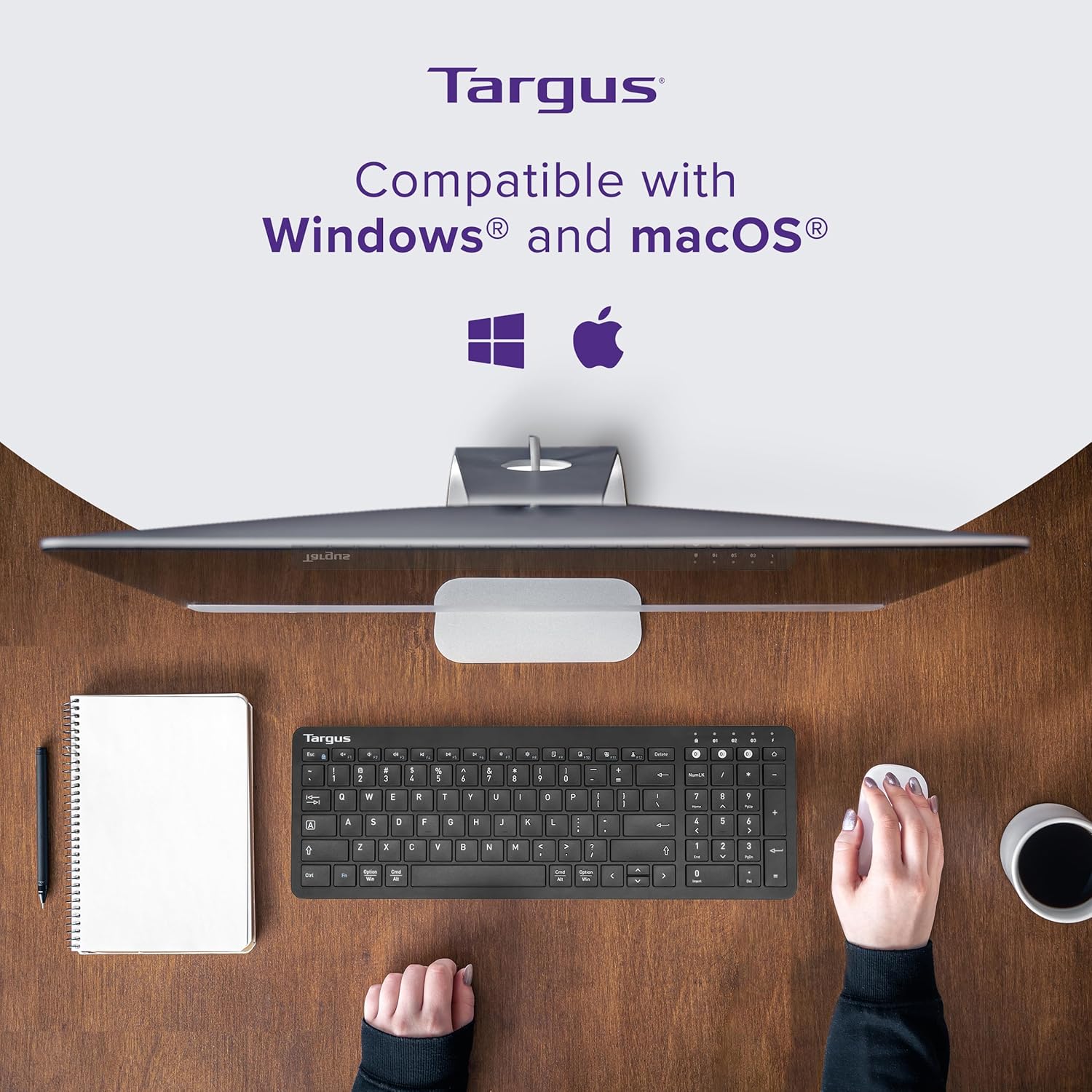
Image: Overhead view of the keyboard positioned in front of a computer monitor, with Windows and macOS logos indicating compatibility.
3. Special Features
- DefenseGuard™ Antimicrobial Protection: The keyboard features a protective coating that inhibits the growth of microorganisms on the surface, contributing to a cleaner touchpoint. This protection is designed to last for the life of the product.
- 128-bit AES-CCM Encryption: Provides robust security for your wireless connection, protecting your data during transmission.
- Battery Life Indicator: A dedicated indicator light provides a visual cue for the keyboard's battery status.
Maintenance
To maintain your Targus keyboard, regularly wipe the surface with a soft, dry cloth. For deeper cleaning, a slightly damp cloth can be used. Avoid harsh chemicals or abrasive cleaners, as these may damage the surface or the DefenseGuard coating. The DefenseGuard antimicrobial protection is integrated into the material and does not require special reapplication.

Image: The keyboard with two icons and text explaining DefenseGuard: 'Creates a cleaner surface' and 'Prevents the growth of microorganisms'.
Troubleshooting
- Keyboard not connecting:
- Ensure the keyboard is powered on and has fresh batteries.
- Verify Bluetooth is enabled on your device.
- Make sure the keyboard is in pairing mode (flashing indicator light) when attempting to connect for the first time or re-pair.
- Try unpairing and re-pairing the keyboard from your device's Bluetooth settings.
- Ensure the keyboard is within the effective range of your device's Bluetooth signal.
- Keys not responding:
- Check battery level. Replace batteries if low.
- Ensure the keyboard is connected to the correct device (check the BT channel indicator).
- Restart the keyboard and your connected device.
- Num Lock key not toggling on iOS/macOS:
- On some iOS and macOS versions, the Num Lock key may not function as a toggle for the numeric keypad's cursor functions. The numeric keypad typically defaults to number input. Standard cursor keys are available on the main keyboard layout.
Specifications
| Feature | Detail |
|---|---|
| Brand | Targus |
| Model Number | AKB863US |
| Connectivity Technology | Bluetooth 5.1 |
| Compatible Devices | Chrome OS, Windows, macOS, iOS, Android |
| Security | 128-bit AES-CCM Encryption |
| Special Feature | DefenseGuard™ Antimicrobial Protection, Lightweight |
| Power Source | Battery Powered (2 x AAA included) |
| Item Weight | 1.15 pounds |
| Product Dimensions (LxWxH) | 15.8 x 5.4 x 1.1 inches |
| Material | Acrylonitrile Butadiene Styrene |
Warranty and Support
For warranty information and technical support, please refer to the documentation included with your product or visit the official Targus website. Keep your proof of purchase for warranty claims.