
Targus AKB862US
Targus Compact Multi-Device Bluetooth Keyboard User Manual
Model: AKB862US | Brand: Targus
1. Introduction
This manual provides detailed instructions for the setup, operation, and maintenance of your Targus Compact Multi-Device Bluetooth Keyboard. Designed for portability and versatility, this keyboard allows you to connect and switch between multiple devices seamlessly. Please read this manual thoroughly to ensure optimal performance and longevity of your device.
2. Product Overview
2.1. Key Features
- Multi-Device Connectivity: Connects to up to 3 devices simultaneously (phone, laptop, tablet) via Bluetooth 5.1 wireless technology.
- Easy Switching: Seamlessly switch between connected devices with the push of a button.
- DefenseGuard Protection: Features a protective coating that creates a cleaner touchpoint surface and works continuously to keep your keyboard safe.
- Enhanced Security: Incorporates 128-bit AES-CCM encryption for robust data security.
- Responsive Typing: Provides fast and precise typing response with every keystroke.
- Portable Design: Slim and compact, ideal for on-the-go productivity.
- Battery Indicator: Convenient light to show battery life.
2.2. Package Contents
- Targus Compact Multi-Device Bluetooth Keyboard
- 2 x AAA Batteries
2.3. Product Diagram
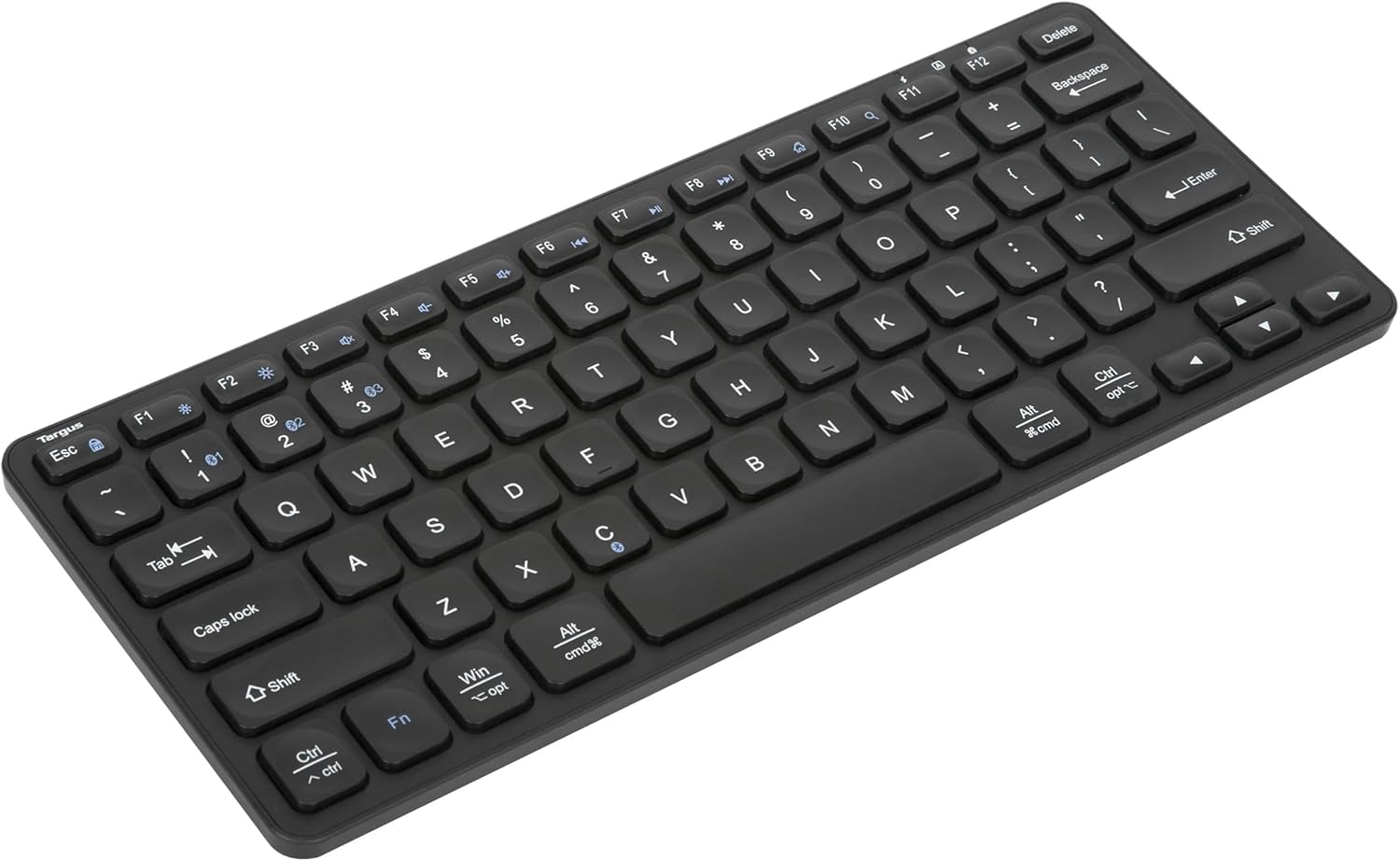
Figure 1: Top-down view of the Targus Compact Multi-Device Bluetooth Keyboard, showing the full key layout.

Figure 2: Back view of the keyboard, showing the battery compartment and non-slip feet.

Figure 3: Visual representation of key specifications and features, including connectivity, compatibility, and security.
3. Setup
3.1. Battery Installation
- Locate the battery compartment on the back of the keyboard.
- Open the battery compartment cover.
- Insert the two included AAA batteries, ensuring correct polarity (+/-).
- Close the battery compartment cover securely.
3.2. Bluetooth Pairing
The keyboard can be paired with up to three devices. Follow these steps for initial pairing:
- Ensure batteries are installed and the keyboard is powered on using the switch on the edge. A green light will flash briefly.
- On your device (phone, laptop, tablet), enable Bluetooth and begin searching for new devices.
- On the keyboard, press and hold down one of the Bluetooth channel buttons (1, 2, or 3) for approximately 3-5 seconds. Do not release the button.
- While holding the button, a solid blue light will illuminate on the keyboard, indicating it is in pairing mode.
- On your device, select "Targus Bluetooth Keyboard" from the list of available devices.
- Once connected, you may release the Bluetooth channel button. The blue light will turn off, and the keyboard will be paired.
- Test the connection by typing in a text field on your device.
Note: If the pairing is unsuccessful, turn off the keyboard, disable Bluetooth on your device, and repeat the steps.
4. Operating Instructions
4.1. Switching Between Devices
To switch between your paired devices, simply press the corresponding Bluetooth channel button (1, 2, or 3) that your desired device is paired to. The keyboard will automatically connect to the selected device.
4.2. Power Saving Mode
The keyboard is designed with a power-saving feature to conserve battery life. When paired, the keyboard will enter sleep mode after being idle for 30 minutes. To reactivate the keyboard, press any key and wait approximately 3 seconds for it to reconnect. If unpaired, the keyboard will enter sleep mode after 2 minutes.
5. Maintenance
To ensure the longevity and proper functioning of your keyboard, follow these maintenance guidelines:
- Cleaning: Use a soft, dry, lint-free cloth to clean the keyboard surface. For stubborn dirt, slightly dampen the cloth with water or a mild, non-abrasive cleaner. Avoid excessive moisture.
- Battery Replacement: Replace batteries when the battery indicator light signals low power or when the keyboard becomes unresponsive. Always use new AAA batteries.
- Storage: When not in use for extended periods, turn off the keyboard to conserve battery life. Store in a cool, dry place away from direct sunlight and extreme temperatures.
- Avoid Spills: While the keyboard has DefenseGuard properties, avoid spilling liquids directly onto the keys.
6. Troubleshooting
If you encounter issues with your Targus Compact Multi-Device Bluetooth Keyboard, refer to the following common problems and solutions:
| Problem | Possible Cause / Solution |
|---|---|
| Keyboard does not power on. | Check battery installation and ensure batteries are new or fully charged. Verify the power switch is in the 'ON' position. |
| Keyboard does not pair with device. | Ensure Bluetooth is enabled on your device. Make sure the keyboard is in pairing mode (solid blue light). Try turning off and on both the keyboard and your device's Bluetooth. Ensure no other devices are actively connected to the keyboard's selected channel. |
| Keyboard disconnects frequently. | Ensure the keyboard is within the effective range of your device. Check for interference from other wireless devices. Low battery can also cause unstable connections. |
| Keys produce double characters or miss strokes. | This can sometimes be caused by interference or a weak connection. Ensure the keyboard is close to the device. If the issue persists, try re-pairing the keyboard. Ensure the keyboard surface is clean and free of debris. |
| Keyboard enters sleep mode too quickly. | The power-saving mode is an inherent feature. To reactivate, press any key. There is no option to disable or adjust the sleep timer. |
7. Specifications
| Feature | Detail |
|---|---|
| Model Number | AKB862US |
| Product Dimensions | 11.25 x 0.84 x 4.47 inches (28.58 x 2.13 x 11.35 cm) |
| Item Weight | 11.8 ounces (334.5 grams) |
| Connectivity Technology | Bluetooth 5.1 |
| Compatible Devices | Chrome OS, Windows, macOS, iOS, Android (PC, Phone, Tablet) |
| Power Source | 2 x AAA Batteries (included) |
| Color | Black |
| Number of Keys | 78 |
| Special Feature | Portable, Multi-Device, DefenseGuard Protection |
| Manufacturer | Targus |
| Country of Origin | China |
8. Warranty and Support
Targus products are designed for quality and reliability. For information regarding warranty coverage, technical support, or to register your product, please visit the official Targus website or contact their customer service. Keep your purchase receipt as proof of purchase for warranty claims.
For the most up-to-date support information, please visit: www.targus.com
Related documentsAKB862US


Ask a question about this manual
Ask about setup, troubleshooting, compatibility, parts, safety, or missing instructions. Manuals+ will review the question and use this page’s manual context to help answer it.