
Targus AMB582GL
Targus Midsize Comfort Multi-Device Bluetooth Mouse
Model: AMB582GL
Product Overview
The Targus Midsize Comfort Multi-Device Wireless Mouse is designed for enhanced productivity and comfort. It offers versatile connectivity options, allowing you to switch seamlessly between multiple devices. Featuring an adjustable DPI optical sensor and Targus DefenseGuard Protection, this mouse is built for precision and durability.
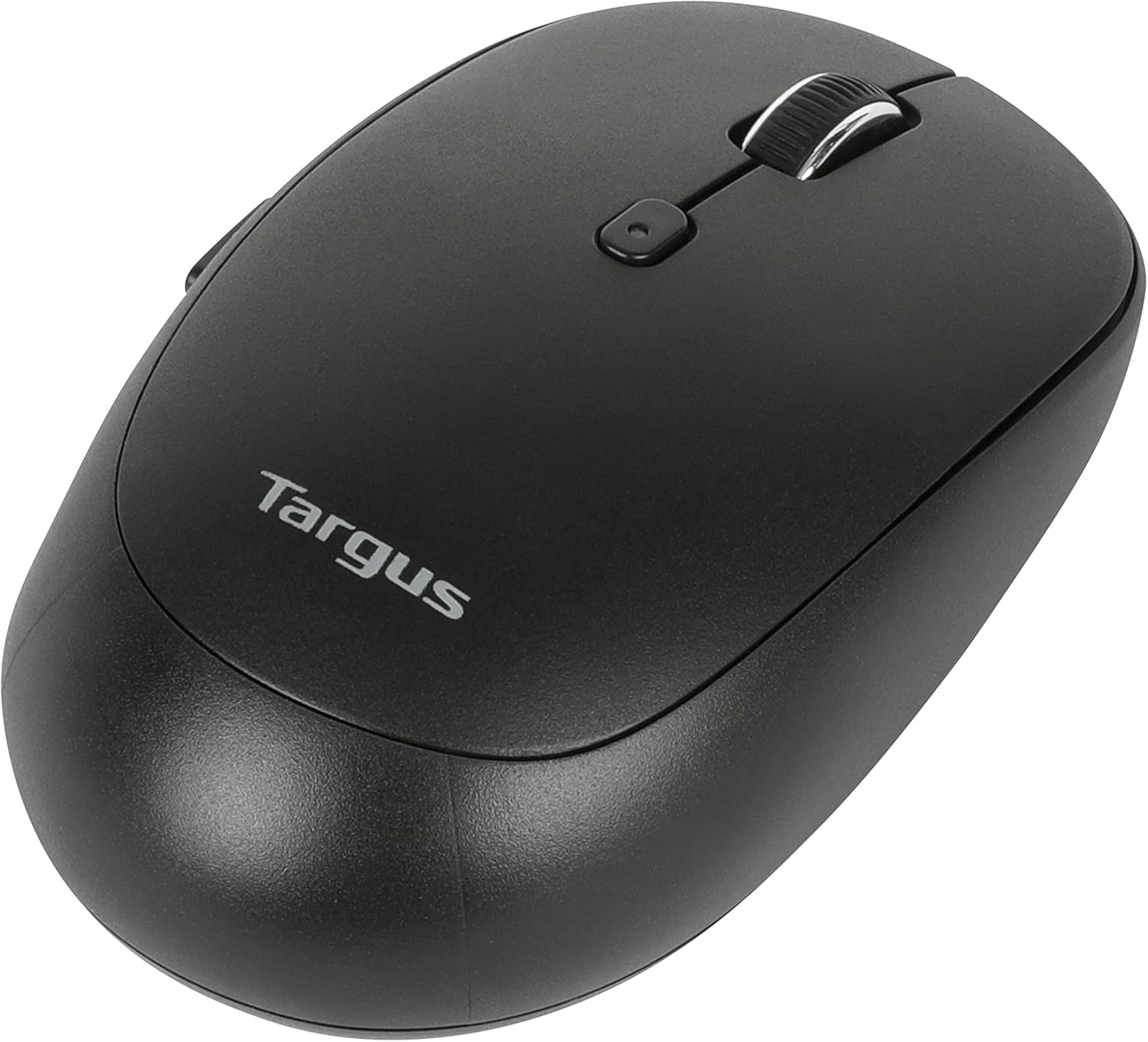
Front view of the Targus Midsize Comfort Multi-Device Bluetooth Mouse.
Setup Guide
Package Contents
- Targus Midsize Comfort Multi-Device Bluetooth Mouse
- 1 x AA battery
Battery Installation
The mouse requires one AA battery for operation. To install the battery:
- Locate the battery compartment cover on the bottom of the mouse.
- Slide the cover open.
- Insert the included AA battery, ensuring the positive (+) and negative (-) terminals align correctly with the indicators inside the compartment.
- Close the battery compartment cover securely.

Bottom view of the mouse, illustrating the battery compartment and connectivity switch.
Connecting Your Mouse
The mouse supports two wireless connectivity options: 2.4 GHz via USB receiver and Bluetooth 5.0.
2.4 GHz Wireless Connection
- Locate the USB receiver, typically stored inside the battery compartment of the mouse.
- Plug the USB receiver into an available USB port on your computer.
- Turn on the mouse using the power switch on the bottom.
- The mouse should automatically connect to your computer.
Bluetooth Connection
- Turn on the mouse using the power switch on the bottom.
- Press and hold the Bluetooth pairing button (usually located on the bottom or side of the mouse) until the LED indicator starts blinking, indicating pairing mode.
- On your device (computer, tablet, or phone), go to Bluetooth settings.
- Search for new devices and select "Targus AMB582GL" (or similar name) from the list.
- Follow any on-screen prompts to complete the pairing process.

Illustration of the wireless connection capabilities, including 2.4 GHz and Bluetooth.
Operating Instructions
Multi-Device Switching
This mouse can connect to up to three devices simultaneously. Use the dedicated device switch button (usually on the bottom or side of the mouse) to cycle between connected devices (e.g., Device 1, Device 2, Device 3).
Adjusting DPI Sensitivity
The mouse features an adjustable DPI optical sensor, allowing you to customize cursor speed and precision. Press the DPI button (usually located near the scroll wheel) to cycle through the available DPI settings: 800, 1200, 1600, or 2400 DPI. Select the setting that best suits your work or preference.

Key features of the mouse, including multi-device connectivity, battery indicator, and adjustable DPI.
Care and Maintenance
DefenseGuard Protection
The Targus Midsize Comfort Multi-Device Wireless Mouse is equipped with Targus DefenseGuard Protection. This protective coating creates a cleaner surface and works continuously to protect the mouse. Unlike topically applied sprays, DefenseGuard does not wear off and lasts for the life of the product. To maintain the effectiveness of this protection, simply wipe the mouse with a soft, dry cloth as needed. Avoid using harsh chemicals or abrasive cleaners.

Details on the DefenseGuard Antimicrobial Protection feature.
Troubleshooting
| Problem | Possible Solution |
|---|---|
| Mouse not responding | Check battery level and replace if necessary. Ensure the mouse is powered on. For 2.4 GHz, ensure the USB receiver is securely plugged in. For Bluetooth, ensure the mouse is paired and within range. |
| Cursor movement is erratic or slow | Clean the optical sensor on the bottom of the mouse. Adjust the DPI sensitivity using the DPI button. Ensure you are using the mouse on a suitable surface. |
| Cannot connect via Bluetooth | Ensure Bluetooth is enabled on your device. Put the mouse into pairing mode by holding the Bluetooth button. Remove previous pairings for the mouse on your device and try pairing again. |
| Multi-device switching not working | Ensure all devices are properly paired/connected to the mouse. Press the device switch button firmly to cycle through channels. |
Technical Specifications
| Feature | Detail |
|---|---|
| Brand | Targus |
| Model Number | AMB582GL |
| Connectivity Technology | 2.4 GHz Wireless, Bluetooth 5.0 |
| Movement Detection Technology | Optical |
| DPI Settings | 800, 1200, 1600, 2400 |
| Compatibility | Chrome OS, Windows, macOS |
| Power Source | 1 x AA Battery |
| Security | 128-bit AES-CCM encryption |
| Dimensions (LxWxH) | 2.5 x 1.5 x 0.1 inches |
| Item Weight | 0.36 ounces |
| Color | Black |
Warranty and Support
Targus products are designed for quality and reliability. For detailed warranty information, please refer to the warranty card included with your product or visit the official Targus website. If you encounter any issues or require technical assistance, please contact Targus customer support through their website or the contact information provided in your product packaging.
For the latest drivers, FAQs, and support resources, please visit: www.targus.com/support
Related documentsAMB582GL


Ask a question about this manual
Ask about setup, troubleshooting, compatibility, parts, safety, or missing instructions. Manuals+ will review the question and use this page’s manual context to help answer it.