
1. Introduction
Thank you for choosing the SHIWOJIA 5MP Outdoor WiFi PTZ Security Camera. This manual provides essential information for the proper installation, operation, and maintenance of your device. Please read it carefully before use and retain it for future reference.
2. Product Overview
Key Features
- 5MP High-Resolution Video: Captures clear and detailed footage.
- Pan-Tilt-Zoom (PTZ) Functionality: Offers 350° horizontal and 90° vertical rotation with 4x digital zoom for comprehensive area coverage.
- Smart Motion Detection & Auto Tracking: Automatically detects human movement, triggers spotlights, and tracks the subject.
- Two-Way Audio: Built-in microphone and speaker allow for real-time communication and deterring intruders.
- Advanced Night Vision: Features 6 white lights and 6 infrared lights for full-color night vision up to 25 meters, as well as IR and smart modes.
- IP66 Weatherproof Rating: Designed for outdoor use, resistant to snow and storms.
- Flexible Storage Options: Supports up to 128GB SD card (not included) and cloud storage services.
- Smart Home Integration: Compatible with Amazon Alexa and controlled via the Tuya Smart/Smart Life app.
Package Contents
The product package typically includes:
- SHIWOJIA 5MP PTZ Camera
- Power Supply
- User Manual
- Screw Pack for installation
- 1.6m Extension Cable
3. Setup
Installation Steps
- Choose a Location: Select an outdoor location that provides optimal surveillance coverage and has access to a power source. Ensure the camera is mounted securely.
- Mount the Camera: Use the provided screw pack to securely mount the camera to a wall or desired surface.
- Connect Power: Connect the camera to the power supply using the provided 1.6m extension cable.
- Network Connection: The camera supports both Wi-Fi (2.4GHz only, 5GHz is not supported) and LAN cable connections.
- WiFi Connection: Ensure your router is broadcasting a 2.4GHz signal.
- LAN Cable Connection: Connect an Ethernet cable from your router to the camera's LAN port.
- NVR System Connection: The camera is compatible with NVR systems. Refer to your NVR's manual for integration steps.
- App Download and Configuration: Download the "Tuya Smart" or "Smart Life" app from your smartphone's app store (App Store for iOS, Google Play for Android). Follow the in-app instructions to add and configure your camera. This typically involves scanning a QR code displayed by the app with the camera.
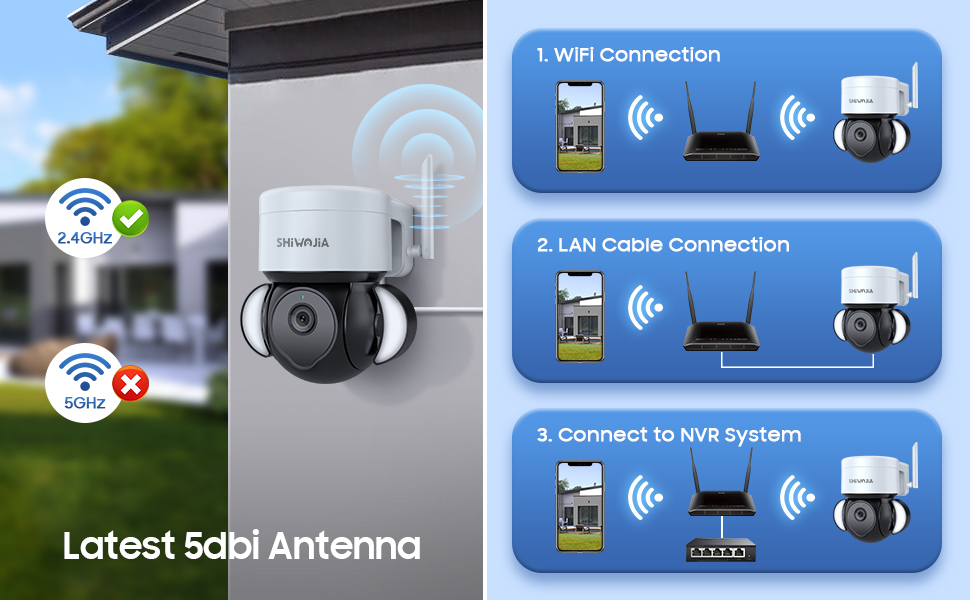
Figure 3.1: Connectivity options for the SHIWOJIA camera, including 2.4GHz WiFi, LAN cable, and NVR system integration.
Important Notes:
- Only 2.4GHz Wi-Fi networks are supported. 5GHz Wi-Fi is not compatible.
- Ensure a strong Wi-Fi signal at the installation location for optimal performance.
4. Operating Instructions
App Control (Tuya Smart / Smart Life)
The camera is primarily controlled through the Tuya Smart or Smart Life mobile application.

Figure 4.1: Remote access and control via the Tuya Smart application.
- Live View: Access real-time video feed from your camera anytime, anywhere.
- Pan & Tilt Control: Use the app to remotely adjust the camera's horizontal (350°) and vertical (90°) viewing angles.
- Digital Zoom: Zoom in on specific areas of the live feed for more detail.
- Two-Way Audio: Tap the microphone icon in the app to speak through the camera's speaker and listen through its microphone.

Figure 4.2: Demonstrating two-way audio functionality for communication.
Motion Detection and Alarms
The camera features intelligent motion detection with auto-tracking and light-sound alarms.
- Activation: Enable motion detection in the app settings. You can customize detection zones and sensitivity.
- Auto Tracking: When human motion is detected, the camera will automatically track the subject.
- Spotlights & Alarm: Motion-triggered spotlights will illuminate the area, and an audible alarm can be configured to deter intruders.
- Notifications: Receive instant alerts on your smartphone when motion is detected.

Figure 4.3: Auto-tracking and light-sound alarm in action.

Figure 4.4: Motion detection alarm with auto-tracking and smart assistant integration.
Night Vision Modes
The camera offers three night vision modes:
- Color Mode: Utilizes white lights to provide full-color video footage in low-light conditions.
- IR Mode: Uses infrared lights for black and white video footage in complete darkness.
- Auto Mode (Smart Mode): Automatically switches between IR and Color modes based on detected motion or ambient light conditions.
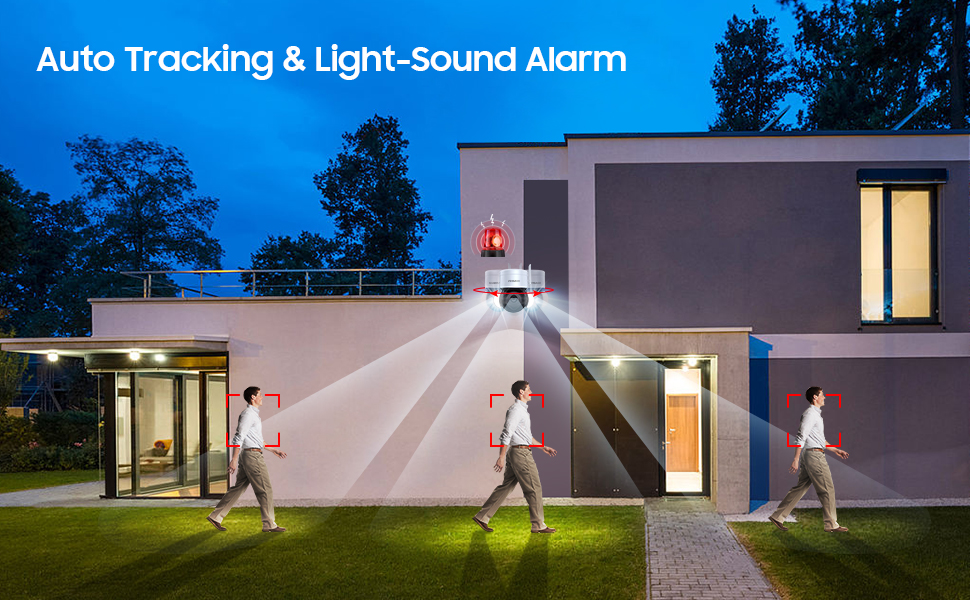
Figure 4.5: Comparison of Full Color, IR, and Smart Night Vision Modes.

Figure 4.6: Detailed view of Color, IR, and Auto Night Vision modes.
Recording and Playback
- SD Card Storage: Insert a microSD card (up to 128GB, not included) into the designated slot for local video storage.
- Cloud Storage: Subscribe to cloud storage services via the app for secure, remote storage of your recordings.
- Playback: Access recorded videos from either the SD card or cloud service through the app's playback feature.
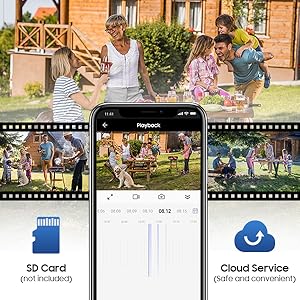
Figure 4.7: SD Card and Cloud Storage options.
Sharing Access
You can share camera access with family members or trusted individuals through the Tuya Smart/Smart Life app, allowing multiple users to view the live feed and recordings.
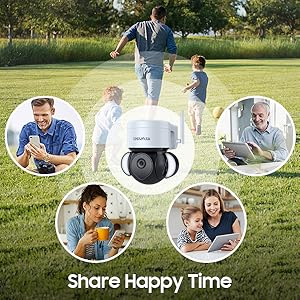
Figure 4.8: Sharing camera access with family.
5. Maintenance
To ensure optimal performance and longevity of your SHIWOJIA camera, follow these maintenance guidelines:
- Regular Cleaning: Periodically clean the camera lens and housing with a soft, damp cloth to remove dust, dirt, or water spots that may obstruct the view. Avoid abrasive cleaners.
- Check Connections: Ensure all power and network connections are secure and free from damage.
- Firmware Updates: Check the Tuya Smart/Smart Life app regularly for available firmware updates to ensure your camera has the latest features and security enhancements.
- Weather Protection: While the camera is IP66 weatherproof, extreme weather conditions (e.g., prolonged heavy rain, snow accumulation) may still affect performance. Ensure the camera is installed in a location that minimizes direct exposure to harsh elements where possible.
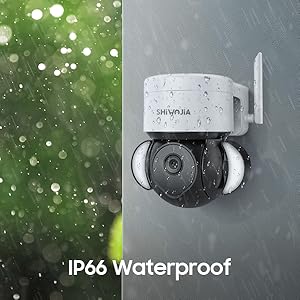
Figure 5.1: The camera's IP66 waterproof design ensures durability in various weather conditions.
6. Troubleshooting
If you encounter issues with your SHIWOJIA camera, refer to the following common troubleshooting steps:
- No Power: Ensure the power adapter is correctly connected to the camera and a working power outlet. Check the power cable for any damage.
- Cannot Connect to Wi-Fi:
- Verify that your Wi-Fi network is 2.4GHz. The camera does not support 5GHz Wi-Fi.
- Ensure the camera is within range of your Wi-Fi router.
- Restart your router and the camera.
- Double-check the Wi-Fi password entered in the app.
- Poor Video Quality:
- Check your internet connection speed. A stable and fast connection is required for high-resolution streaming.
- Clean the camera lens to remove any smudges or dirt.
- Ensure adequate lighting for optimal image clarity, especially during night vision.
- Motion Detection Not Working:
- Verify that motion detection is enabled in the app settings.
- Adjust the sensitivity settings.
- Ensure there are no obstructions blocking the camera's view in the detection zone.
- SD Card Not Recording:
- Ensure the SD card is inserted correctly.
- Check if the SD card is formatted correctly (usually FAT32). Format it via the app if necessary.
- Verify that the SD card has sufficient storage space.
- App Issues: Try restarting the app or reinstalling it. Ensure your smartphone's operating system is up to date.
For further assistance, please refer to the in-app help section or contact SHIWOJIA customer support.
7. Specifications
| Feature | Detail |
|---|---|
| Model Number | 426-5M-TY-AG |
| Brand | SHIWOJIA |
| Effective Capture Resolution | 5 Megapixels |
| Video Resolution | 1080p (Screen Capture), 3 MP (Effective Video) |
| Connectivity Technology | Wired, Wi-Fi (2.4GHz only) |
| Pan/Tilt Range | Horizontal 350°, Vertical 90° |
| Digital Zoom | 4x |
| Field of View | 84 Degrees |
| Night Vision Type | Color Night Vision (6 white lights, 6 infrared lights) |
| Night Vision Range | 25 Meters |
| IP Rating | IP66 (Weatherproof) |
| Audio | Two-Way Audio (Built-in Microphone & Speaker) |
| Storage Options | SD Card (Max 128GB, not included), Cloud Service |
| Power Source | Electric Cable (12 Volts, 6 Watts) |
| Control Method | Application (Tuya Smart/Smart Life), Amazon Alexa |
| Recommended Use | Outdoor Security |
| Mounting Type | Wall Mount |
| Dimensions (Package) | 17.9 x 14.9 x 11.2 cm |
| Weight (Package) | 710 grams |
| UPC | 754118965415 |
8. Warranty and Support
Warranty Information
SHIWOJIA provides a quality guarantee for its products. For specific warranty terms, duration, and claim procedures, please refer to the documentation included with your purchase or contact the seller directly. Keep your proof of purchase for warranty claims.
Customer Support
For technical support, product inquiries, or assistance with troubleshooting, please utilize the following resources:
- In-App Help: The Tuya Smart or Smart Life application often includes a comprehensive help section and FAQs.
- Manufacturer's Website: Visit the official SHIWOJIA website for support resources, updated manuals, and contact information.
- Seller Contact: For purchase-related issues or direct support, contact the seller from whom you purchased the camera.