
1. Introduction
This manual provides detailed instructions for the installation, operation, and maintenance of your Soundstream VRCPAA-70M Digital Media Receiver. Please read this manual thoroughly before using the product to ensure proper operation and to prevent damage.
2. Safety Information
Observe the following safety precautions to prevent personal injury or damage to the unit.
- Electrical Safety: Ensure all wiring is correctly connected to prevent short circuits. Disconnect the vehicle's negative battery terminal before installation.
- Professional Installation: For optimal safety and performance, professional installation is recommended.
- Operating Environment: Do not operate the unit in extreme temperatures or high humidity.
- Driving Safety: Do not operate the unit in a way that distracts you from driving. Video playback is restricted while the vehicle is in motion.
- Ventilation: Ensure adequate ventilation around the unit to prevent overheating.
3. Package Contents
Verify that all items are present in the package:
- VRCPAA-70M Digital Media Receiver Unit
- Wiring Harness
- Wireless Direct Select Remote Control
- Mounting Hardware (screws, brackets)
- User Manual (this document)
4. Product Overview
4.1 Front Panel and Display
The VRCPAA-70M features a 7-inch HD high-resolution TFT-LCD display with a pinpoint accuracy capacitive touchscreen. The front panel includes essential touch keys and a built-in microphone.
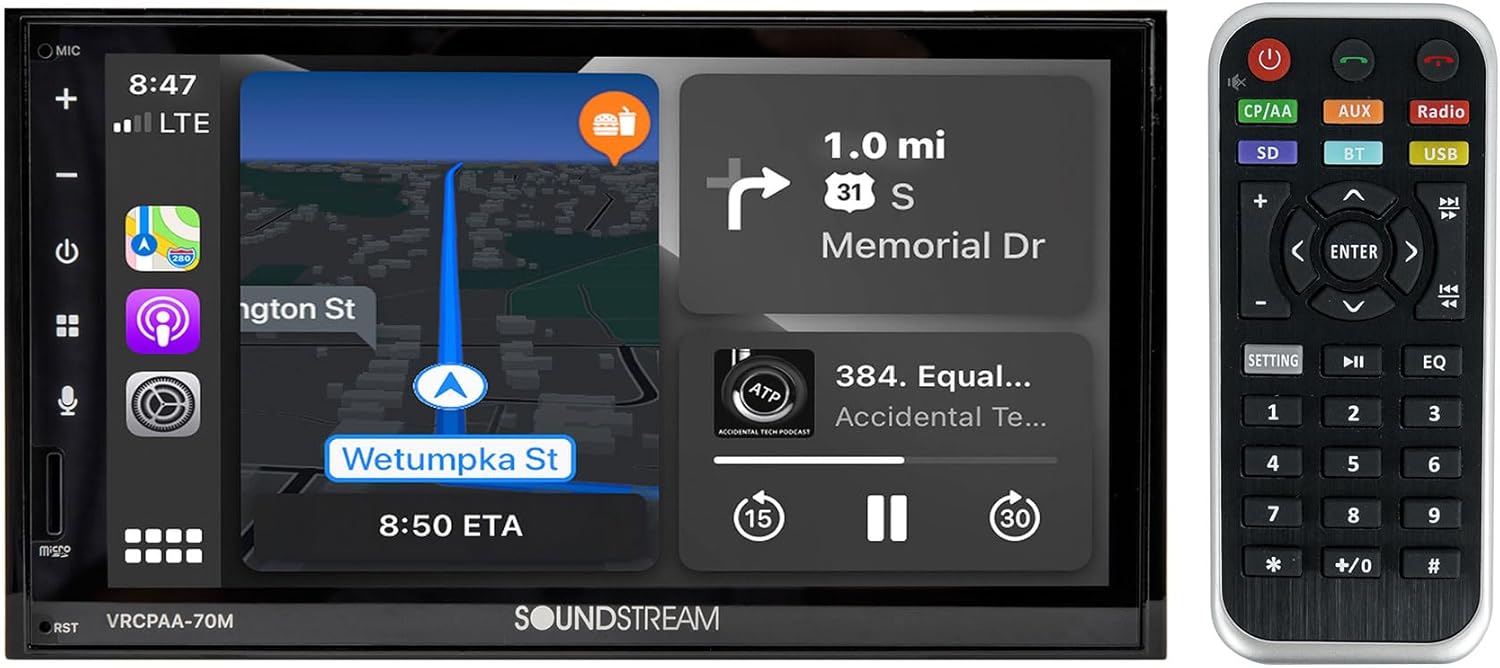
Image: Front view of the VRCPAA-70M unit displaying Apple CarPlay navigation, alongside its wireless remote control.
4.2 Rear Connections
The rear of the unit provides various inputs and outputs for power, speakers, auxiliary devices, and cameras.

Image: Rear view of the VRCPAA-70M unit, highlighting the main wiring harness connector, RCA audio outputs (Front, Rear, Subwoofer), A/V input, and camera input.

Image: Detailed view of the wiring harness, showing labeled wires for power, ground, speakers, and other functions.
4.3 Remote Control
The included wireless remote control allows for convenient operation of the unit's functions.

Image: The wireless remote control for the VRCPAA-70M, featuring buttons for power, source selection (CP/AA, AUX, Radio, SD, BT, USB), navigation, volume, and numeric input.
5. Installation
The VRCPAA-70M features a 2-DIN chassis designed to fit most newer vehicles. Proper installation is crucial for optimal performance and safety.
5.1 Pre-Installation Checklist
- Ensure the vehicle's battery is disconnected.
- Gather all necessary tools (wire strippers, crimpers, screwdrivers, electrical tape).
- Confirm compatibility with your vehicle's dash kit and wiring harness adapter.
5.2 Wiring Connections
Refer to the wiring diagram provided with your unit for specific connections. Key connections include:
- Power (Yellow): Constant 12V supply.
- Accessory (Red): Switched 12V supply (ignition).
- Ground (Black): Connect to a clean chassis ground point.
- Speaker Wires: Connect to corresponding vehicle speaker wires (Front L/R, Rear L/R).
- Parking Brake (Light Green): Connect to the parking brake circuit for video safety.
- Reverse Gear (Brown): Connect to the reverse light circuit for automatic camera activation.
- Steering Wheel Control (SWC): Connect to OEM steering wheel control wiring (requires adapter for some vehicles).
- Rear View Camera Input: RCA input for a rearview camera.
- USB Port: For multimedia playback and smartphone connectivity.
Note: Incorrect wiring can cause damage to the unit or vehicle. If unsure, consult a professional installer.
6. Initial Setup
6.1 First Power On
After installation, reconnect the vehicle's battery. The unit should power on with the vehicle's ignition. The Soundstream logo will appear during startup.

Image: The VRCPAA-70M display showing the Soundstream brand logo during the power-on sequence.
6.2 Bluetooth Pairing
To pair your smartphone via Bluetooth:
- Enable Bluetooth on your smartphone.
- On the VRCPAA-70M, navigate to the Bluetooth menu.
- Search for available devices on your smartphone and select "VRCPAA-70M".
- Confirm the pairing code on both devices if prompted.
Once paired, you can use Bluetooth for hands-free calling and audio streaming.
6.3 Apple CarPlay / Android Auto Connection
Connect your compatible smartphone to the unit's USB port. The unit will automatically detect and launch Apple CarPlay or Android Auto.

Image: The VRCPAA-70M display showcasing the Apple CarPlay interface with icons for Phone, Music, Maps, Messages, Now Playing, SoundStream, Podcasts, and Audiobooks.

Image: The VRCPAA-70M display showcasing the Android Auto interface with icons for Google Maps, Spotify, YouTube Music, Phone, Audible, Calendar, Waze, and WhatsApp.
7. Operating Instructions
7.1 Dynamic User Interface
The 7" HD high-resolution TFT-LCD display features a large format user interface designed to reduce distraction. The 7-color selectable touch key illumination allows for customization.
7.2 Radio Operation
The unit includes an advanced FM/AM tuner with data display. Select the Radio source and use the touchscreen or remote to scan for stations, save presets, and view station information.
7.3 USB Multimedia Playback
Connect a USB drive (up to 64GB) to the rear USB port for multimedia playback. The unit supports MP3 & WMA audio files and MP4 & H264 video files. ID3 MP3 Tag Reading provides track and artist information.

Image: The VRCPAA-70M display showing the Apple CarPlay music playback screen, featuring album art, song title, artist, and playback controls.
7.4 Bluetooth Wireless Connectivity
- Hands-Free Profile: Dials and receives calls, displays call logs.
- Phone Book Access Profile: Displays caller ID information and contacts.
- Audio/Video Remote Control Profile (AVRCP): Enables playback controls for streamed audio.
- Advanced Audio Distribution Profile (A2DP): Streams audio wirelessly from your device.
7.5 Apple CarPlay and Android Auto
Once connected via USB, Apple CarPlay and Android Auto provide seamless integration of your smartphone's features, including navigation, music, messaging, and voice assistants (Siri/Google Assistant).
7.6 Rear View Camera Input
The unit supports a rear view camera input with a manual and 12V trigger, allowing for automatic display of the camera feed when the vehicle is in reverse.
7.7 Audio/Video Inputs & Outputs
- Rear Audio/Video Input: For connecting external media devices.
- Front, Rear, Subwoofer 4V RCA Audio Outputs: For connecting external amplifiers.
- Dual Video RCA Output: To auxiliary monitors.
- 300W 4Ch High Power Speaker Outputs: For direct speaker connection.
8. Maintenance
8.1 Cleaning the Unit
Use a soft, dry cloth to clean the unit's display and exterior. For stubborn smudges on the screen, use a screen cleaner specifically designed for electronic displays. Do not use abrasive cleaners or solvents.
8.2 General Care
Avoid exposing the unit to direct sunlight for extended periods or to extreme temperatures. Ensure all connections remain secure.
9. Troubleshooting
If you encounter issues with your VRCPAA-70M, refer to the following common problems and solutions:
| Problem | Possible Cause | Solution |
|---|---|---|
| No power | Blown fuse; incorrect wiring; loose connection. | Check vehicle fuses and unit fuse; verify power and ground connections; ensure wiring harness is securely connected. |
| No sound | Speaker wires disconnected; volume too low; mute function active; incorrect audio source. | Check speaker wiring; increase volume; deactivate mute; select correct audio source. |
| Bluetooth not connecting | Bluetooth not enabled on phone/unit; device not in pairing mode; interference. | Ensure Bluetooth is active on both devices; put unit in pairing mode; try pairing in a different location. |
| Apple CarPlay/Android Auto not launching | Faulty USB cable; phone not compatible; software issue. | Use a high-quality USB cable; ensure phone OS is up-to-date; restart phone and unit. |
| Rear camera not displaying | Camera not connected; reverse trigger wire not connected; camera faulty. | Check camera RCA connection; verify reverse trigger wire connection; test camera functionality. |
10. Specifications
| Feature | Specification |
|---|---|
| Model Number | VRCPAA-70M |
| Display | 7" HD High-Resolution TFT-LCD, Capacitive Touchscreen |
| Chassis Type | 2-DIN |
| Connectivity Technology | Auxiliary, Bluetooth, RCA, USB |
| Special Features | Android Auto, Apple CarPlay, Rear View Camera Input, OEM Steering Wheel Control Compatible |
| USB Playback | MP3, WMA, MP4, H264 (up to 64GB USB/MicroSD) |
| Audio Output Mode | Stereo |
| RCA Outputs | Front, Rear, Subwoofer 4V |
| Video Output | Dual RCA Output to Auxiliary Monitors |
| Speaker Outputs | 300W 4Ch High Power |
| Item Weight | 4.02 pounds |
| Package Dimensions | 10.59 x 10.16 x 7.2 inches |
| Color | Black |
11. Warranty and Support
Soundstream products are designed for reliability and performance. For warranty information, please refer to the warranty card included with your product or visit the official Soundstream website. For technical support or service inquiries, please contact Soundstream customer service through their official channels.


