
1. Introduction
The AOPUTTRIVER AP-5800M is a high-precision air quality monitor designed to detect fine particulate matter, specifically PM2.5, PM1.0, and PM10. Utilizing a laser PM2.5 sensor and single-chip microcomputer technology, this device provides accurate readings displayed on a 2.8-inch TFT color LCD. It is suitable for monitoring air quality in various environments, including indoor spaces, outdoor areas, bedrooms, factories, construction sites, and during travel.
This manual provides essential information for the safe and effective use of your AP-5800M air quality monitor. Please read it thoroughly before operation.
2. Safety Information
- Do not attempt to disassemble or modify the device. Unauthorized modifications can lead to malfunction or injury.
- Keep the device away from water and high humidity to prevent electrical shock or damage.
- Avoid exposing the device to extreme temperatures, direct sunlight, or corrosive substances.
- Use only the provided USB cable for charging. Ensure the charging voltage is compatible with the device.
- Keep out of reach of children.
- Dispose of the device and its battery according to local environmental regulations.
3. Package Contents
Upon opening the package, please verify that all items listed below are present and in good condition:
- 1 x AOPUTTRIVER AP-5800M Air Quality Monitor
- 1 x USB Charging Cable
- 1 x Carrying Case
- 1 x User Manual

This image displays the items included in the product package: the AP-5800M air quality monitor, a USB cable, a carrying case, and the user manual.
4. Product Overview
4.1 Device Layout and Buttons
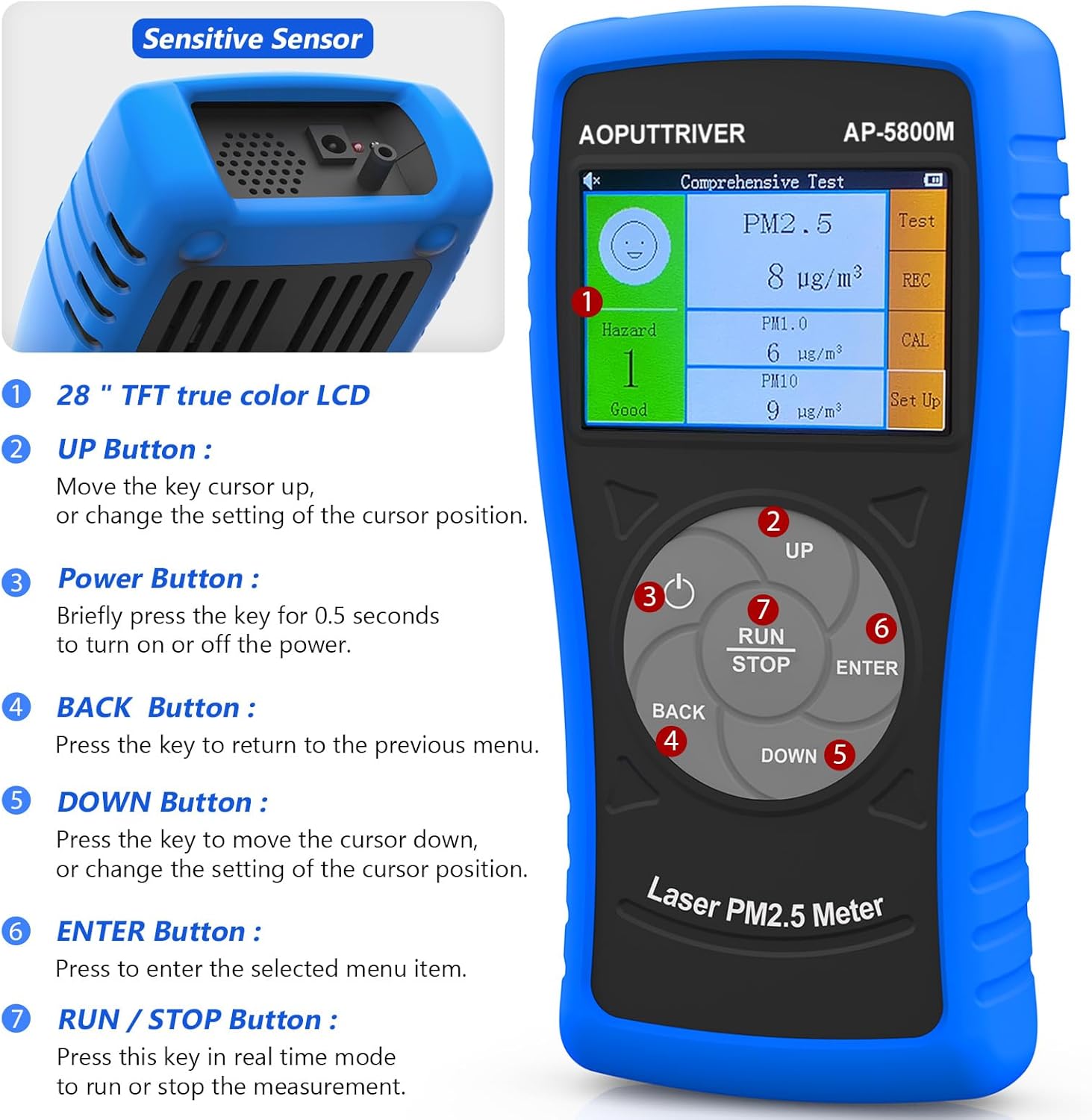
This image shows the front view of the AOPUTTRIVER AP-5800M Air Quality Monitor, highlighting the 2.8-inch TFT true color LCD, the sensitive sensor area, and the functions of the UP, Power, BACK, DOWN, ENTER, and RUN/STOP buttons.
- Sensitive Sensor: Located at the top, responsible for detecting particulate matter.
- UP Button: Moves the cursor up or changes the setting of the cursor position.
- Power Button: Briefly press for 0.5 seconds to turn the device on or off.
- BACK Button: Press to return to the previous menu.
- DOWN Button: Moves the cursor down or changes the setting of the cursor position.
- ENTER Button: Press to select the highlighted menu item.
- RUN/STOP Button: Press this key in real-time mode to start or stop the measurement.
4.2 Display and Indicators
The device features a 2.8-inch TFT true color LCD, providing clear visibility even in low-light conditions. The display shows real-time readings for PM2.5, PM1.0, and PM10, along with a hazard index and battery indicator.

This image provides a close-up view of the AP-5800M's colorful LCD display, showing the comprehensive test results for PM2.5, PM1.0, and PM10, along with the hazard index.
4.3 Internal Components

This diagram shows the internal components of the AP-5800M, emphasizing the high-precision laser PM2.5 sensor and the 3rd generation particle sensor responsible for detecting PM2.5 and PM10 in air samples.

This image provides a close-up view of the air outlet and inlet on the device, illustrating how air samples are drawn in and expelled for particle detection.
5. Setup
5.1 Charging the Device
The AP-5800M is equipped with a rechargeable battery. Before first use, or when the battery indicator shows low power, charge the device using the provided USB cable.
- Connect the USB cable to the device's charging port and to a standard USB power source (e.g., computer, USB wall adapter).
- A red indicator light will illuminate during charging.
- The indicator light will turn green once the battery is fully charged.

This image depicts the charging process of the AP-5800M's 2000mAh rechargeable battery via a USB cable, with an indicator showing the battery level.
5.2 Initial Power On
After charging, press the Power Button briefly (for approximately 0.5 seconds) to turn on the device. The display will light up, and the device will begin its startup sequence.
6. Operating Instructions
6.1 Power On/Off
- To Power On: Press the Power Button (labeled '3' in the diagram) for approximately 0.5 seconds.
- To Power Off: Press the Power Button for approximately 0.5 seconds. The device also features an automatic power-off mode to conserve battery.
6.2 Navigating Menus
Use the following buttons for menu navigation:
- UP Button: Move cursor up or increase values.
- DOWN Button: Move cursor down or decrease values.
- ENTER Button: Confirm selection or enter a sub-menu.
- BACK Button: Return to the previous menu or cancel an action.
6.3 Starting and Stopping Measurements
In real-time measurement mode, press the RUN/STOP Button to initiate or pause the air quality measurement process.
6.4 Understanding the Display
The 2.8-inch TFT color LCD displays various parameters:
- PM2.5, PM1.0, PM10 Values: Real-time concentration in µg/m³.
- Hazard Index: A calculated risk value based on PM2.5, PM1.0, and PM10 levels. The formula used is: Hazard Value = PM2.5/6 + PM1.0/20 + PM10/20.
- Battery Indicator: Shows the current battery level.

This image illustrates the AP-5800M monitor on its stand, alongside a color-coded chart explaining PM2.5 and PM10 health concern levels, ranging from Good to Hazardous.

This image shows a magnified view of the hazard index chart displayed on the AP-5800M, detailing the color-coded levels of air quality from Good to Hazardous for PM2.5 and PM10.
6.5 Setting Parameters and Alarms
The AP-5800M allows for various settings adjustments, including:
- Time Setting: Adjust the device's internal clock.
- Data Recording: Enable or disable the recording of measurement data.
- Data Hold: Freeze the current display readings.
- Hazard Index Alarm: Set thresholds for an audible alarm to activate when air quality levels exceed predefined limits. The device features an audible alarm.

This image highlights the audible alarm function of the AP-5800M, showing an alarm icon on the display and indicating that the device can emit sound alerts for high particle levels.
6.6 Usage Environments
The AP-5800M is versatile and can be used in a variety of settings to monitor air quality:
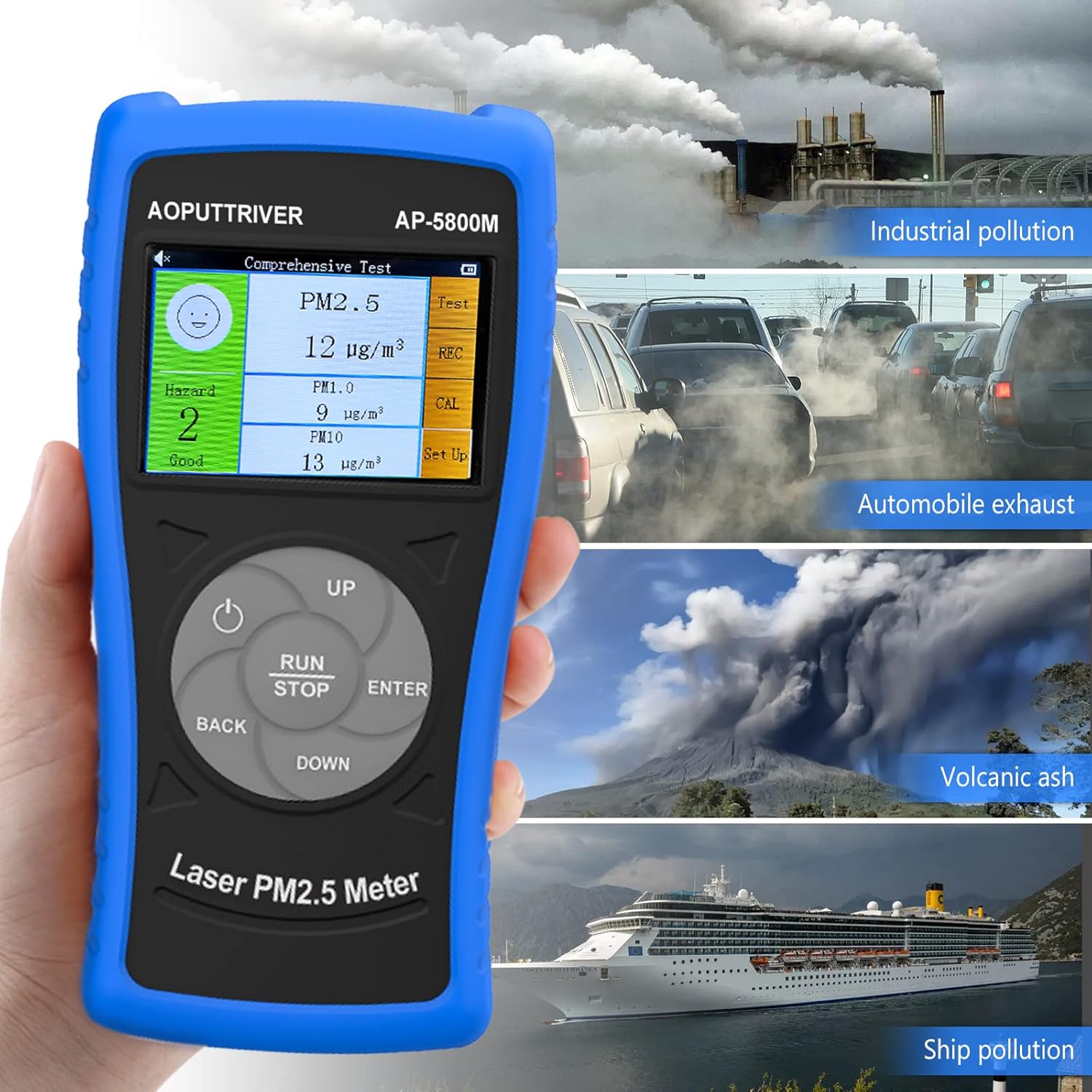
This image demonstrates the versatility of the AP-5800M, showing it in different scenarios such as industrial pollution, automobile exhaust, volcanic ash, and ship pollution, indicating its suitability for diverse testing environments.

This image combines a PM2.5/PM10 air quality level guide with illustrations of various suitable usage environments, including home, school, car, and office, demonstrating the monitor's versatility.
7. Maintenance
7.1 Cleaning the Device
- Wipe the exterior of the device with a soft, dry cloth.
- Do not use abrasive cleaners, solvents, or harsh chemicals, as these can damage the casing or display.
- Ensure the air inlet and outlet are free from dust and obstructions for accurate readings.
7.2 Battery Care
- To prolong battery life, avoid fully discharging the battery frequently.
- If storing the device for an extended period, charge it to approximately 50% and recharge every few months.
7.3 Storage
Store the device in its carrying case in a cool, dry place, away from direct sunlight and extreme temperatures.
8. Troubleshooting
If you encounter issues with your AP-5800M, refer to the following common problems and solutions:
| Problem | Possible Cause | Solution |
|---|---|---|
| Device does not turn on. | Low battery or power issue. | Charge the device using the provided USB cable. Ensure the charging indicator lights up. If the issue persists, contact customer support. |
| Inaccurate or inconsistent readings. | Blocked air inlet/outlet, sensor contamination, or environmental interference. | Ensure the air inlet/outlet is clear. Clean the device exterior. Move the device away from strong air currents, dust sources, or chemical fumes. |
| Display is blank or frozen. | Software glitch or low battery. | Try restarting the device by holding the Power Button. If unresponsive, charge the device. |
| Alarm sounds unexpectedly. | High particulate levels detected or alarm threshold set too low. | Check the displayed PM values. If levels are high, ventilate the area. Adjust the alarm threshold in the settings if necessary. |
9. Specifications
| Parameter | Value |
|---|---|
| Model Number | UK-AP-5800M |
| PM2.5 Detection Range | 0 ~ 999.9 µg/m³ |
| PM2.5 Resolution | 0.1 µg/m³ |
| PM10 Detection Range | 0 ~ 999.9 µg/m³ |
| PM10 Resolution | 0.1 µg/m³ |
| Display | 2.8-inch TFT Color LCD |
| Power Source | Rechargeable Battery (2000mAh), USB Powered |
| Alarm | Audible |
| Product Dimensions | 196mm (7.71in) x 95mm (3.74in) x 46mm (1.81in) |
| Item Weight | 500 Grams |

This image provides a detailed view of the AP-5800M, showing its dimensions (196mm height, 95mm width, 46mm depth), the 90-degree support stand, the double protective shell, and the tripod hole for mounting.
10. Warranty and Support
AOPUTTRIVER offers a 2-year warranty for the AP-5800M Air Quality Monitor and provides lifetime customer service. If you encounter any issues with this product or require assistance, please do not hesitate to contact our customer support team. We are committed to ensuring your satisfaction.