1. Introduction
This manual provides essential information for setting up, operating, and maintaining your ASUS ROG Strix G15CK Gaming Desktop PC. Please read this manual thoroughly before using your new computer to ensure proper operation and to maximize its lifespan.
The ASUS ROG Strix G15CK is a high-performance gaming and entertainment desktop PC, featuring an Intel i7-10700KF processor, NVIDIA RTX 2070 Super graphics, ample RAM, and a hybrid storage solution for speed and capacity.

Figure 1.1: ASUS ROG Strix G15CK Gaming Desktop PC. This image shows the desktop PC from an angled front view, highlighting its sleek black chassis with RGB lighting accents and a transparent side panel revealing internal components.
2. Safety Information
Observe the following safety guidelines to prevent damage to your PC and ensure personal safety:
- Power Source: Use only the power adapter and cable supplied with your PC. Ensure the power outlet is properly grounded.
- Ventilation: Do not block ventilation openings. Ensure adequate airflow around the PC to prevent overheating.
- Liquid and Moisture: Keep the PC away from liquids and excessive moisture. Do not operate with wet hands.
- Placement: Place the PC on a stable, flat surface. Avoid placing it near heat sources or in direct sunlight.
- Cleaning: Disconnect the power before cleaning. Use a soft, dry cloth. Avoid liquid cleaners.
- Servicing: Do not attempt to service the PC yourself. Refer all servicing to qualified service personnel.
3. Package Contents
Carefully unpack your ASUS ROG Strix G15CK and check for the following items:
- ASUS ROG Strix G15CK Desktop PC
- Power Cable
- Keyboard
- Webcam
- Documentation (Quick Start Guide, Warranty Card)
If any items are missing or damaged, contact your retailer immediately.
4. Setup
4.1 Connecting Peripherals
Before powering on your PC, connect all necessary peripherals:
- Monitor: Connect your monitor to one of the available display ports (HDMI or DisplayPort) on the graphics card.
- Keyboard and Mouse: Connect your keyboard and mouse to the USB ports on the rear of the PC.
- Network: For a wired connection, connect an Ethernet cable to the RJ-45 port. For wireless, ensure your Wi-Fi antenna is connected (if applicable).
- Audio: Connect speakers or headphones to the audio output jack.
- Webcam: Connect the provided webcam to an available USB port.

Figure 4.1: Side view of the ASUS ROG Strix G15CK. This image displays the internal layout of the PC through its transparent side panel, showing the CPU cooler, graphics card, and other components.
4.2 Powering On
- Connect the power cable to the PC's power input and then to a grounded electrical outlet.
- Press the power button located on the front of the PC.
- The PC will boot up, and you should see the display on your monitor.
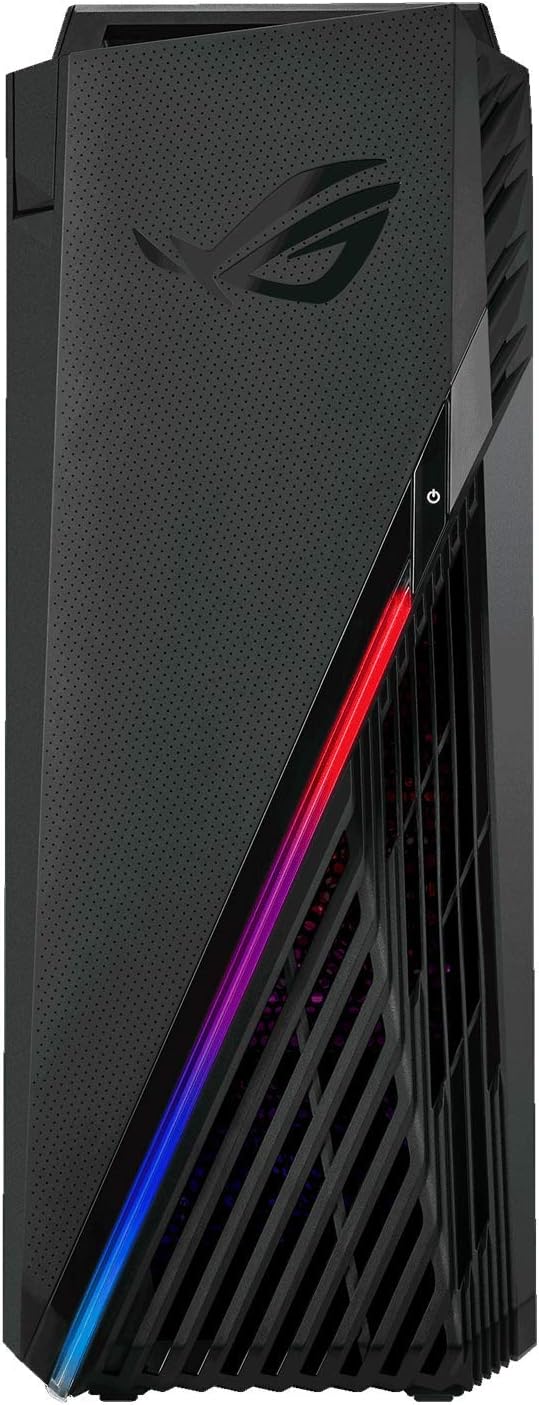
Figure 4.2: Front view of the ASUS ROG Strix G15CK. This image focuses on the front panel of the desktop, showing the power button, front I/O ports, and the distinctive RGB light strip.
4.3 Initial Windows Setup
Upon first boot, you will be guided through the Windows 10 Pro setup process. Follow the on-screen instructions to configure your operating system, including language, region, network settings, and user account creation.
5. Operating Your PC
5.1 Basic Operation
Your ASUS ROG Strix G15CK runs on Windows 10 Pro. Familiarize yourself with the Windows interface for navigating applications, managing files, and accessing system settings.
- Shut Down: To properly shut down, click the Start button, then Power, and select "Shut down."
- Restart: To restart, click the Start button, then Power, and select "Restart."
- Sleep: To put the PC to sleep, click the Start button, then Power, and select "Sleep."
5.2 Key Features
- Processor: Intel Core i7-10700KF 8-Core for high-performance computing.
- Graphics: NVIDIA RTX 2070 Super 8GB GDDR6 for demanding gaming and creative tasks.
- Memory: 64GB DDR4 DIMM for smooth multitasking.
- Storage: 1TB PCIe SSD for fast boot times and application loading, complemented by a 3TB HDD for mass storage.
- Connectivity: Wi-Fi 6 AX200, Bluetooth 5.1, and Gigabit Ethernet for robust network connections.
- Ports: Multiple USB 3.2 Gen1 ports, USB 3.2 Type-C Gen1 ports, HDMI, and DisplayPort outputs for extensive peripheral support.
6. Maintenance
6.1 Cleaning
- Regularly clean the exterior of the PC with a soft, dry, lint-free cloth.
- Use compressed air to clear dust from ventilation grilles and internal components periodically. Ensure the PC is powered off and unplugged before cleaning.
- Avoid using harsh chemicals or abrasive materials.
6.2 Software Updates
Keep your operating system, drivers, and applications updated to ensure optimal performance and security. Windows Update can be accessed via Settings > Update & Security > Windows Update.
6.3 Data Backup
Regularly back up your important data to an external drive or cloud storage to prevent data loss.
7. Troubleshooting
This section addresses common issues you might encounter. For more complex problems, refer to the ASUS support website.
7.1 No Power
- Ensure the power cable is securely connected to both the PC and the electrical outlet.
- Verify the power outlet is functional by plugging in another device.
- Check the power supply unit (PSU) switch on the back of the PC, if present, to ensure it is in the 'ON' position.
7.2 No Display
- Confirm the monitor is powered on and its video cable is securely connected to the graphics card ports on the PC.
- Ensure the monitor input source is correctly selected (e.g., HDMI 1, DisplayPort).
- Try connecting the monitor to a different display port on the graphics card.
7.3 Network Connectivity Issues
- Wired: Check if the Ethernet cable is properly connected and if the network router/modem is working.
- Wireless: Ensure Wi-Fi is enabled in Windows settings and you are connected to the correct network with the correct password. Restart your router/modem if necessary.
8. Specifications
Detailed technical specifications for the ASUS ROG Strix G15CK (Model: G15CK-BS772-145108-R):
| Component | Specification |
|---|---|
| Processor | Intel Core i7-10700KF (10th Gen, 8-Cores, 3.80GHz base, up to 5.1 GHz boost) |
| Graphics Card | NVIDIA RTX 2070 Super 8GB GDDR6 |
| RAM | 64GB DDR4 DIMM |
| Storage | 1TB PCIe SSD + 3TB HDD |
| Operating System | Windows 10 Pro-64 |
| Wireless Connectivity | Wi-Fi 6 AX200, Bluetooth 5.1 |
| Ethernet | LAN (RJ-45) |
| USB Ports | 5x USB 3.2 Gen1, 2x USB 3.2 Type-C Gen1 |
| Video Outputs | 2x HDMI, 4x DisplayPort (DP) |
| Audio Ports | 1x Headphone/Microphone Combo Jack |
| Cooling | Air Cooling CPU Cooler |
| Power Supply | 500W |
| Color | Black |
| Form Factor | Mid Tower |
| Dimensions (WxLxH) | 7.25 IN x 16.5 IN x 19 IN |
| Weight | 21.4 lbs |

Figure 8.1: Rear-angled view of the ASUS ROG Strix G15CK. This image shows the back panel with various ports for connectivity, including USB, HDMI, and DisplayPort, along with the power input.
9. Warranty and Support
9.1 Warranty Information
This renewed product is tested and certified to look and work like new, with limited to no signs of wear. The refurbishing process includes functionality testing, inspection, and repackaging. The product comes with a 90-day warranty from the date of purchase.
For specific warranty terms and conditions, please refer to the documentation included with your product or contact your retailer.
9.2 Technical Support
For technical assistance, driver downloads, or further troubleshooting, please visit the official ASUS support website. You can find detailed FAQs, user forums, and contact information for customer service there.
ASUS Support Website: www.asus.com/support


