
Cyeelves Cyeelves Portable Printer Blue
Cyeelves Mini Portable Thermal Printer User Manual
Model: Cyeelves Portable Printer Blue
1. Introduction
This manual provides instructions for the setup, operation, and maintenance of your Cyeelves Mini Portable Thermal Printer. This device is designed for convenient, inkless printing of black and white text, images, and labels directly from your smartphone via Bluetooth connectivity. It is not a sticker printer and prints only in black and white.
2. Package Contents
Verify that all items are present in your package:
- 1 x Cyeelves Mini Thermal Printer
- 6 x Thermal Paper Rolls (57mm x 30mm)
- 1 x USB Charging Cable
- 1 x User Manual

Image: Contents of the Cyeelves Mini Printer package.
3. Product Overview
Familiarize yourself with the main components of your Cyeelves Mini Portable Thermal Printer:
- Power Button: Located on the side. Press and hold for 3 seconds to turn the printer on or off.
- USB Interface: For charging the printer using the supplied USB cable.
- Paper Replacement Button: Press this button to open the paper compartment for loading thermal paper.
- Thermal Print Head: Generates patterns on thermal paper by heating, requiring no ink.

Image: Key features and components of the Cyeelves Mini Printer.
4. Setup
4.1 Charging the Printer
Before first use, fully charge the printer. Connect the supplied USB cable to the printer's USB interface and to a power source (e.g., computer USB port or USB wall adapter). The built-in 1000mAh battery provides approximately 15 hours of use on a full charge.
4.2 Loading Thermal Paper
- Press the Paper Replacement Button to open the printer lid.
- Insert a roll of thermal paper into the compartment, ensuring the paper feeds out from the top and is aligned correctly.
- Close the printer lid securely.
4.3 App Installation and Bluetooth Connection
The printer connects to your smartphone via Bluetooth using a dedicated application. Note: There has been confusion regarding the correct app. While some instructions may mention "Fun Print App," user experience indicates that the "iPrint" app is more reliable for connection and operation. It is recommended to download and install the "iPrint" app from your phone's app store (compatible with iOS and Android).
- Download and install the "iPrint" app from your smartphone's app store.
- Turn on the Cyeelves Mini Printer by pressing and holding the Power Button for 3 seconds until the green light illuminates.
- Enable Bluetooth on your smartphone.
- Open the "iPrint" app. Within the app, navigate to the connection settings to pair with your printer. Do not attempt to pair through your phone's system Bluetooth settings directly.
- Once connected, the app will indicate a successful pairing.

Image: Step-by-step guide for loading paper and connecting the printer.
5. Operating Instructions
The Cyeelves Mini Portable Thermal Printer allows for various printing functions through the connected app:
- Image Printing: Print photos and images directly from your phone's gallery. The printer produces black and white output with 203dpi resolution.
- Text Printing: Print notes, memos, and other text-based documents.
- Templates: Utilize pre-designed templates within the app for labels, lists, and other organizational tools.
- OCR Text Recognition: Scan text from images or documents and convert it into editable text for printing.
- Picture & Banner Recognition: The app can recognize elements in pictures and banners for printing.
- Print Lists: Create and print shopping lists, to-do lists, or study notes.
To print, select the desired function within the "iPrint" app, prepare your content, and initiate the print command. The printer will automatically feed and print on the thermal paper.

Image: Various applications of the Cyeelves Mini Portable Printer.

Image: Advanced features available through the printer's companion app.
6. Maintenance
- Cleaning: Use a soft, dry cloth to clean the exterior of the printer. Do not use liquid cleaners or solvents.
- Paper Handling: Store thermal paper in a cool, dry place away from direct sunlight to prevent fading. Ensure the paper is loaded correctly to avoid jams.
- Battery Care: To prolong battery life, avoid fully discharging the printer frequently. Charge the printer regularly, even if not in constant use.
- Avoid Tape: Do not apply scotch tape over printed thermal paper as it may cause smearing or fading of the print.
7. Troubleshooting
- Printer Not Connecting to Phone:
- Ensure the printer is turned on and fully charged.
- Verify Bluetooth is enabled on your phone.
- Crucially, connect via the "iPrint" app, not directly through your phone's Bluetooth settings.
- If issues persist, try restarting both the printer and your phone, then re-attempt connection through the app.
- Poor Print Quality / Faded Prints:
- Ensure you are using thermal paper.
- Check if the thermal paper is loaded correctly.
- The printer produces black and white prints. Photo quality may appear grainy compared to standard photo printers.
- Paper Jams:
- Open the printer lid and carefully remove any jammed paper.
- Ensure the paper roll is inserted straight and not at an angle.
- App Issues:
- If the app is buggy or unresponsive, try closing and reopening it.
- Ensure your app is updated to the latest version.
8. Specifications
| Feature | Specification |
|---|---|
| Product Dimensions | 1.6"D x 3.15"W x 4.3"H (11x8x3.5cm) |
| Item Weight | 5 ounces (160g) |
| Connectivity Technology | Bluetooth, USB |
| Printing Technology | Inkless Printing, Thermal Mini Printer |
| Printer Output | Monochrome (Black & White) |
| Print Resolution | 203 dpi |
| Maximum Media Size | 57mm x 30mm (Width x Roll Diameter) |
| Compatible Devices | Smartphones (Android, iOS) |
| Battery Capacity | 1000mAh |
| Control Method | App |
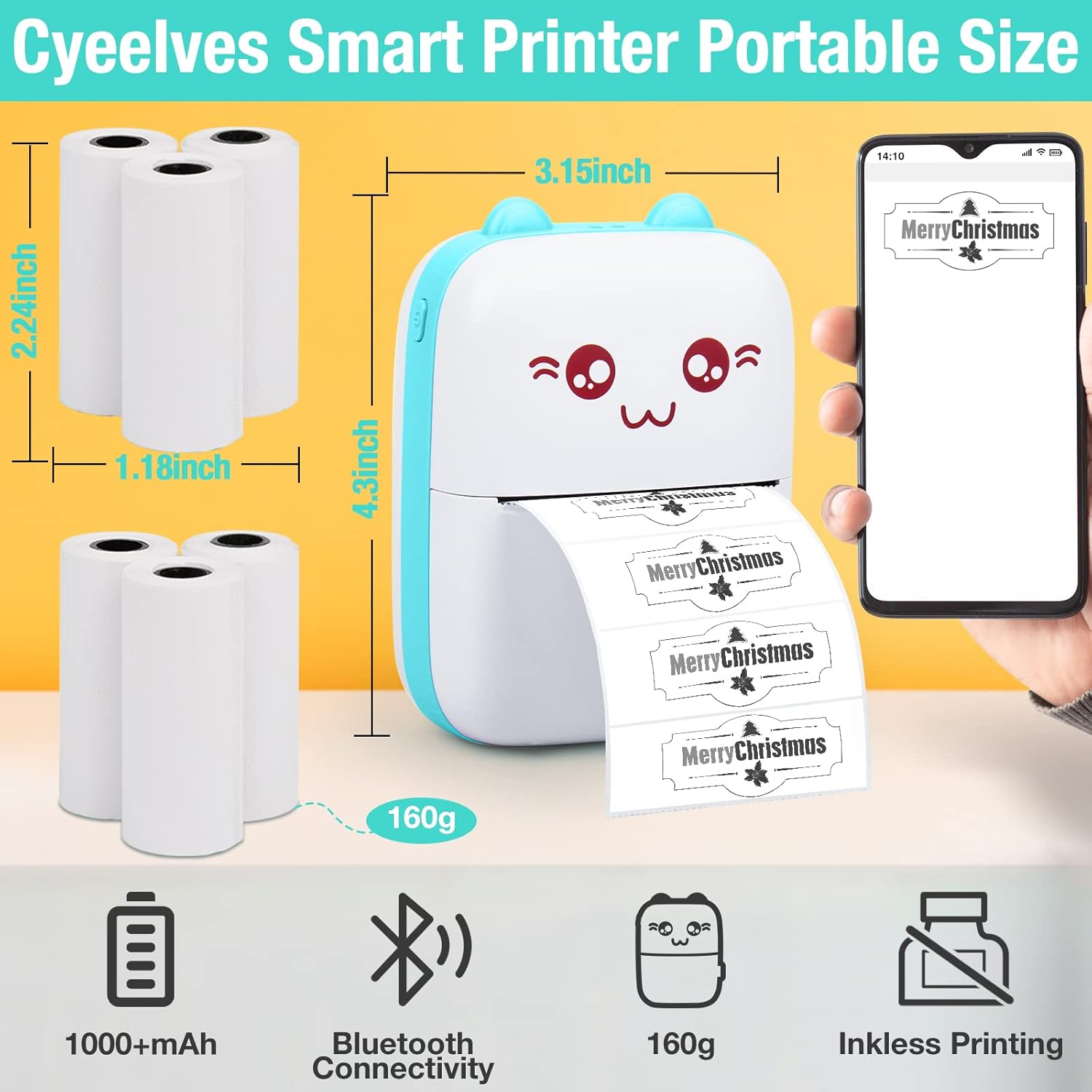
Image: Physical dimensions and key specifications of the printer.
9. Warranty and Support
Cyeelves is committed to customer satisfaction. If you receive a damaged or missing package, or have any questions regarding your product, please contact customer service. Replacements are provided within 30 days of purchase.
For further assistance, please refer to the contact information provided with your purchase or visit the official Cyeelves store online.
Related documentsCyeelves Portable Printer Blue

Ask a question about this manual
Ask about setup, troubleshooting, compatibility, parts, safety, or missing instructions. Manuals+ will review the question and use this page’s manual context to help answer it.