
Cabletech URZ0336B
Cabletech URZ0336B DVB-T2 H.265 HEVC Digital Tuner
User Instruction Manual
1. Introduction
This manual provides comprehensive instructions for the installation, operation, and maintenance of your Cabletech URZ0336B DVB-T2 H.265 HEVC Digital Tuner. Please read this manual thoroughly before using the device to ensure proper functionality and to prevent damage.
2. Safety Information
Always observe the following safety precautions to avoid electric shock, fire, or damage to the device:
- Do not expose the device to rain or moisture.
- Do not open the casing. Refer all servicing to qualified personnel.
- Ensure proper ventilation around the device. Do not block ventilation openings.
- Use only the power adapter supplied with the device.
- Keep the device away from heat sources and direct sunlight.
- Disconnect the power plug from the wall outlet if the device will not be used for a long period.
3. Package Contents
Please check the package for the following items:
- Cabletech URZ0336B DVB-T2 H.265 HEVC Digital Tuner
- Remote Control
- AAA Batteries (2x)
- Power Adapter
- User Manual (this document)
4. Product Overview
Familiarize yourself with the main components and connections of your Cabletech URZ0336B tuner.
4.1. Device and Remote Control
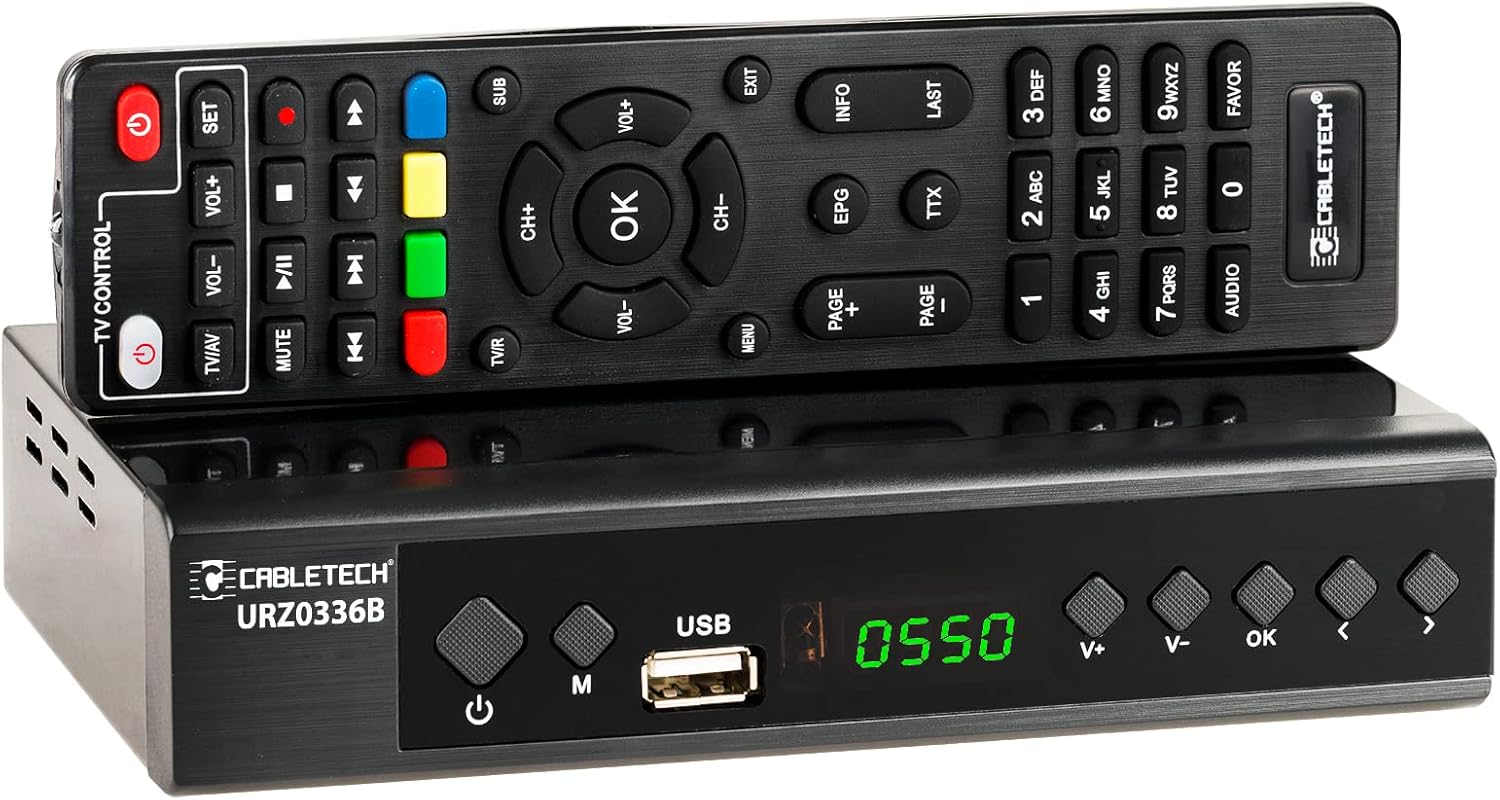
Image: The Cabletech URZ0336B DVB-T2 H.265 HEVC Digital Tuner shown with its accompanying remote control. The tuner is a compact black box, and the remote is also black with various control buttons.
4.2. Front Panel
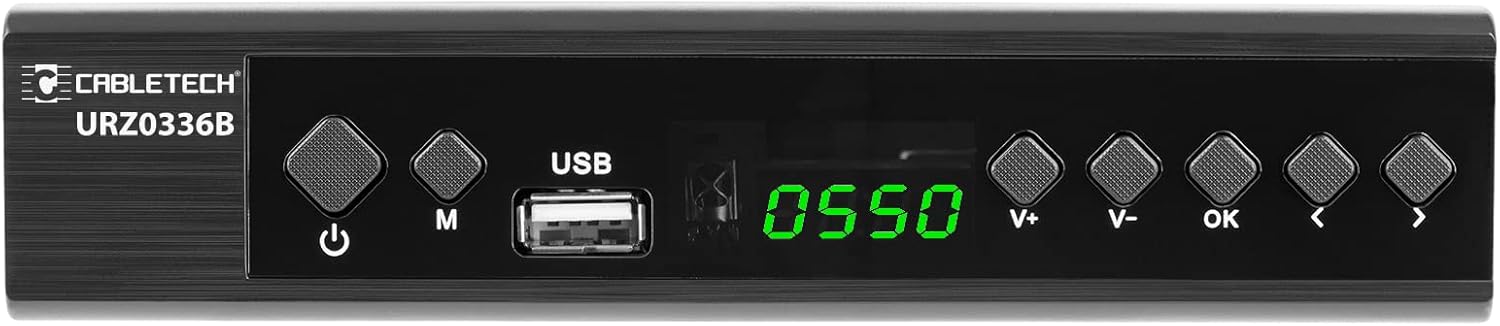
Image: Close-up of the Cabletech URZ0336B front panel, featuring a power button, menu button (M), USB 2.0 port, LED display showing "0550", and navigation/volume buttons (V+, V-, OK, <, >).
- Power Button: Turns the device on/off or to standby.
- M (Menu) Button: Accesses the main menu.
- USB 2.0 Port: For software updates, PVR recording, and media playback.
- LED Display: Shows channel number or time.
- V+/V- Buttons: Adjusts volume.
- OK Button: Confirms selections.
- </> Buttons: Navigates through menus or changes channels.
4.3. Rear Panel Connections

Image: The rear panel of the Cabletech URZ0336B, showing various input and output ports: ANT IN (IEC socket), COAXIAL, USB, HD OUT (HDMI), SCART, and the power input (110-240V~ 50/60Hz).
- ANT IN: Connects to your DVB-T/T2 antenna.
- COAXIAL: Digital audio output.
- USB: Additional USB 2.0 port for external devices.
- HD OUT (HDMI): Connects to your TV for high-definition video and audio.
- SCART: Connects to older TVs or VCRs.
- Power Input: Connects to the power adapter.
4.4. Remote Control Layout

Image: Detailed view of the Cabletech URZ0336B remote control, showing buttons for power, TV/AV, volume, channel, mute, playback controls, EPG, TTX, INFO, numeric keypad, and special function buttons.
The remote control provides full functionality for operating your tuner. Insert 2x AAA batteries into the battery compartment before first use.
5. Setup
5.1. Connecting the Tuner
- Connect Antenna: Connect your DVB-T/T2 antenna cable to the ANT IN port on the rear panel of the tuner.
- Connect to TV:
- For HD TVs: Connect an HDMI cable from the HD OUT (HDMI) port on the tuner to an HDMI input on your TV.
- For older TVs: Connect a SCART cable from the SCART port on the tuner to the SCART input on your TV.
- Connect Power: Connect the power adapter to the tuner's power input and then plug it into a wall outlet.
- Insert Batteries: Open the battery compartment on the remote control and insert 2x AAA batteries, observing polarity.
5.2. First-Time Installation and Channel Scan
- Turn on your TV and select the correct HDMI or SCART input source that the tuner is connected to.
- Power on the Cabletech URZ0336B tuner using the power button on the front panel or remote control.
- The first-time installation wizard should appear on your TV screen. Follow the on-screen prompts.
- Select your preferred language and country.
- Initiate an Automatic Search for channels. The tuner will scan for all available DVB-T/T2 channels in your area. This process may take several minutes.
- Once the scan is complete, the tuner will save the found channels and display the first channel.
Note: If you experience poor signal quality, adjust your antenna position or consider using a signal amplifier.
6. Operating Instructions
6.1. Basic Functions
- Power On/Off: Press the POWER button on the remote control.
- Channel Change: Use the CH+/CH- buttons or the numeric keypad to enter a channel number.
- Volume Control: Use the VOL+/VOL- buttons.
- Mute: Press the MUTE button to temporarily silence the audio.
- Menu: Press the MENU button to access the main menu for settings and features.
- OK: Confirms selections in menus or displays the channel list.
- EXIT: Exits the current menu or screen.
6.2. Electronic Program Guide (EPG)
The 7-day EPG provides a schedule of current and upcoming programs.
- Press the EPG button on the remote control.
- Navigate through channels and program times using the arrow buttons.
- Press OK to view details about a selected program.
6.3. PVR (Program Recording) and Timeshift
Connect a USB storage device (e.g., USB flash drive or external hard drive) to one of the USB 2.0 ports to use PVR and Timeshift functions.
- PVR Recording:
- Press the REC button (red circle) on the remote to start immediate recording of the current program. Press STOP (square) to end recording.
- Schedule recordings via the EPG: Select a program in the EPG and press OK, then choose the record option.
- Timeshift:
- While watching a program, press the PAUSE button. The tuner will begin recording the live broadcast to the USB device.
- You can then PLAY, FAST FORWARD, or REWIND within the buffered content.
- Press STOP to exit Timeshift and return to live TV.
6.4. Media Playback
The tuner supports playback of various media files from a connected USB storage device.
- Connect your USB device to a USB port on the tuner.
- Go to the main menu and select "Media" or "USB".
- Navigate to the desired file type (MP3, WMA, JPEG, BMP, AVI) and select the file to play.
6.5. Supported Applications
The tuner supports various online applications when connected to the internet via an external MT7601 Wi-Fi adapter (not included).
- Weather: View local weather forecasts.
- IPTV: Access Internet Protocol Television streams.
- YouTube: Watch videos from YouTube.
- RSS: Read RSS news feeds.
Note: An external MT7601 Wi-Fi adapter is required for internet connectivity and access to these applications.
6.6. Parental Control
Set up parental control to restrict access to certain channels or programs based on age ratings.
- Access the "Parental Control" section in the main menu.
- Enter your PIN (default is usually 0000 or 1234, check your device for specifics).
- Configure age restrictions or lock specific channels.
6.7. Timer Function
The timer function allows you to schedule the tuner to turn on/off at specific times or to switch to a particular channel.
- Navigate to the "Timer" section in the main menu.
- Set the event type (e.g., Power On, Power Off, Record), time, and duration.
7. Maintenance
7.1. Cleaning
To clean the device, disconnect it from the power supply and wipe the exterior with a soft, dry cloth. Do not use liquid or aerosol cleaners.
7.2. Software Update
Software updates can improve performance and add new features. Updates are performed via the USB port.
- Download the latest firmware file from the official Cabletech support website (if available).
- Copy the firmware file to the root directory of a USB flash drive.
- Connect the USB flash drive to the tuner's USB port.
- Go to the "System" or "Tools" menu, then select "Software Update" or "Upgrade by USB".
- Follow the on-screen instructions to complete the update. Do not power off the device during the update process.
8. Troubleshooting
If you encounter issues with your tuner, refer to the following common problems and solutions:
| Problem | Possible Cause | Solution |
|---|---|---|
| No picture or sound | Incorrect TV input selected; Loose cable connections; Tuner not powered on. | Select correct TV input (HDMI/SCART); Check all cable connections; Ensure tuner is powered on. |
| "No Signal" message | Antenna not connected; Poor antenna signal; No channels scanned. | Connect antenna properly; Adjust antenna position; Perform an automatic channel scan. |
| Remote control not working | Batteries are dead or inserted incorrectly; Obstruction between remote and tuner. | Replace batteries; Check battery polarity; Remove any obstructions; Point remote directly at the tuner. |
| Cannot record to USB | USB device not connected or formatted incorrectly; Insufficient storage space. | Ensure USB device is connected; Format USB device to FAT32 or NTFS; Free up space on USB device. |
| No internet access for apps | No MT7601 Wi-Fi adapter connected; Network configuration issues. | Connect a compatible MT7601 Wi-Fi adapter; Check network settings in the tuner's menu. |
9. Specifications
| Feature | Detail |
|---|---|
| Model Number | URZ0336B |
| CPU | GX6702S5 |
| Internal Memory | 32 MB |
| RAM | 512 MB DDR2 |
| ANT Connector | IEC socket |
| Frequency Range | VHF: 170–230 MHz, UHF: 470–862 MHz |
| Demodulation | QPSK, 16QAM, 64QAM, 256QAM |
| Bandwidth | 7 MHz, 8 MHz |
| Decoding | MPEG-1, MPEG-2, MPEG-4, H.264, H.265, AAC, HE-AAC, AC-3, DD+ |
| Inputs/Outputs | 2x USB 2.0, HDMI, SCART, COAXIAL |
| Aspect Ratio | Auto, 16:9 WS, 16:9 PB, 16:9 PS; 4:3 LB, 4:3 PS, 4:3 Full |
| Supported Formats | MP3, WMA, JPEG, BMP, AVI |
| Screen Resolution | 480i, 480p, 576i, 576p, 720p, 1080i, 1080p |
| Video Resolution | 1920 x 1080 Pixels |
| Audio Decoding | MPEG-1 LayerI/II, Dolby-Downmix 2-Channel (License), AAC LC, HE-AAC v1/V2, PCM-Downmix, IEC958 SPDIF |
| File System | FAT32, NTFS |
| Compatibility | Fully compatible with DVB-T2/DVB-T |
| Remote Control | Requires 2x AAA batteries |
| Power Consumption | Max. 6 W (Operating), Max. 50/60 Hz (Standby) |
| Dimensions (W x H) | 168 mm x 36 mm |
| Wi-Fi Support | Requires external MT7601 chip adapter |
| Tuner Bit Depth | 10 Bit |
10. Warranty and Support
This product comes with a standard manufacturer's warranty. For specific warranty terms and conditions, please refer to the documentation included with your purchase or contact Cabletech customer support.
For technical assistance, troubleshooting beyond this manual, or warranty claims, please contact your retailer or the official Cabletech support channels.
Related documentsURZ0336B


Ask a question about this manual
Ask about setup, troubleshooting, compatibility, parts, safety, or missing instructions. Manuals+ will review the question and use this page’s manual context to help answer it.