
EONON Q50UPRO-HK(3GB+32GB)
Eonon CarPlay & Android Auto Car Stereo Receiver User Manual
Model: Q50Pro (Q50UPRO-HK(3GB+32GB))
Compatible with BMW 3 Series 1999-2005 (E46)
1. Introduction
Thank you for choosing the Eonon CarPlay & Android Auto Car Stereo Receiver. This manual provides detailed instructions for the installation, setup, operation, and maintenance of your new car stereo. Please read this manual thoroughly before use to ensure proper installation and optimal performance.

Image: Eonon Q50Pro Car Stereo Receiver displaying the CarPlay interface.
2. What's in the Box
Carefully unpack the box and ensure all items listed below are present and in good condition. If any items are missing or damaged, please contact Eonon customer support.

Image: Diagram illustrating the contents of the product package.
- Eonon Q50Pro Car Stereo Unit
- GPS Antenna
- CAN Bus Decoder
- Power Cable
- Audio Video Adapter Cable
- Backup Camera Video Input Cable
- USB Adapter Cable (x2)
- CarPlay & Android Auto USB Adapter Cable
- External Microphone
- Radio Antenna Adapter Cable
- Radio Antenna Adapter
- 10A Fuse
- 3M Adhesive Pad
- User Manual (this document)
3. Product Features
The Eonon Q50Pro is designed to enhance your driving experience with a range of advanced features:
- Operating System: Android 10.0
- Processor: Unisoc UIS8581A 8-core A55 CPU
- Memory & Storage: 3GB RAM + 32GB Internal Storage
- Display: 9-inch 1280x720 HD resolution screen with comfortable 2.5D touch
- Connectivity: Bluetooth 5.0, USB, Wi-Fi (5GHz support)
- Smartphone Integration: Wireless & Wired Apple CarPlay, Wireless & Wired Android Auto
- Audio Processing: Built-in DSP with 48-Band Equalizer and 9 EQ-Modus, supporting sound field, surround sound, bass boost, and audio optimization.
- Radio: AM/FM Radio
- Camera Support: Supports AHD Rear Camera (e.g., A0125 model)
- Control: Steering Wheel Control compatibility
- Customization: Multiple UI Themes and Android APP Download via Google Play Store
- Design: Ultra-thin 50mm body for sleek integration

Image: Details showcasing the 1280x720 HD resolution screen, 2.5D touch, 50mm ultra-thin body, and Unisoc UIS8581A 8-core CPU.

Image: Visual representation of the 48-Band Equalizer and DSP sound field controls.
4. Installation
This unit is specifically designed for BMW 3 Series E46 models from 1999-2005. Installation typically involves replacing the factory radio. It is highly recommended to consult a professional for installation if you are not familiar with car audio wiring and vehicle disassembly.
4.1 Compatibility and Harness
Ensure your vehicle's radio plug matches the requirements. For cars with factory navigation or DSP systems, an optional 5M Extension Harness A0590 (not included) is required for proper installation.

Image: Applicable BMW E46 models and important notes regarding radio harness compatibility and potential bracket modification.
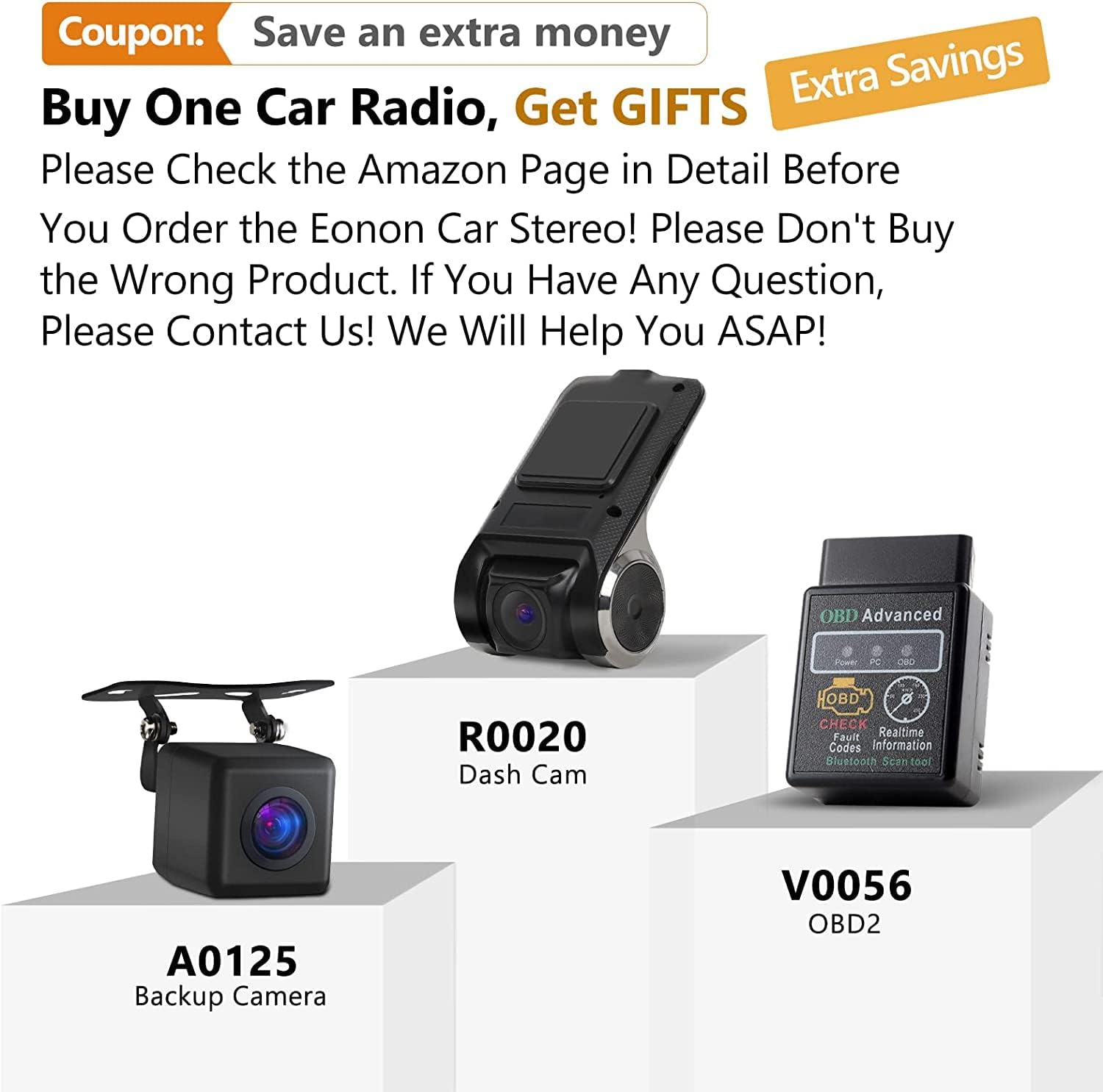
Image: The 5M Extension Harness A0590, designed for vehicles with Navigation or DSP systems.
4.2 Wiring Diagram
Refer to the following diagram for connecting the car stereo to your vehicle's electrical system and peripherals.

Image: Comprehensive wiring diagram for the Eonon Q50Pro, showing connections for power, speakers, camera, and other accessories.
4.3 Physical Installation Notes
- Ensure all cables are properly routed and not blocking the car stereo or other components.
- If the bracket inside the center console is blocking the car stereo, it may be necessary to cut off the protruding part of the bracket.
- Some users have reported needing to shave a small tab on the trim piece behind the screen for a flush fit.

Image: Comparison showing the factory radio (left) and the Eonon Q50Pro installed (right) in a BMW E46 dashboard.
5. Initial Setup
5.1 Power On
After successful installation, turn on your vehicle's ignition. The stereo should power on automatically. The initial boot-up may take approximately 20 seconds.
5.2 Network Connection
To access online features, connect the unit to a Wi-Fi network (e.g., your mobile hotspot). Go to Settings > Network & Internet > Wi-Fi and select your desired network.
5.3 Date and Time
The unit typically synchronizes date and time via GPS or network. If needed, adjust manually in Settings > System > Date & Time.
5.4 Bluetooth Pairing
To pair your phone via Bluetooth 5.0, go to Settings > Connected devices > Pair new device on the stereo. Enable Bluetooth on your phone and select the stereo from the list of available devices.

Image: Bluetooth 5.0 connectivity for audio streaming and hands-free calls.
6. Operating Instructions
6.1 Touch Screen Navigation
The 9-inch 2.5D touch screen allows for intuitive navigation. Tap icons to open applications, swipe to navigate menus, and use pinch-to-zoom for maps.
6.2 Apple CarPlay & Android Auto
Connect your iPhone or Android phone via USB or wirelessly to activate CarPlay or Android Auto. This allows access to navigation, music, calls, and messages directly from the stereo's display.
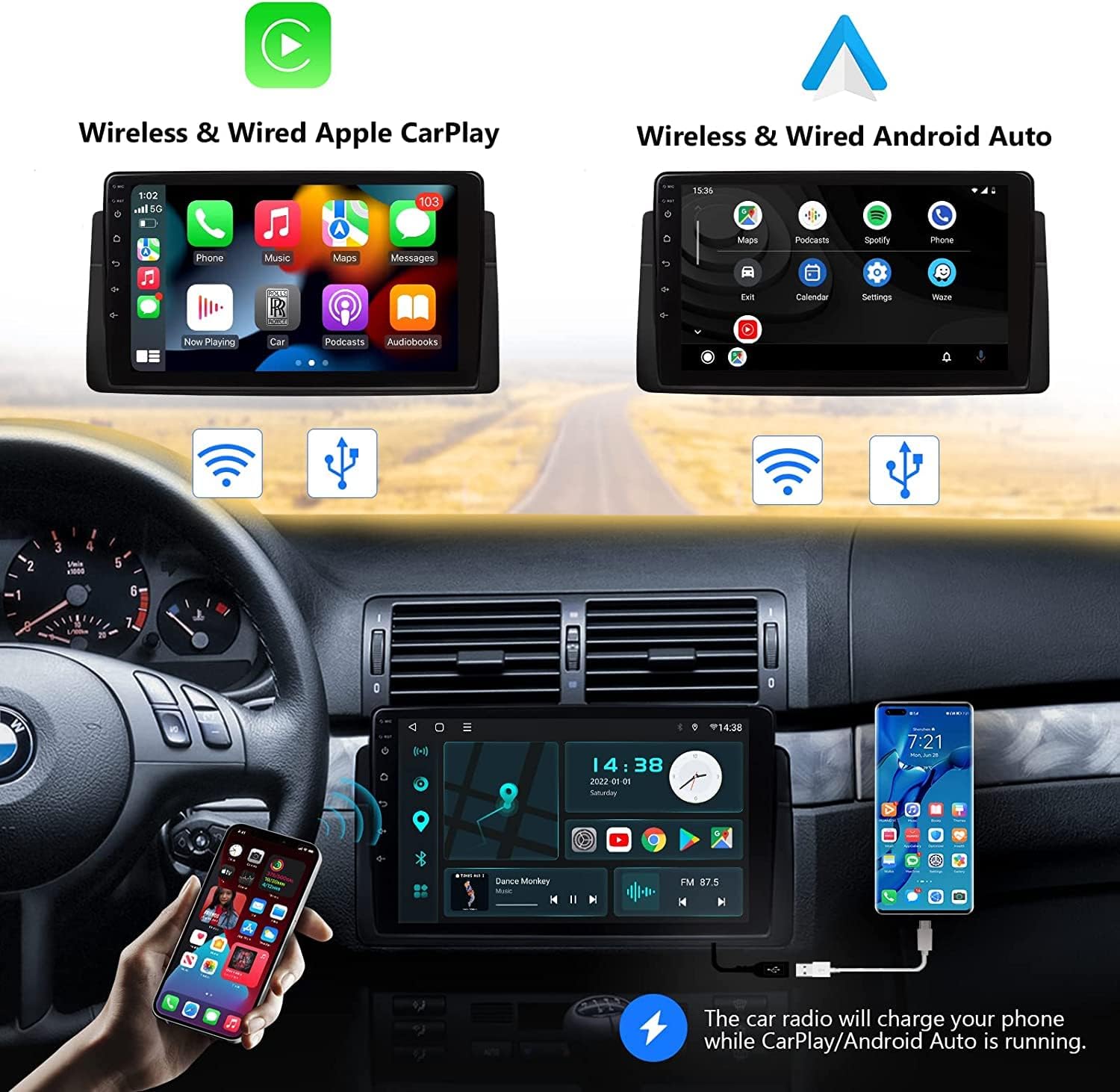
Image: Demonstrating both Wireless & Wired Apple CarPlay and Android Auto functionality.

Image: Apple CarPlay in action, illustrating voice command capabilities.

Image: Android Auto in action, illustrating Google Assistant voice command capabilities.
6.3 Audio Settings (DSP)
Utilize the built-in DSP to customize your audio experience. Access the 48-Band Equalizer, adjust sound field, enable surround sound, and boost bass through the audio settings menu.

Image: Interface for the Built-in DSP, allowing detailed sound adjustments.
6.4 Radio Operation
Select the Radio application to access AM/FM stations. Use the on-screen controls to scan for stations, save presets, and adjust settings.

Image: The AM/FM Radio interface with frequency display and controls.
6.5 Steering Wheel Control
The unit supports factory steering wheel controls for convenient operation of volume, track skipping, and call management. Configuration may be required in the settings menu.

Image: Interface for configuring steering wheel controls.
6.6 Rear Camera Display
If a compatible AHD rear camera (e.g., A0125) is installed, the display will automatically switch to the camera view when the vehicle is put into reverse gear.

Image: Rear camera display with a 140-degree wide viewing angle and IP68 waterproof camera.
6.7 Android App Download
Access the Google Play Store to download and install various Android applications directly onto the unit, expanding its functionality.

Image: Google Play Store interface for downloading Android applications.
6.8 UI Themes
Customize the look and feel of your stereo's interface by selecting from various UI themes available in the settings or through online downloads.

Image: Examples of different UI themes that can be applied to the stereo interface.
7. Maintenance
7.1 Cleaning the Screen
Use a soft, lint-free cloth to gently wipe the screen. For stubborn smudges, slightly dampen the cloth with water or a screen-safe cleaner. Avoid abrasive materials or harsh chemicals.
7.2 Software Updates
Periodically check for software updates in the system settings to ensure optimal performance and access to new features. Connect to a stable Wi-Fi network before initiating updates.
7.3 Environmental Considerations
Avoid exposing the unit to extreme temperatures, direct sunlight for prolonged periods, or excessive moisture. These conditions can affect the unit's lifespan and performance.
8. Troubleshooting
If you encounter issues with your Eonon Q50Pro, refer to the following common problems and solutions:
- Unit Does Not Power On:
- Check all power connections and fuses.
- Ensure the vehicle's ignition is on.
- Battery Drain Issue:
- Some users have reported battery drain if the unit remains active after the car is off. Navigate to Settings and ensure the CarPlay/Android Auto sleep setting is configured to "no sleep" or to power off with the ignition. This ensures the unit fully shuts down when the car is off.
- CarPlay/Android Auto Glitches or Disconnects:
- Ensure a stable USB connection (if wired) or Wi-Fi connection (if wireless).
- Restart your smartphone and the car stereo.
- Check for software updates for both the stereo and your phone's operating system.
- If disconnecting when shifting to reverse, this is normal behavior for some systems to prioritize the camera feed. CarPlay/Android Auto should resume after shifting out of reverse.
- Bluetooth Audio Issues:
- Ensure your phone is properly paired and selected as the audio output device.
- Try unpairing and re-pairing the device.
- Verify that the volume on both the stereo and your phone is turned up.
- Apps Crashing/Freezing:
- Close and reopen the application.
- Clear the app's cache in Settings > Apps & notifications > [App Name] > Storage & cache.
- Ensure sufficient free storage space on the unit.
- Steering Wheel Controls Not Working:
- Verify that the CAN Bus decoder is correctly connected.
- Check the steering wheel control settings in the stereo's menu for proper mapping.
For further assistance, please refer to the official Eonon support resources or contact their customer service.
9. Specifications
| Feature | Specification |
|---|---|
| Product Dimensions | 7.01 x 0.79 x 2.95 inches (17.8 x 2.0 x 7.5 cm) |
| Item Weight | 5.15 pounds (2.34 kg) |
| Model Number | Q50UPRO-HK(3GB+32GB) |
| Brand | EONON |
| Connectivity Technology | USB, Bluetooth, Wi-Fi |
| Special Feature | Touchscreen, CarPlay, Android Auto, DSP |
| Compatible Devices | Smartphone |
| Connector Type | USB, 3.5mm Jack |
| Audio Output Mode | Stereo |
| Surround Sound Channel Configuration | 4.0 |
| Video Encoding | RM |
| Output Power | 48 Watts |
| Screen Diagonal | 9 inches / 23 cm |
10. Warranty and Support
Eonon products typically come with a manufacturer's warranty. Please refer to the warranty card included with your product or visit the official Eonon website for detailed warranty terms and conditions.
Customer Support
For technical assistance, troubleshooting, or any inquiries regarding your Eonon Q50Pro, please contact Eonon customer support through their official channels. You may also find additional resources, including PDF manuals, on their website.
- Official Eonon Store: EONON Store on Amazon
- User Manual (PDF): Download PDF
- Installation Manual (PDF): Download PDF
Related documentsQ50UPRO-HK(3GB+32GB)


Ask a question about this manual
Ask about setup, troubleshooting, compatibility, parts, safety, or missing instructions. Manuals+ will review the question and use this page’s manual context to help answer it.