
Introduction
The ION Audio Meeting Mate is a versatile rechargeable portable speaker designed for both home and office environments. It features a built-in microphone, Bluetooth 5.0 connectivity, and a durable design. This manual provides essential information for setting up, operating, maintaining, and troubleshooting your Meeting Mate speaker.
Key features include:
- Bluetooth 5.0 Compatibility: Stream and control music wirelessly up to 100 feet.
- Easy-Touch Control: Quick one-touch play, pause, volume, and track control.
- 20-Hour Rechargeable Battery: Provides extended usage time.
- Multi-Color LED Lights: Customizable lighting for ambiance.
- Multiple EQ Settings: Optimize audio for music, podcasts, or conference calls.
- USB Audio Link: Connects easily to PC or Mac for audio and microphone access.
- Built-in Microphone with Mute Button: Functions as an instant speakerphone for conference calls.
- Versatile Design with Stand Accessory: Allows use as a speaker or sound bar for phones, computers, or TVs.
- ION Sound XP App: Controls audio and lighting functions via iOS or Android devices.
What's in the Box
Please ensure all items listed below are included in your package:
- ION Audio Meeting Mate Speaker
- Stand Accessory
- USB Charging Cable
- Quickstart Guide (not included in this manual)
Setup
1. Charging the Battery
Before first use, fully charge the Meeting Mate speaker. Connect the included USB charging cable to the speaker's charging port and to a standard USB power adapter (not included) or a computer's USB port. The LED indicator will show charging status.

Image: The speaker's side panel with a red LED light, indicating power or charging status. A battery icon is displayed above the speaker.
2. Connecting the Stand Accessory
The Meeting Mate includes a stand accessory for versatile placement. You can use the speaker horizontally as a sound bar or vertically with the stand. To attach the stand, align the speaker with the stand's grooves and gently push until it clicks into place.

Image: A diagram illustrating the correct method to attach the stand accessory to the Meeting Mate speaker, showing both front and back views for proper alignment.
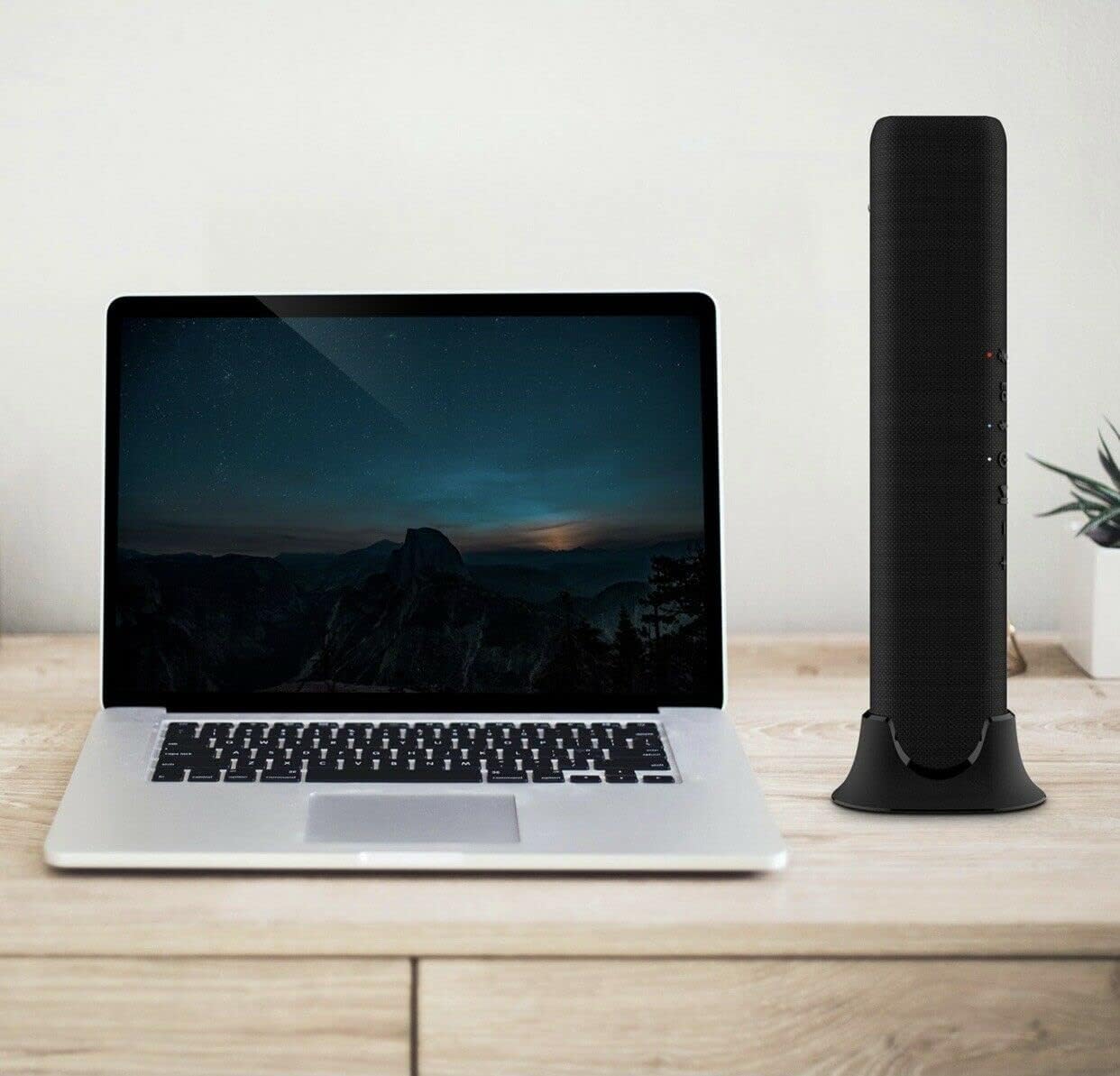
Image: The Meeting Mate speaker positioned vertically on its stand, placed beside an open laptop on a wooden desk, demonstrating its vertical use.
3. Powering On/Off
Press and hold the Power button (ⓘ) located on the top panel of the speaker to turn it on or off.
Operating
1. Bluetooth Pairing
To connect your device via Bluetooth:
- Ensure the Meeting Mate is powered on.
- Press the Bluetooth button (ⓘ) on the speaker's top panel. The Bluetooth indicator light will flash, indicating it is in pairing mode.
- On your device (smartphone, tablet, computer), go to the Bluetooth settings and select "ION Meeting Mate" from the list of available devices.
- Once paired, the Bluetooth indicator light on the speaker will glow solid.

Image: A close-up view of the speaker's control panel, highlighting the Bluetooth icon and its corresponding indicator light, signifying Bluetooth 5.0 compatibility.
2. USB Audio Link
The Meeting Mate can connect to your PC or Mac via USB for audio playback and microphone access. Simply connect the speaker to your computer using a USB cable. Your computer should automatically recognize the device and use it as an audio output and input.
3. Controls
The top panel of the Meeting Mate features easy-touch controls for various functions:

Image: A detailed view of the speaker's top control panel, showing illuminated icons for microphone mute, EQ settings, Bluetooth, power, play/pause, volume down, and volume up.
- Microphone Mute (🎤): Press to mute or unmute the built-in microphone during calls.
- EQ (⚙): Press to cycle through different equalizer settings (e.g., Music, Podcast, Conference Call) to optimize audio for your content.
- Bluetooth (ⓘ): Press to enter Bluetooth pairing mode.
- Power (ⓘ): Press and hold to turn the speaker on or off.
- Play/Pause (ⓘ): Press to play or pause audio playback.
- Volume Down (-): Press to decrease the volume.
- Volume Up (+): Press to increase the volume.
4. Multi-Color LED Lights
The Meeting Mate features multi-color LED lights that can enhance your listening experience. These lights can be controlled via the ION Sound XP app or through the speaker's controls (if available, refer to the app for full customization).

Image: Three Meeting Mate speakers shown in vertical orientation, demonstrating the multi-color LED lights glowing in red, green, and blue.
5. ION Sound XP App
For enhanced control over audio and lighting functions, download the ION Sound XP app from the Apple App Store or Google Play Store. The app allows you to adjust EQ settings, change LED light patterns, and manage other speaker features directly from your iOS or Android device.

Image: A smartphone displaying the ION Sound XP app interface, which provides controls for audio settings and LED lighting for the Meeting Mate speaker.
Maintenance
1. Cleaning
To clean the speaker, use a soft, dry cloth. Do not use abrasive cleaners, waxes, or solvents. Avoid getting moisture into any openings.
2. Battery Care
To maximize the lifespan of the rechargeable battery:
- Fully charge the battery before first use.
- Avoid completely draining the battery frequently.
- Store the speaker in a cool, dry place when not in use for extended periods.
- Recharge the battery every 3 months if not used regularly.
Troubleshooting
If you encounter issues with your Meeting Mate, refer to the following common solutions:
| Problem | Solution |
|---|---|
| No Power | Ensure the battery is charged. Connect the speaker to a power source using the USB cable. Press and hold the Power button for a few seconds. |
| No Sound | Check the volume level on both the speaker and your connected device. Ensure the correct audio output is selected on your device (for USB connection). Verify Bluetooth connection is active. |
| Bluetooth Disconnection | Ensure your device is within the 100ft Bluetooth range. Try unpairing and re-pairing the device. Turn off and on the speaker and your device's Bluetooth. |
| Microphone Not Working | Ensure the microphone is not muted (check the mute button indicator). For USB connection, verify the Meeting Mate is selected as the input device in your computer's sound settings. |
| LED Lights Not Working | Check the ION Sound XP app for light settings. Ensure the speaker is powered on. |
Specifications
| Feature | Detail |
|---|---|
| Model Name | Meeting Mate |
| Item Model Number | 4601R |
| Speaker Type | Computer Speaker |
| Connectivity Technology | Bluetooth, USB |
| Wireless Communication Technology | Bluetooth 5.0 |
| Bluetooth Range | Up to 100 feet (30 meters) |
| Power Source | Battery Powered |
| Battery Capacity | 20 Hours (Rechargeable) |
| Speaker Size | Dual 2-inch (50mm) full-range speakers |
| Speaker Maximum Output Power | 5 Watts |
| Audio Output Mode | Stereo |
| Surround Sound Channel Configuration | 2.0 |
| Material | Fabric, Plastic |
| Color | Gray |
| Item Weight | 2.51 pounds |
| Package Dimensions | 17.87 x 6.14 x 5.71 inches |
| Control Method | App, On-device buttons |
| Included Components | Rechargeable battery, multi-color LED lights, multiple EQ settings, built-in microphone, stand accessory, ION Sound XP app (downloadable) |
| Water Resistance Level | Not Water Resistant |
| Manufacturer | ION Audio |
| UPC | 697333827185 |
Official Product Videos
ION Audio Meeting Mate Overview (2:04)
Video: An overview of the ION Audio Meeting Mate speaker, demonstrating its features and versatile use cases in a 2-minute, 4-second presentation.
ION Audio Meeting Mate Features (4:02)
Video: A detailed demonstration of the various features of the ION Audio Meeting Mate speaker, including controls, connectivity, and lighting, presented in a 4-minute, 2-second video.
Warranty and Support
The ION Audio Meeting Mate comes with a Limited Warranty. For specific warranty details and terms, please refer to the documentation included with your purchase or visit the official ION Audio website.
For technical support, troubleshooting assistance, or to inquire about replacement parts, please contact ION Audio customer support through their official website or the contact information provided in your product's packaging.


