
1. Introduction
The Portronics Splug 10 is a 10A Wi-Fi enabled smart plug designed to integrate your electrical appliances into a smart home ecosystem. This device allows for remote control, scheduling, and energy monitoring of connected appliances via a mobile application and voice assistants. This manual provides detailed instructions for the safe and effective use of your Splug 10.

Image: The Portronics Splug 10 Smart Plug shown alongside its retail packaging, highlighting its compact design and key features.
2. Product Overview
The Splug 10 offers convenient control over your home appliances. Key features include:
- Remote Control: Manage appliances from anywhere using the Portronics Smart Home mobile application.
- Scheduling/Timer: Automate device operation by setting custom ON/OFF schedules.
- Voice Control: Compatible with Amazon Alexa and Google Assistant for hands-free operation.
- Energy Monitoring: Track the power consumption of connected devices.
- Compact Design: Measures 57mm x 57mm x 59mm and is constructed from fire-resistant Polycarbonate material.

Image: A detailed view of the Portronics Splug 10 Smart Plug, showcasing its power button and universal socket design.
3. Setup Guide
Follow these steps to set up your Portronics Splug 10:
- Download the App: Search for and download the 'Portronics Smart Home' application from the Google Play Store or Apple App Store on your smartphone.
- Register/Log In: Open the app and create a new account or log in if you already have one.
- Plug In: Insert the Splug 10 into a standard wall socket. Ensure the socket is powered.
- Reset (if necessary): If the plug does not enter pairing mode automatically (indicated by a rapidly blinking light), press and hold the power button on the plug for approximately 5 seconds until the indicator light blinks rapidly. This performs a hard reset.
- Add Device: In the Portronics Smart Home app, tap the '+' icon or 'Add Device' option. Select 'Electrical Outlet' or 'Smart Plug' from the device list.
- Connect to Wi-Fi: Confirm that the indicator light on the Splug 10 is blinking rapidly. Enter your 2.4 GHz Wi-Fi network name and password in the app. The Splug 10 only supports 2.4 GHz Wi-Fi.
- Pairing: The app will begin searching for the device. Once found, follow the on-screen prompts to complete the pairing process.
- Rename Device: After successful pairing, you can rename your smart plug for easier identification (e.g., 'Living Room Lamp', 'TV Plug').

Image: The Portronics Splug 10 Smart Plug securely plugged into a wall outlet, indicating its 2.4GHz Wi-Fi connectivity.
4. Operating Instructions
Once your Splug 10 is set up, you can control it in several ways:
4.1 Manual Control
Press the physical power button on the Splug 10 to manually turn the connected appliance ON or OFF.
4.2 App Control
Open the Portronics Smart Home app. Tap on the device name (e.g., 'Living Room Lamp') to access its control interface. You can toggle the power ON/OFF directly from the app, even when you are away from home, provided the plug has an active internet connection.

Image: A user operating the smart plug remotely via the Portronics Smart Home app on their smartphone, demonstrating control from anywhere.
4.3 Scheduling and Timers
The app allows you to create custom schedules for your appliances:
- In the device control interface, navigate to the 'Schedule' or 'Timer' section.
- Tap 'Add Schedule' to set specific times for the plug to turn ON or OFF.
- You can set daily, weekly, or one-time schedules.
- Use this feature to automate lights, fans, or other devices to operate according to your routine.

Image: An illustration of smart plug scheduling in a bedroom, showing examples like turning on the TV at 9 PM and turning off the light at 11:30 PM.
5. Voice Control Integration
The Splug 10 is compatible with Amazon Alexa and Google Assistant. To enable voice control:
- Link Accounts: Open your Alexa or Google Home app.
- Add Skill/Device: Search for the 'Portronics Smart Home' skill (for Alexa) or 'Works with Google' service (for Google Assistant).
- Authorize: Link your Portronics Smart Home account with your voice assistant account by entering your credentials.
- Discover Devices: Once linked, ask your voice assistant to 'Discover devices' or manually add the Splug 10.
- Voice Commands: You can now use voice commands such as:
- "Alexa, turn on the fan."
- "Hey Google, turn off the living room light."
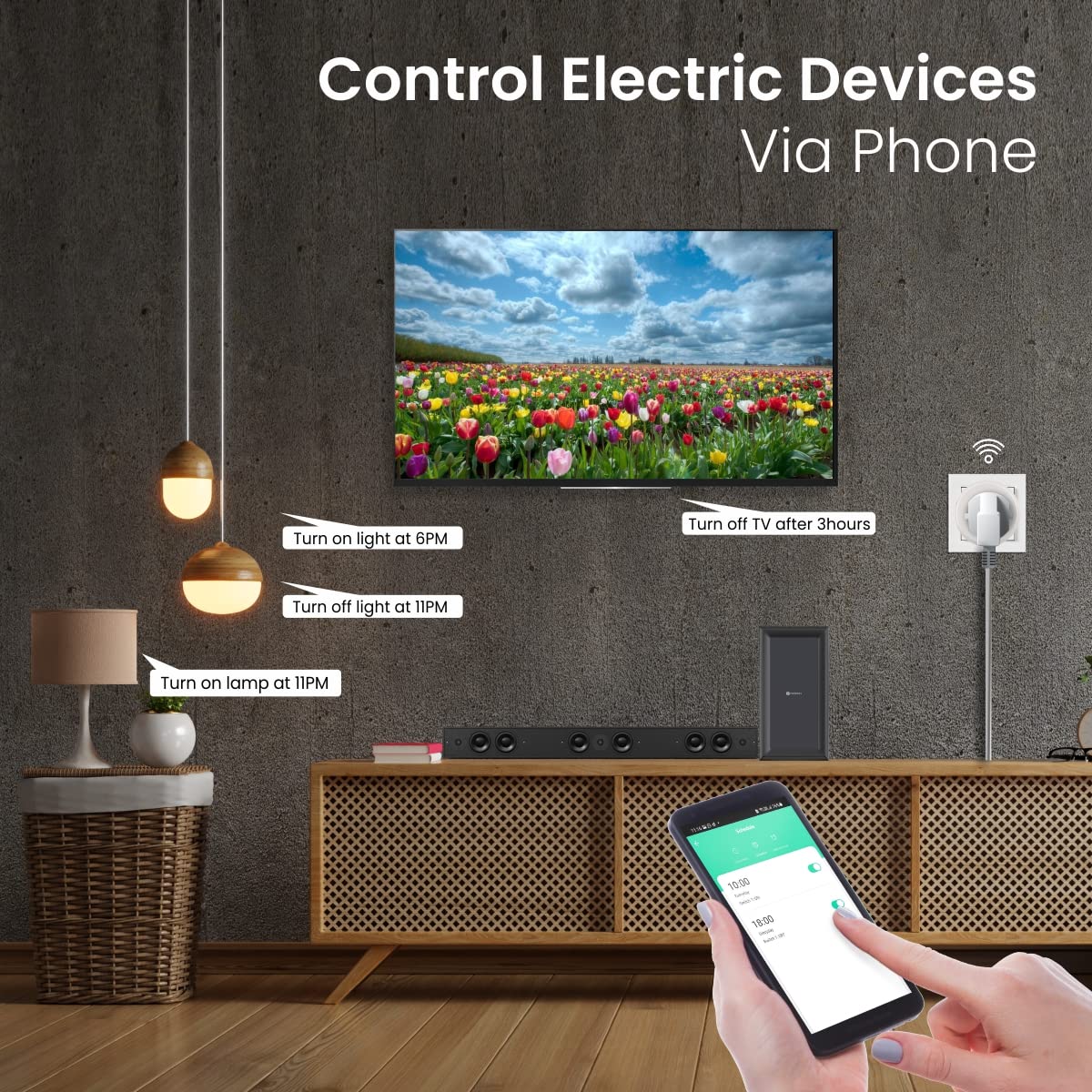
Image: A woman interacting with a voice assistant, demonstrating the use of the command 'Alexa, turn on the fan' to control a connected device.
6. Energy Monitoring
The Portronics Smart Home application includes an energy metering feature. This allows you to:
- Monitor the real-time power consumption of any appliance connected to the Splug 10.
- View historical data on energy usage, helping you identify power-hungry devices.
- Optimize your appliance usage to potentially reduce electricity bills.
7. Maintenance
To ensure optimal performance and longevity of your Splug 10:
- Cleaning: Disconnect the plug from the power outlet before cleaning. Use a dry, soft cloth to wipe the surface. Do not use liquid cleaners or abrasive materials.
- Environment: Avoid exposing the device to extreme temperatures, humidity, or direct sunlight.
- Overload Protection: Do not exceed the maximum load capacity of 10 Amps. Overloading can damage the device and connected appliances.
- Firmware Updates: Periodically check the Portronics Smart Home app for available firmware updates to ensure the device has the latest features and security enhancements.
8. Troubleshooting
If you encounter issues with your Splug 10, refer to the following common solutions:
| Problem | Possible Solution |
|---|---|
| Device not connecting to Wi-Fi |
|
| Appliance not turning ON/OFF |
|
| Voice control not working |
|
9. Specifications
| Feature | Detail |
|---|---|
| Model Number | POR-1474 |
| Dimensions (LxWxH) | 5.7 x 5.7 x 3.6 cm |
| Weight | 100 g |
| Amperage | 10 Amps |
| Connectivity | 2.4 GHz Wi-Fi |
| Material | Polycarbonate (PC) |
| Color | White |
| Compatibility | Amazon Alexa, Google Assistant |
10. Warranty and Support
The Portronics Splug 10 comes with a 1-Year Warranty from the date of purchase. This warranty covers manufacturing defects. For warranty claims or technical assistance, please contact Portronics customer support through their official website or the contact information provided with your product packaging. Please retain your purchase receipt for warranty validation.


