
1. Introduction and Overview
The Portronics Splug 16 is a 16A Wi-Fi enabled smart plug designed to integrate your high-power electrical appliances into a smart home system. This device allows for remote control, scheduling, and energy consumption monitoring, enhancing convenience and energy efficiency. It is compatible with popular voice assistants like Amazon Alexa and Google Assistant, providing a seamless user experience.
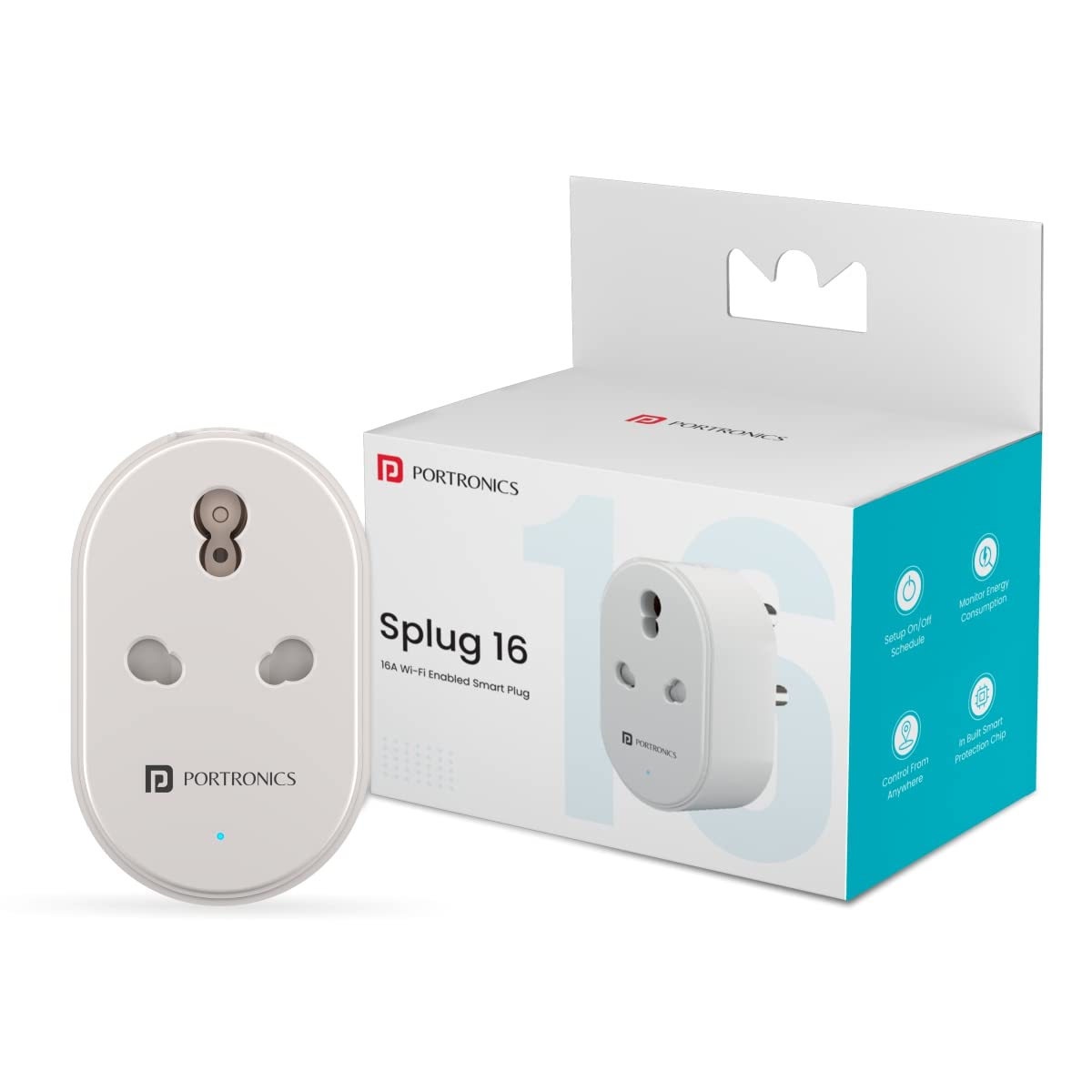
Image 1.1: The Portronics Splug 16 Wi-Fi 16A Smart Plug.
2. Package Contents
Please verify that all items are present in the package:
- 1 x Portronics Splug 16 Wi-Fi 16A Smart Plug
- 1 x User Manual
3. Product Features
The Portronics Splug 16 offers the following key features:
- Remote Control: Control connected appliances from anywhere using the Portronics Smart Home mobile application.
- Scheduling & Timer: Set automated schedules and countdown timers for turning devices ON/OFF, optimizing energy usage and convenience.
- Voice Control: Seamless integration with Amazon Alexa and Google Assistant for hands-free operation.
- Energy Monitoring: Track the energy consumption of connected devices through the mobile app.
- High Power Compatibility: Designed for 16A appliances, suitable for ACs, geysers, water motors, heaters, microwave ovens, and TVs.
- Durable Construction: Made from fire-resistant Polycarbonate material for safety and longevity.
- 2.4 GHz Wi-Fi Connectivity: Ensures stable and reliable connection to your home network.
4. Setup Guide
4.1 Physical Installation
- Unpack the Portronics Splug 16 and ensure all components are present.
- Plug the smart plug into a standard 16A wall socket.
- Plug the appliance you wish to control into the Portronics Splug 16.

Image 4.1: Close-up of the Portronics Splug 16.
4.2 App Installation and Pairing
- Download the Portronics Smart Home application from the Google Play Store or Apple App Store. Alternatively, the Smart Life app may also be compatible.
- Register or log in to your account within the app.
- Ensure your mobile device is connected to a 2.4 GHz Wi-Fi network. The smart plug only supports 2.4 GHz Wi-Fi.
- Press and hold the ON/OFF button on the Portronics Splug 16 for approximately 20 seconds until the indicator light begins to blink rapidly. This indicates pairing mode.
- In the Portronics Smart Home app, tap on "Add Device" or the "+" icon.
- Follow the on-screen instructions to detect and connect the smart plug to your Wi-Fi network.

Image 4.2: Portronics Smart Home App interface.
5. Operating Instructions
5.1 Manual Control
Press the physical ON/OFF button on the smart plug to manually toggle the power to the connected appliance.
5.2 App Control
Once paired, use the Portronics Smart Home app to:
- Turn ON/OFF: Tap the power icon next to the device name to switch it on or off remotely.
- Set Schedules: Navigate to the device settings to create daily or weekly schedules for automatic power control. For example, schedule your geyser to turn on at 7 AM and off at 7:30 AM.
- Set Timers: Use the countdown timer function to automatically turn off a device after a specified duration.
- Monitor Energy: View real-time and historical energy consumption data for the connected appliance.

Image 5.1: Setting a time schedule via the app.
5.3 Voice Control (Alexa & Google Assistant)
To enable voice control:
- Open the Amazon Alexa app or Google Home app.
- Go to "Skills & Games" (Alexa) or "Works with Google" (Google Home).
- Search for and enable the "Portronics Smart Home" skill/service.
- Link your Portronics Smart Home account when prompted.
- Discover devices. Your Splug 16 should now appear.
Example voice commands:
- "Alexa, turn on the AC."
- "Hey Google, turn off the geyser."

Image 5.2: Voice control integration with Alexa and Google Assistant.
6. Maintenance
To ensure optimal performance and longevity of your Portronics Splug 16:
- Cleaning: Disconnect the smart plug from the power outlet before cleaning. Use a soft, dry cloth to wipe the surface. Do not use liquid cleaners or abrasive materials.
- Environment: Avoid exposing the device to water, high humidity, extreme temperatures, or direct sunlight.
- Firmware Updates: Periodically check the Portronics Smart Home app for any available firmware updates for your device to ensure you have the latest features and security enhancements.
7. Troubleshooting
If you encounter issues with your Portronics Splug 16, refer to the following common problems and solutions:
| Problem | Possible Cause | Solution |
|---|---|---|
| Device not connecting to Wi-Fi | Incorrect Wi-Fi band (not 2.4 GHz), weak signal, incorrect password, device not in pairing mode. | Ensure your router is broadcasting a 2.4 GHz network. Move the plug closer to the router. Re-enter Wi-Fi password carefully. Reset the plug by holding the button for 20 seconds until the indicator blinks rapidly, then try pairing again. |
| App cannot find the device | Device not in pairing mode, app permissions not granted, network issues. | Confirm the plug's indicator light is blinking rapidly. Check if the app has necessary network permissions. Restart the app and your phone. If the Portronics Smart Home app fails, try using the Smart Life app as an alternative. |
| Voice control not working | Skill/service not enabled, account not linked, incorrect commands. | Ensure the "Portronics Smart Home" skill/service is enabled and your account is linked in the Alexa/Google Home app. Use the exact device name configured in the Portronics app. |
| Schedules not executing | No Wi-Fi connection, incorrect schedule settings. | The schedule function requires a continuous Wi-Fi connection. Verify the smart plug is connected to Wi-Fi. Double-check the schedule settings in the app. |
8. Specifications
Detailed specifications for the Portronics Splug 16:
| Feature | Detail |
|---|---|
| Model Number | Splug 16 (POR-1475) |
| Current Rating | 16 Amps |
| Operation Mode | ON-OFF |
| Connectivity Protocol | Wi-Fi (2.4 GHz) |
| Controller Type | Amazon Alexa, Google Assistant |
| Compatible Devices | ACs, geysers, TVs, fans, heaters, microwave ovens, motors for water tanks, etc. |
| Material Type | Polycarbonate (Fire-resistant) |
| Item Dimensions (L x W x H) | 8.4 x 6.4 x 5.3 Centimeters |
| Item Weight | 120 Grams |
| Color | White |
9. Warranty and Support
9.1 Warranty Information
The Portronics Splug 16 comes with a 1 Year Manufacturing Warranty from the date of purchase. This warranty covers manufacturing defects under normal use conditions. Please retain your purchase receipt for warranty claims.
9.2 Customer Support
For any assistance, technical support, or warranty-related queries, please contact Portronics customer service:
- Phone/WhatsApp: 9555-245-245 (Available 10 AM - 6 PM)
- Email Support: https://support.portronics.com
- Manufacturer Address: Portronics Digital Pvt Ltd, B-76, 1st & 2nd Floor, Wazirpur Industrial Area, New Delhi-110052