
Tera D5100
Tera D5100 Wireless & Wired Barcode Scanner User Manual
Model: D5100
Brand: Tera
1. Introduction
The Tera D5100 is a versatile barcode scanner designed for efficient and reliable data capture. It supports both wireless (2.4 GHz) and wired (USB) connectivity, making it suitable for various environments. This scanner is capable of reading a wide range of 1D, 2D, and QR codes from both printed labels and digital screens. Its ergonomic design and robust construction ensure comfortable and durable use.

Figure 1: Tera D5100 Barcode Scanner with Accessories
2. Key Features
- Battery Level Indicator & 2000mAh Capacity: Features a unique battery indicator light to show remaining power, offering extended continuous use.
- Ergonomic Design: The curved, elongated, and thickened handle provides a comfortable and secure grip, specifically designed for user comfort during prolonged operation.
- Anti-Shock Silicone Protection: Equipped with an orange anti-shock silicone cover to prevent scratches and damage from drops up to 2 meters (6.5 feet). IP54 technology protects against dust.
- Dual Connectivity (2.4 GHz Wireless + USB 2.0 Wired): Offers flexible connection options. Simply plug and play with the USB receiver for wireless use or connect directly via USB cable, requiring no driver installation. Wireless transmission range up to 100 meters in obstacle-free environments.
- Supports 1D/2D/QR Codes: Capable of scanning a wide variety of barcode symbologies, including:
- 1D: Codabar, Code 11, Code93, MSI, Code 128, UCC/EAN-128, Code 39, EAN-8, EAN-13, UPC-A, ISBN, Industrial 25, Interleaved 25, Standard25, Matrix.
- 2D: QR, DataMatrix, PDF417, Aztec, Hanxin, Micro PDF417.

Figure 2: Battery Level Indicator
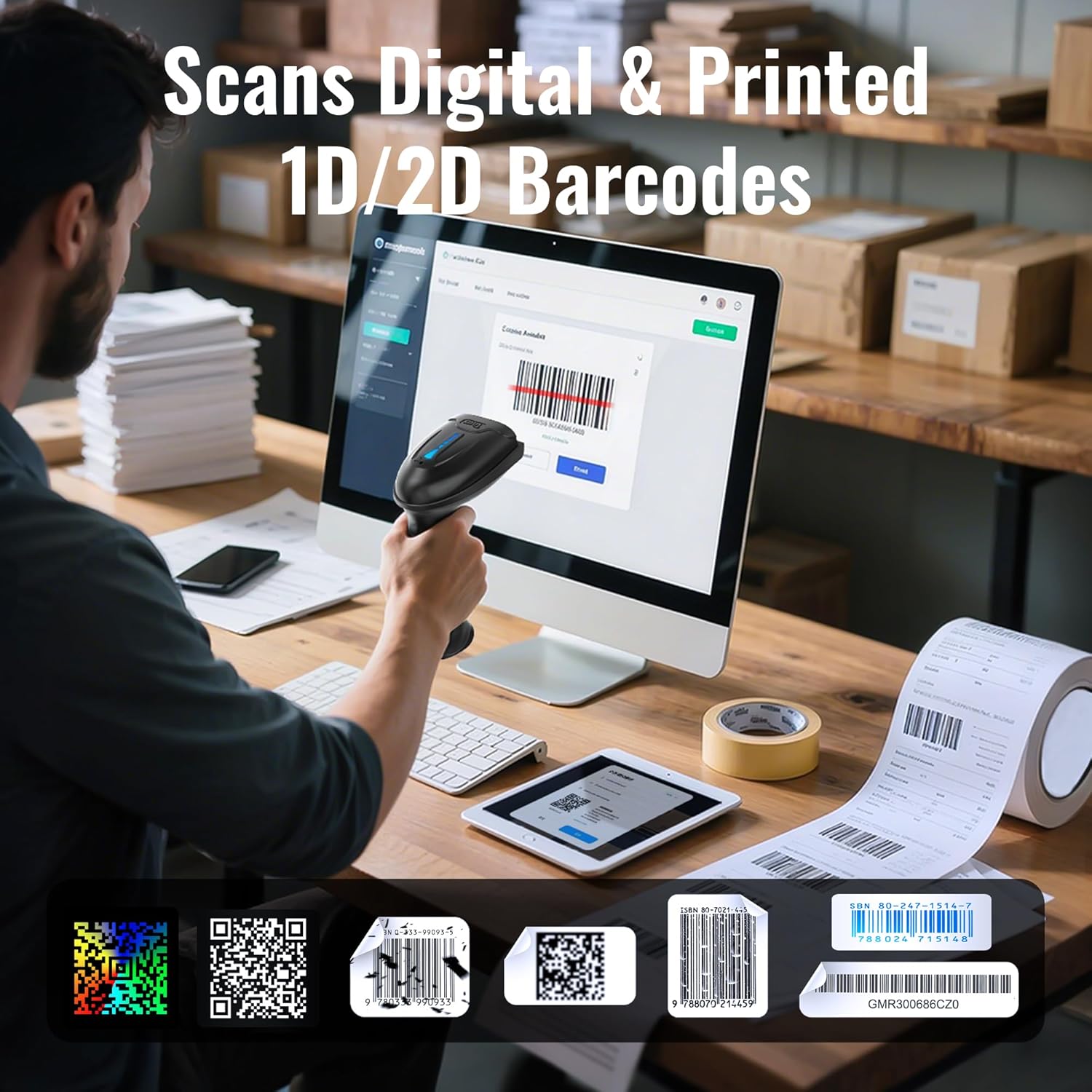
Figure 3: Rugged Design with Drop Resistance

Figure 4: Two Connectivity Options

Figure 5: Scanning Digital & Printed Barcodes
3. Setup Guide
3.1 Package Contents
Before you begin, please ensure all items are present in the package:
- Tera D5100 Barcode Scanner
- USB Charging/Data Cable
- 2.4 GHz Wireless USB Receiver (Dongle)
- User Manual (this document)
3.2 Initial Charging
For optimal performance, fully charge the scanner before first use. Connect the scanner to a USB power source (e.g., computer USB port, USB wall adapter) using the provided USB cable. The battery indicator lights will show charging progress.
3.3 Connecting the Scanner
The Tera D5100 offers two primary connection methods:
- Wired Mode (USB Connection):
- Connect one end of the USB cable to the scanner's USB port.
- Connect the other end of the USB cable to an available USB port on your computer or host device.
- The scanner will be recognized automatically as a HID keyboard device. No additional drivers are required.
- Wireless Mode (2.4 GHz Connection):
- Insert the 2.4 GHz USB wireless receiver into an available USB port on your computer or host device.
- Turn on the barcode scanner. It will automatically pair with the receiver.
- The scanner is now ready for wireless operation. The wireless transmission distance can reach up to 100 meters in open areas.
4. Operating Instructions
4.1 Scanning Barcodes
To scan a barcode, point the scanner's window at the barcode and press the trigger button. A successful scan will typically be indicated by a beep and/or a green light. Ensure the barcode is within the scanner's field of view and properly illuminated.
4.2 Upload Modes
The Tera D5100 supports two data upload modes:
- Instant Upload Mode: In this mode, scanned barcode data is immediately transmitted to the connected device (computer, laptop, etc.). This is the default and most common mode for real-time data entry.
- Storage Mode: When operating out of range or without a connected device, the scanner can store scanned barcode data internally. Once reconnected, the stored data can be uploaded in bulk. This mode is useful for inventory taking or scanning in remote locations.

Figure 6: Instant Upload and Storage Modes
4.3 Keyboard Language Support
The scanner supports multiple keyboard languages to ensure accurate data input across different regional settings. You can configure the scanner to match your system's keyboard layout, including English, Italian, German, Japanese, Spanish, and French.

Figure 7: Multiple Keyboard Languages Supported
5. Maintenance and Care
5.1 Durability
The Tera D5100 is built with a robust design, featuring an anti-shock silicone cover and IP54 protection. This makes it resistant to drops from up to 2 meters and protects against dust ingress, ensuring long-term reliability in various working conditions.
5.2 Cleaning
To maintain optimal scanning performance, keep the scanner's window clean. Use a soft, lint-free cloth, slightly dampened with water or a mild, non-abrasive cleaning solution. Avoid using harsh chemicals or abrasive materials that could scratch the scanning window.
5.3 Battery Care
To prolong battery life:
- Avoid fully discharging the battery frequently.
- Store the scanner in a cool, dry place when not in use for extended periods.
- Charge the battery regularly, even if the scanner is not in active use, to prevent deep discharge.
6. Troubleshooting
If you encounter issues with your Tera D5100 barcode scanner, please refer to the following common problems and solutions:
| Problem | Possible Cause | Solution |
|---|---|---|
| Scanner not connecting or recognized by computer. | Loose cable connection, faulty USB port, un-paired wireless receiver. | Ensure USB cable is securely connected. Try a different USB port. For wireless, ensure the USB receiver is plugged in and the scanner is powered on and within range. Re-pair if necessary (refer to quick start guide for pairing barcode). |
| Scanned data appears as garbled characters (e.g., "çè!ééçàé&é&ç§"). | Incorrect keyboard language setting on the scanner or host device. | Ensure the scanner's keyboard language setting matches your computer's keyboard layout (e.g., English, French, German). Refer to the programming barcodes in the quick start guide to change the language setting. |
| Scanner does not read certain barcodes (e.g., QR codes or codes from screens). | Scanner model limitation (1D only), damaged barcode, screen glare, specific barcode type not enabled. | Verify your D5100 model supports 2D/QR codes. Ensure the barcode is clear and not damaged. Adjust scanning angle to avoid glare on screens. Some specific barcode types might need to be enabled via programming barcodes (refer to the quick start guide). |
| USB wireless dongle is missing from the package. | Packaging error or accidental oversight. | Contact Tera customer support immediately for assistance and replacement. |
| Scanner not charging or holding a charge. | Faulty cable, power adapter, or battery. | Try a different USB cable and power adapter. If the issue persists, the battery may need service. Contact customer support. |
7. Technical Specifications
| Specification | Value |
|---|---|
| Brand | Tera |
| Model Number | D5100 |
| Color | Black |
| Connectivity Technology | USB, 2.4 GHz Wireless |
| Compatible Devices | Computer, Laptop |
| Power Source | Battery Powered |
| Scan Rate | 200 Scans/Second |
| Ingress Protection (IP) Rating | IP54 |
| Real View Angle | 20 degrees |
| Battery Capacity | 2000mAh |
| Wireless Transmission Distance | Up to 100 meters (obstacle-free) |
8. Warranty and Customer Support
Tera is committed to providing high-quality products and excellent customer service. For any questions, technical assistance, or warranty claims, please contact Tera customer support. Our team is ready to assist you with any issues you may encounter.

Figure 8: Tera Customer Support Team
For more information or to reach support, please visit the official Tera website or refer to the contact details provided with your product packaging.
Related documentsD5100


Ask a question about this manual
Ask about setup, troubleshooting, compatibility, parts, safety, or missing instructions. Manuals+ will review the question and use this page’s manual context to help answer it.