
1. Product Overview
The AWOW AiBook 10 is a versatile 10.1-inch 2-in-1 device designed to function as both a tablet and a laptop. It features a detachable keyboard, a responsive touchscreen, and an integrated kickstand for multiple viewing modes. Powered by an Intel Celeron N4120 processor, it includes 8GB RAM and 128GB SSD storage, making it suitable for everyday computing tasks, web browsing, and media consumption.

Image: The AWOW AiBook 10 tablet shown with its detachable keyboard, illustrating its 2-in-1 functionality.
Key Features:
- Display: 10.1-inch IPS HD (1280x800) Touchscreen
- Processor: Intel Celeron N4120 (up to 2.6GHz)
- Memory: 8GB LPDDR4 RAM
- Storage: 128GB eMMC SSD, expandable via TF card slot (up to 512GB)
- Operating System: Windows 10 Home
- Connectivity: 2.4G+5G WiFi, Bluetooth 4.2
- Ports: USB 3.0, Micro HDMI, DC-in, 3.5mm Earphone Jack, TF Card Slot
- Cameras: 2MP Front, 5MP Rear
- Battery: 6500mAh
2. Components and Ports
Familiarize yourself with the physical components and available ports on your AWOW AiBook 10 tablet.
Package Contents:
- AWOW AiBook 10 Tablet
- Detachable Keyboard
- Power Adapter
- User Manual
- Stylus Pen (may be included with some models)
Device Layout and Ports:

Image: A detailed diagram highlighting the various ports and features of the AWOW AiBook 10, including the kickstand and removable keyboard.
- 3.5mm Earphone Jack: For connecting headphones or external speakers.
- TF Card Slot: Insert a microSD card for expanded storage (up to 512GB).
- Front Camera (2.0MP): Located above the screen for video calls and selfies.
- Rear Camera (5.0MP): Located on the back of the tablet for taking photos and videos.
- DC-in (12V/3A): Power input port for charging the device.
- Micro HDMI: Connect to an external display or TV.
- USB 3.0: Connect USB devices such as flash drives, mice, or external hard drives.
- Removable Keyboard Connector: Magnetic connector for attaching the keyboard.
- 150° Kickstand: Integrated stand for adjustable viewing angles.
3. Setup
3.1 Initial Charging
Before first use, fully charge your AWOW AiBook 10. Connect the provided power adapter to the DC-in port on the tablet and plug it into a power outlet. The charging indicator light will illuminate. Allow several hours for a full charge.
3.2 Power On/Off
- To Power On: Press and hold the Power button located on the side of the tablet until the screen lights up.
- To Power Off: Press the Power button briefly to put the device to sleep. To fully shut down, navigate to the Start Menu in Windows, select the Power icon, and choose 'Shut down'.
3.3 Attaching and Detaching the Keyboard
The keyboard connects magnetically to the bottom edge of the tablet. Align the magnetic connector on the keyboard with the corresponding port on the tablet until it snaps into place. To detach, gently pull the tablet away from the keyboard.
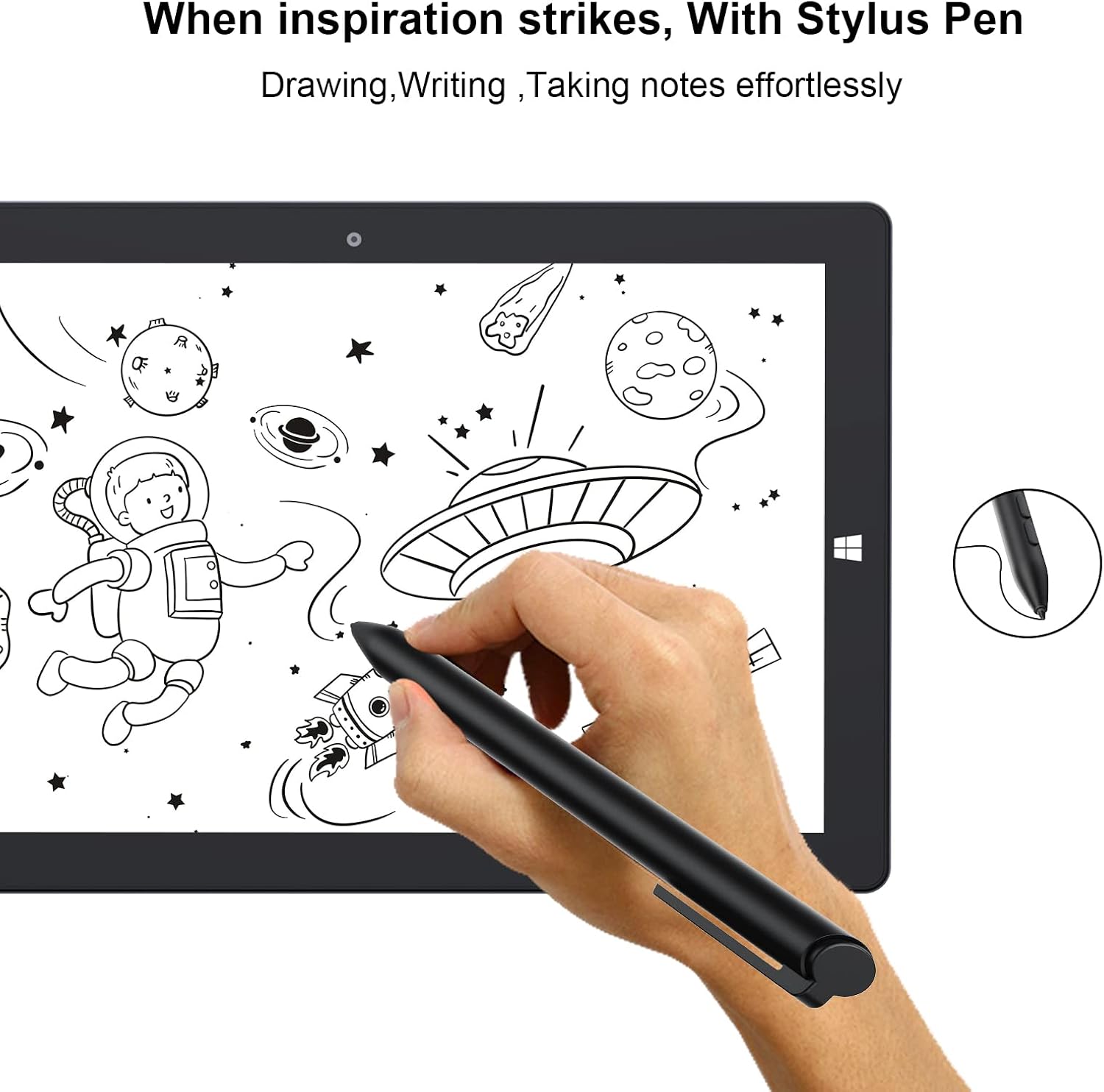
Image: The AWOW AiBook 10 tablet with its detachable keyboard securely attached, ready for use in laptop mode.
3.4 Initial Windows Setup
Upon first power-on, you will be guided through the Windows 10 Home setup process. Follow the on-screen prompts to select your region, language, connect to a Wi-Fi network, create a user account, and configure privacy settings.
4. Operating Instructions
4.1 Switching Between Tablet and Laptop Modes
The AiBook 10 automatically detects when the keyboard is attached or detached and prompts you to switch between tablet and desktop modes in Windows. You can also manually switch via the Action Center (swipe in from the right edge of the screen or click the icon in the taskbar).

Image: The AWOW AiBook 10 configured in laptop mode, demonstrating its functionality with the keyboard and kickstand.
4.2 Touchscreen and Stylus Usage
The 10.1-inch IPS display supports multi-touch gestures. Use your fingers for navigation, tapping, pinching to zoom, and swiping. If your model includes a stylus, it can be used for precise input, drawing, and note-taking.

Image: A hand using the stylus pen on the AWOW AiBook 10 tablet screen for drawing or writing.
4.3 Connecting to Wi-Fi and Bluetooth
- Wi-Fi: Go to Settings > Network & Internet > Wi-Fi. Turn Wi-Fi on and select your desired network, then enter the password if required.
- Bluetooth: Go to Settings > Devices > Bluetooth & other devices. Turn Bluetooth on and select 'Add Bluetooth or other device' to pair with compatible accessories.
4.4 Using the Kickstand
The integrated kickstand allows you to prop up the tablet at various angles (up to 150 degrees) for comfortable viewing, typing, or drawing. Gently pull out the kickstand from the back of the tablet to adjust its position.
Video: This video demonstrates the AWOW AiBook 10's versatility, showcasing its tablet, studio, stand, and laptop modes, along with its adjustable kickstand, internal components, and various ports.
5. Maintenance
5.1 Cleaning Your Device
- Screen: Use a soft, lint-free cloth specifically designed for electronics. For stubborn smudges, slightly dampen the cloth with water or a screen cleaner. Avoid harsh chemicals.
- Body: Wipe the tablet and keyboard surfaces with a soft, dry cloth. Keep liquids away from ports and openings.
5.2 Battery Care
- Avoid extreme temperatures, as they can degrade battery life.
- For optimal battery longevity, try to keep the charge level between 20% and 80%.
- If storing the device for an extended period, charge it to about 50% before turning it off.
5.3 Software Updates
Regularly check for and install Windows updates to ensure your device has the latest security patches and performance improvements. Go to Settings > Update & Security > Windows Update.
5.4 Storage Management
The AiBook 10 comes with 128GB of eMMC storage. To manage space, regularly delete unnecessary files, uninstall unused applications, and utilize the TF card slot for additional storage of documents, photos, and videos.
6. Troubleshooting
This section addresses common issues you might encounter with your AWOW AiBook 10.
6.1 Device Not Powering On
- Ensure the device is fully charged. Connect the power adapter and wait a few minutes before attempting to power on again.
- Try holding the Power button for 10-15 seconds to perform a hard reset.
6.2 Wi-Fi or Bluetooth Connectivity Issues
- Toggle Wi-Fi/Bluetooth off and on in Windows settings.
- Restart the tablet.
- Ensure your router or Bluetooth device is functioning correctly and within range.
- Update network adapter drivers via Device Manager.
6.3 Touchscreen Unresponsive
- Restart the tablet.
- Ensure the screen is clean and free of debris.
- Check for Windows updates that might include touchscreen driver fixes.
6.4 Keyboard Not Responding
- Ensure the keyboard is securely attached to the tablet's magnetic connector.
- Detach and reattach the keyboard.
- Restart the tablet.
6.5 Slow Performance
- Close unnecessary applications running in the background.
- Check for and install Windows updates.
- Run a disk cleanup and defragmentation (for HDD, not SSD).
- Ensure sufficient free storage space.
6.6 Factory Reset
If persistent issues occur, you may consider a factory reset. This will erase all data and reinstall Windows. Back up all important files before proceeding. Go to Settings > Update & Security > Recovery > Reset this PC.
7. Specifications
Detailed technical specifications for the AWOW AiBook 10.

Image: A graphic detailing the core specifications of the AWOW AiBook 10, including CPU, GPU, RAM, SSD, battery life, and camera resolution.
| Feature | Specification |
|---|---|
| Screen Size | 10.1 Inches |
| Screen Resolution | 1280 x 800 Pixels (IPS HD) |
| Processor | Intel Celeron N4120 (1.1 GHz, 4 Cores, up to 2.6 GHz Boost) |
| Graphics | Intel UHD Graphics 600 (Integrated) |
| RAM | 8GB LPDDR4 |
| Storage | 128GB eMMC SSD |
| Expandable Storage | TF Card Slot (up to 512GB) |
| Operating System | Windows 10 Home |
| Wireless Connectivity | 2.4G+5G WiFi, Bluetooth 4.2 |
| Ports | 1x USB 3.0, 1x Micro HDMI, 1x DC-in (12V/3A), 1x 3.5mm Earphone Jack, 1x TF Card Slot |
| Cameras | Front 2MP, Rear 5MP |
| Battery | 6500mAh (Approx. 7-8 hours average use) |
| Dimensions (LxWxH) | 10.1 x 6.8 x 0.38 inches |
| Item Weight | 2.97 pounds (with keyboard) |
8. Warranty and Support
8.1 Product Warranty
The AWOW AiBook 10 typically comes with a 1-year limited warranty from the date of purchase. This warranty covers manufacturing defects and hardware malfunctions under normal use. Please retain your proof of purchase for warranty claims.

Image: A feature overview highlighting key aspects of the AiBook 10, including the 1-year support period, expandable storage, and battery capacity.
8.2 Customer Support
For technical assistance, warranty inquiries, or any questions regarding your AWOW AiBook 10, please contact AWOW customer support. Refer to the contact information provided in your product packaging or visit the official AWOW website for support resources.
You can also visit the AWOW Store on Amazon for more product information and support options.

