
1. Introduction
This manual provides essential information for setting up, operating, and maintaining your Intel NUC 11 NUC11PAHi7 Mini PC. Please read this manual thoroughly before using the product to ensure proper functionality and safety.
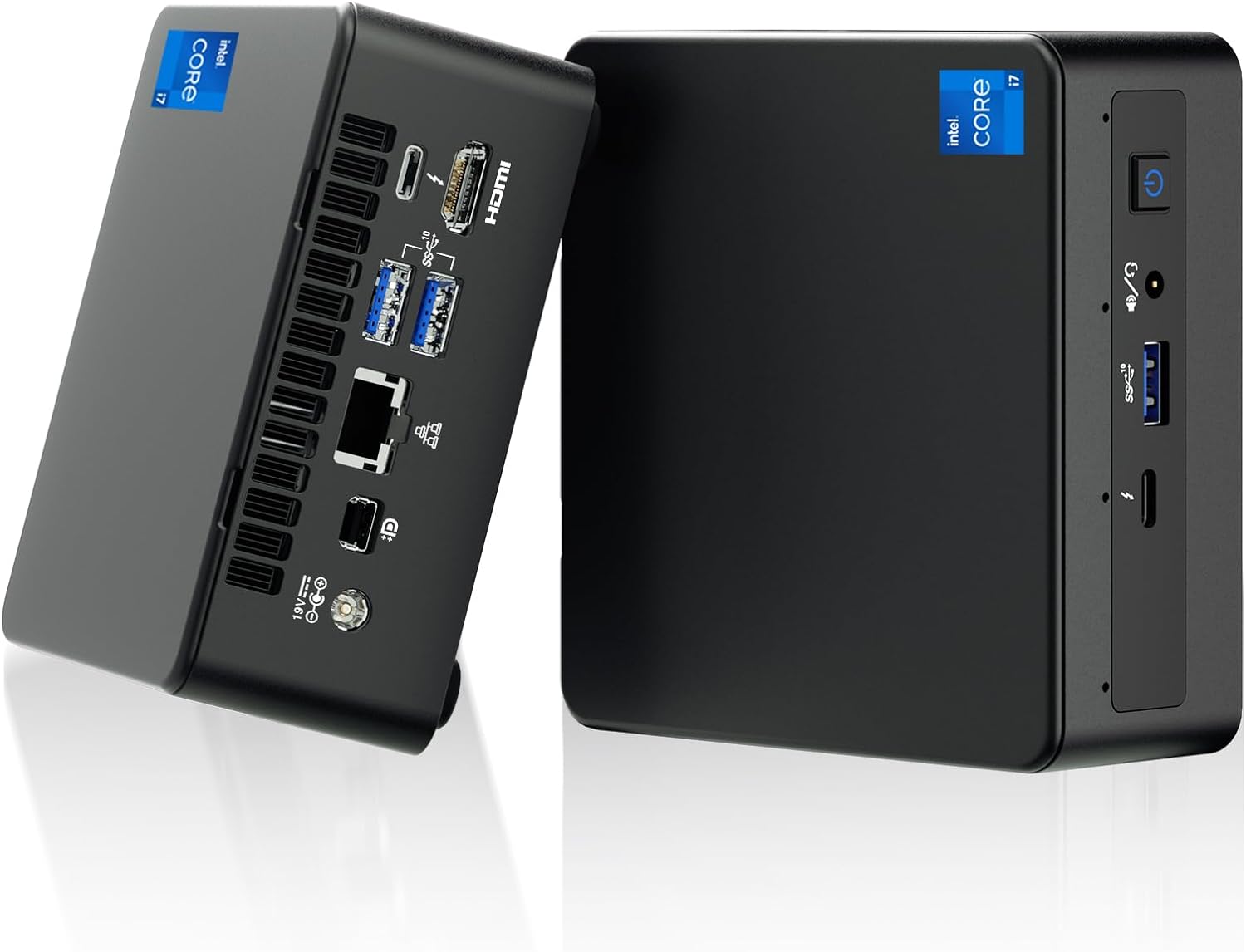
Figure 1: Front and rear view of the Intel NUC 11 Mini PC, showcasing its compact design and various ports.
2. What's in the Box
Verify that all components are present in the packaging before proceeding with the setup.
- Intel NUC 11 Mini PC
- Power Adapter
- US AC Cord
- VESA Mount
- Mounting Screws and M.2 Screws (10 pieces)
- Instruction Manual
- Safety Information Documents (2 pieces)

Figure 2: All items included in the Intel NUC 11 Mini PC packaging, including the mini PC, power adapter, VESA mount, and documentation.
3. Product Features
The Intel NUC 11 NUC11PAHi7 Mini PC offers a range of advanced features for various computing needs.
- Processor: 11th Gen Intel Core i7-1165G7 (12M Cache, up to 4.70 GHz)
- Graphics: Intel Iris Xe Graphics, supporting 4K UHD and quad-screen display.
- Memory: 16GB SODIMM DDR4 (3200MHz), dual-channel, upgradeable to 64GB.
- Storage: 512GB M.2 PCIe 2280 SSD, with support for external 2.5-inch 7mm HDD expansion.
- Connectivity:
- Two Thunderbolt 3 ports
- HDMI 2.0b port
- Mini DisplayPort 1.4 port
- Three USB 3.1 Gen2 ports
- Intel Ethernet Controller i225-V (Gigabit 2500Mb/s)
- Intel Wi-Fi 6
- Bluetooth 5.2
- SDXC slot with UHS-II support
- 3.5mm front stereo headset jack
- Front consumer infrared port
- Operating System: Preinstalled with Windows 11 Pro.
- Additional Features: Beam-forming, far-field, quad-mic array with Alexa support, Kensington Lock Ready.

Figure 3: Overview of the Intel NUC 11's core specifications, highlighting the i7 processor, Iris Xe graphics, memory, storage, and network capabilities.

Figure 4: Illustration of the various input/output ports available on the Intel NUC 11, including Thunderbolt 3, HDMI, Mini DisplayPort, USB, LAN, and an SD Card slot.
4. Setup Guide
4.1 Initial Connection
- Connect Display: Connect your monitor(s) to the HDMI, Mini DisplayPort, or Thunderbolt 3 ports using appropriate cables. The NUC supports up to four displays.
- Connect Peripherals: Plug in your keyboard, mouse, and any other USB devices into the available USB 3.1 Gen2 ports.
- Network Connection: For a wired connection, connect an Ethernet cable to the LAN port. For wireless, ensure your Wi-Fi network is available.
- Power Connection: Connect the power adapter to the DC-in port on the NUC and then plug the AC cord into a power outlet.
4.2 Powering On
Press the power button located on the front of the unit. The system will boot into Windows 11 Pro. Follow the on-screen instructions for initial Windows setup if this is the first time powering on.
5. Operating Instructions
5.1 Basic Operation
- Operating System: Your Intel NUC comes preinstalled with Windows 11 Pro. Familiarize yourself with the Windows interface for daily tasks.
- Multi-Display Setup: Utilize the multiple display outputs (HDMI, Mini DisplayPort, Thunderbolt 3) to extend your desktop across several monitors for enhanced productivity.
- Wireless Connectivity: Connect to Wi-Fi 6 networks for high-speed wireless internet access. Use Bluetooth 5.2 for connecting wireless peripherals like headphones or keyboards.
- USB and Thunderbolt Ports: Use the USB 3.1 Gen2 ports for high-speed data transfer with external drives and peripherals. The Thunderbolt 3 ports offer even faster data transfer, video output, and power delivery capabilities.

Figure 5: The Intel NUC 11 connected to a monitor, illustrating its advanced networking capabilities with WiFi 6 and Bluetooth 5.2.
6. Maintenance and Upgrades
6.1 General Maintenance
- Keep the device in a well-ventilated area to prevent overheating.
- Regularly clean the exterior with a soft, dry cloth. Avoid liquid cleaners.
- Ensure software and drivers are updated for optimal performance and security.
6.2 Memory and Storage Upgrades
The Intel NUC 11 allows for memory and storage expansion:
- RAM: The device supports dual-channel DDR4 SODIMM memory, upgradeable to a maximum of 64GB (2 x 32GB, up to 3200MHz).
- SSD: The preinstalled 512GB M.2 PCIe 2280 SSD can be upgraded. Additionally, the unit supports an external 2.5-inch 7mm HDD expansion (not included) for increased storage capacity.
Caution: Before performing any internal upgrades, ensure the device is powered off and unplugged. Refer to the detailed instructions in the Intel NUC technical documentation for proper installation procedures. Removing memory and SSD before aftermarket service is recommended for privacy and security.

Figure 6: Illustration of the internal components, specifically the 512GB M.2 SSD and 16GB DDR4 RAM modules, indicating upgrade potential.
7. Troubleshooting
This section provides solutions to common issues you might encounter.
- No Power:
- Ensure the power adapter is securely connected to both the NUC and a working power outlet.
- Verify the power outlet is functional by testing it with another device.
- No Display:
- Check all display cable connections (HDMI, Mini DisplayPort, Thunderbolt 3) between the NUC and the monitor.
- Ensure the monitor is powered on and set to the correct input source.
- Try connecting to a different display or using a different cable.
- No Internet Connection:
- For wired connections, ensure the Ethernet cable is properly connected and your router is working.
- For Wi-Fi, check if Wi-Fi is enabled in Windows settings and if you are connected to the correct network with the right password.
- Restart your router and the NUC.
- System Slowdown:
- Close unnecessary applications running in the background.
- Check Task Manager for processes consuming high CPU or RAM.
- Ensure Windows and drivers are up to date.
- Consider performing a disk cleanup or defragmentation (for HDDs, not SSDs).
8. Specifications
| Feature | Detail |
|---|---|
| Processor | 11th Gen Intel Core i7-1165G7 (2.8 GHz, up to 4.7 GHz Turbo, 4 cores, 8 threads, 12 MB Cache) |
| Graphics | Intel Iris Xe Graphics (Integrated) |
| RAM | 16 GB DDR4 (3200MHz), expandable to 64 GB |
| Storage | 512 GB M.2 PCIe SSD (NVMe PCIe Gen4) |
| Operating System | Windows 11 Pro |
| Wireless Connectivity | Intel Wi-Fi 6, Bluetooth 5.2 |
| Wired Connectivity | Intel Ethernet Controller i225-V (2.5 Gigabit) |
| Ports (Front) | 1x USB 3.1 Gen2, 1x Thunderbolt 3, 3.5mm Headset Jack, Power Button |
| Ports (Rear) | 2x USB 3.1 Gen2, 1x Thunderbolt 3, HDMI 2.0b, Mini DisplayPort 1.4, LAN, DC-in |
| Other Ports/Slots | SDXC slot with UHS-II support, Kensington Security Slot, Front Consumer Infrared Port |
| Dimensions (LxWxH) | 4.6 x 4.4 x 2 inches |
| Weight | 3.1 pounds (approx. 1.4 kg) |
| Color | Black |

Figure 7: A detailed comparison table outlining the specifications for different Intel NUC 11 Performance Mini PC and Kit configurations, including processor, graphics, memory, and storage options.
9. Safety Information
Please observe the following safety guidelines to prevent damage to the device or personal injury.
- Use only the provided power adapter and AC cord.
- Do not expose the device to extreme temperatures, humidity, or direct sunlight.
- Avoid placing the device near heat sources or in poorly ventilated areas.
- Do not open the chassis unless performing authorized upgrades (RAM/SSD) and always disconnect power first.
- Keep the device away from liquids.
- If you encounter any issues, refer to the troubleshooting section or contact support before attempting repairs.

Figure 8: Important safety warnings and precautions provided in multiple languages, covering electrical safety, environmental conditions, and proper usage.
10. Warranty and Support
Your Intel NUC 11 Mini PC comes with a comprehensive warranty and support:
- Warranty: A 3-year global warranty from Intel and GEEK+ is provided. This includes a 3-year free Warranty Service from Intel for the NUC Barebone part. RAM, SSD, and OS are covered by a three-year warranty provided by GEEK+.
- Support: For issues with the NUC Barebone part, you can contact local Intel NUC after-sales locations directly. For other inquiries or assistance, send a message to GEEK+ for help.
- Privacy and Security: To ensure your privacy and security, it is recommended to remove the Memory and SSD before sending the unit for aftermarket service.
For further assistance, please refer to the official Intel NUC support website or contact your retailer.


