
MSI MPG Z690 Edge WiFi
MSI MPG Z690 Edge WiFi Gaming Motherboard User Manual
Model: MPG Z690 Edge WiFi
Product Overview
The MSI MPG Z690 Edge WiFi is a high-performance ATX gaming motherboard designed for 12th Gen Intel Core processors, featuring the LGA 1700 socket. It supports DDR5 memory and PCIe 5.0, offering robust connectivity and advanced thermal solutions for an optimal gaming and computing experience.
Key Features
- Supports 12th Gen Intel Core, Pentium, and Celeron processors for LGA 1700 socket.
- Supports DDR5 Memory for enhanced performance.
- Premium Thermal Solution: Features an aluminum cover with heatsink, heat-pipe, MOSFET thermal pads rated for 7W/mk, and M.2 Shield Frozr for efficient heat dissipation.
- MYSTIC LIGHT: Offers 16.8 million colors and various lighting effects, controllable with one click. MYSTIC LIGHT SYNC supports RGB and RAINBOW (ARGB) LED strips and ambient devices.
- High Quality PCB: Constructed with a 6-layer PCB made from 2oz thickened copper and server-grade level material for durability and stability.

Setup Guide
Package Contents
Before beginning installation, ensure all components are present in the package:
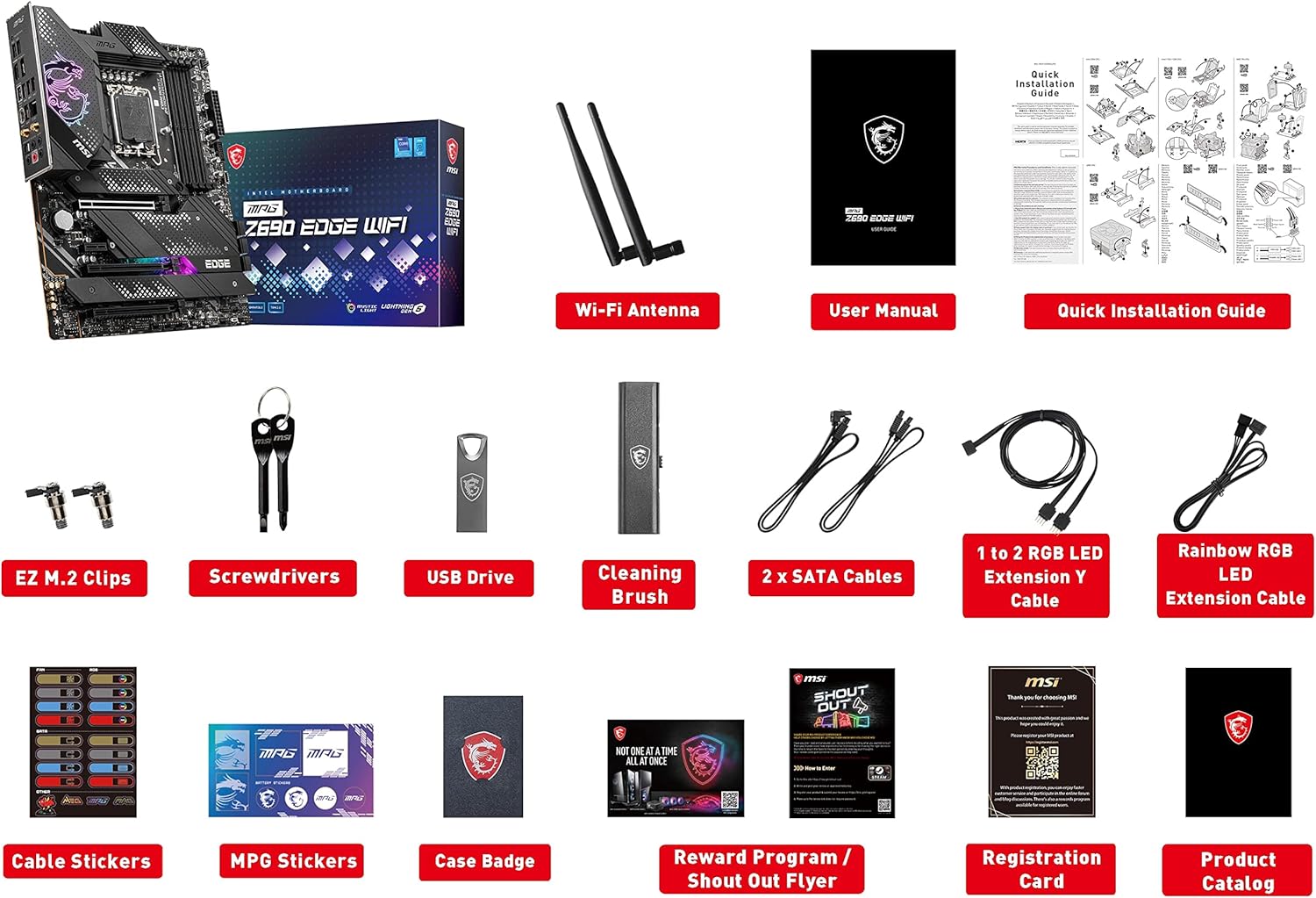
Installation Steps
Follow these steps for proper installation of your motherboard and components:
- CPU Installation: Carefully open the CPU socket lever. Align the triangular mark on the CPU with the mark on the socket and gently place the CPU into the socket. Close the lever to secure the CPU.
- Memory (RAM) Installation: Open the clips on the DDR5 memory slots. Align the notch on the memory module with the key in the slot. Press down firmly on both ends of the module until the clips snap into place.
- Storage (M.2/SATA) Installation: For M.2 SSDs, remove the M.2 Shield Frozr heatsink, insert the M.2 SSD into the slot, and secure it with the EZ M.2 clip or screw. Reattach the heatsink. For SATA drives, connect SATA data cables to the motherboard's SATA ports and power cables from your power supply.
- Graphics Card (PCIe) Installation: Open the retention clip on the primary PCIe 5.0 x16 slot. Insert your graphics card firmly until it clicks into place. Secure the card to your PC case with screws.
- Power Connections: Connect the 24-pin ATX power connector and the 8-pin (or 8+4-pin) CPU power connector from your power supply to the corresponding ports on the motherboard.
- Case Connections: Connect the front panel headers (power button, reset button, USB ports, audio jacks) from your PC case to the appropriate pins on the motherboard. Refer to the motherboard manual for exact pin layouts.


Operating Instructions
Initial Boot-up and BIOS Access
After assembling your system, connect a monitor, keyboard, and mouse. Power on your PC. During the initial boot sequence, repeatedly press the DEL key to enter the BIOS (Basic Input/Output System). In the BIOS, you can configure boot order, enable XMP profiles for memory, and adjust other system settings. Save changes and exit to boot into your operating system.
Software and Driver Installation
For optimal performance and stability, install the latest drivers and utilities for your motherboard. These can typically be found on the MSI support website for your specific model. Key drivers include chipset drivers, LAN drivers, Wi-Fi drivers, and audio drivers. MSI also provides utility software like Dragon Center or MSI Center for system monitoring, fan control, and Mystic Light customization.
Mystic Light Control
The Mystic Light feature allows you to customize the RGB lighting on your motherboard and connected compatible devices. Use the MSI Mystic Light software (part of MSI Center or Dragon Center) to select from various lighting effects, colors, and synchronization options. This software provides a user-friendly interface to personalize your system's aesthetics.
Maintenance
Cleaning
Regular cleaning helps maintain optimal performance and extends the lifespan of your motherboard. Use compressed air to remove dust from heatsinks, fan blades, and PCIe slots. Ensure the system is powered off and unplugged before cleaning. Avoid using liquid cleaners directly on components.
BIOS Updates
Periodically check the MSI support website for BIOS updates. BIOS updates can improve system stability, add support for new hardware, or fix bugs. Follow the instructions provided by MSI carefully when updating the BIOS, typically using a USB flash drive (M-Flash utility) or the Flash BIOS Button feature.
Driver Updates
Keep your system drivers updated to ensure compatibility and performance with new software and hardware. Drivers for your motherboard components (chipset, LAN, Wi-Fi, audio) are regularly updated by MSI. You can download the latest versions from the official MSI website.
Troubleshooting
Common Issues and Solutions
- No Power: Ensure all power cables (24-pin ATX, 8-pin CPU) are securely connected to the motherboard and power supply. Verify the power supply switch is on and the wall outlet is functional.
- No Display: Check that your monitor is connected to the graphics card (or motherboard if using integrated graphics) and is powered on. Reseat the graphics card and RAM modules. Try booting with only one RAM stick.
- System Boots but No OS: Verify the boot order in BIOS. Ensure your storage drive with the operating system is properly connected and detected. Reinstall the operating system if necessary.
- Driver Issues: If a component is not functioning correctly, ensure its drivers are installed and up to date. Check Device Manager for any yellow exclamation marks indicating driver problems. Reinstall problematic drivers.
- System Instability/Crashes: This can be caused by various factors. Check CPU and GPU temperatures. Ensure RAM is properly seated and compatible. Consider updating BIOS and drivers. If overclocking, revert to default settings.
For more detailed troubleshooting steps, refer to the comprehensive user manual or MSI's online support resources.
Technical Specifications
| Feature | Specification |
|---|---|
| Brand | MSI |
| Series | MPG Z690 Edge WiFi |
| Item Model Number | Z690EDGEWI |
| CPU Socket | LGA 1700 |
| Compatible Processors | Intel Celeron, Intel Pentium, 12th Gen Intel Core |
| RAM Memory Technology | DDR5 |
| Memory Speed | 5333 MHz |
| Chipset Type | Intel Z690 |
| Product Dimensions (LxWxH) | 12 x 9.6 x 2.5 inches |
| Item Weight | 1 pounds |
| Platform | Windows 10 |
Warranty and Support
Warranty Information
For detailed warranty terms and conditions, please refer to the official user manual included with your product or visit the MSI official website. Warranty coverage typically varies by region and product type.
Further Documentation and Support
A comprehensive user manual in PDF format is available for more in-depth information regarding installation, configuration, and advanced features. You can access it via the following link:
Download Full User Manual (PDF)
For technical support, driver downloads, and FAQs, please visit the official MSI support website.
Related documentsMPG Z690 Edge WiFi


Ask a question about this manual
Ask about setup, troubleshooting, compatibility, parts, safety, or missing instructions. Manuals+ will review the question and use this page’s manual context to help answer it.