
Blink Blink Outdoor (3rd Gen) + Solar Panel Charging Mount
Blink Outdoor (3rd Gen) + Solar Panel Charging Mount User Manual
Model: Blink Outdoor (3rd Gen) + Solar Panel Charging Mount
Brand: Blink
1. Product Overview
The Blink Outdoor (3rd Gen) + Solar Panel Charging Mount system provides a wire-free, high-definition smart security solution powered by solar energy. This system offers day and infrared night vision, two-way audio communication, and customizable motion detection alerts, ensuring continuous operation with sustainable power from the sun.

Image 1.1: The Blink Outdoor (3rd Gen) + Solar Panel Charging Mount 3-camera system, including the Sync Module 2.
2. Package Contents
Verify that all components are present in your package:
- Three (3) Blink Outdoor (3rd Gen) Cameras
- Three (3) Solar Panel Charging Mounts
- One (1) Blink Sync Module 2
- Three (3) Mounting Kits (for solar panel mounts)
- Required AA Lithium Batteries (pre-installed or included)
3. Setup Guide
Follow these steps to set up your Blink Outdoor security camera system:
- Download the Blink Home Monitor App: Search for "Blink Home Monitor" in your device's app store and install it.
- Create an Account: Open the app and follow the on-screen instructions to create a new Blink account or log in if you already have one.
- Set Up Sync Module 2: Plug in the Sync Module 2 and connect it to your home Wi-Fi network using the in-app instructions. The Sync Module acts as the central hub for your cameras.
- Add Cameras: In the app, add each Blink Outdoor camera to your system. The app will guide you through the process of syncing the cameras with the Sync Module.
- Attach Solar Panel Charging Mount: Securely attach each Blink Outdoor camera to its respective Solar Panel Charging Mount. Ensure the connection is firm.
- Mount Cameras: Choose an outdoor location for each camera that receives direct sunlight for most of the day to ensure optimal solar charging. Use the included mounting kits to securely install the solar panel mount. The solar panel can be pivoted or detached up to two feet from the camera for flexible placement.

Image 3.1: A Blink Outdoor camera with its solar panel charging mount installed on an exterior wall, demonstrating typical placement.

Image 3.2: A Blink Outdoor camera with its solar panel charging mount positioned on the corner of a building for wider coverage.
4. Operating Your System
Once set up, you can manage and monitor your Blink system through the Blink Home Monitor app:
- Live View: Access real-time video from your cameras at any time. This feature allows you to see what is happening around your property instantly.
- Two-Way Audio: Speak and listen to visitors through the camera's built-in microphone and speaker. This is useful for communicating with delivery personnel or deterring unwanted guests.
- Motion Detection: Receive alerts on your phone when motion is detected. You can customize motion zones within the app to focus on specific areas and reduce unnecessary notifications.
- Video Storage: Choose to save and share video clips in the cloud with a Blink Subscription Plan (a free 30-day trial is typically included) or locally with a Sync Module 2 and a compatible USB drive (sold separately).
- Alexa Integration: The system works with Alexa-enabled devices. Use voice commands to monitor your home, view live feeds on compatible screens, or arm/disarm your system.
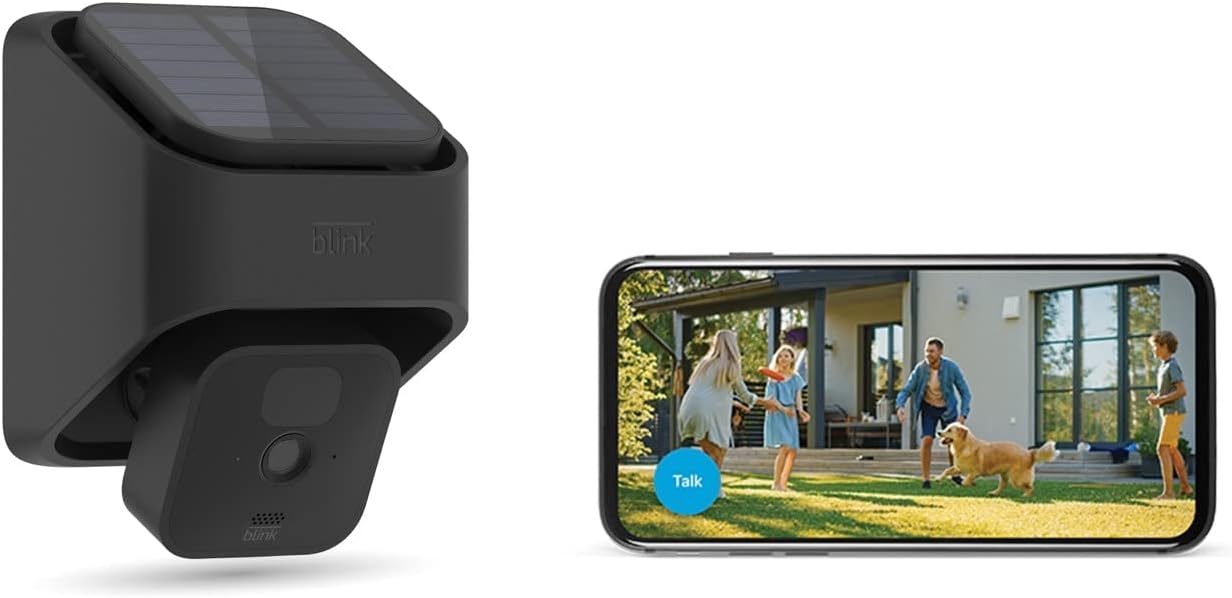
Image 4.1: A Blink Outdoor camera with solar mount alongside a smartphone showing the live view interface, demonstrating remote monitoring capabilities.
5. Maintenance
Regular maintenance ensures optimal performance and longevity of your Blink system:
- Clean Solar Panels: Periodically wipe the surface of the solar panels with a soft, damp cloth to remove dust, dirt, or debris that may obstruct sunlight and reduce charging efficiency.
- Clean Camera Lens: Gently clean the camera lens with a microfiber cloth to ensure clear video quality. Avoid abrasive materials that could scratch the lens.
- Battery Check: While the solar panel provides primary power, the cameras use AA lithium batteries as a backup. The app will notify you if battery levels are low. Replace batteries as needed with new, non-rechargeable AA lithium batteries.
- Firmware Updates: Ensure your Blink app and camera firmware are up to date. Updates often include performance improvements and new features. The app will typically prompt you for available updates.
6. Troubleshooting
If you encounter issues with your Blink Outdoor system, consider the following common solutions:
- No Live View/Offline Camera:
- Check your Wi-Fi connection. Ensure the Sync Module 2 is connected to the internet.
- Verify the camera's distance from the Sync Module and Wi-Fi router. Reduce interference from other electronic devices.
- Check camera battery levels in the app.
- Poor Video Quality:
- Clean the camera lens.
- Ensure adequate lighting for day vision or proper infrared illumination for night vision.
- Check Wi-Fi signal strength to the camera.
- Solar Panel Not Charging:
- Ensure the solar panel receives direct sunlight for several hours daily.
- Clean the solar panel surface.
- Verify the connection between the camera and the solar panel mount.
- Motion Detection Issues:
- Adjust motion sensitivity settings in the app.
- Review and adjust motion zones to exclude areas with frequent false triggers (e.g., moving trees).
- Ensure the camera's view is not obstructed.
For further assistance, refer to the Blink Home Monitor app's help section or visit the official Blink support website.
7. Specifications
- Camera Model:
- Blink Outdoor (3rd Gen)
- Power Source:
- Solar Panel Charging Mount (primary), 2 AA 1.5V Lithium Batteries (backup)
- Video Resolution:
- HD (1080p day, infrared night vision)
- Audio:
- Two-way audio
- Connectivity:
- Wi-Fi (2.4 GHz)
- Storage Options:
- Cloud storage (Blink Subscription Plan), Local storage (via Sync Module 2 with USB drive, sold separately)
- Operating Temperature:
- Refer to product packaging or official Blink specifications for exact range.
8. Warranty and Support
For detailed information regarding product warranty, technical support, and frequently asked questions, please visit the official Blink website. Warranty terms and conditions may vary by region and purchase date.
Official Blink Website: www.blinkforhome.com
Related documentsBlink Outdoor (3rd Gen) + Solar Panel Charging Mount


Ask a question about this manual
Ask about setup, troubleshooting, compatibility, parts, safety, or missing instructions. Manuals+ will review the question and use this page’s manual context to help answer it.