
Introduction
This manual provides detailed instructions for the use and maintenance of your KINGONE Upgraded Stylus Pen. Designed for precision and ease of use, this stylus offers features such as palm rejection, tilt sensitivity, and fast charging, enhancing your digital writing and drawing experience on compatible iPad models.

Image: The KINGONE Upgraded Stylus Pen in white, showcasing its sleek design, accompanied by replacement nibs and charging port covers. A colorful streak illustrates its use for drawing.
Setup and Compatibility
Charging the Stylus Pen
The KINGONE Stylus Pen features fast charging capabilities. Use the provided USB-C cable to charge the pen. The LED indicators will show the charging status and remaining power.
- A 5-minute charge provides approximately 2 hours of use.
- A full charge (approximately 13 minutes) provides over 10 hours of continuous use.
- The pen has a standby time of up to 180 days.

Image: The stylus pen connected to a USB-C charging cable, illustrating the fast charging feature and the LED battery indicator lights.
Power Display and Sleep Mode
The stylus is equipped with an LED power display to easily monitor battery levels. To conserve power, the pen will automatically enter "Sleep Mode" after 5 minutes of inactivity.
Compatibility
This KINGONE Stylus Pen is compatible exclusively with specific iPad models from 2018 and later. It is not compatible with iPad models released before 2018, Android tablets, iPhones, or other smartphones. Ensure your iPad's iOS system is updated to version 12.2 or above for optimal performance.
Before using, navigate to your iPad's Settings > Notes and disable "Draw with Apple Pencil only" if this option is present.
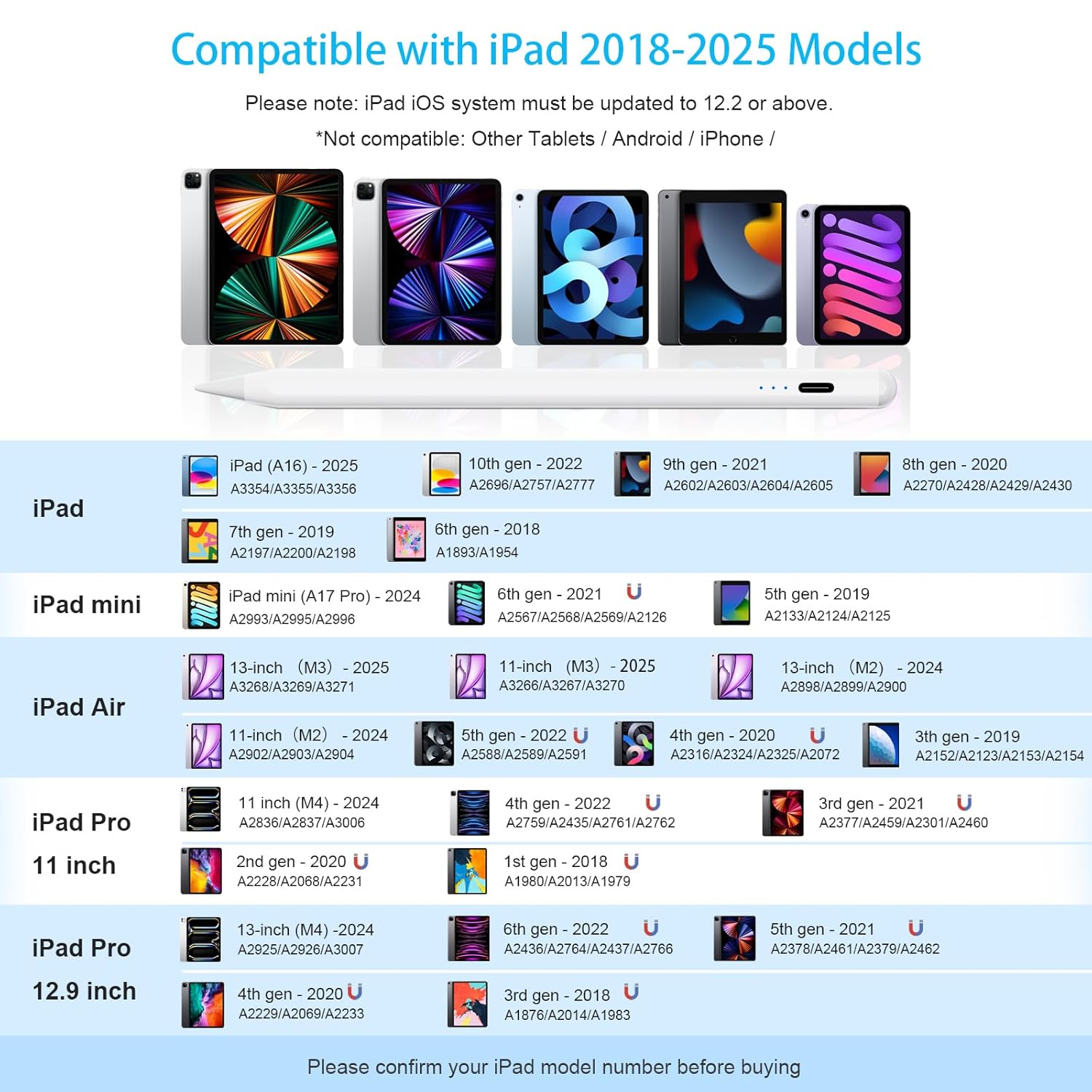
Image: A detailed compatibility chart listing various iPad, iPad mini, iPad Air, and iPad Pro models from 2018 to 2025, along with their model numbers, indicating which devices are compatible with the stylus.
Compatible iPad Models (2018-2025):
| Device | Model (Year/Generation) | Model Numbers (Axxxx) |
|---|---|---|
| iPad | iPad (A16) - 2025 | A3354/A3355/A3356 |
| 10th Gen - 2022 | A2696/A2757/A2777 | |
| 9th Gen - 2021 | A2602/A2603/A2604/A2605 | |
| 8th Gen - 2020 | A2270/A2428/A2429/A2430 | |
| 7th Gen - 2019 | A2197/A2200/A2198 | |
| 6th Gen - 2018 | A1893/A1954 | |
| iPad mini | iPad mini (A17 Pro) - 2024 | A2993/A2995/A2996 |
| 6th Gen - 2021 | A2567/A2568/A2569/A2126 | |
| 5th Gen - 2019 | A2133/A2124/A2125 | |
| iPad Air | 13-inch (M3) - 2025 | A3268/A3269/A3271 |
| 11-inch (M3) - 2025 | A3266/A3267/A3270 | |
| 13-inch (M2) - 2024 | A2898/A2899/A2900 | |
| 11-inch (M2) - 2024 | A2902/A2903/A2904 | |
| 5th Gen - 2022 | A2588/A2589/A2591 | |
| 4th Gen - 2020 | A2316/A2324/A2325/A2072 | |
| 3rd Gen - 2019 | A2152/A2123/A2153/A2154 | |
| iPad Pro 11 inch | 11 inch (M4) - 2024 | A2836/A2837/A3006 |
| 4th Gen - 2022 | A2759/A2435/A2761/A2762 | |
| 3rd Gen - 2021 | A2377/A2459/A2301/A2460 | |
| 2nd Gen - 2020 | A2228/A2068/A2231 | |
| 1st Gen - 2018 | A1980/A2013/A1979 | |
| iPad Pro 12.9 inch | 13-inch (M4) - 2024 | A2925/A2926/A3007 |
| 6th Gen - 2022 | A2436/A2764/A2437/A2766 | |
| 5th Gen - 2021 | A2378/A2461/A2379/A2462 | |
| 4th Gen - 2020 | A2229/A2069/A2233 | |
| 3rd Gen - 2018 | A1876/A2014/A1983 |
Note: Please confirm your iPad model number before purchasing to ensure compatibility.
Operating Instructions
Turning On/Off
The stylus pen features a double-tap ON/OFF mechanism to prevent accidental activation or deactivation. Simply double-tap the end of the pencil to turn it on or off. No Bluetooth pairing is required for operation.
Palm Rejection Technology
The integrated palm rejection technology allows you to rest your hand comfortably on the iPad screen while writing or drawing, without interfering with the stylus's input. This eliminates the need for special gloves.

Image: A visual comparison demonstrating the palm rejection feature, where a user can comfortably rest their hand on the screen while writing, unlike other pens that might require gloves.
Tilt Sensitivity
The stylus supports tilt-sensing technology, allowing you to vary line thickness and shading by simply adjusting the angle at which you hold the pen, similar to a traditional pencil.
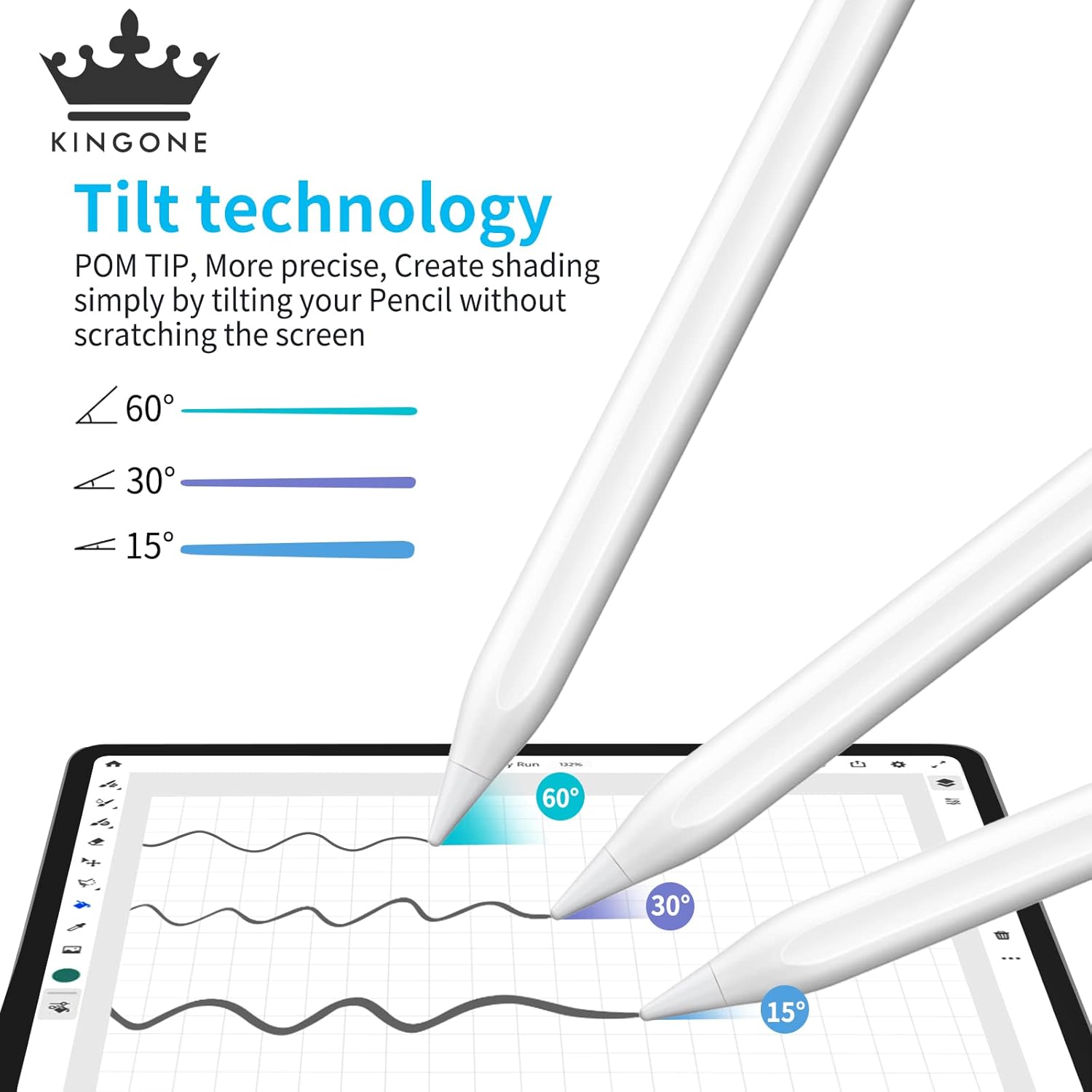
Image: An illustration demonstrating the tilt technology, showing how different angles (60°, 30°, 15°) of the stylus produce varying line weights and shading effects on the screen.
Magnetic Adsorption
For convenient storage and to prevent loss, the stylus can magnetically attach to the side of compatible iPad Pro models (3rd Gen and later). It also features a flat surface to prevent rolling.
Usage Scenarios
The KINGONE Stylus Pen is versatile and suitable for various activities:
- Working: Ideal for annotating documents, presentations, and digital whiteboarding.
- Studying: Perfect for note-taking, highlighting textbooks, and solving problems.
- Drawing: Enables precise and fluid artistic creation with tilt sensitivity.
- Playing: Enhances gaming experiences that benefit from precise touch input.
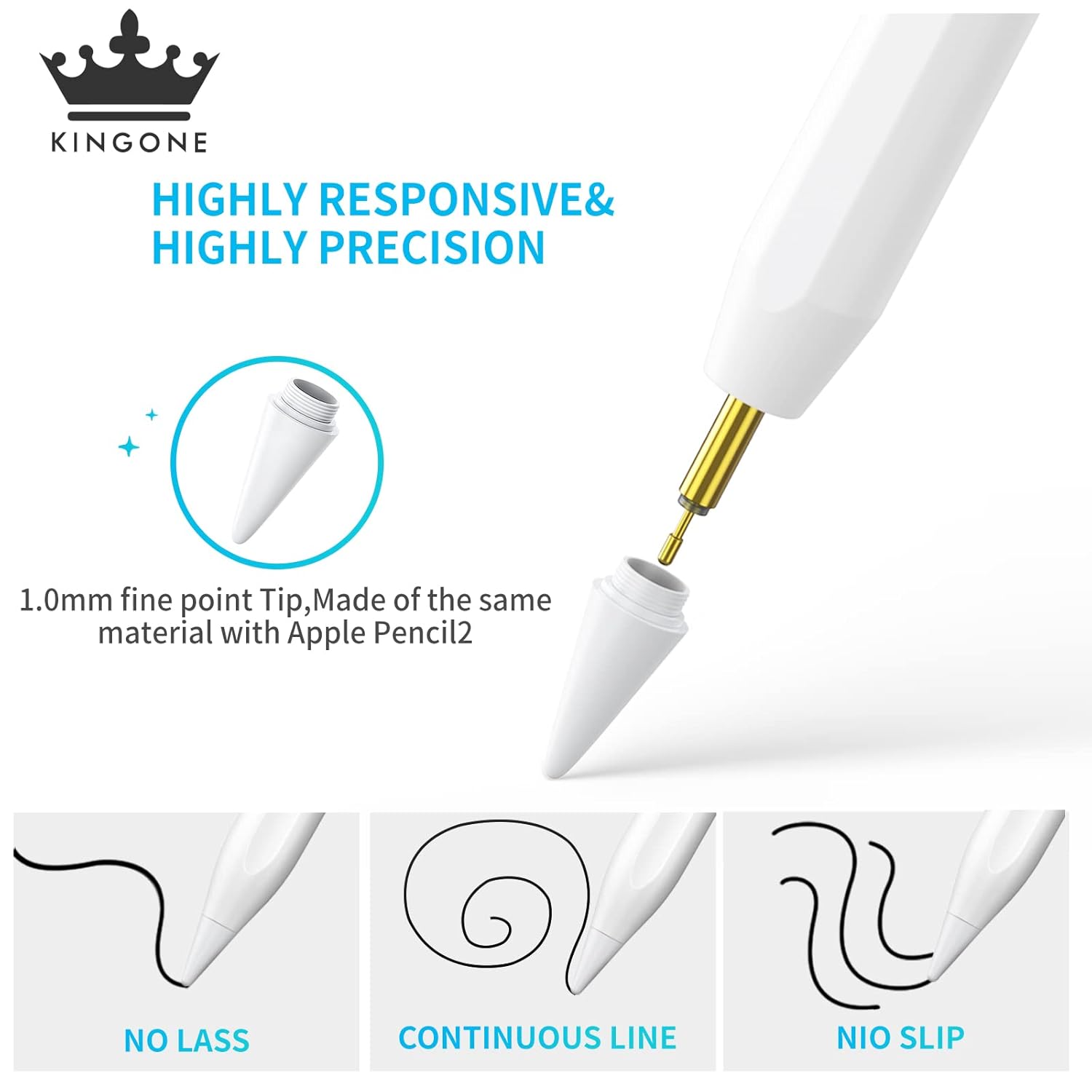
Image: A collage of four images demonstrating the stylus in different use cases: working on a tablet, studying, digital drawing, and playing a game, highlighting its versatility.
Maintenance
Cleaning
To maintain optimal performance, gently wipe the stylus body with a soft, dry, lint-free cloth. Avoid using harsh chemicals or abrasive materials. Do not submerge the pen in water.
Nib Replacement
The stylus comes with replacement nibs to ensure long-term precision and sensitivity. If the nib becomes worn or damaged, it can be easily replaced. Gently twist the old nib counter-clockwise to remove it, then twist a new nib clockwise until secure.

Image: A detailed view of the stylus tip, highlighting its 1.0mm fine point and the process of replacing the nib, along with images of replacement nibs.
Storage
Store the stylus in a cool, dry place away from direct sunlight and extreme temperatures. Utilize its magnetic adsorption feature with compatible iPads for secure storage when not in use.
Troubleshooting
| Problem | Possible Cause | Solution |
|---|---|---|
| Stylus not responding. | Battery is low or depleted. Stylus is off. Incompatible iPad model. "Draw with Apple Pencil only" setting enabled. | Charge the stylus. Double-tap to turn on. Verify iPad compatibility using the table above. Go to iPad Settings > Notes and disable "Draw with Apple Pencil only". |
| Inaccurate or lagging input. | Worn-out nib. Screen protector interference. Software glitch. | Replace the nib. Ensure screen protector is properly installed and not too thick. Restart your iPad. |
| Accidental touches from palm. | Palm rejection not functioning. | Ensure your iPad's iOS is updated to 12.2 or above. Restart the stylus and iPad. |
| Stylus not charging. | Faulty cable or adapter. Charging port obstruction. | Try a different USB-C cable and power adapter. Check the charging port for debris and clean gently if necessary. |
If you encounter issues not listed here or require further assistance, please refer to the Support section below.
Specifications
| Feature | Detail |
|---|---|
| Brand | Kingone |
| Model Number | 722 |
| Product Dimensions | 16.8 x 1 x 1 cm |
| Item Weight | 70 g |
| Material | Copper |
| Battery Type | 1 Lithium Ion battery (included) |
| Charging Time | Approx. 13 minutes for full charge (5 mins for 2 hours use) |
| Continuous Working Time | Approx. 10 hours (after full charge) |
| Standby Time | Approx. 180 days |
| Activation Method | Double-tap ON/OFF |
| Features | Palm Rejection, Tilt Sensitivity, Magnetic Adsorption, LED Power Display |
| Compatible Devices | iPad (6th, 7th, 8th, 9th, 10th Gen), iPad Pro (11-inch 1st-4th Gen, 12.9-inch 3rd-6th Gen), iPad Air (3rd, 4th, 5th Gen), iPad mini (5th, 6th Gen), and newer 2024/2025 models. |
Warranty and Support
KINGONE is committed to providing high-quality products and excellent customer service. For any product-related inquiries, technical support, or warranty claims, please contact us using the information below.
- Customer Service Email: ind-support@kingoneglobal.com
- WhatsApp Support: Scan the QR code below or click the link to connect with our support team. Please provide your Order ID and a description of the issue, including photos or videos if possible, for faster resolution.

Image: A QR code for instant WhatsApp support. Users can scan it to send their Order ID and issue for quick resolution.
Direct WhatsApp Link: https://wa.me/qr/DK7LFUVEZOUUC1