
1. Product Overview
This manual provides instructions for the ELECOM Finger Operated Trackball Set, which includes four distinct trackball models: DEFT PRO, Huge, bitra, and rilacon. Each model offers unique ergonomic features and functionalities designed to enhance user comfort and productivity.

Image 1.1: The ELECOM Finger Operated Trackball Set, showcasing the DEFT PRO, Huge, bitra, and rilacon models.
Key Features:
- Optical Tracking Technology: Provides precise cursor movement for accuracy and reduced hand movement.
- Easy Maintenance: Features artificial ruby ball bearings for smooth operation and easy cleaning. The trackball can be easily removed for maintenance.
- DPI Cursor Adjustment: Allows switching between 500, 1000, and 1500 DPI settings for customizable cursor speed.
- Functional Buttons: Equipped with multiple programmable buttons (up to 8 on some models) for assigning custom functions using the ELECOM Mouse Assistant software.
- Ergonomic Comfort: Sculpted shapes support the hand, allowing cursor movement without arm movement, suitable for various hand sizes and orientations.
2. Setup Instructions
2.1. Battery Installation
- Locate the battery compartment on the underside of your trackball.
- Open the battery compartment cover.
- Insert the required batteries (typically AA or AAA, refer to the specific model's packaging) ensuring correct polarity (+/-).
- Close the battery compartment cover securely.
2.2. Connectivity
The trackballs in this set utilize 2.4GHz wireless connectivity.
- Insert the USB receiver into an available USB port on your computer.
- Turn on the power switch on the trackball (if applicable).
- The trackball should automatically connect to your computer. If not, refer to the troubleshooting section.
2.3. Software Installation (ELECOM Mouse Assistant)
To customize button functions and optimize performance, download and install the ELECOM Mouse Assistant software.
- Visit the official ELECOM website.
- Navigate to the support or downloads section for your specific trackball model.
- Download the latest version of the "ELECOM Mouse Assistant" software.
- Follow the on-screen instructions to complete the installation.
3. Operating Instructions
3.1. Basic Trackball Usage
To operate the trackball, use your thumb or fingers to roll the trackball sphere. The cursor on your screen will move in correlation with the ball's movement. The ergonomic design of each trackball is intended to keep your hand stationary, reducing wrist and arm strain.
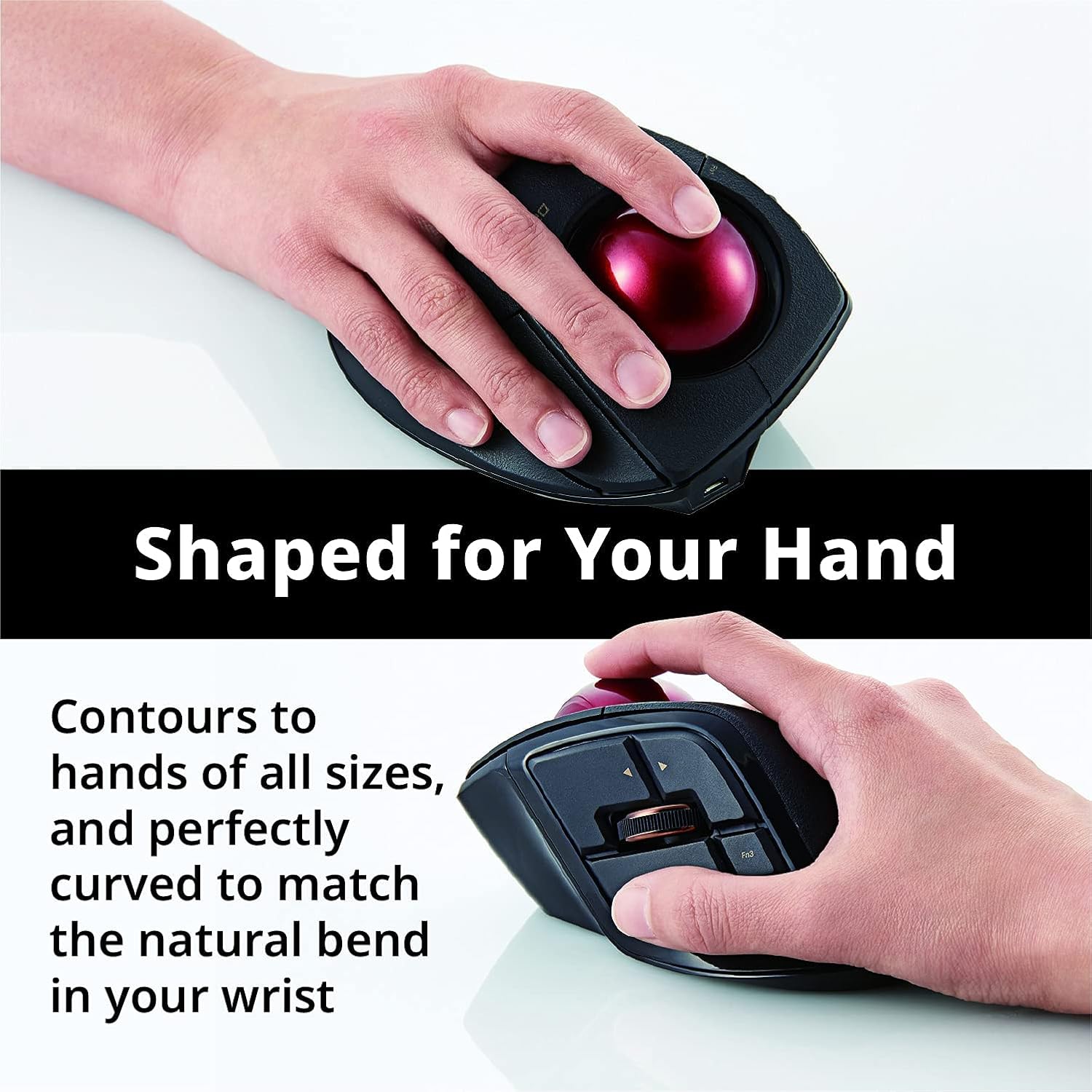
Image 3.1: The ergonomic design of an ELECOM trackball, shaped to fit the hand for comfortable use.
3.2. DPI Adjustment
The DPI (Dots Per Inch) button allows you to adjust the cursor speed. Press the DPI button (typically located near the trackball or on the side) to cycle through available settings: 500 DPI (slower), 1000 DPI (medium), and 1500 DPI (faster). Select the setting that best suits your task and preference.

Image 3.2: Demonstrating the precise control offered by the ELECOM trackball.
3.3. Programmable Buttons
Many ELECOM trackballs feature multiple buttons that can be programmed using the ELECOM Mouse Assistant software. This allows you to assign frequently used functions, macros, or keyboard shortcuts to enhance workflow efficiency.

Image 3.3: The extra-large 44mm trackball, designed for optimal precision and control.

Image 3.4: Internal view showing the high-performance optical sensors for precise cursor movement.
4. Maintenance
4.1. Cleaning the Trackball
Regular cleaning of the trackball and its bearings is essential for maintaining smooth operation and preventing cursor erraticism.
- Turn off the trackball and disconnect it from your computer.
- Locate the small hole on the underside of the trackball.
- Using a pen or a similar blunt object, gently push the trackball out through this hole.
- Wipe the trackball sphere with a soft, lint-free cloth.
- Clean the three artificial ruby ball bearings and the optical sensor inside the trackball housing using a cotton swab lightly dampened with isopropyl alcohol, or a dry air blower.
- Ensure all components are dry before reinserting the trackball.
- Gently place the trackball back into its housing until it clicks into place.

Image 4.1: The trackball removed, illustrating the ease of access for cleaning the internal components and bearings.
5. Troubleshooting
5.1. Cursor Not Moving or Moving Erratically
- Check Batteries: Ensure batteries are correctly installed and have sufficient charge. Replace if necessary.
- Check Connectivity: Verify the USB receiver is securely plugged into a working USB port. For wireless models, ensure the trackball's power switch is on.
- Clean Trackball: Dust or debris on the trackball or bearings can cause erratic movement. Refer to Section 4.1 for cleaning instructions.
- Interference: Move the trackball closer to the USB receiver or away from other wireless devices that might cause interference.
5.2. Buttons Not Responding
- Software Check: If using custom button assignments, ensure the ELECOM Mouse Assistant software is running and configured correctly.
- Re-pair Device: For wireless models, try re-pairing the trackball with its USB receiver if the issue persists. Refer to the ELECOM website for specific re-pairing instructions for your model.
5.3. Software Not Detecting Trackball
- Reinstall Software: Uninstall and then reinstall the ELECOM Mouse Assistant software.
- Driver Updates: Ensure your operating system drivers are up to date.
6. Specifications
| Feature | Detail |
|---|---|
| Brand | ELECOM |
| Series | DEFT PRO (also Huge, bitra, rilacon) |
| Item Model Numbers | M-DPT1MRXBK, M-HT1DRBK, M-MT2DRSBK, M-RT1DRBK |
| Color | Black |
| Power Source | Battery Powered |
| Connectivity Technology | Radio Frequency (2.4GHz) |
| Special Feature | Ergonomic Design |
| Movement Detection Technology | Trackball (Optical) |
| DPI Settings | 500, 1000, 1500 DPI |
7. Warranty and Support
For information regarding product warranty, technical support, or additional resources, please refer to the official ELECOM website or contact ELECOM customer service directly.
Visit the ELECOM Store for more products and information.


