
1. Introduction
The TP-Link Deco S7 is a Whole Home Mesh Wi-Fi System designed to provide seamless, reliable, and fast wireless internet coverage throughout your entire home. This system eliminates Wi-Fi dead zones by creating a unified network, allowing your devices to automatically switch to the strongest signal as you move around.
Key features include AC1900 dual-band Wi-Fi speeds, support for connecting over 100 devices, and three Gigabit Ethernet ports per Deco unit for high-speed wired connections. The system is managed through the intuitive Deco mobile application, simplifying setup and network management.
2. Package Contents
Upon opening your TP-Link Deco S7 package, you should find the following items:
- Deco S7 Units (2-pack or as purchased)
- Ethernet Cable
- Power Adapters (one for each Deco unit)
- Quick Installation Guide
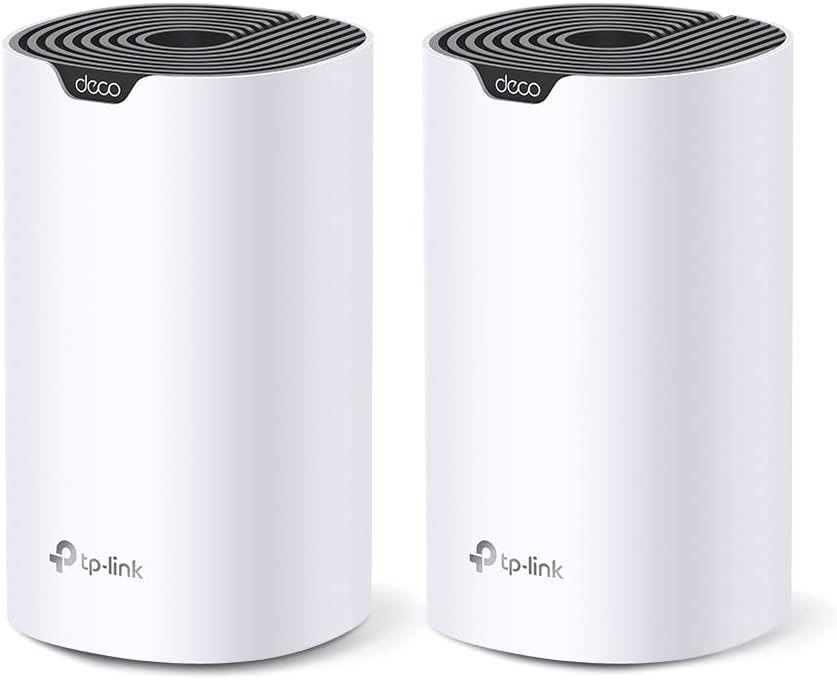
Image: Two TP-Link Deco S7 units, illustrating the typical contents of a multi-pack system.
3. Hardware Overview
Each Deco S7 unit features a minimalist design with essential ports and indicators for functionality.
3.1. Front Panel
The front of the Deco S7 unit typically features a single LED indicator that communicates the device's status:
- Solid Green: Deco is starting up.
- Pulsing Blue: Deco is ready for setup.
- Solid Blue: Deco is connected and working normally.
- Solid Red: Deco has an issue (e.g., no internet connection).

Image: Front view of a single Deco S7 unit, highlighting its clean design.
3.2. Rear Panel
The rear panel of each Deco S7 unit contains the following ports and buttons:
- Ethernet Ports (3): These Gigabit ports can be used for WAN (connecting to your modem) or LAN (connecting wired devices like computers, gaming consoles, or other network devices).
- Power Port: Connects to the provided power adapter.
- Reset Button: A small pinhole button used to factory reset the device. Press and hold for approximately 1 second until the LED turns solid yellow to reset.

Image: Rear view of a Deco S7 unit, showing the Ethernet ports and power input.
4. Setup Instructions
Setting up your TP-Link Deco S7 system is a straightforward process guided by the Deco mobile application.
4.1. Before You Begin
- A smartphone or tablet running iOS 9.0 or later, or Android 4.4 or later.
- An active internet connection from your Internet Service Provider (ISP).
- The TP-Link Deco app, available for download from the App Store or Google Play Store.
4.2. Step-by-Step Installation
- Download and Install the Deco App: Search for 'TP-Link Deco' in your device's app store and install it.
- Unpack Your Deco Units: Remove all Deco S7 units and power adapters from the packaging.
- Connect the Primary Deco: Disconnect your modem's power, then connect one Deco unit to your modem using the provided Ethernet cable. Plug the other end of the Ethernet cable into any of the Ethernet ports on the Deco unit. Power on your modem, then power on the Deco unit.
- Wait for LED Indicator: Wait for the Deco unit's LED to pulse blue, indicating it is ready for setup.
- Launch the Deco App: Open the Deco app on your smartphone or tablet. Log in with your TP-Link ID or create a new one.
- Follow In-App Instructions: The app will guide you through configuring your primary Deco unit, including creating a new Wi-Fi network name and password.
- Add Additional Deco Units: Once the primary Deco is set up, the app will prompt you to add additional Deco units. Place them in desired locations within your home, power them on, and follow the app's instructions to integrate them into your mesh network.
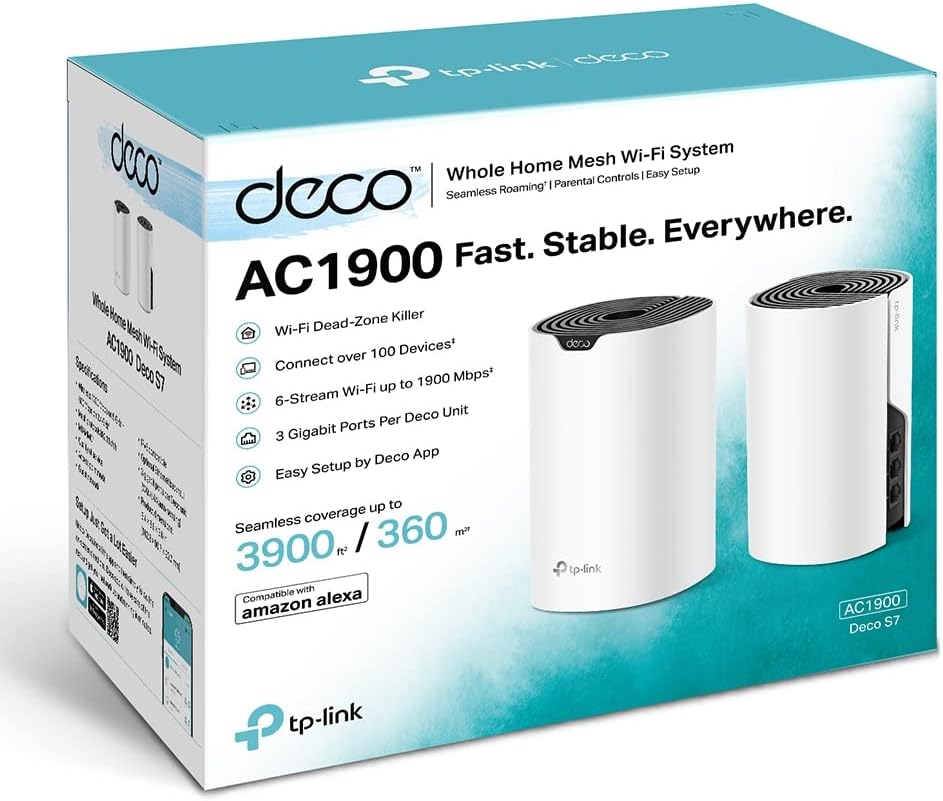
Image: The TP-Link Deco S7 retail box, indicating the product and its features for easy setup.
5. Operating the Deco System
Once your Deco S7 system is set up, you can manage and optimize your network using the Deco app.
5.1. Deco App Features
The Deco app provides comprehensive control over your mesh network:
- Network Map: View all connected devices and Deco units.
- Parental Controls: Manage internet access and content filtering for family members.
- Quality of Service (QoS): Prioritize bandwidth for specific devices or activities.
- Guest Network: Create a separate Wi-Fi network for guests, keeping your main network secure.
- Antivirus: Built-in network protection (features may vary by model/subscription).
- Monthly Reports: Get insights into network usage and security.
5.2. Connecting Devices
Devices will automatically connect to the Deco unit providing the strongest Wi-Fi signal, ensuring seamless roaming throughout your home. For devices requiring a wired connection, such as desktop computers, smart TVs, or gaming consoles, use an Ethernet cable to connect them to any available Gigabit Ethernet port on any Deco unit.

Image: Diagram showing the Deco system's capability to support numerous devices and various online activities simultaneously.
6. Maintenance
Regular maintenance helps ensure optimal performance and longevity of your Deco S7 system.
- Firmware Updates: Periodically check for and install firmware updates via the Deco app. Updates often include performance improvements, new features, and security patches.
- Regular Reboots: While not always necessary, occasionally rebooting your Deco units (via the app or by unplugging/replugging power) can resolve minor network issues and refresh performance.
- Cleaning: Keep the Deco units clean and free from dust. Use a soft, dry cloth to wipe the surfaces. Avoid using liquid cleaners or abrasive materials.
- Optimal Placement: Ensure Deco units are placed in open areas, away from large metal objects, thick walls, and sources of interference (e.g., microwaves, cordless phones) to maintain strong signal strength.
7. Troubleshooting
If you encounter issues with your Deco S7 system, refer to the following common troubleshooting steps:
- No Internet Connection:
- Check if your modem is working correctly.
- Ensure the Ethernet cable between the modem and the primary Deco unit is securely connected.
- Verify the primary Deco's LED is solid blue. If red, check the internet connection from your ISP.
- Slow Wi-Fi Speeds:
- Check the placement of your Deco units. They should be within reasonable range of each other.
- Minimize interference from other electronic devices.
- Use the Deco app's network optimization features or adjust QoS settings.
- Cannot Add Deco Unit:
- Ensure the new Deco unit is powered on and its LED is pulsing blue.
- Try moving the new Deco unit closer to an existing Deco unit during the setup process.
- If issues persist, perform a factory reset on the new Deco unit and retry.
- Forgot Wi-Fi Password:
- You can retrieve or change your Wi-Fi password through the Deco app under the Wi-Fi settings.
- Factory Reset:
- To perform a factory reset, locate the pinhole reset button on the rear of the Deco unit. With the unit powered on, use a paperclip or similar object to press and hold the button for approximately 1 second until the LED turns solid yellow. The unit will then restart with factory default settings.
8. Specifications
| Feature | Description |
|---|---|
| Model | Deco S7 |
| Wireless Standards | IEEE 802.11a/b/g/n/ac |
| Frequency | Dual-Band (2.4 GHz and 5 GHz) |
| Ethernet Ports | 3 Gigabit Ethernet ports per Deco unit |
| Dimensions (per unit) | 19.69 x 19.69 x 11.02 inches (approximate product dimensions) |
| Item Weight (per unit) | 2.68 pounds (approximate) |
| Connectivity Technology | Ethernet, Wireless |
| Special Feature | WPS (Wi-Fi Protected Setup) |
| Compatible Devices | Laptop, Personal Computer, Smart Television, Tablet |
| Manufacturer | TP-Link |
| First Available Date | August 12, 2023 |
9. Warranty and Support
TP-Link products typically come with a limited warranty. For specific warranty terms and conditions applicable to your region, please refer to the warranty card included in your product packaging or visit the official TP-Link website.
For technical support, product registration, and additional resources, please visit the official TP-Link support website: www.tp-link.com/support. You can find FAQs, firmware updates, and contact information for customer service.


