
Product Overview
The Cosmic Byte CB-GK-22 Veritas is a Tenkeyless (TKL) membrane keyboard designed for various computing tasks, including gaming. It features RGB LED backlighting with multiple effects, double injection keycaps for durability, and 25-key anti-ghosting capabilities.

Figure 1: Top-down view of the Cosmic Byte CB-GK-22 Veritas TKL Membrane Keyboard with RGB lighting activated.
Setup Instructions
Follow these steps to set up your Cosmic Byte CB-GK-22 Veritas keyboard:
- Unpack the Keyboard: Carefully remove the keyboard and any included accessories from the packaging.
- Connect to Computer: Locate an available USB port on your computer. Insert the USB connector of the keyboard into the USB port.
- Driver Installation: The keyboard is plug-and-play. Your operating system (Windows, Linux, macOS) should automatically detect and install the necessary drivers. No additional software installation is typically required.
- Verify Functionality: Once connected, the keyboard's RGB lighting should illuminate. Test typing in a text editor to ensure all keys are responsive.
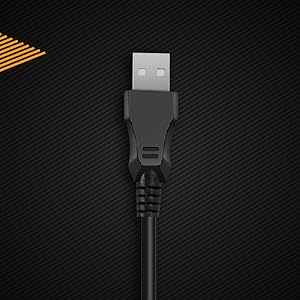
Figure 2: Close-up view of the keyboard's USB connector, ready for connection to a computer.

Figure 3: The keyboard is compatible with various operating systems, including Windows, Linux, and macOS.
Operating Instructions
Basic Keyboard Functions
The CB-GK-22 Veritas functions as a standard TKL keyboard. All keys perform their labeled functions. The keyboard features 25-key anti-ghosting, allowing multiple key presses to be registered simultaneously, which is beneficial for fast-paced typing and gaming.
RGB Backlight Control
The keyboard features 7-color RGB backlighting with various effects. Use the following key combinations to control the lighting:
- Brightness Adjustment: Press Fn + Page Up to increase brightness (5 levels). Press Fn + Page Down to decrease brightness (5 levels).
- Backlight Effects: The keyboard supports 9 backlight effects, including 6 dazzling effects. Specific key combinations for cycling through effects are typically indicated on the keyboard itself or in a quick start guide. Common combinations include Fn + Scroll Lock or Fn + Insert.
- Sonic Spectrum Mode: This mode allows the RGB lighting to react to ambient sound. Activate this mode using the designated key combination, often Fn + Home or Fn + End.

Figure 4: The keyboard features a Tenkeyless layout and includes Sonic Spectrum and sound-reactive LED lighting modes.
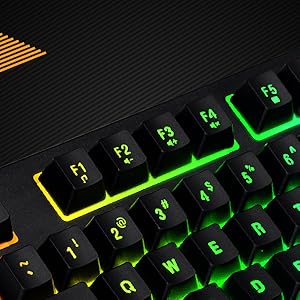
Figure 5: Detail of the function keys (F1-F12) with active RGB backlighting.
Double Injection Keycaps
The keycaps are manufactured using a double injection process, which ensures that the legends (characters on the keys) are scratch-resistant and will not fade over time. This design also makes the keys easier to clean.
Maintenance
Proper maintenance helps extend the lifespan of your keyboard:
- Regular Cleaning: Use a soft, dry cloth to wipe down the keycaps and keyboard surface. For dust and debris between keys, use compressed air.
- Deep Cleaning: For stubborn dirt, slightly dampen a cloth with water or a mild, non-abrasive cleaning solution. Ensure no liquid enters the keyboard.
- Avoid Spills: Keep liquids away from the keyboard to prevent damage to internal components. If a spill occurs, immediately disconnect the keyboard and allow it to dry completely before reconnecting.
- Storage: When not in use for extended periods, store the keyboard in a clean, dry environment away from direct sunlight or extreme temperatures.
Troubleshooting
If you encounter issues with your keyboard, refer to the following common solutions:
- Keyboard Not Responding:
- Ensure the USB cable is securely connected to both the keyboard and the computer.
- Try connecting the keyboard to a different USB port on your computer.
- Test the keyboard on another computer to determine if the issue is with the keyboard or the original computer.
- Restart your computer.
- Backlight Not Working or Incorrect:
- Check if the brightness is set to the lowest level. Use Fn + Page Up to increase brightness.
- Cycle through backlight effects using the designated key combinations (e.g., Fn + Scroll Lock or Fn + Insert).
- Ensure no software is overriding the keyboard's lighting settings (though this keyboard typically does not require software).
- Keys Not Registering or Ghosting:
- Clean around the affected keys to remove any debris that might be obstructing the key mechanism.
- The keyboard supports 25-key anti-ghosting. If more than 25 keys are pressed simultaneously, some inputs may not register.
Specifications
| Feature | Detail |
|---|---|
| Model Name | CB-GK-22 Veritas |
| Brand | Cosmic Byte |
| Keyboard Type | TKL Membrane Keyboard |
| Backlight | 7-Color RGB Backlit, 9 Effects, Sonic Spectrum Mode |
| Brightness Levels | 5 Levels |
| Anti-Ghosting | 25 Keys |
| Keycaps | Double Injection |
| Connectivity | USB |
| Product Dimensions | 37.2 x 15.1 x 3.7 cm |
| Item Weight | 629 g |
| Included Components | USB Cable |
| Language | English |
| ASIN | B09K5GYWBH |
Warranty & Support
Warranty Information
The Cosmic Byte CB-GK-22 Veritas TKL Membrane Keyboard comes with a 1-year limited warranty from the date of purchase. This warranty covers manufacturing defects under normal use. It does not cover damage caused by misuse, accidents, unauthorized modifications, or normal wear and tear.
Please retain your proof of purchase for warranty claims.
Customer Support
For technical assistance, warranty claims, or any product-related inquiries, please contact Cosmic Byte customer support:
- Manufacturer Contact: 1800 31300 7700
- Brand Website: Visit the official Cosmic Byte website for additional resources and support.