
1. Introduction
The KOAMTAC KDC185 is a compact and lightweight 2D wearable scanner designed for efficient data collection. It is engineered to be worn on a single finger, providing users with hands-free operation. This manual provides comprehensive instructions for the setup, operation, and maintenance of your KDC185 scanner.
The KDC185 integrates seamlessly with accessories such as the KDC185 Ring Trigger or Safety Glove. It features a 0.66-inch OLED display and multiple LED indicators to provide clear scanning feedback. Equipped with a 2D imager scan engine, it can read all major barcode symbologies. Connectivity is enhanced through Bluetooth Low Energy 5.0 for fast pairing with smart devices, and NFC Pairing for quick Android host device connections. Advanced power management ensures optimal battery life by utilizing a hibernation mode when not actively in use.
2. Product Overview
Familiarize yourself with the components of your KDC185 scanner.
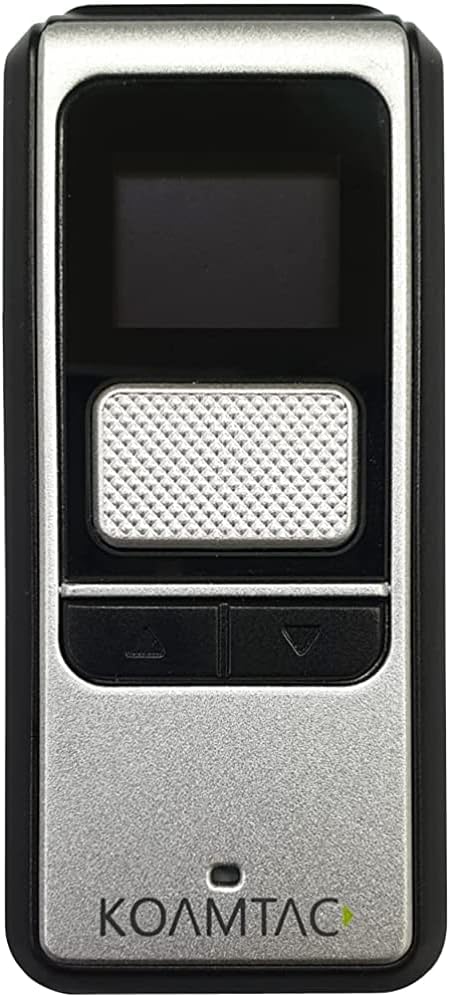
Figure 2.1: Front View of KDC185 Scanner. This image displays the front of the KDC185 scanner, showing the OLED display at the top, the main scan button below it, and two smaller navigation buttons at the bottom. The KOAMTAC logo is visible at the very bottom.

Figure 2.2: Side View with Charging Port. This image shows a side profile of the KDC185 scanner, highlighting the charging port located on the left side of the device.
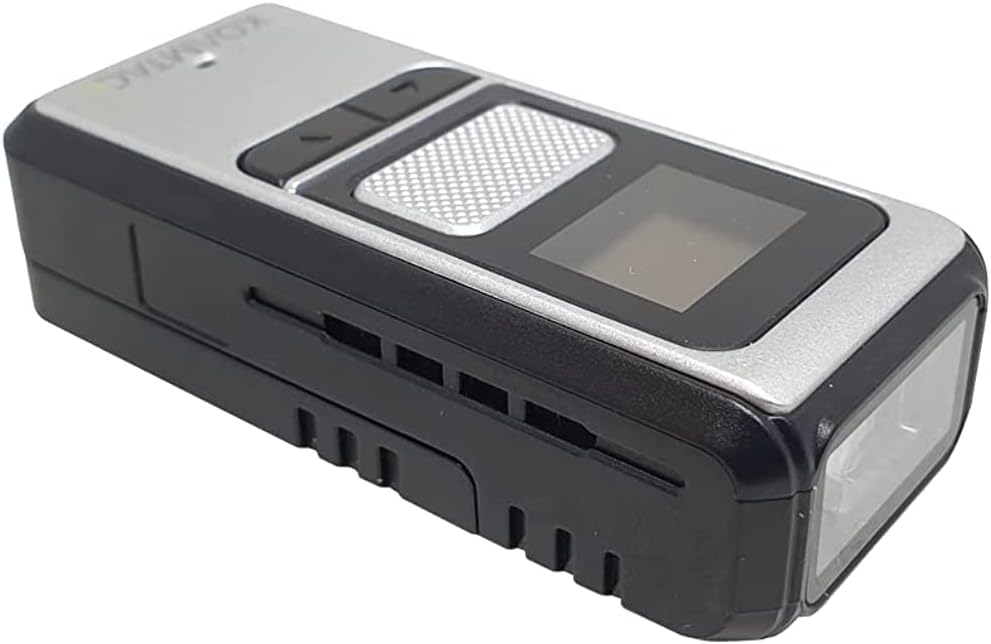
Figure 2.3: Angled View of Scan Engine. This image provides an angled perspective of the KDC185 scanner, clearly showing the scan engine window at the front of the device, where barcodes are read.
Key Features:
- Seamless integration with KDC185 Ring Trigger or Safety Glove accessories.
- 0.66-inch OLED display for real-time scanning feedback and multiple LED indicators.
- Integrated 2D imager scan engine capable of reading all major barcode symbologies.
- Bluetooth Low Energy 5.0 for fast and simple connections with smart devices.
- NFC Pairing for quick connection with Android host devices.
- Advanced power management with hibernation mode for extended battery life.
- IP65-rated for dust and water resistance.
- 6-foot drop specification when equipped with a protective rubber boot.
3. Setup
3.1 Charging the Device
The KDC185 uses a Lithium Ion battery. Before initial use, fully charge the scanner. Connect the charging cable to the device's charging port (refer to Figure 2.2) and plug the other end into a compatible USB power source. The LED indicator will show charging status.
3.2 Powering On/Off
- To Power On: Press and hold the main scan button for a few seconds until the display illuminates.
- To Power Off: Press and hold the main scan button until the power-off prompt appears on the OLED display, then confirm.
3.3 Pairing with a Host Device
The KDC185 supports Bluetooth Low Energy 5.0 and NFC pairing for connecting to smartphones, smartwatches, smart glasses, and other compatible devices.
Bluetooth Pairing:
- Ensure Bluetooth is enabled on your host device.
- On the KDC185, navigate to the Bluetooth pairing menu using the navigation buttons.
- Select the desired Bluetooth profile (e.g., HID, SPP).
- Search for available devices on your host device and select 'KDC185' from the list.
- Confirm the pairing on both devices if prompted.
NFC Pairing (for Android devices):
For Android host devices, NFC pairing allows for a simpler connection:
- Ensure NFC is enabled on your Android host device.
- Simply tap the NFC area of your Android host device with the KDC185.
- The devices will automatically attempt to connect in HID or SPP mode.
Automatic setup is also supported by Samsung Galaxy Friends and Samsung KNOX.
3.4 Integrating with Accessories
The KDC185 is designed to integrate effortlessly with the KDC185 Ring Trigger or Safety Glove. Follow the instructions provided with these accessories for proper attachment and use.
4. Operating the Scanner
4.1 Scanning Barcodes
To scan a barcode:
- Point the scan engine window (refer to Figure 2.3) at the barcode you wish to scan.
- Press the main scan button.
- A successful scan will be indicated by an audible beep, a vibration, and visual feedback on the OLED display and LED indicators.
- The scanned data will be transmitted to your paired host device.
4.2 Display and LED Indicators
The 0.66-inch OLED display provides important information such as battery status, connection status, and scanned data. Multiple LED indicators provide quick visual cues for various operational states, including charging, successful scan, and connection status.
4.3 Hibernation Mode
The KDC185 features advanced power management that automatically puts the device into a 'hibernation mode' when it is not actively in use. This conserves battery life. The device will quickly wake up when the scan button is pressed or when a connection is re-established.
5. Maintenance
5.1 Cleaning
To clean the KDC185, gently wipe the exterior with a soft, damp cloth. Do not use harsh chemicals or abrasive cleaners. Ensure the charging port is free of dust and debris.
5.2 Storage
Store the scanner in a cool, dry place away from direct sunlight and extreme temperatures. If storing for an extended period, ensure the battery is partially charged (around 50%) to maintain battery health.
5.3 Durability
The KDC185 is IP65-rated, meaning it is dust-tight and water-resistant. When equipped with a protective rubber boot (sold separately), it can withstand drops from up to 6 feet.
6. Troubleshooting
If you encounter issues with your KDC185 scanner, refer to the following common troubleshooting steps:
- Device not powering on: Ensure the battery is charged. Connect the scanner to a power source and try again.
- Unable to scan barcodes: Ensure the scanner is powered on and the scan engine window is clean. Verify the barcode is not damaged and is within the scanner's read range.
- Not connecting to host device: Check that Bluetooth is enabled on both devices. Ensure the KDC185 is in pairing mode and visible. Try unpairing and re-pairing the devices. For NFC, ensure NFC is active on the host device and the KDC185 is tapped correctly.
- Short battery life: Ensure the device is fully charged. If the issue persists, contact support.
- Display not working: Try restarting the device. If the issue persists, contact support.
For more complex issues, please refer to the KOAMTAC support website or contact their customer service.
7. Specifications
| Feature | Detail |
|---|---|
| Item Model Number | 382720 |
| Batteries | 1 Lithium Ion battery required |
| Manufacturer | KOAMTAC |
| Compatible Devices | Smartphone |
| Power Source | Battery Powered |
| Brand | KOAMTAC |
| Connectivity Technology | NFC, Bluetooth Low Energy 5.0 |
| Date First Available | September 19, 2019 |
| ASIN | B09K4GNWHW |
8. Warranty and Support
For information regarding product warranty, technical support, or service, please visit the official KOAMTAC website or contact their customer support department. Keep your purchase receipt and product serial number handy when seeking support.


