
1. Introduction
This manual provides comprehensive instructions for the TECKNET USB-C Hub, Model B09K46VZJ1. This versatile adapter expands the connectivity of your USB-C enabled devices, offering HDMI video output, high-speed USB 3.0 data transfer, and convenient SD/TF card reading capabilities. Please read this manual thoroughly before using the product to ensure proper operation and to maximize its performance.
2. Product Overview
The TECKNET USB-C Hub is designed to provide essential connectivity options for modern laptops, tablets, and smartphones with a USB-C port. It features a compact and durable aluminum design.

Figure 2.1: TECKNET USB-C Hub with its various ports and compatible accessories like USB drives and SD cards.
2.1 Components
- USB-C Connector: For connecting to your host device (laptop, tablet, smartphone).
- HDMI Port: Supports 4K UHD (3840x2160@30Hz) video output to an external display.
- USB 3.0 Ports (2x): Provides high-speed data transfer up to 5 Gbps for peripherals like USB drives, keyboards, and mice.
- SD Card Slot: For reading standard SD memory cards.
- TF (MicroSD) Card Slot: For reading microSD memory cards.
3. Features
- 4K HDMI Display: Connect to external monitors, projectors, or HDTVs with resolutions up to 4K UHD (3840x2160@30Hz) or 1080p@60Hz.
- High-Speed Data Transfer: Two USB 3.0 ports offer data transfer speeds of up to 5 Gbps, allowing for quick file transfers.
- Simultaneous Card Reading: SD and TF card slots support simultaneous reading and writing at speeds up to 100 MB/s.
- Wide Compatibility: Compatible with a broad range of USB-C devices including MacBook Pro/Air, iPad Pro, Dell XPS, Surface Pro, and various Android smartphones and tablets. Supports Windows, macOS, Linux, and Android operating systems.
- Compact and Portable Design: Lightweight aluminum casing ensures durability and easy portability.

Figure 3.1: The hub demonstrates wide compatibility with various laptops, tablets, and operating systems.
4. Setup Instructions
The TECKNET USB-C Hub is designed for plug-and-play operation, requiring no driver installation for most compatible operating systems.
- Connect the Hub: Insert the USB-C connector of the hub firmly into an available USB-C port on your host device (laptop, tablet, or smartphone).
- Connect Peripherals:
- For HDMI display, connect an HDMI cable from the hub's HDMI port to your monitor, TV, or projector.
- For USB devices, plug your USB flash drives, external hard drives, keyboards, or mice into the USB 3.0 ports.
- For memory cards, insert your SD or TF card into the corresponding slot.
- Verify Connection: Your operating system should automatically detect the connected devices and displays.
5. Operating Instructions
5.1 Using the HDMI Port
The HDMI port allows you to extend or mirror your device's display to a larger screen.
- Ensure your external display is powered on and set to the correct HDMI input.
- Connect the HDMI cable between the hub and your display.
- Adjust display settings (resolution, mirroring/extending) through your device's operating system display settings.

Figure 5.1: The hub facilitates expanding your display to a larger screen, such as an HDTV, projector, or monitor.
5.2 Using the USB 3.0 Ports
The two USB 3.0 ports provide high-speed connectivity for various USB devices.
- Plug your USB device (e.g., flash drive, external HDD, mouse, keyboard) into any of the USB 3.0 ports.
- For data transfer, ensure the device is properly recognized by your operating system before initiating transfers.

Figure 5.2: Highlighting the 10x faster data transfer speeds of USB 3.0 compared to USB 2.0.
5.3 Using the SD/TF Card Slots
The hub supports simultaneous reading of both SD and TF (microSD) cards.
- Insert your SD card into the SD slot and/or your TF (microSD) card into the TF slot. Ensure the card is inserted correctly with the contacts facing down.
- The card will appear as a removable drive in your operating system's file explorer.
- To safely remove, always eject the card through your operating system before physically pulling it out.
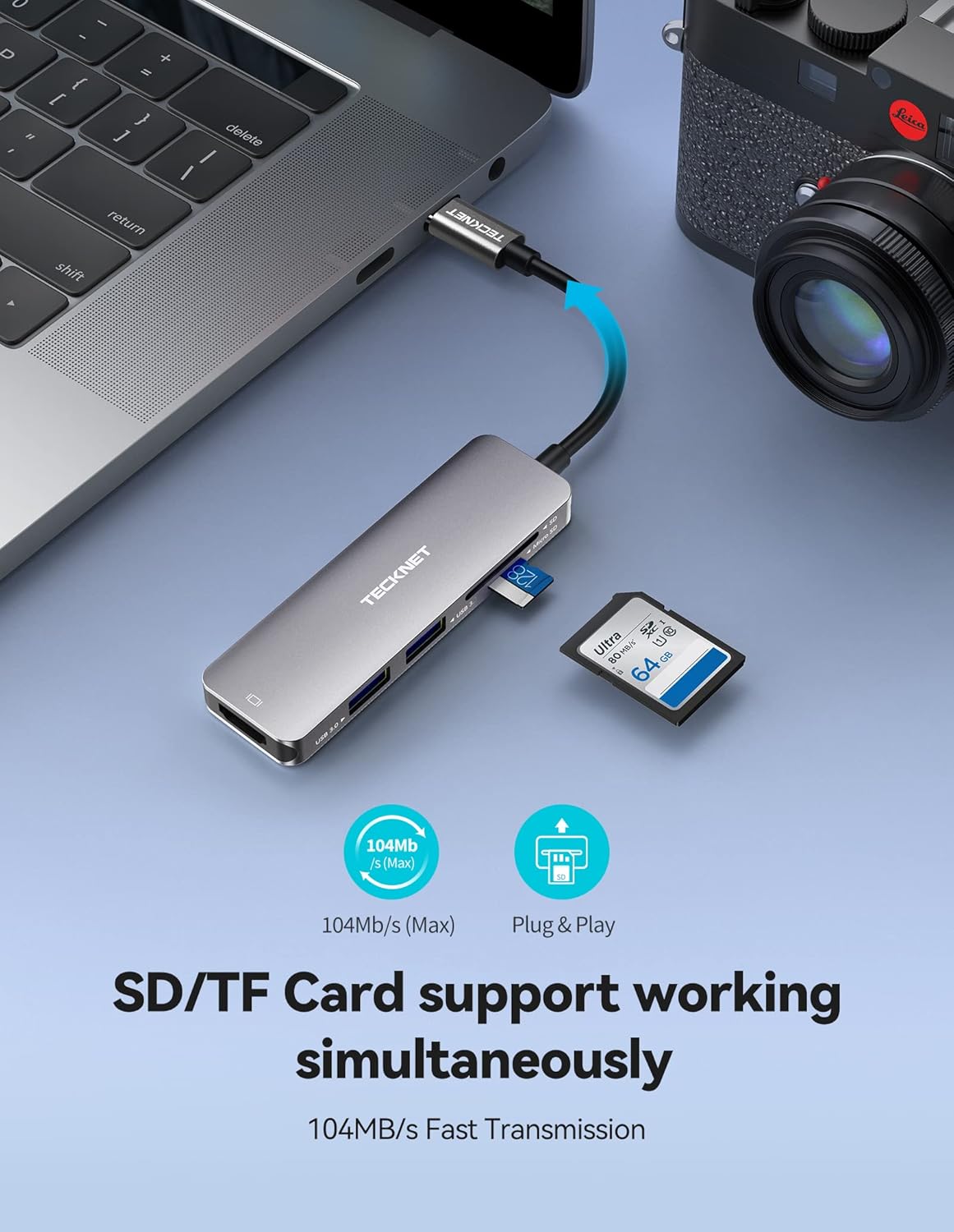
Figure 5.3: The hub supports simultaneous reading and writing for both SD and TF cards at high speeds.
6. Maintenance
- Keep the hub clean and free from dust. Use a soft, dry cloth for cleaning.
- Avoid exposing the hub to extreme temperatures, humidity, or direct sunlight.
- Do not drop or subject the hub to strong impacts.
- Do not attempt to disassemble or repair the hub yourself. Refer to qualified service personnel if needed.
7. Troubleshooting
| Problem | Possible Cause / Solution |
|---|---|
| No display output via HDMI. |
|
| USB devices are not recognized. |
|
| SD/TF card not detected. |
|
| Hub feels warm during use. |
|
8. Specifications
| Feature | Detail |
|---|---|
| Brand | TECKNET |
| Model | B09K46VZJ1 |
| Interface | USB Type-C |
| Total USB Ports | 5 (2x USB 3.0, 1x HDMI, 1x SD, 1x TF) |
| USB 3.0 Data Transfer Rate | Up to 5 Gbps |
| HDMI Resolution | Up to 4K UHD (3840x2160@30Hz), 1080p@60Hz |
| Card Reader Speed | Up to 100 MB/s (SD/TF simultaneous) |
| Material | Aluminum |
| Operating Systems Supported | IOS 13, Linux, Windows, Mac OS, Android |
| Special Features | Plug and Play |
9. Warranty and Support
For warranty information and technical support, please refer to the official TECKNET website or contact their customer service directly. Keep your purchase receipt for warranty claims.