
1. Product Overview
The INPHIC Wireless Mouse M6P is an ergonomic, rechargeable mouse designed for comfort and efficiency across various computing devices. It features a visible battery indicator, adjustable DPI settings, and silent click buttons for a quiet user experience.
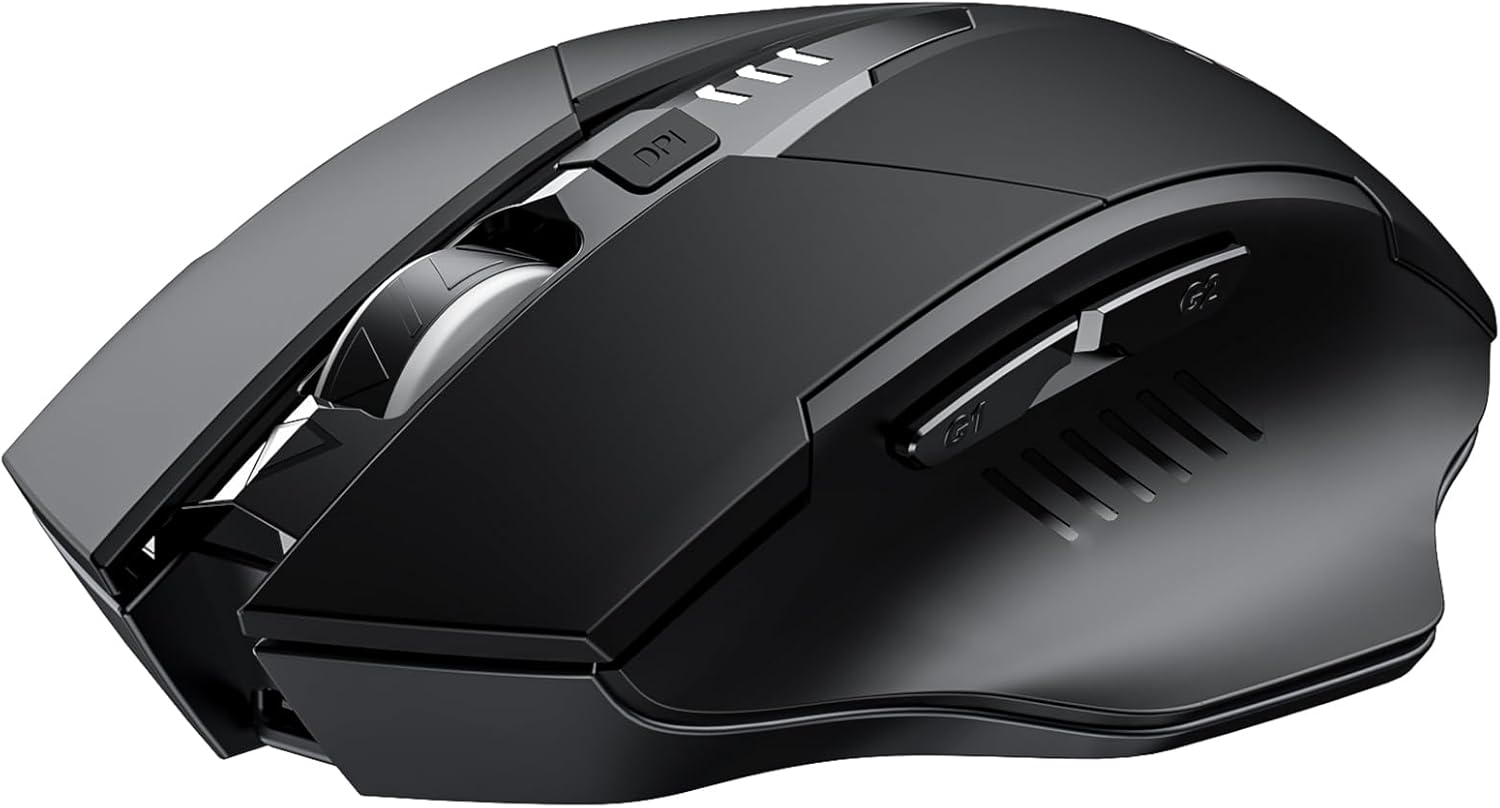
Figure 1: INPHIC Wireless Mouse M6P. This image displays the overall design of the black wireless mouse, highlighting its ergonomic shape and button layout.
2. Setup Guide
2.1 Unboxing and USB Receiver Location
Upon unboxing, locate the Nano USB receiver. It is conveniently stored in a dedicated compartment at the bottom of the mouse for secure transport and storage.
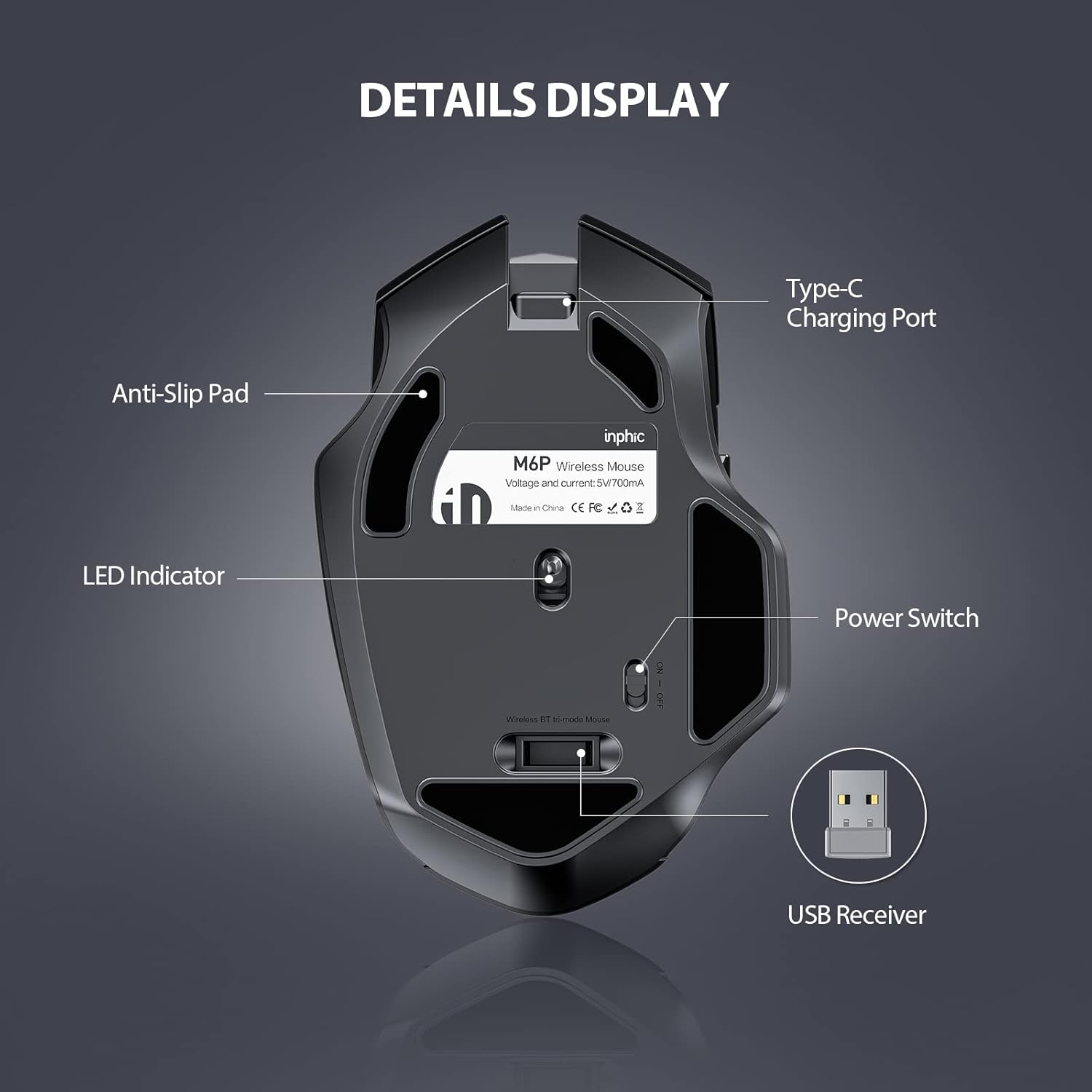
Figure 2: Bottom view of the mouse. This image illustrates the underside of the mouse, clearly showing the storage slot for the USB receiver, the Type-C charging port, LED indicator, and power switch.
2.2 Initial Charging
Before first use, it is recommended to fully charge the mouse. Connect the provided USB charging cable to the mouse's charging port and to a low voltage USB power source (e.g., a computer USB port or a 5V USB adapter). A full charge typically takes approximately 2 hours. The blue light on the mouse indicates charging status when the mouse is powered off. When powered on, a white light indicates the current power level.

Figure 3: Mouse connected for charging. This image shows the mouse being charged via its USB-C port, highlighting the 700mAh battery capacity and the charging indicator light.
2.3 Connecting to Your Device
- Insert the Nano USB receiver into an available USB port on your computer or laptop.
- Flip the power switch, located at the bottom of the mouse, to the 'on' position.
- The mouse is plug-and-play and should automatically establish a connection with your device within seconds.

Figure 4: Plug and Play connection. This image demonstrates the simple plug-and-play setup, showing the USB receiver plugged into a laptop and the mouse wirelessly connected within a 10-meter range.
3. Operating Instructions
3.1 Button Functions
The INPHIC Wireless Mouse M6P is equipped with 6 high-efficient buttons to enhance your productivity:
- Left Click Button: Primary selection and interaction. (Silent)
- Right Click Button: Accesses contextual menus. (Silent)
- Scroll Wheel: Scrolls through documents and web pages.
- DPI Adjustment Button: Changes cursor sensitivity.
- Forward Button (Side): Navigates forward in web browsers or file explorers.
- Backward Button (Side): Navigates backward in web browsers or file explorers.

Figure 5: 6 Buttons Mouse. This diagram labels all six buttons on the mouse (Left, Right, Scroll Wheel, DPI Switch, Forward, Backward) and provides the mouse's dimensions.
3.2 DPI Adjustment
The mouse offers 4 adjustable DPI (Dots Per Inch) levels: 800, 1200, 1600, and 2400. Press the DPI button, located behind the scroll wheel, to cycle through these settings and select the cursor speed that best suits your task or preference.
3.3 Silent Click Feature
The left and right click buttons are engineered for silent operation. This feature minimizes clicking noise, allowing you to work or browse in quiet environments without disturbing others.

Figure 6: Noiseless Click. This image visually represents the silent click feature, showing the mouse next to a sleeping baby, emphasizing its quiet operation.
3.4 Ergonomic Design
The mouse features a broader thumb rest area and a curved design with a skin-like matte finish. This ergonomic construction provides enhanced support for the palm and fingers, reducing pressure and tension during prolonged use and improving overall comfort.

Figure 7: Ergonomic Shape. This image highlights the curved design and skin-like material of the mouse, illustrating how it comfortably fits the hand for an improved user experience.
3.5 Battery Indicator and Auto-Sleep Mode
The mouse is equipped with a visible battery indicator on its top surface, allowing you to quickly check the remaining battery level. This feature helps prevent unexpected power outages. To conserve battery life, the mouse automatically enters an auto-sleep mode after a period of inactivity. Simply move the mouse or click any button to wake it up.

Figure 8: Battery Power at a Glance. This image shows the mouse on a desk with a laptop, emphasizing the LED battery indicator on the top surface that displays the remaining power.
4. Maintenance
4.1 Cleaning
To maintain optimal performance and hygiene, clean your mouse regularly. Use a soft, dry, lint-free cloth to wipe the exterior surfaces. For stubborn dirt, slightly dampen the cloth with water. Avoid using harsh chemicals, abrasive cleaners, or excessive moisture, as these can damage the mouse's components.
4.2 Charging Best Practices
Always use the provided USB charging cable. While the mouse supports use while charging, it is recommended to fully charge the mouse when the battery indicator shows low power. Avoid leaving the mouse connected to a charger for excessively long periods after it is fully charged to prolong battery lifespan.
4.3 Storage
When not in use for an extended period, turn off the mouse using the power switch at the bottom. Store the USB receiver in its dedicated compartment at the bottom of the mouse to prevent loss. Keep the mouse in a dry, cool environment away from direct sunlight and extreme temperatures.
5. Troubleshooting
5.1 Mouse Not Responding or Connecting
- Ensure the USB receiver is securely plugged into a working USB port on your computer.
- Verify that the mouse's power switch, located on the bottom, is in the 'on' position.
- Recharge the mouse if the battery indicator shows low power or is off.
- Try plugging the USB receiver into a different USB port on your computer.
- If using with a MacBook without a Type-C port, ensure you are using a compatible Type-C adapter (not included).
5.2 Cursor Movement Erratic or Slow
- Adjust the DPI setting using the DPI button to find a suitable cursor speed.
- Ensure the optical sensor on the bottom of the mouse is clean and free from dust or debris.
- Use the mouse on a clean, non-reflective, and uniform surface. Avoid glass or highly reflective surfaces.
5.3 Charging Lights Flicker or Mouse Doesn't Charge
- Ensure the charging cable is properly connected to both the mouse's Type-C port and the USB power source.
- Try a different USB charging port or power adapter.
- Allow the mouse to charge for at least 2 hours for a full charge.
6. Specifications
| Feature | Detail |
|---|---|
| Product Dimensions | 4.33 x 3.15 x 1.18 inches |
| Item Weight | 3.35 ounces |
| Item Model Number | M6P |
| Batteries | 1 Lithium Metal battery (included) |
| Connectivity Technology | USB 2.4G Wireless |
| DPI Levels | 800 / 1200 / 1600 / 2400 |
| Special Features | Wider Thumb Support, Battery Volume Display, Ergonomic Design, Portable, Soundless, Auto-sleep mode, 700mAh Large battery capacity, Rechargeable |
| Movement Detection Technology | Optical |
7. Warranty and Support
For detailed warranty information, product registration, or technical assistance, please visit the official INPHIC website or contact INPHIC customer service directly. It is advisable to retain your purchase receipt as proof of purchase for any warranty claims.


