
Lexar LJDP030128G-RNQNG
Lexar JumpDrive P30 USB 3.2 Gen 1 Flash Drive Instruction Manual
Model: LJDP030128G-RNQNG
Introduction
The Lexar JumpDrive P30 is a high-performance USB 3.2 Gen 1 flash drive designed for efficient data transfer and storage. It offers fast read and write speeds, a durable metallic design, and advanced security features to protect your files. This manual provides essential information for setting up, operating, maintaining, and troubleshooting your device.
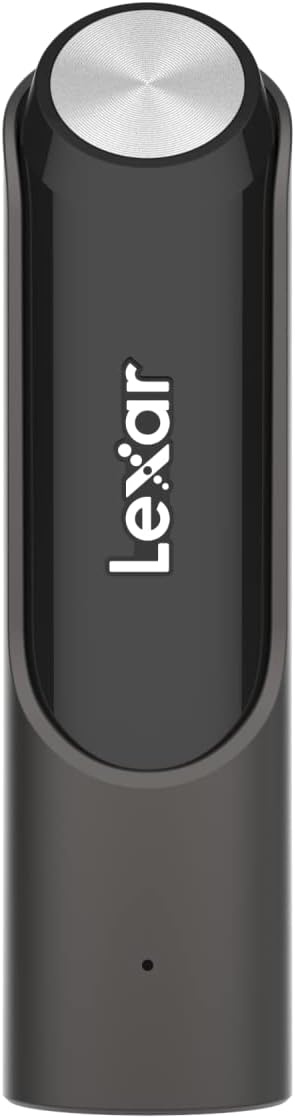
Image: The Lexar JumpDrive P30 USB 3.2 Gen 1 Flash Drive, showcasing its sleek design.
Setup
The Lexar JumpDrive P30 is a plug-and-play device, requiring no special drivers for basic functionality on most operating systems.
- Insert the Flash Drive: Carefully slide the USB connector out of the metallic casing. Insert the Lexar JumpDrive P30 into an available USB port on your computer (PC or Mac). For optimal performance, use a USB 3.2 Gen 1 compatible port.
- System Recognition: Your computer's operating system should automatically detect the flash drive and display it as a removable storage device.
- Accessing Files: Open your computer's file explorer (Windows) or Finder (Mac) to locate the newly recognized drive. It will typically appear under "This PC" or "Devices and drives."

Image: The Lexar JumpDrive P30 connected to a laptop's USB port, ready for use.
Operating Instructions
Transferring Files
- Copying to the Drive: Drag and drop files or folders from your computer to the Lexar JumpDrive P30 icon in your file explorer/Finder. Alternatively, right-click on the desired files, select "Copy," then navigate to the flash drive, right-click, and select "Paste."
- Copying from the Drive: Drag and drop files or folders from the Lexar JumpDrive P30 to a location on your computer. Alternatively, right-click on the desired files on the flash drive, select "Copy," then navigate to your desired location on the computer, right-click, and select "Paste."
- Speed: The drive supports USB 3.2 Gen 1 speeds, offering up to 450MB/s read and 420MB/s write performance for rapid data transfer.
Using Lexar DataShield (256-bit AES Encryption)
The Lexar JumpDrive P30 includes pre-loaded software for 256-bit AES encryption to secure your sensitive files.
- Installation: When you first connect the drive, you may find an executable file for the Lexar DataShield software. Run this file to install the encryption utility on your computer.
- Creating a Secure Vault: Follow the on-screen instructions to set up a password-protected vault on your flash drive. This vault will automatically encrypt any files placed within it.
- Accessing Encrypted Files: To access files in the vault, you will need to enter your password. Files deleted from the vault are securely erased and cannot be recovered.

Image: The Lexar JumpDrive P30 alongside a laptop displaying a security shield, illustrating its data protection feature.
Maintenance
To ensure the longevity and optimal performance of your Lexar JumpDrive P30, follow these maintenance guidelines:
- Safe Removal: Always safely eject the flash drive from your computer before physically removing it. On Windows, right-click the drive icon in "This PC" and select "Eject." On Mac, drag the drive icon to the Trash or click the Eject button next to the drive in Finder. This prevents data corruption.
- Physical Care: The metallic design provides durability, but avoid dropping the drive or exposing it to excessive force. Keep the USB connector clean and free from dust or debris.
- Environmental Conditions: Store the drive in a cool, dry place, away from extreme temperatures, humidity, and direct sunlight.
- Data Backup: Regularly back up important data stored on the flash drive to another storage medium to prevent data loss in case of unforeseen issues.
Troubleshooting
Drive Not Recognized
- Check USB Port: Try plugging the drive into a different USB port on your computer.
- Restart Computer: Sometimes a simple restart can resolve recognition issues.
- Check Device Manager (Windows): Open Device Manager, look under "Disk drives" or "Universal Serial Bus controllers" for any unrecognized devices or devices with error symbols. You may need to update drivers or reinstall the device.
- Check Disk Utility (Mac): Open Disk Utility and see if the drive appears there. You might need to mount or repair the drive.
Slow Transfer Speeds
- Use USB 3.2 Gen 1 Port: Ensure the drive is connected to a USB 3.2 Gen 1 (or USB 3.0/3.1) port on your computer. Older USB 2.0 ports will significantly limit speeds.
- File Size and Type: Transferring many small files is generally slower than transferring a few large files.
- System Activity: Other processes running on your computer can affect transfer speeds. Close unnecessary applications.
- Drive Fragmentation: While less common with flash drives, ensure your drive is not excessively fragmented.
Lexar DataShield Issues
- Forgotten Password: If you forget your password for the secure vault, Lexar DataShield software typically does not offer a recovery option due to its security design. Data within the vault may become inaccessible.
- Software Malfunction: Reinstall the Lexar DataShield software from the drive or Lexar's official website if you experience issues.
If you continue to experience issues, please refer to the Support section for further assistance.
Specifications
| Brand | Lexar |
| Model Name | LJDP030128G-RNQNG |
| Memory Storage Capacity | 128 GB |
| Hardware Interface | USB 3.2 Gen 1 |
| Read Speed | Up to 450 MB/s |
| Write Speed | Up to 420 MB/s |
| Compatible Devices | PC, Mac, USB-enabled devices |
| Color | Titanium |
| UPC | 843367124381 |
Warranty Information
The Lexar JumpDrive P30 USB 3.2 Gen 1 Flash Drive is covered by a Five-Year Limited Warranty. This warranty covers defects in materials and workmanship under normal use.
For complete details regarding warranty terms, conditions, and how to make a claim, please refer to the official Lexar Warranty Document: Lexar Warranty (PDF).
Please retain your proof of purchase for warranty service.
Customer Support
For technical assistance, product inquiries, or warranty support, please contact Lexar Customer Service.
- Online Support: Visit the official Lexar website for FAQs, driver downloads, and support resources: www.lexar.com/support
- Contact Information: Refer to the Lexar website for regional contact numbers and email support options.
Product Videos
Lexar JumpDrive P30 USB 3.2 Flash Drive Overview
Video: An official overview of the Lexar JumpDrive P30 USB 3.2 Flash Drive, highlighting its features and design.
Related documentsLJDP030128G-RNQNG


Ask a question about this manual
Ask about setup, troubleshooting, compatibility, parts, safety, or missing instructions. Manuals+ will review the question and use this page’s manual context to help answer it.