
1. Introduction
Thank you for choosing the VOVIGGOL K71 Wireless Presentation Remote Control. This device is designed to enhance your presentations with its versatile features, including a 2-in-1 USB/Type-C receiver, laser pointer, and comprehensive slide and multimedia controls. This manual provides detailed instructions for setup, operation, and troubleshooting to ensure optimal performance.

Image: The VOVIGGOL K71 Wireless Presenter being used by a speaker in front of an audience.
2. Product Overview
Key Features:
- 2-in-1 USB & Type-C Receiver: Compatible with both USB-A and USB-C ports for broad device support.
- Multi-functional Control: Supports hyperlink activation, volume control, window switching, full screen/black screen toggling, and page navigation (previous/next).
- Bright Red Laser Pointer: Visible on most backgrounds (not recommended for LED/LCD screens).
- Long Control Range: Up to 100m (30m wireless range) for the clicker and 200m for the laser light.
- Ergonomic Design: Soft silicone buttons with raised indicators for comfortable and accurate use.
- Magnetic Receiver Storage: Integrated storage for the mini USB receiver within the presenter.
- Low Power Indicator: LED flashes when battery power is low.
Package Contents:
- 1x VOVIGGOL Wireless Presentation Remote Control
- 1x Wireless Receiver (USB-A/Type-C)
- 1x User Manual

Image: A technical diagram illustrating the components of the VOVIGGOL K71 presenter, including the USB receiver, light pad, and battery cover.
3. Setup
3.1 Battery Installation
- Locate the battery cover on the back of the presenter.
- Slide the cover open.
- Insert one AAA battery (not included) according to the polarity markings (+/-).
- Close the battery cover securely.

Image: A close-up of the remote control, indicating the battery compartment for a AAA battery.
3.2 Connecting the Receiver
- Retrieve the mini USB receiver from its magnetic storage compartment at the tail of the presenter.
- Identify the appropriate port on your computer or device:
- For USB-A ports, plug the standard USB end of the receiver directly into the port.
- For USB-C ports, use the Type-C adapter integrated with the receiver and plug it into the USB-C port.
- The device is plug-and-play; no software installation is required. Your computer should automatically detect the presenter.

Image: A close-up of the 2-in-1 USB/Type-C receiver connected to a laptop, demonstrating its dual compatibility.

Image: The VOVIGGOL K71 presenter with its magnetic USB receiver being stored in the tail of the device, next to a laptop displaying a bar chart.
4. Operating Instructions
4.1 Button Functions
Refer to the diagram below for button identification and their corresponding functions:
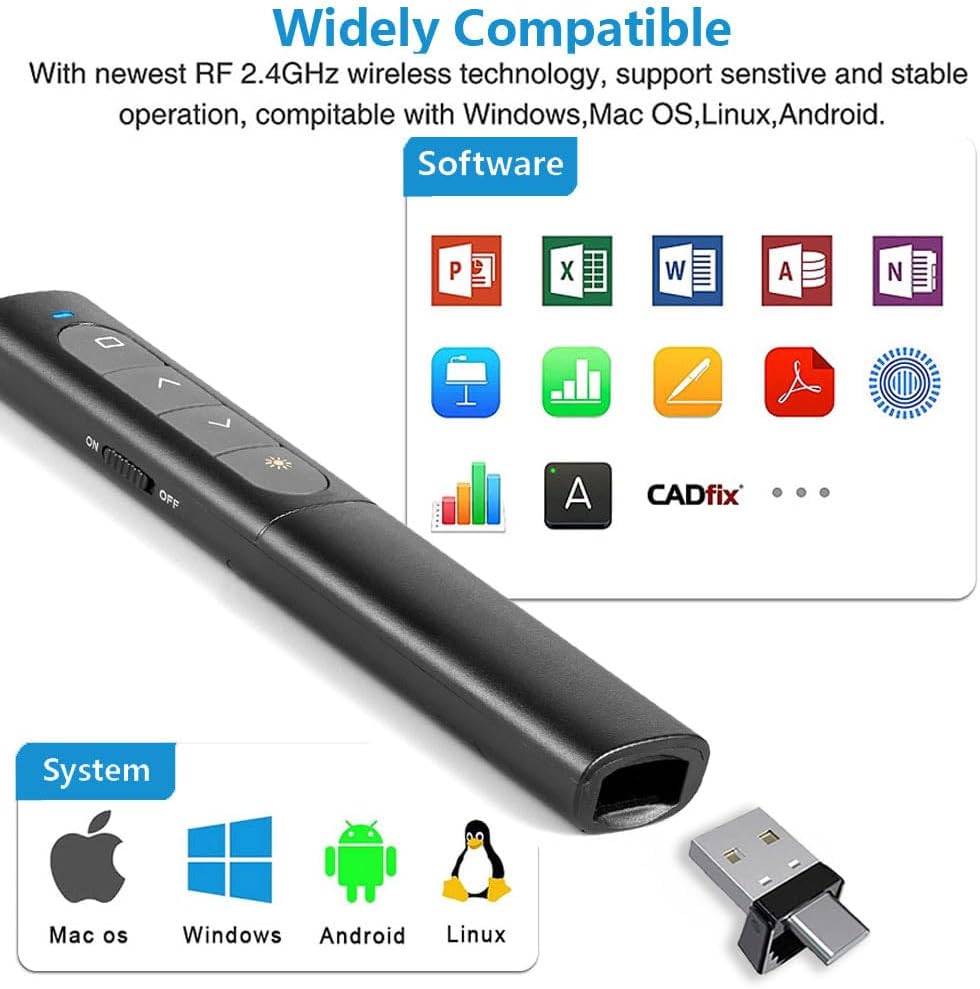
Image: A detailed view of the VOVIGGOL K71 presenter, labeling each button for its function, including volume controls, page navigation, and the laser pointer button.
- Switch Windows Button (Top Square Button): Long press to switch between open windows.
- Hyperlink Button (Top Square Button): Single click to select a hyperlink, double click to open it.
- Page Up / Full Screen Button (▲): Press to go to the previous slide. Long press to enter/exit full screen mode.
- Page Down / Black Screen Button (▼): Press to go to the next slide. Long press to toggle black screen mode.
- Light Key (Sun Icon): Press to activate the red laser pointer.
- Volume Up/Down (Side Buttons): Use the side buttons to adjust the system volume.
- ON/OFF Switch (Side Switch): Slide to power the presenter on or off.

Image: The presenter shown with a visual indicator highlighting the volume control function, next to a screen displaying a video with a volume bar.

Image: The presenter shown with a visual indicator highlighting the hyperlink function, next to a screen displaying a web page with a clickable link.

Image: The presenter shown with a visual indicator highlighting the window switching function, next to a screen displaying multiple open application windows.
4.2 Page Control Mode Switching
The presenter supports three modes for page control. To switch between modes:
- Simultaneously press and hold the "Page Up" (▲) and "Page Down" (▼) buttons for 1 to 3 seconds.
- Release the buttons when the indicator light flashes.
- The presenter will cycle through the following modes:
- Page Up and Page Down (default)
- Up and Down arrow keys
- Left and Right arrow keys
5. Compatibility
5.1 Supported Operating Systems:
- Windows 2003/XP/Vista/7/8/10/11
- Mac OS
- Linux
- Android
5.2 Supported Software:
- PowerPoint
- Google Slides
- iWork (Keynote, Numbers, Pages)
- Prezi
- PDF readers (e.g., Adobe Acrobat Reader, Preview, Skim)
- MS Word, Excel
- ACD See
- Web browsers

Image: The VOVIGGOL K71 presenter displayed alongside icons representing compatible operating systems (Mac OS, Windows, Android, Linux) and various software applications like PowerPoint, Excel, Word, and Prezi.
6. Specifications
| Feature | Specification |
|---|---|
| Model Number | K71 |
| Wireless Frequency | 2.4 GHz |
| Maximum Output | < 1 mW |
| Control Distance (Wireless) | Up to 30 meters (100 feet) |
| Laser Light Distance | Up to 200 meters (656 feet) |
| Battery Type | 1 x AAA Battery (not included) |
| Dimensions | 15 x 5.1 x 2.2 cm (approx.) |
| Weight | 60 grams |
7. Troubleshooting
Common Issues and Solutions:
- Presenter not responding:
- Ensure the ON/OFF switch on the side of the presenter is in the "ON" position.
- Check if the AAA battery is inserted correctly and has sufficient charge. Replace if necessary.
- Verify that the wireless receiver is securely plugged into a functional USB-A or USB-C port on your computer.
- Try plugging the receiver into a different USB port.
- Laser pointer not working:
- Ensure the presenter is powered on.
- Press the "Light Key" button (sun icon) to activate the laser.
- Check battery level. A low battery can affect laser performance.
- Page navigation not working as expected:
- Confirm the presenter is in the correct page control mode (Page Up/Down, Up/Down arrows, or Left/Right arrows). Refer to "4.2 Page Control Mode Switching" to adjust.
- Ensure your presentation software is active and in presentation mode.
- Low power indicator flashing:
- This indicates the battery is low. Replace the AAA battery immediately to ensure uninterrupted operation.
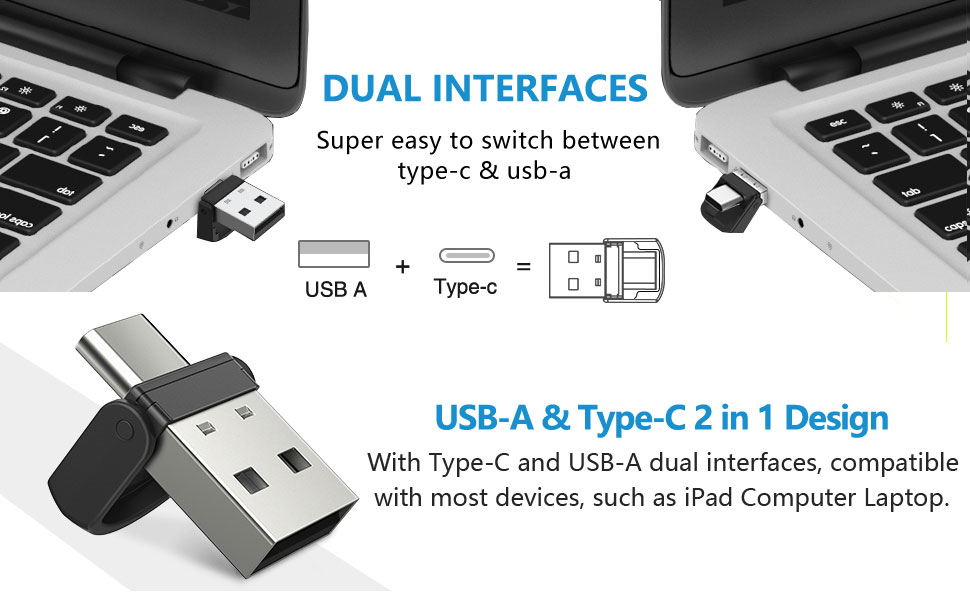
Image: The VOVIGGOL K71 Wireless Presenter showcasing its various functions and design elements.
8. Maintenance
- Cleaning: Use a soft, dry cloth to clean the surface of the presenter. Do not use harsh chemicals or abrasive materials.
- Battery Replacement: Replace the AAA battery when the low power indicator flashes or when the presenter's performance degrades.
- Storage: When not in use, turn off the presenter using the ON/OFF switch to conserve battery life. Store the wireless receiver in its magnetic compartment to prevent loss. Keep the device in a cool, dry place away from direct sunlight and extreme temperatures.
9. Warranty and Support
For any assistance regarding your VOVIGGOL K71 Wireless Presentation Remote Control, please contact VOVIGGOL customer support. Refer to the product packaging or the seller's information for contact details. Please retain your proof of purchase for warranty claims.