
1. Introduction
This manual provides detailed instructions for the proper use and maintenance of your Cellularline Task Dual-Mode Headset. Please read this manual thoroughly before using the product to ensure optimal performance and longevity.
The Cellularline Task headset is designed for versatility, offering both wired and wireless (Bluetooth) connectivity. It features a detachable microphone, making it suitable for smart working, remote learning, and music listening.
2. Product Overview
The Cellularline Task headset combines comfort with functionality, featuring over-ear cushions and intuitive controls. Its dual-mode capability allows seamless switching between wired and Bluetooth connections.

Figure 2.1: Cellularline Task Dual-Mode Headset with detachable microphone connected.
Key Features:
- Dual-mode stereo headset (wired and Bluetooth).
- Wireless communication technology compatible with various devices (iPhone, Samsung, Huawei, Xiaomi, etc.).
- Modern design with comfortable over-ear cushions.
- Adaptable and removable microphone, ideal for video calls and audio recording.
- Volume limitation feature for hearing protection.
- Up to 18 hours of continuous music playback or talk time.
3. Setup
3.1 Package Contents
Before proceeding, ensure your package contains the following items:
- Cellularline Task Headset
- Detachable Microphone
- Charging Cable (USB)
- Audio Cable (3.5mm jack)
- User Manual (this document)
3.2 Charging the Headset
Before first use, fully charge the headset. Connect the provided USB charging cable to the charging port on the headset and to a compatible USB power source. The LED indicator will show charging status and turn off or change color when fully charged.
3.3 Attaching the Detachable Microphone
The microphone can be easily attached or detached based on your usage needs.
- Locate the microphone input port on the left earcup of the headset.
- Align the 3.5mm jack of the detachable microphone with the port.
- Gently push the microphone jack into the port until it is securely seated.
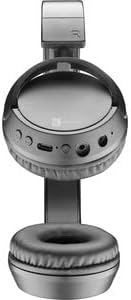
Figure 3.1: Headset with the detachable microphone removed, showing the input port.
3.4 Wired Connection
To use the headset in wired mode:
- Ensure the headset is powered off.
- Connect one end of the 3.5mm audio cable to the audio input port on the headset.
- Connect the other end of the 3.5mm audio cable to the audio output jack of your device (e.g., computer, smartphone, tablet).
- The headset will function as a wired headset, drawing power from the connected device if needed, or using its own battery for active features.

Figure 3.2: Headset connected via 3.5mm audio cable, demonstrating wired mode.
3.5 Bluetooth Pairing
To connect your headset wirelessly via Bluetooth:
- Power On: Press and hold the Power button on the headset until the LED indicator flashes, indicating pairing mode.
- Activate Bluetooth: On your device (smartphone, tablet, computer), go to the Bluetooth settings and ensure Bluetooth is enabled.
- Search for Devices: Your device will scan for available Bluetooth devices.
- Select Headset: From the list of found devices, select "Cellularline Task" (or similar name).
- Confirm Connection: Once connected, the LED indicator on the headset will change to a steady light or flash slowly, and your device will confirm the connection.
The headset is compatible with iPhone, Samsung, Huawei, Xiaomi, and other Bluetooth-enabled devices.
4. Operating Instructions
4.1 Power On/Off
- Power On: Press and hold the Power button for approximately 3 seconds until the LED indicator lights up.
- Power Off: Press and hold the Power button for approximately 5 seconds until the LED indicator turns off.
4.2 Volume Control
The headset features tactile controls for volume adjustment.
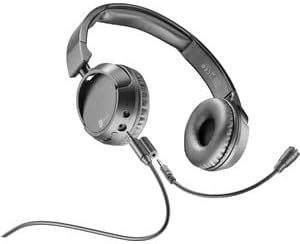
Figure 4.1: Close-up view of the earcup showing control buttons for volume and playback.
- Increase Volume: Press the '+' button.
- Decrease Volume: Press the '-' button.
The headset includes a volume limitation feature to protect your hearing.
4.3 Call Management
When connected via Bluetooth, you can manage calls directly from the headset:
- Answer Call: Press the Multi-function button (usually the Power button or a dedicated call button) once.
- End Call: Press the Multi-function button once during a call.
- Reject Call: Press and hold the Multi-function button for 2 seconds when an incoming call rings.
4.4 Music Playback
When connected via Bluetooth, control your music playback:
- Play/Pause: Press the Multi-function button once.
- Next Track: Press and hold the '+' button.
- Previous Track: Press and hold the '-' button.
4.5 Microphone Usage
The detachable microphone is designed for clear voice capture during calls or recordings.
- Ensure the microphone is securely attached (refer to Section 3.3).
- Position the microphone appropriately for optimal voice pickup.
- When using the headset in wired mode, the microphone functionality will depend on the connected device's compatibility with 4-pole 3.5mm jacks.
5. Maintenance
5.1 Cleaning
- Use a soft, dry cloth to clean the headset.
- Do not use abrasive cleaners, solvents, or harsh chemicals.
- Avoid getting moisture into any openings.
5.2 Storage
- Store the headset in a cool, dry place away from direct sunlight and extreme temperatures.
- If storing for an extended period, ensure the battery is partially charged (around 50%) to maintain battery health.
5.3 Battery Care
- Avoid fully discharging the battery frequently.
- Do not expose the battery to high temperatures.
- If the headset will not be used for a long time, charge it every few months to prevent deep discharge.
6. Troubleshooting
6.1 Headset Does Not Power On
- Ensure the headset is fully charged. Connect it to a power source and wait a few minutes before attempting to power on again.
- Try a different charging cable or power adapter.
6.2 No Sound or Low Volume
- Check the volume levels on both the headset and the connected device.
- If using Bluetooth, ensure the headset is properly paired and connected.
- If using wired mode, ensure the 3.5mm audio cable is fully inserted into both the headset and the device.
- Test with a different audio source or device.
6.3 Bluetooth Pairing Issues
- Ensure the headset is in pairing mode (LED flashing).
- Turn off and on Bluetooth on your device.
- Forget the headset from your device's Bluetooth list and attempt to pair again.
- Ensure the headset is within the effective range of your device (typically 10 meters).
6.4 Microphone Not Working
- Ensure the detachable microphone is securely attached to the headset.
- Check microphone settings on your connected device to ensure the headset's microphone is selected as the input device.
- Test the microphone with a different application or device.
- Ensure the microphone is not muted on your device or via any headset controls (if applicable).
7. Specifications
| Brand | Cellularline |
| Model Name | BTHEADBTASKK |
| Connectivity Technology | Wireless (Bluetooth), Wired (3.5mm jack) |
| Wireless Communication Technology | Bluetooth |
| Form Factor | Over-Ear |
| Special Features | Fast Charging, Volume Control, Included Microphone |
| Play Time | Up to 18 hours |
| Talk Time | 18 hours |
| Compatible Devices | Laptop, Tablet, Mobile Phone, Universal |
| Control Type | Touch Control, Remote Control |
| Material | Plastic, Rubber |
| Color | Black |
8. Warranty and Support
Cellularline products are designed and manufactured to the highest quality standards. For information regarding warranty coverage, please refer to the warranty card included with your product or visit the official Cellularline website.
If you encounter any issues not covered in this manual or require further assistance, please contact Cellularline customer support through their official website or the contact information provided in your product packaging.
Website: www.cellularline.com