
Product Overview
The LOQRON LG-T03 Smart Home Gateway acts as a bridge between your Bluetooth-enabled Tuya smart door locks and your home Wi-Fi network. This device enables remote control and monitoring of your smart locks via the Tuya SmartLife App, extending functionality beyond Bluetooth range.

Image: The LOQRON LG-T03 Smart Home Gateway shown alongside a smartphone displaying the Tuya SmartLife App interface, indicating its role in smart lock management.
Package Contents
- LOQRON LG-T03 Wi-Fi Gateway (1 unit)
- Instruction Manual (this document)
Setup
1. Powering On the Gateway
The LOQRON LG-T03 Gateway is designed for simple plug-and-play installation. Insert the gateway into a standard electrical outlet. No additional wiring is required.
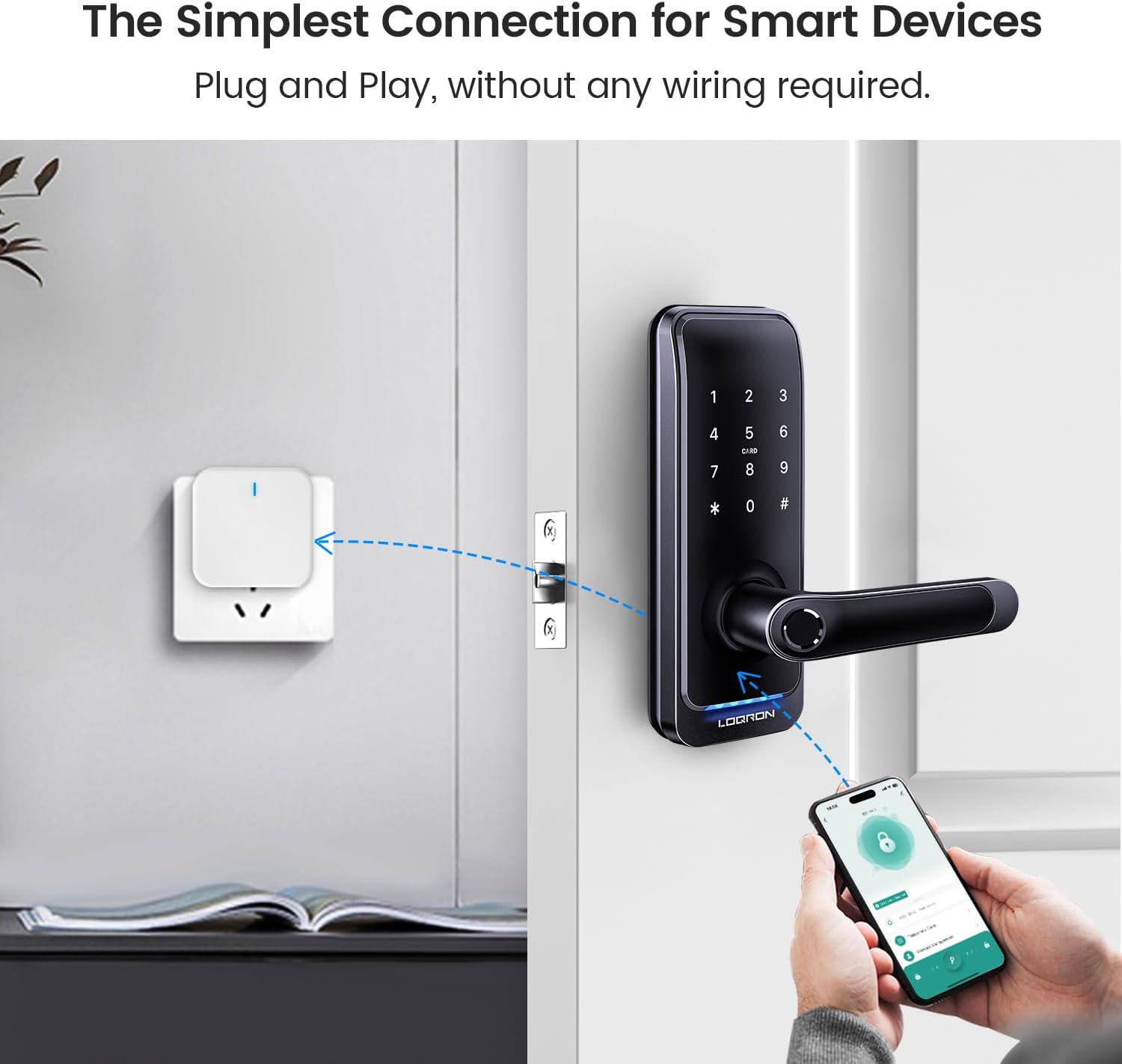
Image: The LOQRON Gateway is shown plugged into a wall outlet, illustrating its direct power connection and proximity to a smart door lock for optimal signal.
2. App Installation and Account Creation
Download the Tuya Smart or SmartLife application from your device's app store (available for Android and iOS). Create an account or log in if you already have one.
3. Adding the Gateway to the App
- Ensure your smartphone and the gateway are connected to the same 2.4GHz Wi-Fi network during the pairing process.
- Open the Tuya Smart or SmartLife App.
- Press and hold the button on the gateway for 5 seconds until the LED blinks. This indicates the gateway is in Wi-Fi configuration mode.
- Follow the in-app instructions to add a new device. Select "Gateway" or "Other" if a specific gateway option is not immediately visible.
- Confirm the Wi-Fi network and enter the password when prompted.
- Once successfully added, the gateway's LED will turn solid blue, indicating a stable connection to the Wi-Fi network.

Image: A smartphone displays the Tuya SmartLife app, highlighting the Wi-Fi remote functionality, with an overlay of the gateway device indicating its wireless connection.
4. Pairing Smart Locks with the Gateway
After the gateway is connected to the app, you can pair your Bluetooth-enabled Tuya smart locks with the gateway. One gateway can be paired with multiple smart door locks.
- Within the Tuya SmartLife App, navigate to the gateway's settings or device list.
- Select the option to "Add Subdevice" or "Pair Lock".
- Ensure your smart lock is in pairing mode (refer to your smart lock's manual for specific instructions).
- The app will detect nearby compatible smart locks. Select your lock to complete the pairing process.

Image: A diagram illustrates the ecosystem: the Tuya app communicates with the cloud server via Wi-Fi, the cloud server connects to the gateway via Wi-Fi, and the gateway communicates with the smart lock via Bluetooth, enabling remote control.
Operating the Gateway and Smart Locks
Once setup is complete, the LOQRON LG-T03 Gateway enables remote control and monitoring of your paired smart locks.
Remote Control and Monitoring
- Remote Unlock: Tap the unlock icon in the Tuya SmartLife App to unlock your doors from anywhere, provided the gateway has an internet connection.
- Activity Logs: Query real-time unlock activity logs to monitor who accessed your door and when.
- Instant Notifications: Receive instant notifications regarding your door lock's status and activities.
- Online Password Setting: Remotely set and manage temporary or permanent access codes for your smart locks.

Image: A woman is shown relaxing on a couch, using her smartphone to interact with the Tuya app, demonstrating the remote control and one-tap unlock features enabled by the gateway. Icons for app unlock, instant notification, and remote password setting are also displayed.
Lighting Indication
The LED indicator on the LOQRON LG-T03 Gateway provides visual feedback on its status:
- Solid Blue: Connected to the Wi-Fi network.
- Blinking Blue: Preparing to add a subdevice (smart lock).
- Rapid Blinking: Gateway is in Wi-Fi configuration mode (after pressing and holding the button for 5 seconds).

Image: A visual guide detailing the different states of the LED indicator on the LOQRON Gateway, explaining what each light pattern signifies for connectivity and pairing.
Maintenance
The LOQRON LG-T03 Gateway requires minimal maintenance. Keep the device clean and free from dust. Ensure it is plugged into a stable power source and not exposed to extreme temperatures or moisture.
- Periodically check for firmware updates through the Tuya SmartLife App to ensure optimal performance and security.
- If the device needs cleaning, use a soft, dry cloth. Do not use liquid cleaners.
Troubleshooting
Common Issues and Solutions:
| Issue | Possible Cause | Solution |
|---|---|---|
| Gateway not connecting to Wi-Fi (LED not solid blue) | Incorrect Wi-Fi password, 5GHz Wi-Fi network, weak signal, or gateway too far from router. |
|
| Smart lock not pairing with gateway | Smart lock not in pairing mode, gateway too far from lock, or Bluetooth interference. |
|
| Remote control not working | Gateway lost Wi-Fi connection, internet outage, or app issue. |
|
Specifications
| Model | LG-T03 Smart Home Gateway |
| Brand | LOQRON |
| Dimensions (L x W x H) | 2.24 x 2.24 x 0.87 inches (57 x 57 x 22 mm) |
| Item Weight | 2.08 ounces |
| Material | Plastic |
| Power Support | AC 90-250V |
| Connectivity Protocol | Bluetooth, Wi-Fi (2.4GHz only) |
| Bluetooth Wireless Distance | Max 295 Ft (90 meters) in empty area |
| Wi-Fi Wireless Distance | Max 164 Ft (50 meters) in empty area |
| App/Platform | Smart Life / Tuya Smart |
| OS Support | Android / iOS |

Image: Technical drawing showing the dimensions of the LOQRON LG-T03 Gateway in both millimeters and inches.
Warranty and Support
LOQRON provides reliable service for its products. For any queries or issues with the Wi-Fi gateway or other LOQRON products, please contact customer support.
- Warranty Description: Any issues please feel free to contact us via LOQRON-service@outlook.com.
- Customer Service: For further assistance, please reach out to LOQRON customer support.