
1. Introduction
This manual provides comprehensive instructions for the setup, operation, maintenance, and troubleshooting of your Cherry STREAM DESKTOP RECHARGE Keyboard and Mouse Combo. Please read this manual carefully before using the product to ensure proper functionality and longevity.
The Cherry STREAM DESKTOP RECHARGE is a wireless keyboard and mouse set designed for productivity, featuring rechargeable batteries, AES-128 encryption for secure data transmission, and CHERRY's SX scissor technology for a precise and quiet typing experience.
2. Package Contents
- Cherry STREAM DESKTOP RECHARGE Keyboard
- Cherry STREAM DESKTOP RECHARGE Mouse
- USB Wireless Receiver
- USB-C Charging Cable
- GP ReCyko+ Rechargeable NiMH Batteries (pre-installed or included separately)
- This User Manual
3. Setup
Follow these steps to set up your Cherry STREAM DESKTOP RECHARGE combo:
- Unpack the Components: Carefully remove all items from the packaging.
- Install/Check Batteries: Ensure the GP ReCyko+ rechargeable NiMH batteries are correctly installed in both the keyboard and mouse. The battery compartments are typically located on the underside of each device.
- Charge Devices (Initial): Connect the USB-C charging cable to the keyboard and mouse, and then to a powered USB port (e.g., computer, USB wall adapter). Allow the devices to charge fully before first use. The status LEDs on the keyboard will indicate charging status.
- Connect USB Wireless Receiver: Plug the small USB wireless receiver into an available USB port on your computer.
- Power On: Turn on the keyboard and mouse using their respective power switches (usually located on the underside). The devices should automatically connect to the receiver.
- Test Functionality: Verify that both the keyboard and mouse are responsive. If not, refer to the Troubleshooting section.
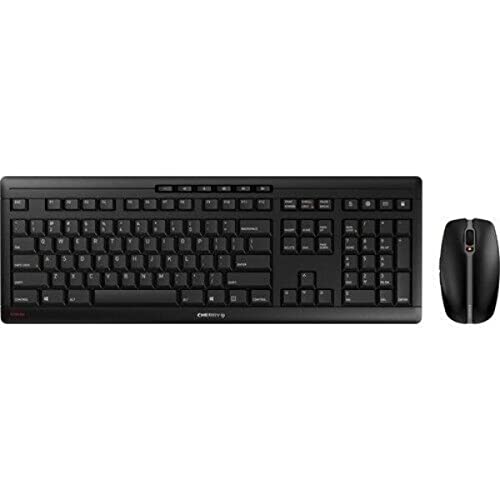
Image: The Cherry STREAM DESKTOP RECHARGE Keyboard and Mouse Combo, showing the full-sized black keyboard and the ergonomic black mouse.
4. Operation
4.1 Keyboard Features
- SX Scissor Technology: Provides a precise and quiet keystroke for comfortable typing.
- Status LEDs: Integrated LEDs in keys (e.g., Caps Lock, Num Lock, Scroll Lock) indicate their active status.
- Function Keys: Dedicated multimedia and function keys provide quick access to common tasks.
- AES-128 Encryption: All keystrokes are encrypted with 128-bit CCM encryption before transmission for enhanced security.
4.2 Mouse Features
- 6-Key Design: Includes left, right, scroll wheel, and additional programmable buttons.
- Quiet Buttons: Designed for minimal click noise.
- DPI Switch: Adjust the mouse resolution (speed) in 3 steps to suit your preference. The DPI switch is typically located near the scroll wheel.
- AES-128 Encryption: Mouse movements are also encrypted with 128-bit CCM encryption for secure data transmission.
4.3 CHERRY KEYS Software (Optional)
For maximum flexibility, you can download and install the optional CHERRY KEYS software from the official Cherry website. This application allows you to configure and customize the keyboard and mouse functions according to your individual needs, including remapping keys and buttons.
5. Maintenance
5.1 Cleaning
- Keyboard: Use a soft, lint-free cloth slightly dampened with water or a mild cleaning solution. Avoid excessive moisture. Do not spray cleaners directly onto the keyboard.
- Mouse: Wipe the surface with a soft, dry or slightly damp cloth. Clean the optical sensor area on the underside periodically to ensure smooth tracking.
- General: Disconnect the devices from power and turn them off before cleaning.
5.2 Battery Charging and Replacement
- Charging: Connect the USB-C cable to the charging port on the keyboard and mouse, and the other end to a USB power source. You can continue to use the devices while they are charging.
- Battery Type: The set uses standard NiMH rechargeable batteries, which can be easily replaced if their performance degrades over time. Unlike devices with permanently installed lithium cells, this design allows for user replacement.
- Replacement: If battery life significantly decreases, replace the NiMH batteries with new, high-quality rechargeable NiMH batteries of the same type and capacity.
6. Troubleshooting
If you encounter issues with your Cherry STREAM DESKTOP RECHARGE combo, try the following solutions:
- No Connection/Unresponsive Devices:
- Ensure the USB wireless receiver is securely plugged into a working USB port on your computer.
- Check that both the keyboard and mouse are powered on.
- Verify that the batteries are charged. Connect the charging cable to see if the devices respond.
- Try plugging the USB receiver into a different USB port.
- Move the keyboard and mouse closer to the USB receiver to rule out range issues.
- Restart your computer.
- Laggy/Intermittent Performance:
- Ensure there are no large metal objects or other wireless devices (e.g., Wi-Fi routers, cordless phones) too close to the receiver that might cause interference.
- Check battery levels; low batteries can affect performance.
- Mouse Tracking Issues:
- Clean the optical sensor on the underside of the mouse.
- Use the mouse on a clean, non-reflective surface or a mouse pad.
- Adjust the DPI setting using the DPI switch on the mouse.
- Charging Problems:
- Ensure the USB-C cable is fully inserted into both the device and the power source.
- Try a different USB port or power adapter.
- Verify the batteries are correctly installed and are not damaged.
7. Specifications
| Feature | Description |
|---|---|
| Model | JD-8560US-2 |
| Brand | Cherry |
| Connectivity Technology | USB Wireless (2.4 GHz) |
| Keyboard Technology | SX Scissor Technology |
| Encryption | AES-128 (Advanced Encryption Standard) |
| Mouse Buttons | 6-key with quiet buttons |
| Mouse DPI Adjustment | 3-step DPI switch |
| Batteries | Rechargeable NiMH (replaceable) |
| Charging Port | USB-C |
| Compatible Devices | Personal Computer |
| Manufacturer | CHERRY DESKTOP |
| First Available Date | October 20, 2021 |
8. Warranty and Support
Cherry products are manufactured to high-quality standards. For information regarding warranty coverage, technical support, or service, please refer to the official Cherry website or contact your local Cherry distributor.
Keep your proof of purchase for warranty claims. For the latest drivers and software, including the CHERRY KEYS application, visit the official Cherry support page.
Manufacturer: CHERRY DESKTOP


