
1. Introduction
This manual provides detailed instructions for the safe and effective use of your Femivo 4K 48MP WiFi Vlogging Camera Camcorder. Please read this manual thoroughly before operating the device and retain it for future reference.

Figure 1.1: Femivo 4K 48MP WiFi Vlogging Camera Camcorder with accessories.
2. Package Contents
Verify that all items listed below are included in your package. If any items are missing or damaged, please contact customer support.

Figure 2.1: Overview of included accessories and camera.
- Femivo 4K 48MP WiFi Vlogging Camera Camcorder
- External Microphone
- Handheld Stabilizer
- Lens Hood
- Remote Control
- Battery Charger
- 2 x Rechargeable Batteries
- USB Cable
- HDMI Cable
- Charging Adapter & Cable
- User Manual
- Carrying Bag
3. Product Overview
Familiarize yourself with the main components and controls of your camcorder.
3.1 Key Features
- 4K UHD Video Recording: Capture high-resolution video at 4K.
- 48MP Photo Resolution: Take detailed still images.
- 16X Digital Zoom: Magnify subjects for closer shots.
- 3.0-inch IPS Touch Screen: Navigate menus and preview content with ease.
- IR Night Vision: Record in low-light conditions.
- WiFi Functionality: Connect to a smartphone for remote control and file transfer.
- Webcam Function: Use the camcorder as a webcam for live streaming or video calls.
- HDMI Output: Connect to a TV or monitor for playback.
- External Microphone Support: Enhance audio quality with the included microphone.
- Handheld Stabilizer: Reduce camera shake for smoother footage.

Figure 3.1: Key features and recording modes.
4. Setup
4.1 Charging and Installing the Battery
- Insert the battery into the provided battery charger.
- Connect the charger to a power source using the charging adapter and cable. The indicator light will show charging status.
- Once fully charged, open the battery compartment on the camcorder.
- Insert the charged battery, ensuring correct orientation, until it clicks into place.
- Close the battery compartment cover securely.
4.2 Inserting a Memory Card
The camcorder supports SD cards. A Class 10 or higher SD card (up to 128GB) is recommended for optimal performance, especially for 4K recording.
- Locate the memory card slot on the camcorder.
- Insert the SD card with the metal contacts facing the correct direction (refer to the diagram inside the slot if available) until it clicks into place.
- To remove, gently push the card inward until it springs out.
4.3 Attaching Accessories
4.3.1 External Microphone
The external microphone enhances audio capture quality.
- Slide the microphone's hot shoe mount into the hot shoe on top of the camcorder.
- Secure it by tightening the locking mechanism.
- Connect the microphone's 3.5mm audio jack to the microphone input port on the camcorder.

Figure 4.1: External Stereo Microphone details.
4.3.2 Handheld Stabilizer
Attach the handheld stabilizer for improved grip and reduced camera shake.
- Unfold the handheld stabilizer.
- Align the camcorder's tripod screw hole with the screw on the stabilizer.
- Rotate the camcorder clockwise to secure it onto the stabilizer.
4.3.3 Lens Hood
Attach the lens hood to reduce glare and protect the lens.
- Remove the lens cap from the camcorder.
- Align the lens hood with the front of the camcorder lens.
- Gently twist or push the lens hood until it is securely attached.
5. Operating Instructions
5.1 Power On/Off
- To Power On: Open the LCD screen. The camcorder will automatically power on.
- To Power Off: Close the LCD screen. The camcorder will automatically power off. Alternatively, press and hold the Power button.
5.2 Basic Recording (Video/Photo)
- Ensure the camcorder is powered on and a memory card is inserted.
- For Video Recording: Press the MODE button to select video mode. Press the RECORD button to start recording. Press it again to stop.
- For Photo Capture: Press the MODE button to select photo mode. Press the PHOTO button to take a picture.
5.3 Zoom Function
Use the zoom controls located on the top of the camcorder to adjust the 16X digital zoom.
- Push the T (Telephoto) button to zoom in.
- Push the W (Wide-angle) button to zoom out.

Figure 5.1: 16X Digital Zoom in action.
5.4 IR Night Vision Mode
Activate IR Night Vision for recording in dark environments.
- In video or photo mode, access the menu settings.
- Navigate to the IR Night Vision option and enable it. The screen will display in black and white.
Figure 5.2: IR Night Vision capability.
5.5 WiFi Connection
Connect your camcorder to a smartphone via WiFi for remote control, live preview, and file transfer using the 'RoadCam' app.
- Download and install the 'RoadCam' app on your smartphone.
- On the camcorder, go to the menu and enable WiFi. The camcorder will display its WiFi network name (SSID) and password.
- On your smartphone, go to WiFi settings and connect to the camcorder's network using the provided password.
- Open the 'RoadCam' app to control the camcorder remotely.

Figure 5.3: WiFi Wireless Transmission with a smartphone.
5.6 Webcam Function
Use the camcorder as a high-quality webcam for video calls or live streaming.
- Connect the camcorder to your computer using the USB cable.
- On the camcorder's screen, select 'PC Camera' or 'Webcam' mode.
- Your computer should recognize the camcorder as a webcam. Select it in your video conferencing or streaming software.
5.7 HDMI Output
Connect the camcorder to a TV or monitor to view your recordings on a larger screen.
- Connect one end of the HDMI cable to the camcorder's HDMI output port.
- Connect the other end to an HDMI input port on your TV or monitor.
- Select the corresponding HDMI input on your TV/monitor.
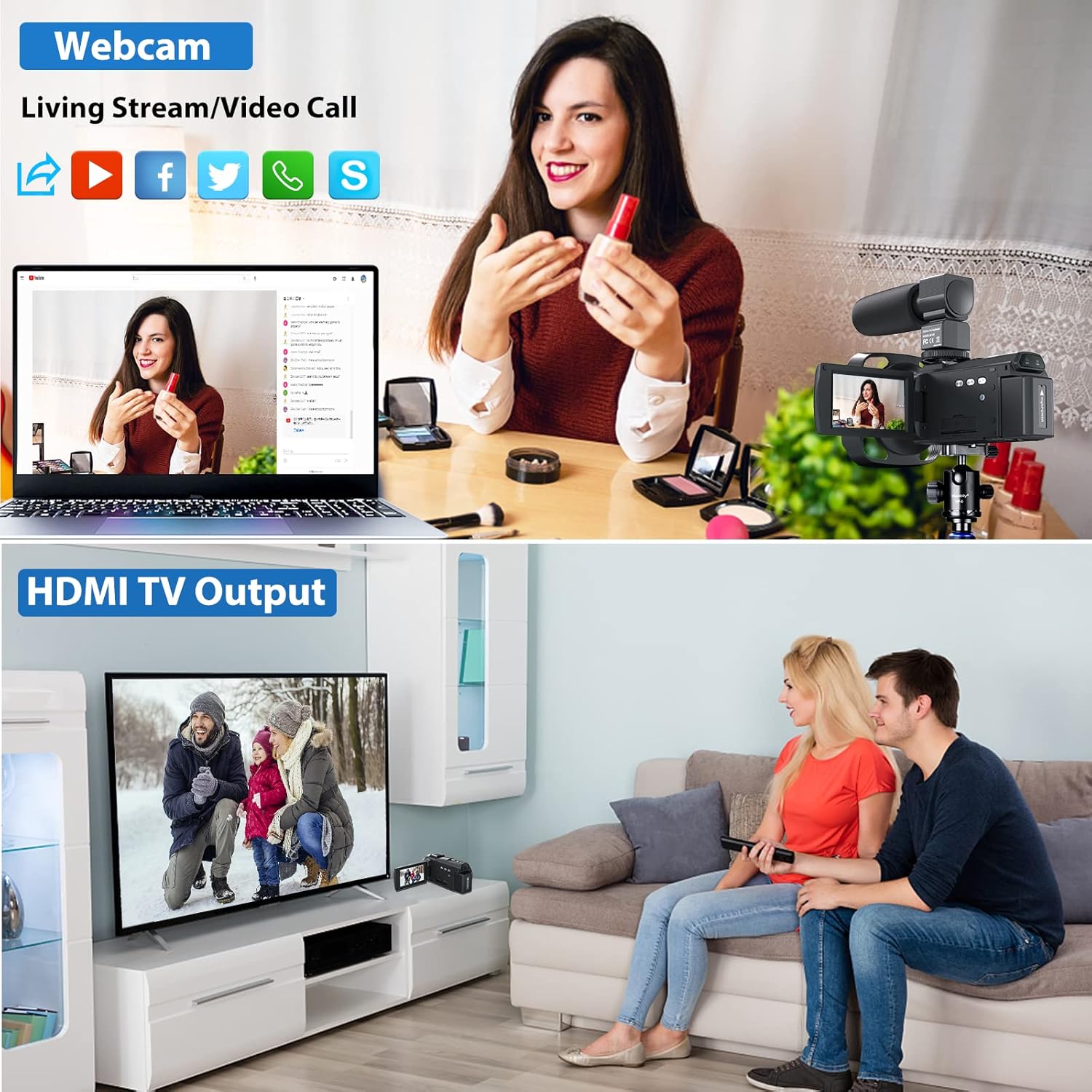
Figure 5.4: Webcam and HDMI output functionality.
5.8 Remote Control
The included remote control allows for convenient operation from a distance.
- Point the remote control directly at the camcorder's IR receiver.
- Use the buttons on the remote to start/stop recording, take photos, zoom, and navigate menus.
5.9 Special Recording Features
The camcorder offers several advanced recording modes:
- Loop Record: Continuously records, overwriting the oldest files when the memory card is full.
- Face Detection: Automatically detects and focuses on faces in the frame.
- Time-Lapse: Captures a series of images over time and stitches them into a video.
- Slow Motion: Records video at a higher frame rate for slow-motion playback.
- Pause Function: Allows pausing and resuming video recording within a single file.
- Motion Detection: Starts recording automatically when motion is detected in the frame.
- Anti-Shake: Digital image stabilization to reduce blur from camera movement.
- Selfie Shooting: Utilize the rotatable screen for easy self-recording.
6. Maintenance
- Cleaning the Lens: Use a soft, lint-free cloth specifically designed for camera lenses. Avoid using harsh chemicals.
- Cleaning the Body: Wipe the camcorder body with a soft, dry cloth.
- Storage: When not in use, store the camcorder in its carrying bag in a cool, dry place away from direct sunlight and extreme temperatures. Remove the battery if storing for extended periods.
- Battery Care: Fully charge batteries before first use. Do not expose batteries to high temperatures or disassemble them.
7. Troubleshooting
If you encounter issues with your camcorder, refer to the following common problems and solutions:
| Problem | Possible Cause | Solution |
|---|---|---|
| Camcorder does not power on. | Battery is dead or incorrectly inserted. | Ensure battery is charged and inserted correctly. |
| Cannot record video/take photos. | Memory card is full, not inserted, or corrupted. | Check memory card. Format if necessary (this will erase all data). Replace if faulty. |
| Poor video/photo quality. | Lens is dirty, insufficient lighting, incorrect settings. | Clean the lens. Ensure adequate lighting. Adjust resolution and exposure settings. |
| WiFi connection issues. | Incorrect password, app not installed, distance too far. | Verify password. Ensure 'RoadCam' app is installed. Stay within range (approx. 65ft). |
| No audio recorded. | Microphone not connected, microphone settings incorrect. | Ensure external microphone is securely connected and enabled in settings. |
8. Specifications
| Feature | Specification |
|---|---|
| Brand | Femivo |
| Photo Sensor Technology | CMOS |
| Video Capture Resolution | 1080p, 4K, 720p |
| Maximum Aperture | f/2.0 |
| Flash Memory Type | SD (up to 128GB, Class 10 recommended) |
| Video Capture Format | MP4 |
| Screen Size | 3 Inches (IPS Touch Screen) |
| Connectivity Technology | HDMI, USB, WiFi |
| Special Features | Infrared (IR Night Vision), Low Light, Time Lapse, Loop Record, Face Detection, Slow Motion, Pause Function, Motion Detection, Anti-Shake |
| Camcorder Type | Video Camera |
| Item Weight | 2.08 pounds |
| Package Dimensions | 7.28 x 6.02 x 4.33 inches |
9. Warranty and Support
For warranty information and technical support, please refer to the documentation included with your purchase or contact Femivo customer service directly. Keep your proof of purchase for warranty claims.

