
1. Introduction
Thank you for choosing the iMICE E-1700 Wireless Mouse. This manual provides detailed instructions for setting up, operating, and maintaining your new wireless mouse. Please read this manual carefully before use to ensure optimal performance and longevity of your device.
2. Package Contents
Ensure all items are present in the package:
- iMICE E-1700 Wireless Mouse
- USB Receiver (stored inside the mouse)
- User Manual (this document)
3. Product Overview
Familiarize yourself with the components of your iMICE E-1700 Wireless Mouse.

Figure 3.1: Top view of the iMICE E-1700 Wireless Mouse. This image displays the mouse's ergonomic shape, the central scroll wheel, and the "+CPI-" button for sensitivity adjustment. The mouse features a red top shell with black accents and side buttons.
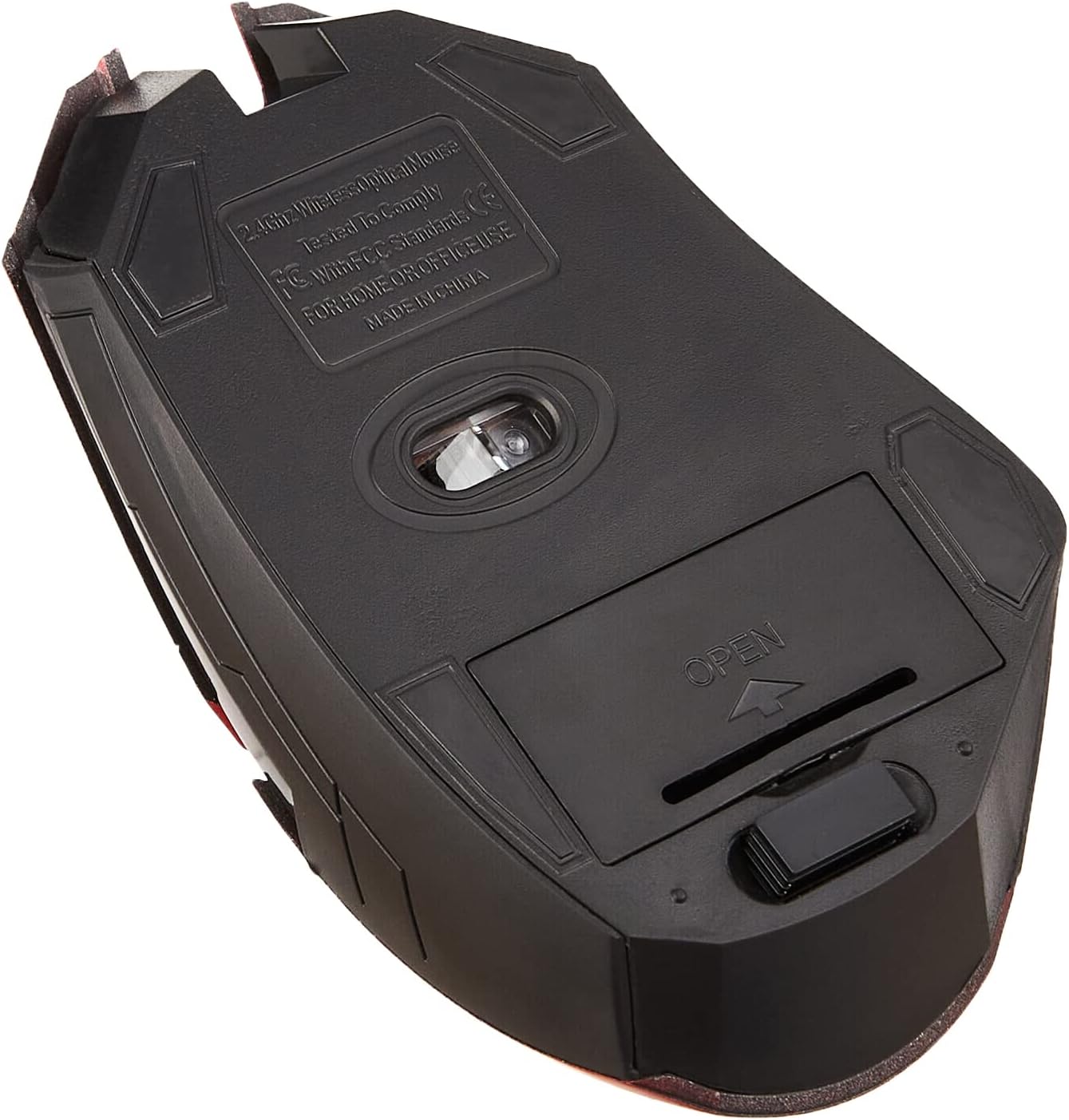
Figure 3.2: Bottom view of the iMICE E-1700 Wireless Mouse. This image highlights the optical sensor, the battery compartment with an "OPEN" indicator, and the power ON/OFF switch. The bottom surface is black with regulatory markings.

Figure 3.3: Bottom view of the iMICE E-1700 Wireless Mouse with the USB receiver. This image shows the USB receiver detached from its dedicated storage slot next to the battery compartment, ready for connection to a computer.
Mouse Components:
- Left Click Button
- Right Click Button
- Scroll Wheel
- +CPI- Button (DPI Adjustment)
- Forward Button (Side)
- Backward Button (Side)
- Optical Sensor
- Battery Compartment
- USB Receiver Storage Slot
- Power ON/OFF Switch
4. Setup Instructions
Follow these steps to set up your iMICE E-1700 Wireless Mouse:
- Install Batteries:
- Locate the battery compartment on the underside of the mouse (refer to Figure 3.2).
- Slide the battery cover open in the direction indicated by the "OPEN" arrow.
- Insert two AAA batteries (not included) into the compartment, ensuring correct polarity (+/-).
- Close the battery cover securely.
- Retrieve USB Receiver:
- The USB receiver is stored in a slot next to the battery compartment (refer to Figure 3.3).
- Gently pull out the USB receiver.
- Connect USB Receiver:
- Plug the USB receiver into an available USB port on your computer (desktop PC or laptop).
- Your operating system (Windows XP, Windows 7, Linux) should automatically detect and install the necessary drivers. This is typically a plug-and-play process.
- Power On the Mouse:
- Slide the Power ON/OFF switch on the underside of the mouse to the "ON" position.
- The mouse is now ready for use.
5. Operating Instructions
Basic Functions:
- Left Click: Primary selection and activation.
- Right Click: Opens contextual menus.
- Scroll Wheel: Scrolls documents and web pages vertically. Can also be pressed for middle-click functionality in some applications.
- Side Buttons (Forward/Backward): Navigate web pages or folders.
DPI Adjustment:
The iMICE E-1700 mouse features a "+CPI-" button (refer to Figure 3.1) to adjust the mouse sensitivity (DPI - Dots Per Inch). Press this button to cycle through different DPI settings. A higher DPI setting means the cursor moves faster across the screen with less physical mouse movement, while a lower DPI setting provides more precise control.
Power Saving Mode:
To conserve battery life, the mouse will automatically enter a power-saving sleep mode after a period of inactivity. To wake the mouse, simply move it or click any button.
6. Maintenance
- Cleaning: Use a soft, dry cloth to clean the mouse. For stubborn dirt, slightly dampen the cloth with water or a mild cleaning solution. Avoid using harsh chemicals or abrasive materials.
- Battery Replacement: Replace batteries when the mouse performance degrades or stops responding. Always use fresh batteries of the specified type (AAA).
- Storage: When not in use for extended periods, turn off the mouse using the power switch on the underside to further conserve battery life. You can store the USB receiver in its dedicated slot to prevent loss.
- Environment: Avoid exposing the mouse to extreme temperatures, direct sunlight, or excessive moisture.
7. Troubleshooting
| Problem | Possible Cause | Solution |
|---|---|---|
| Mouse not responding |
|
|
| Cursor lags or moves erratically |
|
|
| Side buttons not working |
|
|
8. Specifications
| Model: | E-1700 |
| Brand: | iMICE |
| Connectivity: | Wireless (2.4GHz USB Receiver) |
| Color: | Red Black |
| Operating System Compatibility: | Linux, Windows 7, Windows XP |
| Hand Orientation: | Ambidextrous |
| Compatible Devices: | Laptop, Personal Computer |
| Batteries Required: | 2 x AAA (not included) |
| Item Weight: | 200 g |
| Package Dimensions: | 18 x 14 x 4 cm |

Figure 8.1: Size comparison of the iMICE E-1700 Wireless Mouse. The image illustrates the approximate dimensions of the mouse, showing it to be about 5.0 inches (12 cm) in length, providing a visual reference for its physical size.
9. Warranty and Support
For warranty information or technical support, please refer to the warranty card included with your product or contact iMICE customer service directly. Contact details can typically be found on the manufacturer's official website or product packaging.


