
1. Introduction
This manual provides detailed instructions for the VETEK UHD02 4K Digital Camera. Please read this manual thoroughly before using the camera to ensure proper operation and to maximize its features. This camera is designed for capturing high-quality photos and videos, featuring 4K video resolution, 48MP photo resolution, a 3.0-inch 180° flip screen, and various connectivity options.

Image: Comparison of 4K and 1080P video quality captured by the VETEK UHD02 camera, demonstrating superior detail in 4K resolution.
2. Setup
2.1 Unpacking and Components
Carefully unpack all components. The package should include:
- VETEK UHD02 4K Digital Camera
- 2 x NP-40/1500mAh Lithium-ion Batteries
- Battery Charger
- 32GB TF (Micro SD) Card
- USB Cable
- Wide Angle Lens
- Macro Lens
- Camera Bag
- Adapter
- User Manual

Image: A visual representation of the items included in the VETEK UHD02 camera package, such as batteries, charger, SD card, and various lenses.
2.2 Battery Installation and Charging
- Open the battery compartment cover on the bottom of the camera.
- Insert the NP-40 battery, ensuring the correct orientation.
- Close the battery compartment cover securely.
- For charging, insert the battery into the provided charger and connect the charger to a power source. The charging indicator will show the status.
- Due to transportation, the battery may be at low power. Fully charge the battery before first use.
2.3 SD Card Installation and Formatting
- Locate the SD card slot, usually on the side or bottom of the camera.
- Insert the 32GB TF (Micro SD) card with the metal contacts facing the correct direction until it clicks into place.
- Before using the camera, it is recommended to format the SD card within the camera's menu system. This ensures compatibility and optimal performance.
2.4 Lens Attachment
The camera comes with a Wide Angle Lens and a Macro Lens. To attach a lens:
- Gently screw the desired lens onto the front of the camera's main lens until it is secure.
- Ensure the lens is firmly attached but do not overtighten.
3. Operating Instructions
3.1 Power On/Off
- To power on, press and hold the power button until the screen illuminates.
- To power off, press and hold the power button again until the screen turns off.
3.2 Basic Photo and Video Modes
- Use the Mode button (if available) or navigate through the menu to select between Photo and Video modes.
- In Photo mode, press the shutter button to capture an image.
- In Video mode, press the record button to start and stop video recording.
3.3 Zoom Function
The camera features 16X digital zoom.
- Use the T/W (Telephoto/Wide) button or zoom lever to zoom in (T) or zoom out (W).
3.4 Auto Focus
The camera supports auto-focus for clear imaging.
- Pre-press the camera button (shutter button) halfway to engage auto-focus. The focus frame will appear on the screen.
- Press the button fully to take a photo or start recording once focus is achieved.

Image: A visual guide demonstrating how the auto-focus system works, highlighting the focus area on the screen.
3.5 180° Flip Screen
The 3.0-inch IPS screen can be flipped 180 degrees, which is useful for self-portraits or vlogging.
- Gently rotate the screen to your desired angle.
- Ensure the screen is securely positioned before use.
3.6 Menu Navigation
Use the MENU button to access camera settings. Navigate using the directional buttons and confirm selections with the OK/SET button.

Image: An overview of the camera's key functions, illustrating buttons for timed photo, continuous shooting, delete, fill light, zoom, screen clear, and menu access.
4. WiFi Functionality
The VETEK UHD02 camera features WiFi connectivity for remote control and file transfer via a mobile device.
4.1 Installing the App
- Download the application named "XDV PRO" from the Apple App Store or Google Play Store. Alternatively, scan the QR code provided in the camera's packaging or on the camera itself.
4.2 Connecting to WiFi
- On your VETEK UHD02 camera, activate the WiFi function through the menu.
- On your smartphone or tablet, go to the WiFi settings.
- Find the WiFi network named "4KWIFI" in the list of available networks.
- Enter the default password: 12345678 to connect.
- Tip: If you experience connection issues, try turning off your mobile data network on your phone before connecting to the camera's WiFi.
4.3 Remote Shooting and File Transfer
- After successfully connecting, open the "XDV PRO" app on your device.
- You can now view the camera's live feed on your phone screen.
- Use the app to remotely control shooting photos or recording videos.
- The app also allows you to browse and transfer photos and videos from the camera to your mobile device.

Image: The VETEK UHD02 camera wirelessly connected to a smartphone, illustrating the live view and remote control capabilities through the dedicated app.
5. Lenses
The VETEK UHD02 camera includes two interchangeable lenses to enhance your photography and videography:
5.1 Wide Angle Lens
- The Wide Angle Lens expands the field of view, allowing you to capture more of the scene.
- Ideal for landscapes, group photos, and architectural shots where you need to fit more into the frame.
5.2 Macro Lens
- The Macro Lens is designed for close-up photography, enabling you to capture intricate details of small subjects.
- Perfect for capturing insects, flowers, or small objects with high magnification.
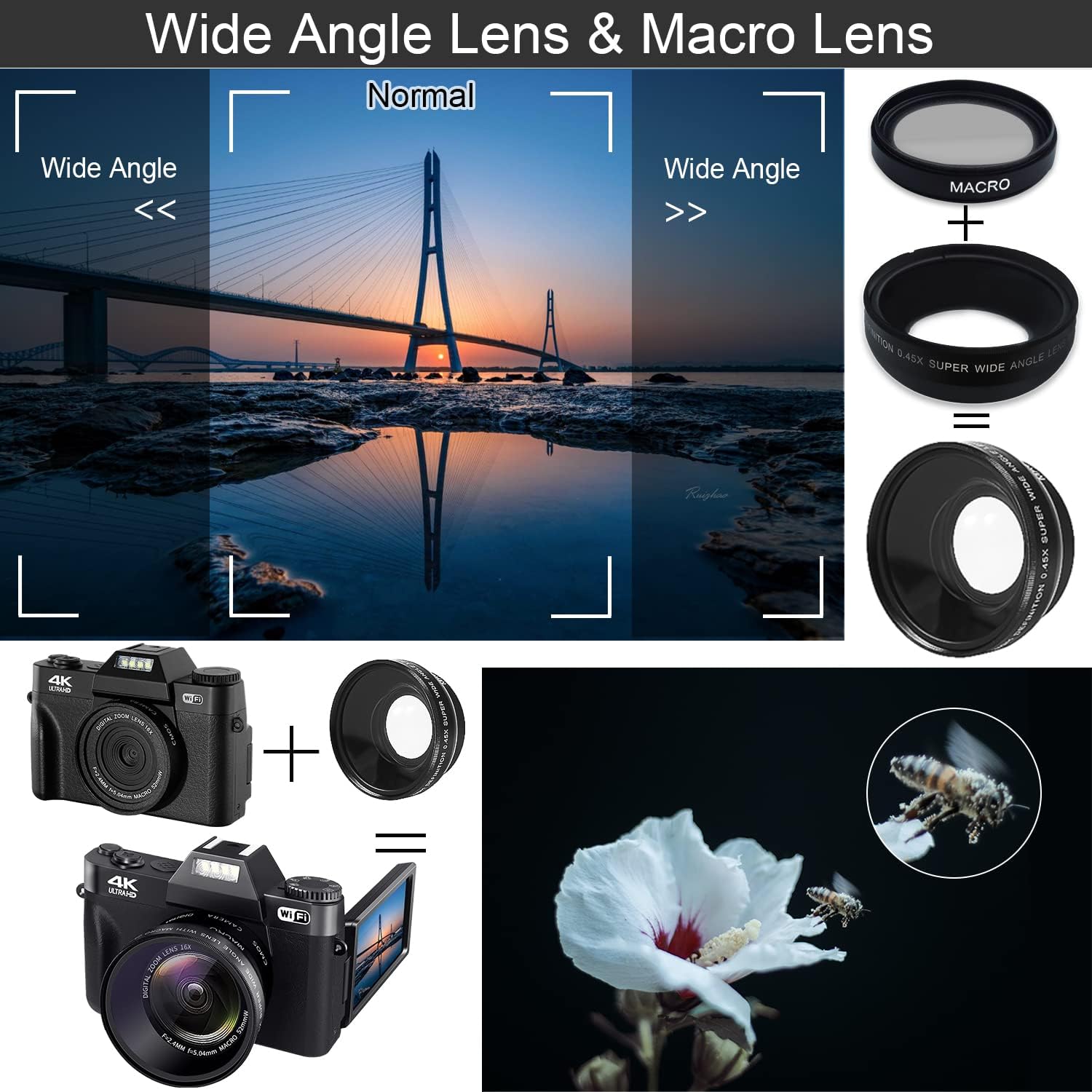
Image: The VETEK UHD02 camera equipped with both wide-angle and macro lenses, demonstrating their distinct visual effects on captured images.
6. Special Features
6.1 Anti-Shake Function
The camera includes an anti-shake feature to help stabilize images and videos, reducing blur caused by camera movement.
- This feature is typically enabled by default or can be toggled in the camera settings.
6.2 Night Vision
For low-light conditions, the camera offers a night vision mode to capture clearer images and videos in dark environments.
- Activate night vision through the camera's menu settings when shooting in dimly lit areas.
6.3 Live Stream / Webcam Functionality
The VETEK UHD02 can be used as a webcam for live streaming or video calls.
- Connect the camera to your computer via the USB cable.
- Select the "PC Camera" or "Webcam" mode on the camera when prompted.
- Your computer should recognize the camera as a webcam, allowing you to use it with video conferencing software or live streaming platforms.

Image: The VETEK UHD02 camera set up as a webcam, demonstrating its use for video calls and live streaming with a group of people.
7. Maintenance
- Cleaning the Lens: Use a soft, lint-free cloth specifically designed for camera lenses. Avoid using harsh chemicals.
- Cleaning the Screen: Wipe the screen gently with a microfiber cloth.
- Storage: Store the camera in a cool, dry place away from direct sunlight and extreme temperatures. Remove batteries if storing for extended periods.
- Battery Care: Avoid fully discharging the batteries frequently. Charge them regularly to maintain battery health.
8. Troubleshooting
- Camera not turning on: Ensure the battery is correctly installed and fully charged.
- Poor image quality: Check lens cleanliness. Ensure proper lighting and focus. Verify camera settings (resolution, ISO).
- Cannot connect to WiFi: Make sure the "XDV PRO" app is installed. Confirm the camera's WiFi is enabled. Try disabling your phone's mobile data before connecting to the camera's WiFi network.
- SD card error: Ensure the SD card is inserted correctly. Try formatting the SD card through the camera's menu. If the issue persists, try a different compatible SD card.
- Buttons unresponsive: Power off and restart the camera. If the issue continues, contact customer support.
- Battery drains quickly: Ensure batteries are fully charged. Reduce screen brightness or turn off unused features like WiFi if not needed.
9. Specifications
| Feature | Specification |
|---|---|
| Brand | VETEK |
| Model Number | UHD02 |
| Video Resolution | 4K (3840x2160 @ 30FPS) |
| Photo Resolution | Up to 48MP |
| Display | 3.0-inch IPS 180° Flip Screen |
| Digital Zoom | 16X |
| Lens | Fixed lens F/2.4MM, f=5.04mm (Includes Wide Angle and Macro Lenses) |
| Storage | TF card up to 128GB (Class 10 recommended, 32GB included) |
| Battery | NP-40/1500mAh Lithium-ion (2 included) |
| Connectivity | Bluetooth, HDMI, USB, Wi-Fi |
| Special Features | Anti-Shake, Night Vision, Webcam Function |
| File Format | MP4 (Video), JPG (Photo) |
10. Warranty and Support
For warranty information and technical support, please refer to the warranty card included in your product packaging or visit the official VETEK website. Keep your purchase receipt as proof of purchase for any warranty claims.