
1. Product Overview
The Cooler Master TD300 Mesh Micro-ATX Tower combines modern aesthetics with high performance through its unique three-dimensional polygonal mesh front panel. This design not only enhances visual appeal with the illumination of two included SickleFlow PWM ARGB fans, which create dynamic lighting effects based on viewing angles, but also incorporates Cooler Master’s FineMesh technology. This technology ensures superior airflow, effective dust filtration, and a robust structural integrity, leading to maximum cooling efficiency. The case offers extensive build flexibility with a removable top panel, an adaptable drive cage, and ample support for various cooling configurations, providing a versatile platform for PC enthusiasts.

Figure 1.1: Front-angled view of the Cooler Master TD300 Mesh Micro-ATX Tower.
2. Key Features
- Polygonal Mesh: Features Cooler Master’s FineMesh technology, maximizing airflow and dust filtration.
- Dual SickleFlow PWM ARGB Fans: Two pre-installed 120mm ARGB fans provide excellent cooling and customizable lighting.
- Removable Top Panel: Simplifies installation of cooling components like radiators and fans.
- ARGB/PWM Hub: Integrated hub for centralized control of fan speed and ARGB lighting.
- Tempered Glass Side Panel: Showcases internal components with a clear, durable panel.
- Adaptable Drive Cage: Flexible storage options for 2.5" and 3.5" drives.

Figure 2.1: Front view showcasing the polygonal mesh and ARGB fans.

Figure 2.2: Tempered glass side panel for component visibility.

Figure 2.3: Close-up of the FineMesh technology on the front panel.

Figure 2.4: Integrated ARGB/PWM hub for fan and lighting control.
3. Setup Guide
Follow these steps to set up your Cooler Master TD300 Mesh case and install your PC components.
- Prepare the Case: Carefully remove the tempered glass side panel by unscrewing the thumb screws at the rear. Remove any protective films from the panels.
- Install Motherboard: Align your Micro-ATX or Mini-ITX motherboard with the standoffs inside the case. Secure it with screws.
- Install Power Supply (PSU): Mount your PSU in the dedicated compartment at the bottom rear of the case. Secure it with screws from the rear.
- Install Storage Drives: Utilize the adaptable drive cage for 3.5" HDDs or 2.5" SSDs. Mount SSDs behind the motherboard tray or on the PSU shroud.
- Install Graphics Card (GPU) and Expansion Cards: Insert your GPU and other expansion cards into the PCIe slots on your motherboard and secure them with screws. The case supports GPUs up to 344mm in length.
- Connect Cables: Route all necessary cables (motherboard power, CPU power, GPU power, SATA, front panel I/O, fan cables) through the cable management cutouts. Utilize the integrated ARGB/PWM hub for connecting the pre-installed fans and any additional ARGB devices.
- Install Cooling (Optional): The case supports various cooling configurations. For top-mounted radiators or fans, the top panel can be easily removed for installation.
- Cable Management: Organize cables behind the motherboard tray using zip ties or Velcro straps to ensure optimal airflow and a clean aesthetic.
- Reassemble Case: Once all components are installed and cables are managed, reattach the tempered glass side panel and secure it with the thumb screws.

Figure 3.1: Internal view showing cable management routes.
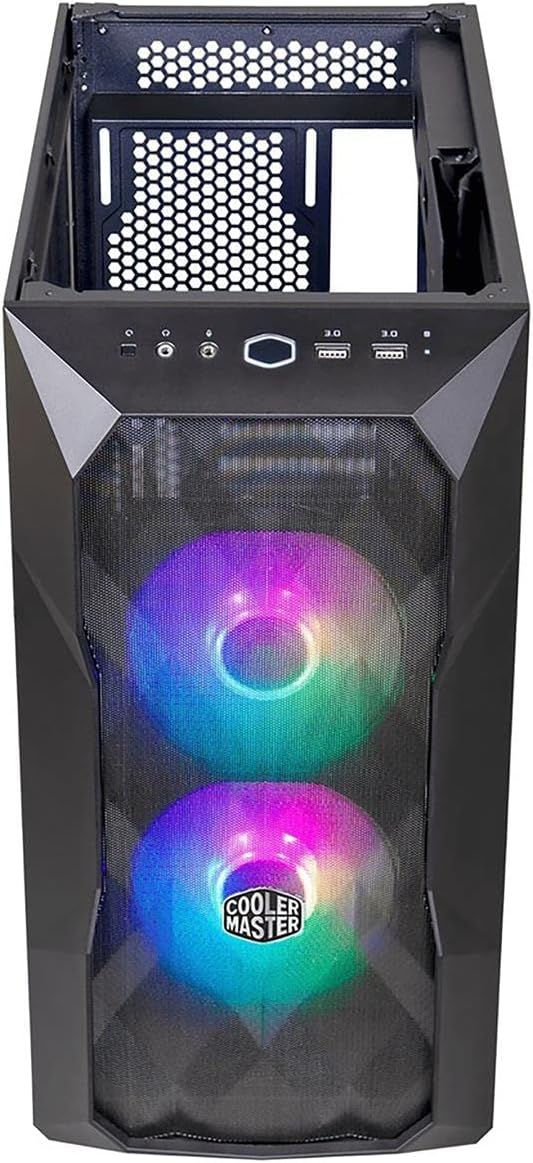
Figure 3.2: Example of components installed within the case.
4. Operation
The Cooler Master TD300 Mesh is designed for straightforward operation once components are installed.
- Power On/Off: Use the power button located on the top I/O panel to turn your system on or off.
- Front I/O Ports: The top I/O panel includes USB 3.0 ports and audio jacks for convenient peripheral connectivity.
- ARGB Lighting Control: The pre-installed SickleFlow PWM ARGB fans are connected to an integrated ARGB/PWM hub. Lighting can be controlled either via your motherboard's ARGB software (if connected to a compatible header) or through the case's reset button (if configured for lighting control). Refer to your motherboard manual for ARGB software instructions.
- Fan Speed Control: Fan speeds can be controlled via your motherboard's fan headers and BIOS settings, or through the ARGB/PWM hub if it supports fan speed adjustment.

Figure 4.1: Top I/O panel with power button, USB ports, and audio jacks.
5. Maintenance
Regular maintenance ensures optimal performance and longevity of your PC components.
- Dust Filter Cleaning: The TD300 Mesh features dust filters on the front, top, and bottom (for the PSU intake). Regularly remove and clean these filters to prevent dust buildup and maintain optimal airflow. Dust filters can typically be rinsed with water and air-dried before reinstallation.
- Case Cleaning: Use a soft, damp cloth to wipe down the exterior of the case. Avoid abrasive cleaners or solvents that could damage the finish. For the tempered glass panel, use a glass cleaner and a microfiber cloth.
- Internal Dust Removal: Periodically use compressed air to clear dust from internal components, especially fan blades, heatsinks, and radiator fins. Ensure the system is powered off and unplugged before performing internal cleaning.
6. Troubleshooting
This section addresses common issues you might encounter.
- System Not Powering On:
- Ensure the PSU is switched on and properly connected to the wall outlet.
- Verify all power cables (24-pin ATX, 8-pin CPU, GPU power) are securely connected to the motherboard and components.
- Check that the front panel power switch cable is correctly connected to the motherboard's F_PANEL header.
- Fans Not Spinning / ARGB Not Lighting Up:
- Confirm that the fans are properly connected to the ARGB/PWM hub.
- Ensure the ARGB/PWM hub is receiving power (usually via a SATA power connector from the PSU).
- Verify the ARGB cable from the hub is connected to a compatible ARGB header on your motherboard (if using software control).
- Check your motherboard's BIOS settings or ARGB software for fan and lighting control.
- USB Ports Not Working:
- Ensure the USB 3.0 header cable from the front panel is securely connected to the corresponding header on your motherboard.
- Check your motherboard manual for correct header placement.
7. Technical Specifications
| Feature | Specification |
|---|---|
| Brand | Cooler Master |
| Series | TD300 Mesh |
| Model Name | TD300 Mesh |
| Item Model Number | TD300-KGNN-S00 |
| Case Type | Tower |
| Motherboard Compatibility | Mini ITX, Micro-ATX |
| Material | Tempered Glass, Steel, Plastic |
| Color | Black |
| Item Weight | 15.62 pounds (7.08 kg) |
| Product Dimensions (LxWxH) | 14.42 x 8.27 x 16.14 inches (366.5 x 210 x 410mm) |
| Number of USB 3.0 Ports | 2 |
| Number of USB 2.0 Ports | 0 (Not specified, assuming only 3.0) |
| Light Color | ARGB |
| Cooling Method | Air |
| Power Supply Mounting Type | Bottom Mount |
| Recommended Uses For Product | Gaming |
8. Warranty and Support
For detailed warranty information and technical support, please refer to the official Cooler Master website or the comprehensive user manual PDF.
- Official User Manual (PDF): For in-depth instructions, diagrams, and troubleshooting, please download the official PDF manual: Cooler Master TD300 Mesh User Manual PDF
- Cooler Master Support: Visit the Cooler Master official website for FAQs, driver downloads, and direct customer support.


