
1. Introduction
This manual provides essential instructions for the proper use and installation of the SUPVAN 15mm x 6m Continuous Laminated Thermal Label Tape Refill. This label tape is designed for compatibility with SUPVAN E10, E11, and E16 label makers. Please read this manual thoroughly before use to ensure optimal performance and longevity of your label tape.
2. Product Features
- Compatibility: Specifically designed for SUPVAN E10, E11, and E16 label makers.
- Dimensions: 15mm width x 6m length, continuous yellow tape.
- Durability: Multi-layer synthetic material provides resistance to water, oil, and extreme temperatures. Offers 5-year extended durability.
- Safety: BPA-free, complying with safety standards for baby products, suitable for food, cosmetics, and consumables labeling.
- Adhesion: Strong adhesive properties with residue-free removal.
- Smart Detection: Integrated RFID for automatic size recognition by compatible printers, minimizing misalignment and waste.
3. Setup and Installation
Follow these steps to correctly install the label tape into your SUPVAN label maker.
- Open the Label Maker Cover: Locate and open the tape compartment cover on your SUPVAN E10, E11, or E16 label maker.
- Insert the Tape Cassette: Carefully insert the SUPVAN label tape cassette into the compartment. Ensure it clicks into place securely.
- Verify Orientation: Pay attention to the "This Side Down" sticker on the tape roll. Ensure the tape is oriented correctly as indicated.
- Do Not Remove Sticker: Important: Do not remove the small sticker on the tape roll. This sticker contains RFID information necessary for the label maker to recognize the tape type and size. Removing it will prevent the label maker from detecting the tape.
- Close the Cover: Close the tape compartment cover firmly until it latches.

Image: Installation notes showing how to insert the tape and the warning about the "This Side Down" sticker. The sticker is crucial for tape recognition by the label maker.
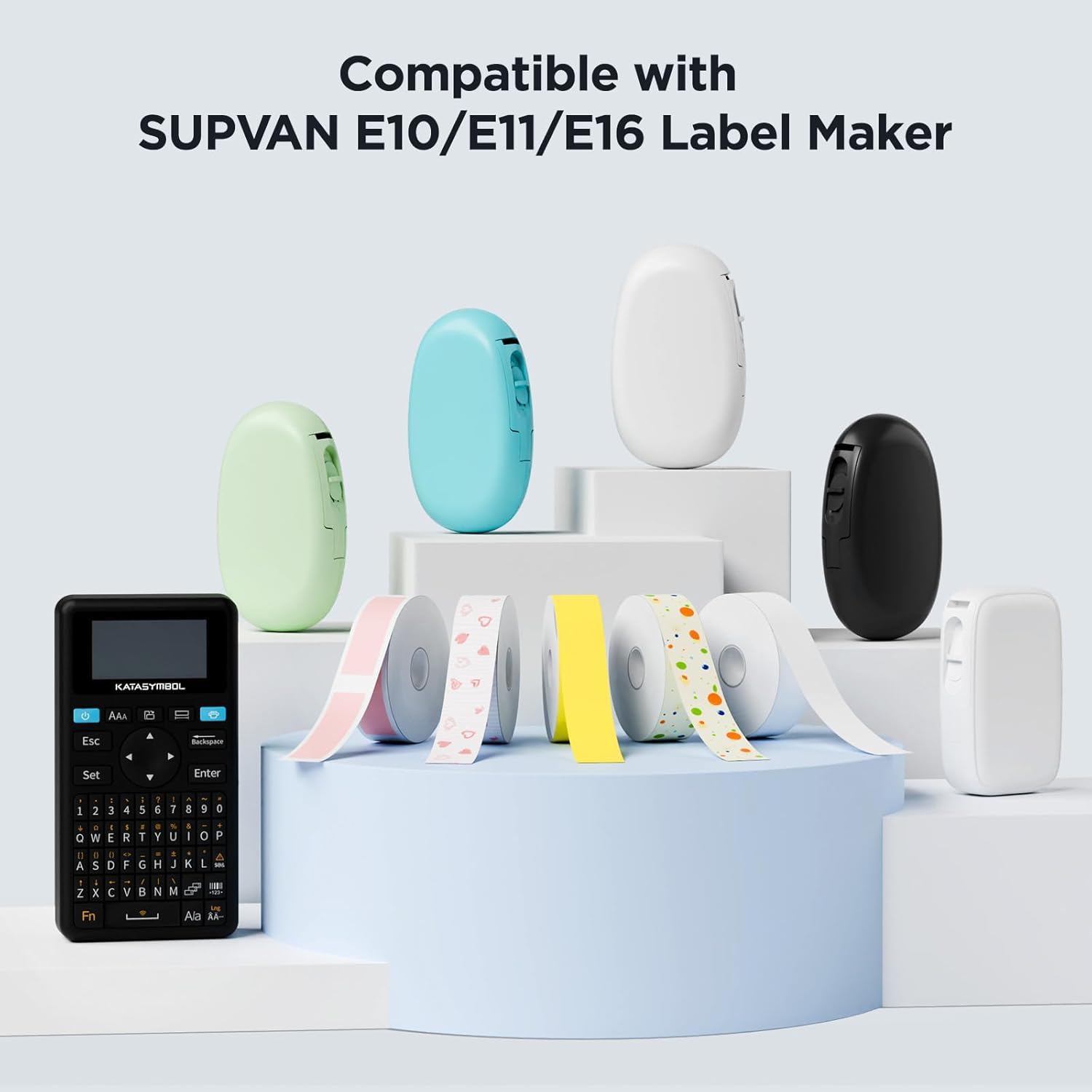
Image: Various SUPVAN label makers (E10, E11, E16) displayed with different colored label tapes, illustrating compatibility.
4. Operating Instructions
Once the tape is installed, you can begin creating labels. Refer to your specific SUPVAN label maker's user manual for detailed printing instructions.
- Power On: Turn on your SUPVAN label maker.
- Automatic Detection: The label maker will automatically detect the installed tape's size and type thanks to the RFID chip.
- Design Your Label: Use the label maker's interface or connected app to design your label.
- Print: Initiate the printing process. The label maker will feed and print on the continuous thermal tape.
- Cut: Manually or automatically cut the label after printing, depending on your label maker model.
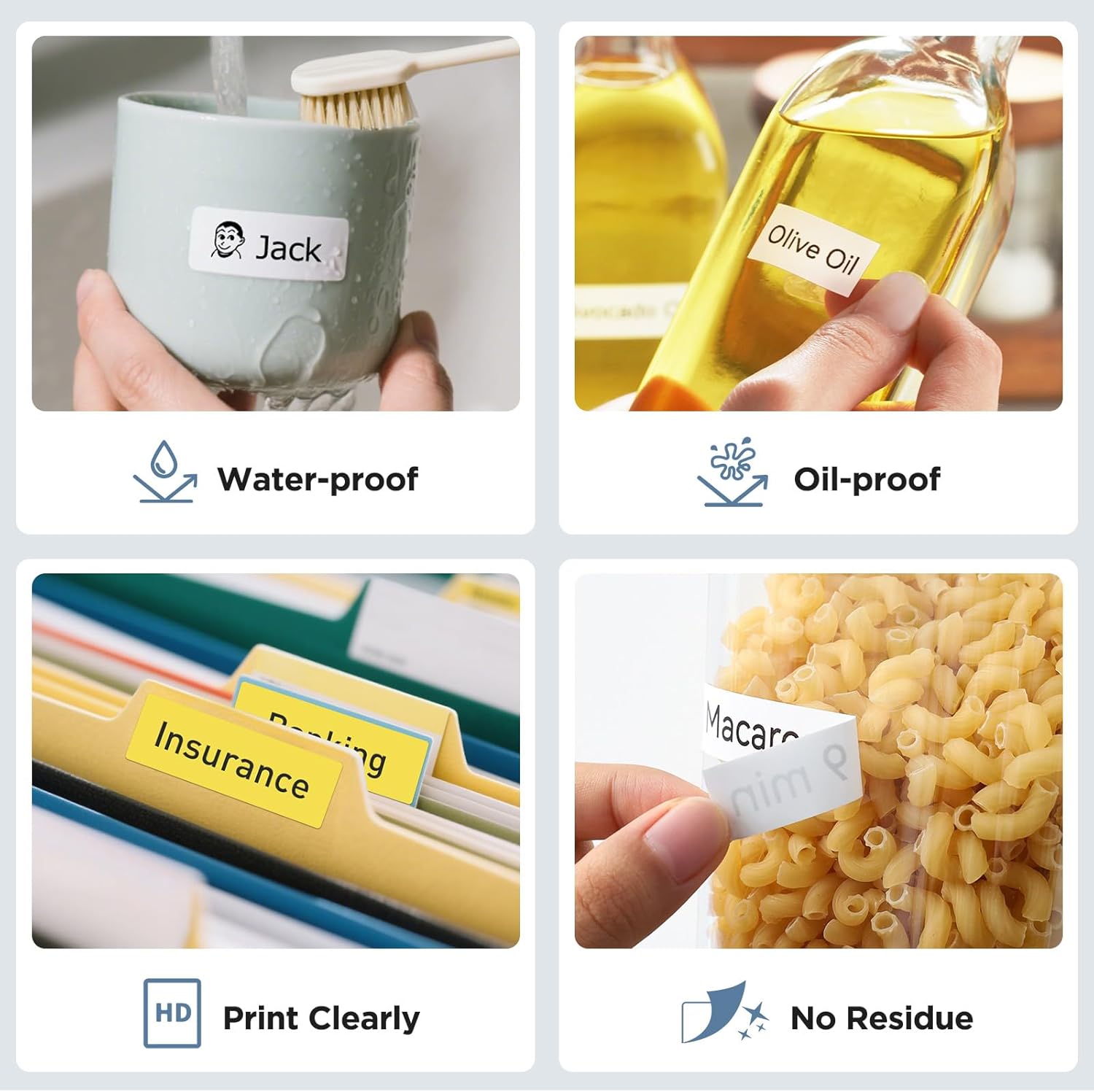
Image: Examples of label tape applications, including waterproof and oil-proof labels on a mug and olive oil bottle, clear printing on file folders, and residue-free removal from a food container.

Image: Various usage scenarios for SUPVAN labels, such as organizing toys, documents, kitchen storage, and desk items, demonstrating versatility.

Image: Examples of SUPVAN label tape use in school settings, including labeling books, water bottles, and lunchboxes, highlighting its BPA-free and safe material.
5. Maintenance and Storage
- Storage: Store unused label tape cassettes in a cool, dry place away from direct sunlight and extreme temperatures to preserve adhesive quality and print longevity.
- Handling: Avoid touching the printing surface of the tape directly to prevent smudges or oil transfer that could affect print quality.
- Cleaning: If the label maker's print head becomes dirty, refer to your label maker's manual for cleaning instructions. Do not attempt to clean the tape itself.
6. Troubleshooting
| Problem | Possible Cause | Solution |
|---|---|---|
| Label maker does not detect tape. | RFID sticker removed or tape incorrectly inserted. | Ensure the small RFID sticker on the tape roll is intact. Reinsert the tape cassette correctly, ensuring it is seated properly. |
| Poor print quality or faded text. | Print head dirty, tape stored improperly, or tape expired. | Clean the label maker's print head (refer to label maker manual). Store tape in a cool, dry place. Replace with a new tape if expired. |
| Tape jams during printing. | Tape not inserted correctly or foreign object in compartment. | Open the cover, remove the tape, check for obstructions, and reinsert the tape correctly. |
7. Specifications
| Attribute | Detail |
|---|---|
| Brand | SUPVAN |
| Model Number | ABE15*6m |
| Tape Type | Continuous Laminated Thermal Label Tape Refill |
| Dimensions | 15mm (width) x 6m (length) |
| Color | Black on Yellow |
| Material | Multi-layer Synthetic (Paper) |
| Features | Waterproof, Oilproof, Child-Safe (BPA-free), Durable, Highly Adhesive, Residue-Free, Smart RFID Auto-Detection |
| Compatibility | SUPVAN E10, E11, E16 Label Makers |
8. Warranty and Support
For warranty information or technical support regarding your SUPVAN label tape or label maker, please refer to the documentation provided with your label maker or visit the official SUPVAN website. Keep your purchase receipt as proof of purchase.
Official SUPVAN Store: SUPVAN Store on Amazon.ca


