
1. Introduction and Overview
This manual provides essential information for the safe and efficient operation of your EVERSECU 18 Channel 12V 10Amp DC Uninterrupted Power Supply (UPS) Unit. Designed for robust performance, this unit is ideal for powering various security and access control devices, including CCTV cameras, PTZ cameras, IR illuminators, video processors, and access control systems. It features a backup battery link to ensure continuous operation during power outages (battery not included).
Key features include:
- Uninterrupted Power Supply (UPS) capability with 12V lead-acid battery support (battery sold separately).
- Individual PTC (Positive Temperature Coefficient) fuses and LED indicators for each of the 18 outputs, isolating faults to prevent system-wide disruptions.
- Automatic circuit protection against short circuits, high voltage, and over current conditions, with self-restoring functionality.
2. Safety Information
WARNING: Risk of Electrical Shock. Do Not Open Cover.
- This unit is designed for indoor use only.
- Ensure the power supply is disconnected from the main power source before performing any installation, maintenance, or troubleshooting.
- Only qualified personnel should install and service this equipment.
- Verify correct voltage and current ratings for all connected devices to prevent damage.
- Keep the unit away from moisture, excessive heat, and flammable materials.
3. Package Contents
Upon opening the package, please verify that all components are present and undamaged:
- EVERSECU 18 Channel 12V 10Amp DC UPS Power Supply Unit
- AC Power Cord
- Keys for the cabinet lock
- Mounting hardware (screws and wall anchors)
- Instruction Manual (this document)

Image: The EVERSECU 18 Channel 12V 10Amp DC UPS Power Supply Unit with its front cover open, revealing the internal power board, individual output terminals, and the main power supply module. The inside of the door displays connection diagrams and specifications.
Video: An unboxing and overview of a 12V 10A CCTV Power Supply Box, demonstrating the contents and initial appearance of a similar product.
4. Specifications
| Specification | Value |
|---|---|
| Input Voltage | AC 100-240V |
| Input Voltage Frequency | 50/60Hz |
| Output Voltage | DC 12V +/-5% |
| Total Output Current | 10A |
| Total Outputs | 18 Channels |
| Fuse Type | PTC (Resettable) |
| Fuse Rating | 1.1A per channel |
| Product Dimensions | 3.7 x 8.46 x 3.7 inches |
| Item Weight | 5.41 pounds |
| Battery Backup | Supports 12V Lead-acid battery (not included) |
5. Setup and Installation
Follow these steps for proper installation of your EVERSECU power supply unit:
- Mounting the Unit: Choose a secure, indoor location for mounting. Use the provided screws and wall anchors to firmly attach the unit to a wall. Ensure adequate ventilation around the unit.
- Connect AC Power: Ensure the power switch inside the unit is in the "OFF" position. Plug the provided AC power cord into the unit's AC input port and then into a standard 100-240V AC power outlet.
- Connect Devices: Connect your CCTV cameras, PTZ devices, IR illuminators, or access control devices to the individual 12V DC output terminals. Each output has a positive (+) and negative (-) terminal. Ensure correct polarity.
- Battery Backup Connection (Optional): If using a 12V lead-acid backup battery (not included), connect it to the designated battery terminals inside the unit. Observe correct polarity.
- Power On: Once all connections are secure, switch the power switch inside the unit to the "ON" position. The LED indicators for each active channel should illuminate, confirming power output.
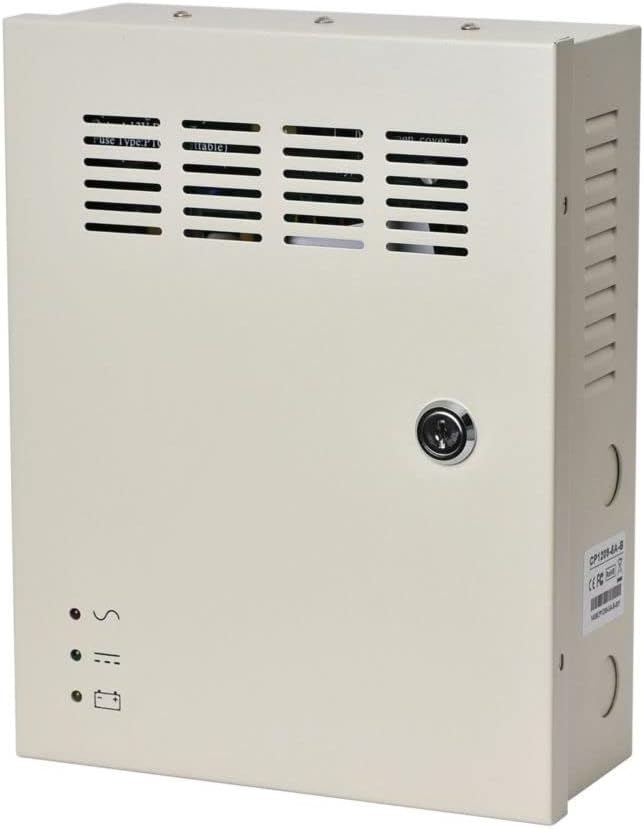
Image: The front exterior of the EVERSECU power supply unit, featuring a lockable door and indicator lights for power status.

Image: A side view of the power supply unit, highlighting the AC power input connector and cable management knockouts.

Image: The rear of the power supply unit, displaying the keyhole slots for wall mounting.
Video: A demonstration of a 9-channel EVERSECU DC12V UPS CCTV Power Supply, showing its internal layout and basic functionality. This provides a visual reference for the brand's product design.
6. Operating Instructions
The EVERSECU power supply unit is designed for straightforward operation:
- Power On/Off: Use the main power switch located inside the unit to turn the power supply on or off.
- LED Indicators: Each output channel has a dedicated LED indicator. A lit LED signifies that the channel is active and providing power. If an LED is off, it indicates a potential issue with that specific output (e.g., short circuit, over current) or that the channel is not in use.
- Battery Backup: When a compatible 12V lead-acid battery is connected, the unit will automatically switch to battery power in the event of an AC power failure, providing uninterrupted power to connected devices. The battery indicator LED on the front panel will show the battery status.
7. Maintenance
Regular maintenance ensures the longevity and reliable performance of your power supply unit:
- Cleaning: Periodically clean the exterior of the unit with a soft, dry cloth. Ensure ventilation openings are free from dust and debris. Do not use liquid cleaners.
- Connection Checks: Regularly inspect all wiring connections to ensure they are tight and secure. Loose connections can lead to intermittent power or system malfunctions.
- Battery Inspection (if applicable): If a backup battery is installed, check its condition periodically. Lead-acid batteries typically need replacement every 3-5 years for optimal performance. Refer to the battery manufacturer's guidelines for specific maintenance.
- Fuse Status: Monitor the individual LED indicators. If an LED is off, it may indicate that the corresponding PTC fuse has tripped due to a fault.
8. Troubleshooting
This section addresses common issues you might encounter:
- No Power Output (All Channels):
- Check if the AC power cord is securely plugged into both the unit and the wall outlet.
- Ensure the main power switch inside the unit is in the "ON" position.
- Verify the wall outlet is functional.
- No Power on a Specific Channel (LED Off):
- This indicates that the individual PTC fuse for that channel has tripped due to a short circuit or over current.
- Disconnect the device connected to the faulty channel.
- Once the fault is removed, the PTC fuse will automatically reset, and the LED should re-illuminate.
- If the LED remains off, inspect the wiring of the connected device for shorts or damage.
- High Voltage Protection Activated: The unit features surge protection. If high voltage occurs, the protection circuit will activate to safeguard connected devices. The unit should return to normal operation once the voltage stabilizes.
- Over Current Protection Activated: If an output draws excessive current, the power supply will enter a self-protection state. Remove the overloaded device, and the unit will automatically return to normal operation.
Video: A brief overview of an EVERSECU 9-channel CCTV Power Supply, demonstrating its features and internal components. Useful for understanding the general design and troubleshooting points.
9. Warranty and Support
EVERSECU is committed to providing reliable products. For any technical assistance, warranty claims, or support inquiries, please contact EVERSECU customer service through the retailer where the product was purchased or visit the official EVERSECU website for contact information.
Please retain your proof of purchase for warranty purposes.