
1. Introduction
This manual provides detailed instructions for the setup, operation, and troubleshooting of your ZOWEETEK USB C CAC Reader. Please read this manual thoroughly before using the device to ensure proper functionality and to maximize its lifespan.

Image 1: ZOWEETEK USB C CAC Reader with its integrated USB-C cable.
2. Product Features
- Connectivity: USB-C / Type C interface for modern devices.
- Broad Compatibility: Supports Windows 10/11, Mac OS 10.15 or later, and Linux operating systems.
- CAC Card Support: Compatible with Government ID, ActivClient, AKO, OWA, DKO, JKO, NKO, BOL, GKO, Marinenet, AF Portal, Pure Edge Viewer, ApproveIt, DCO, DTS, LPS, Disa Enterprise Email, and other CAC chip cards.
- Plug & Play: Generally recognized by most operating systems without complex driver installations.
- Durable Design: Constructed from ABS material, resistant to high temperatures and wear.
- LED Indicator: Provides visual feedback on card detection status.
- Anti-Slip Pads: Ensures stability during use.

Image 2: Key features of the ZOWEETEK CAC Reader.
3. Setup Instructions
3.1 Connecting the Reader
- Locate an available USB-C port on your computer (laptop or desktop).
- Insert the USB-C connector of the ZOWEETEK CAC Reader firmly into the USB-C port.
- The device should be recognized by your operating system.
3.2 Driver and Software Requirements
- Windows 10: Typically plug-and-play.
- Windows 11: May require a specific driver installation. Refer to the ZOWEETEK support website for the latest drivers.
- Mac OS 10.15 or later: Java is necessary for proper functionality. Please install Java from the official Java website before use.
- DOD and USG Users (Mac): A third-party CAC Enabler program is required to access government services.
- Linux: Generally plug-and-play, but specific distributions may require additional configuration or drivers.

Image 3: Compatibility with various operating systems.
4. Operating Instructions
4.1 Inserting a Smart Card
- Ensure the CAC Reader is connected to your computer.
- Identify the chip side of your smart card (e.g., CAC card, credit card with chip).
- Insert the end of the smart card with the chip into the card slot. The chip side should face towards the side of the indicator light on the reader.
- Push the card gently until it is fully seated in the slot.

Image 4: Correct smart card insertion method.
4.2 LED Indicator Status
- Red LED: Indicates the reader is powered on and ready, but no card is inserted or detected.
- Green/Red LED: Indicates a smart card has been successfully inserted and is being read or is active.

Image 5: LED indicator states for card detection.
4.3 Using with Applications
Once the card is inserted and recognized, you can proceed to use it with compatible applications such as online banking, digital signature software, or government access portals. Follow the instructions provided by your specific application for authentication or data access.
5. Maintenance
- Keep the card reader clean and free from dust and debris. Use a soft, dry cloth for cleaning.
- Avoid exposing the device to extreme temperatures or moisture.
- Do not force cards into the slot, as this can damage the reader or the card.
- Store the reader in a safe place when not in use to prevent physical damage.
6. Troubleshooting
- Reader Not Recognized:
- Ensure the USB-C cable is securely connected to both the reader and your computer.
- Try connecting the reader to a different USB-C port on your computer.
- Restart your computer.
- For Windows 11, verify that the necessary drivers are installed.
- Card Not Reading / LED Remains Red:
- Ensure the smart card is inserted correctly, with the chip facing the indicator light.
- Try removing and re-inserting the card.
- Clean the card's chip with a soft, dry cloth.
- For Mac OS, confirm that Java is installed.
- For DOD/USG users on Mac, ensure a third-party CAC Enabler program is installed and running.
- Test with a different smart card if available to rule out a card issue.
- Incompatible with Mobile Devices:
- This CAC reader is not designed for use with iPhone or iPad devices.

Image 6: The ZOWEETEK CAC Reader is not compatible with iPhone or iPad.
7. Specifications
| Feature | Detail |
|---|---|
| Brand | ZOWEETEK |
| Model | B09JK8LQ4P |
| Connectivity | USB Type C |
| Operating System Compatibility | Windows 10/11, Mac OS 10.15+, Linux |
| Item Weight | 2.08 ounces |
| Product Dimensions (LxWxH) | 3.32 x 2.72 x 0.59 inches |
| Color | Black |
| Special Feature | Plug & Play |
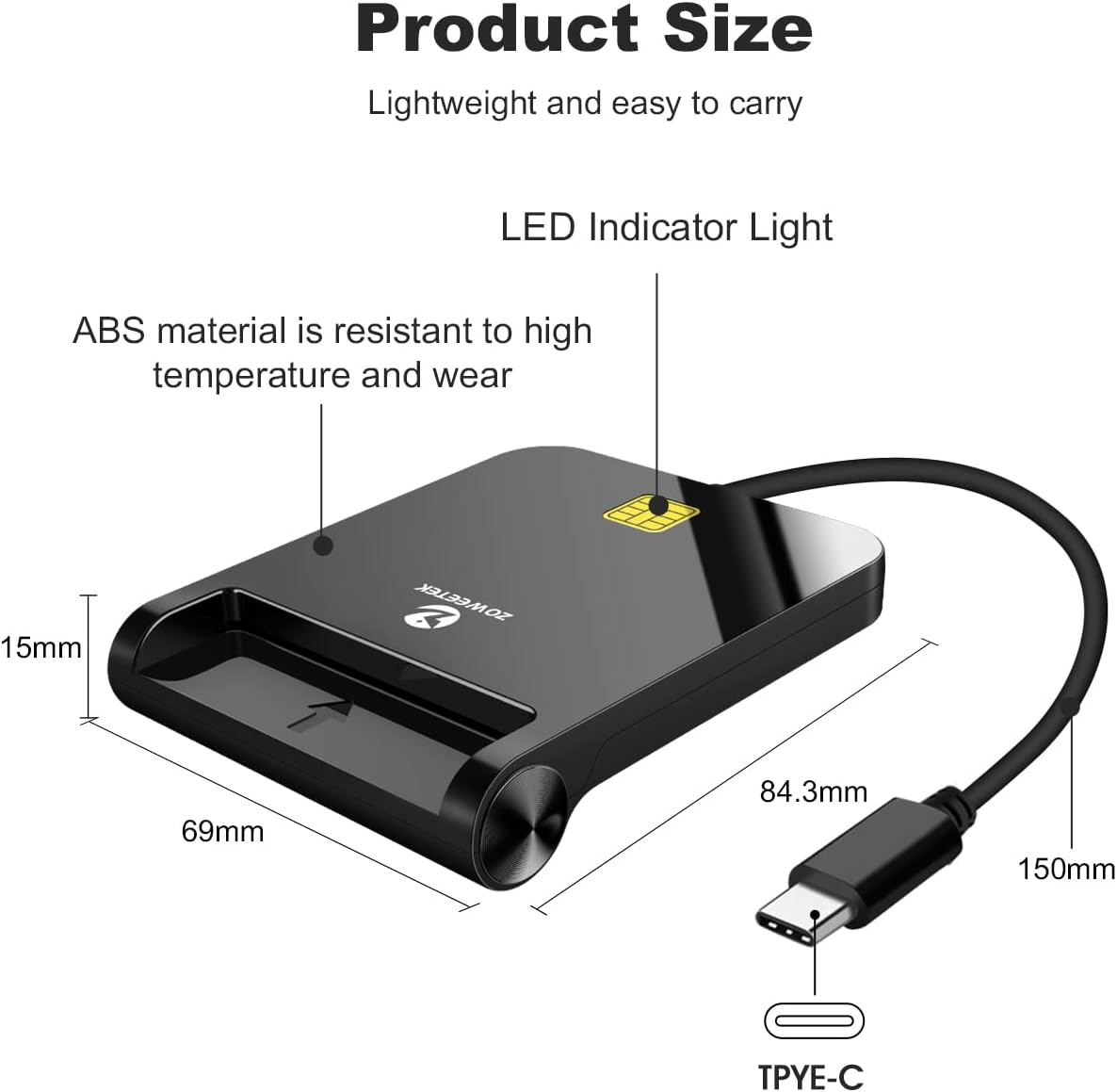
Image 7: Product dimensions.
8. Warranty and Support
For warranty information and technical support, please refer to the official ZOWEETEK website or contact their customer service directly. You can find more information about ZOWEETEK products on their Amazon store page: ZOWEETEK Amazon Store.