
1. Introduction
Welcome to the user manual for your Kurio Tab XL 2, a 10-inch tablet specifically designed for children. This tablet offers a safe and engaging digital experience with robust parental controls, pre-installed educational applications, and a durable design. This manual will guide you through the setup, operation, maintenance, and troubleshooting of your device.

Image 1.1: The Kurio Tab XL 2 tablet showing its user interface with pre-installed applications.
2. Setup
2.1 Unboxing and Initial Inspection
Carefully remove all components from the packaging. Ensure the tablet, protective case, and charging cable are present. The Kurio Tab XL 2 comes with a splash-proof and shock-resistant protective case already installed.

Image 2.1: Rear view of the Kurio Tab XL 2, highlighting the protective case and brand logo.
2.2 Charging the Tablet
Before first use, fully charge the tablet. Connect the charging cable to the USB port on the tablet and plug the other end into a power adapter (not always included) or a computer's USB port. The charging port is located on the bottom edge of the tablet.

Image 2.2: The USB port and headphone jack on the tablet's bottom edge.
2.3 Powering On and Initial Configuration
Press and hold the power button (located on the top edge) until the Kurio logo appears. Follow the on-screen prompts to select your language, connect to a Wi-Fi network, and set up parent and child profiles. The tablet runs on Android Go, optimized for performance.

Image 2.3: The power and volume buttons located on the top edge of the tablet.
3. Operating Instructions
3.1 Navigating the Interface
The Kurio Tab XL 2 uses a simplified Android interface. Swipe left or right to browse through app pages. Tap an icon to open an application. Use the navigation buttons at the bottom of the screen for Back, Home, and Recent Apps.
3.2 Pre-installed and Educational Apps
The tablet comes with over 40 pre-installed educational and child-friendly applications and games. These are designed to enhance learning and provide entertainment. Examples include vocabulary builders, counting games, and various interactive activities.

Image 3.1: The tablet's home screen showcasing a wide selection of pre-installed apps and games.
3.3 Downloading New Applications
Parents can easily install additional applications from the Google Play Store. Popular streaming services like Netflix, Disney+, and Videoland can be downloaded, along with other educational or entertainment apps. Access to the Google Play Store is managed through parental controls.
3.4 Camera and Connectivity
The tablet features a 2.0 MP camera for capturing photos and videos. It supports Wi-Fi connectivity for internet access and Bluetooth for connecting to compatible accessories like headphones.
4. Parental Control Features (Kurio Genius)
The Kurio Tab XL 2 is equipped with the exclusive Kurio Genius system, offering comprehensive parental controls to ensure a safe online environment for children.

Image 4.1: The Kurio Genius interface, demonstrating various parental control options.
4.1 Internet Filtering
The Kurio Genius system filters billions of web pages daily to block inappropriate content, ensuring children only access suitable websites. Parents can customize web access settings.
4.2 Screen Time Control
Set daily play time limits and authorized hours for tablet usage. This feature helps manage screen time effectively.
4.3 App Management
Parents can authorize or block specific applications, ensuring children only use approved content. New app installations from the Google Play Store require parental approval.
4.4 Safety Features
- Blue Light Filter: Reduces blue light emission to protect children's eyes, especially during evening use.
- Ear Protection: Manages audio output levels to prevent hearing damage.
- Protective Case: The included splash-proof and shock-resistant case provides physical protection against drops and spills.
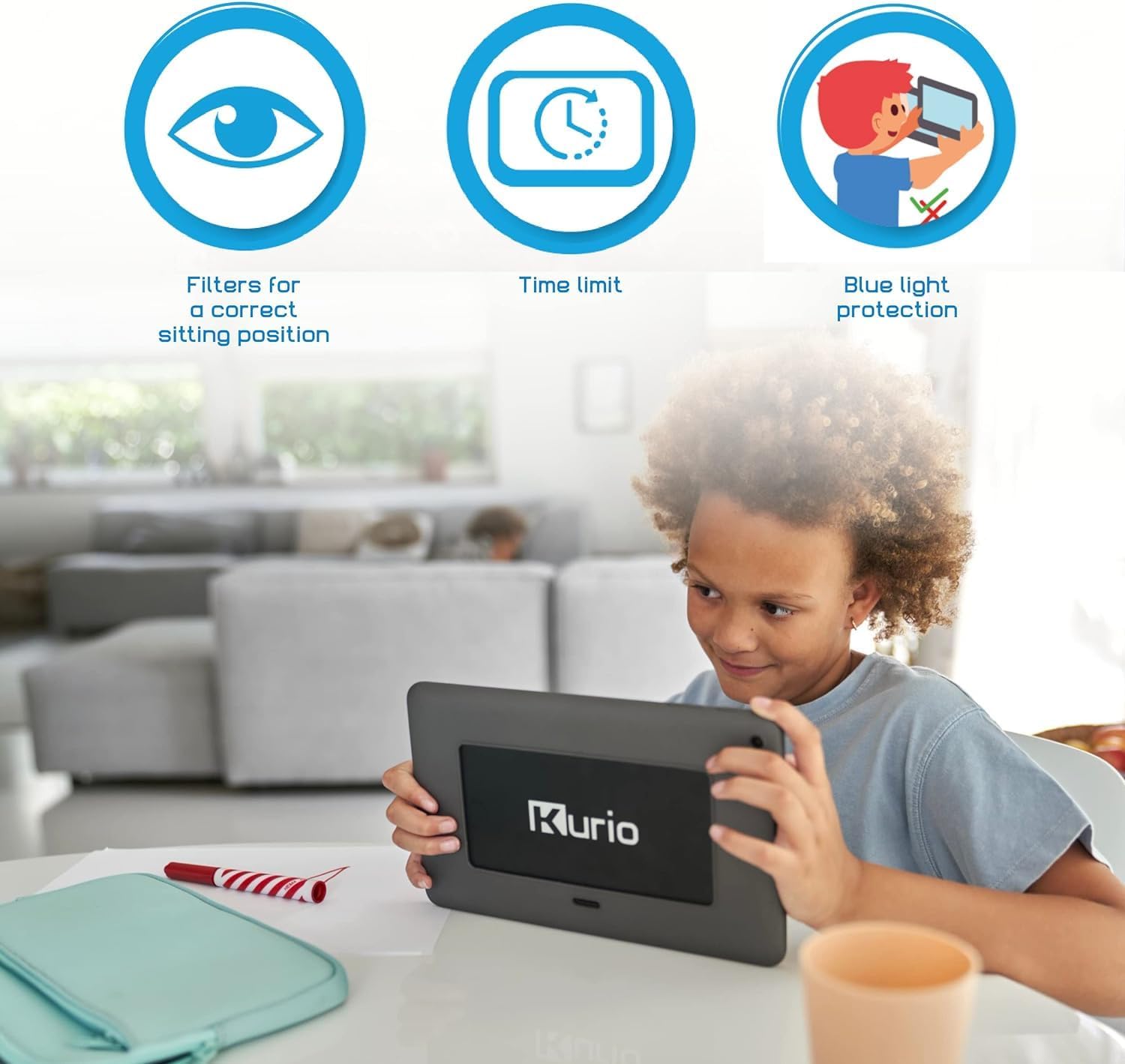
Image 4.2: Visual representation of key safety features like blue light protection and time limits.
5. Maintenance
5.1 Cleaning the Device
To clean the tablet screen and body, use a soft, lint-free cloth. For stubborn marks, slightly dampen the cloth with water. Avoid using harsh chemicals or abrasive materials.
5.2 Battery Care
To prolong battery life, avoid fully discharging the tablet frequently. Charge the device regularly. The tablet uses a 2580 mAh Lithium-polymer battery.
5.3 Software Updates
Ensure your tablet's software is up to date for optimal performance and security. Check for updates periodically through the Android settings menu.
5.4 Storage Management
The tablet has 16 GB of internal storage. If more space is needed for apps, photos, or videos, you can expand the storage using a microSD card up to 128 GB.
6. Troubleshooting
6.1 Common Issues and Solutions
- Tablet not turning on: Ensure the tablet is charged. Connect it to a power source and try again.
- Wi-Fi connection issues: Check if Wi-Fi is enabled in settings. Restart your router and the tablet.
- Apps crashing or freezing: Close and reopen the app. If the issue persists, clear the app's cache or reinstall it.
- Slow performance: Close unused apps, clear cache, or free up storage space.
6.2 Factory Reset
If you encounter persistent software issues, a factory reset may resolve them. Warning: A factory reset will erase all data on the tablet. Back up important data before proceeding. Consult the Android settings for the factory reset option.
7. Specifications
| Brand | Kurio |
| Model Number | C21200 |
| Operating System | Android |
| Screen Size | 10 Inches |
| Screen Resolution | 1920 x 1200 pixels |
| Processor Brand | Qualcomm or MediaTek or Samsung |
| Graphics Chipset Brand | Qualcomm or MediaTek or Samsung |
| RAM Size | 1 GB |
| Storage Capacity | 16 GB (expandable up to 128 GB with SD card) |
| Connectivity Type | Wi-Fi, Bluetooth |
| Battery | 1 Lithium-polymer (2580 mAh) |
| Dimensions (L x W x H) | 26 x 1.3 x 16 cm |
| Item Weight | 840 Grams |
| Special Features | Blue Light Filter, Protective Case |
8. Warranty Information
Warranty details are typically provided within the physical instruction manual included with your product. Please refer to that document for specific terms and conditions regarding your Kurio Tab XL 2 warranty.
9. Support
For further assistance, technical support, or inquiries regarding your Kurio Tab XL 2, please refer to the customer service information provided with your product or visit the official Kurio website.