
Akko 3068B
Akko 3068B Mechanical Gaming Keyboard User Manual
Model: 3068B | Brand: Akko
Introduction
This manual provides comprehensive instructions for the Akko 3068B Hot-swappable Mechanical Gaming Keyboard. Designed for versatility and performance, this 65% RGB keyboard offers multiple connectivity options and customizable features for an enhanced user experience across Mac and Windows systems.

Figure 1: Akko 3068B Mechanical Gaming Keyboard with vibrant RGB backlighting.
What's in the Box
Upon unboxing your Akko 3068B keyboard, please ensure all the following items are present:
- Akko 3068B Mechanical Gaming Keyboard
- USB Type-C Cable
- 2.4G Wireless Receiver
- Keycap Puller
- Switch Puller
- Additional Novelty Keycaps (20 pieces)

Figure 2: The Akko 3068B keyboard shown with a selection of its included novelty keycaps.
Setup Guide
Connectivity Options
The Akko 3068B keyboard supports three modes of connection: Bluetooth 5.0, 2.4G Wireless, and Wired Type-C.
- Wired Mode: Connect the keyboard directly to your computer using the provided USB Type-C cable. The keyboard will be automatically recognized.
- 2.4G Wireless Mode: Insert the 2.4G wireless receiver into an available USB port on your device. The keyboard should connect automatically. Ensure the keyboard's mode switch (usually on the back or side) is set to 2.4G.
- Bluetooth Mode:
- Ensure the keyboard's mode switch is set to Bluetooth.
- On your device (PC, Laptop, Phone), navigate to Bluetooth settings.
- Search for available devices. The keyboard should appear as "Akko 3068B" or similar.
- Select the keyboard to pair. Follow any on-screen prompts to complete the pairing process.
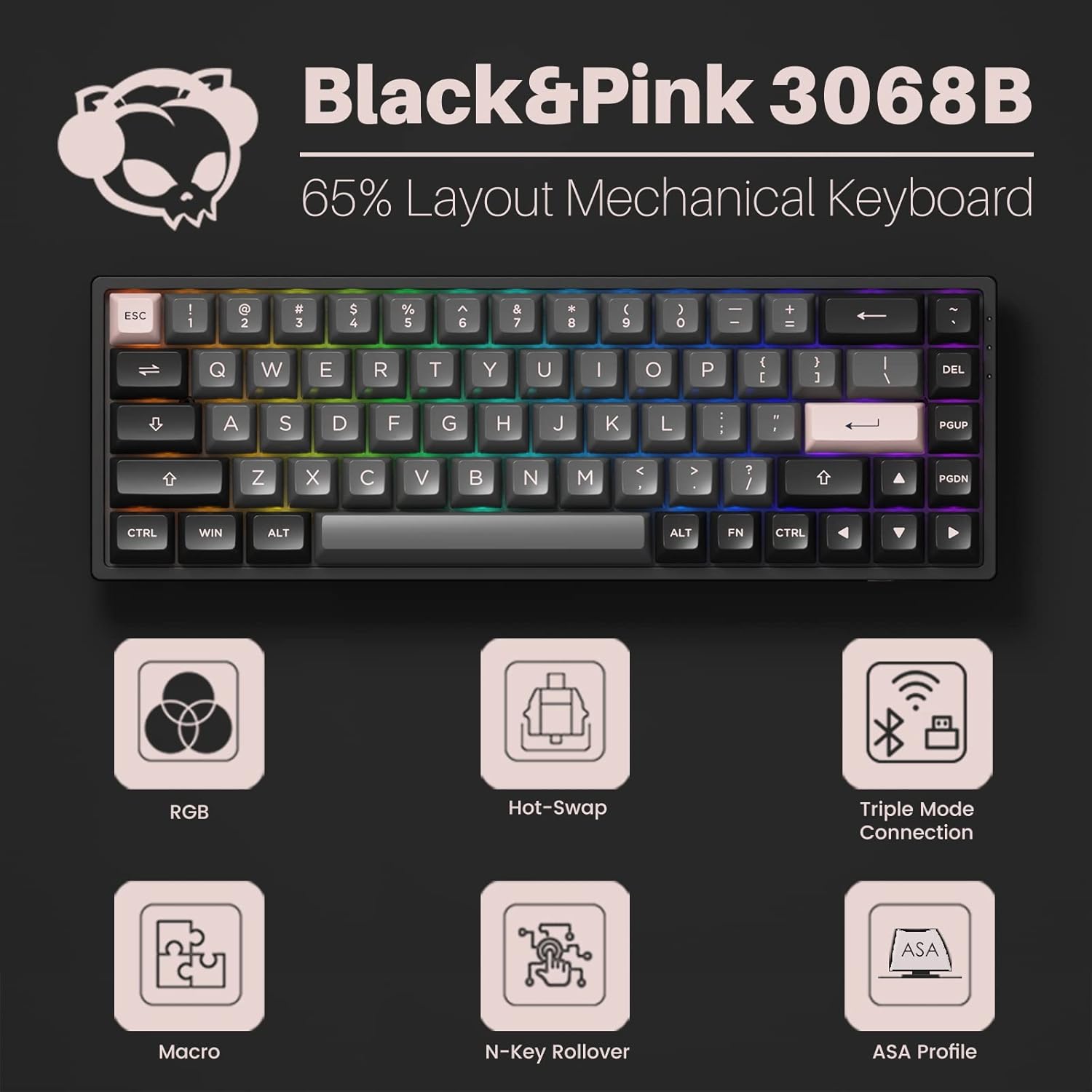
Figure 3: The Akko 3068B keyboard highlighting its multi-device and three-mode connection capabilities.
Hot-Swappable Switches
The Akko 3068B features premium TTC gaming 5-pin hot-swappable sockets, allowing users to easily change switches without soldering. This provides flexibility for customizing typing feel and sound.
- To remove a switch, use the provided switch puller to gently grip and pull the switch upwards.
- To install a new switch, align the pins of the new switch with the holes on the PCB and press down firmly until it clicks into place. Ensure pins are not bent.
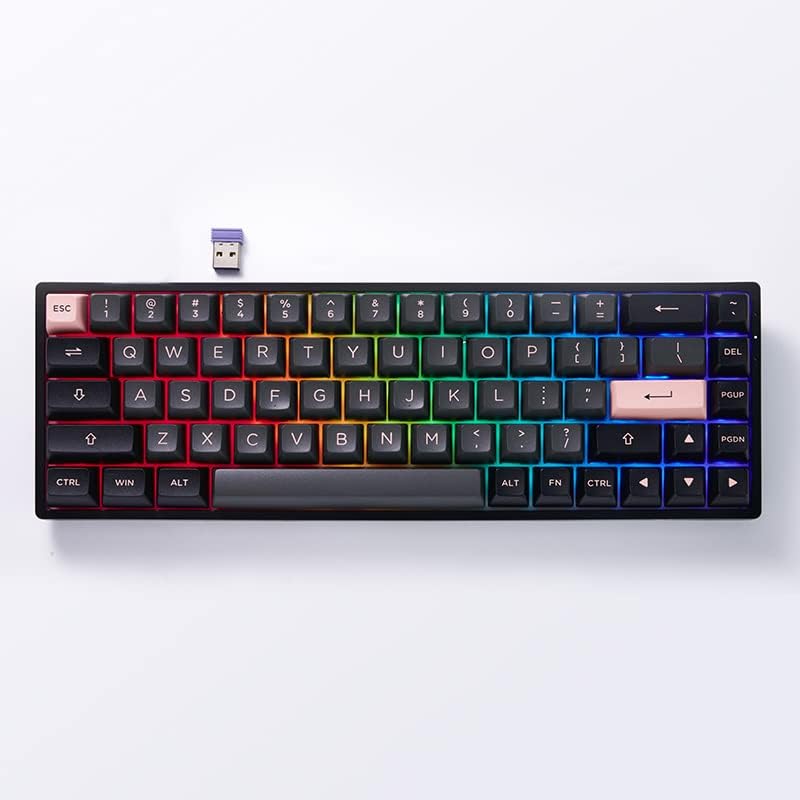
Figure 4: A close-up view of the Akko 3068B keyboard demonstrating its hot-swappable switch capability.
Operating Instructions
RGB Backlighting Customization
The keyboard features built-in RGB backlighting with customizable light animation effects. Per-key RGB is supported through the Akko Cloud driver software.
- Download and install the Akko Cloud driver from the official Akko website.
- Use the software to select various lighting modes, adjust brightness, speed, and color.
- The backlit can also be programmed as audio visualizer effects.

Figure 5: The Akko 3068B keyboard showcasing its customizable RGB lighting effects.
Key Remapping and N-Key Rollover (NKRO)
All keys on the Akko 3068B can be re-mapped through the provided Akko Cloud driver software, offering extensive personalization. The N-key rollover (NKRO) feature ensures that all simultaneous key presses are registered without conflicts, which is crucial for gaming.
- Use the Akko Cloud driver to assign new functions or macros to any key.
- NKRO is automatically active, ensuring every keystroke is recognized during rapid input.
Battery Life and Compatibility
Equipped with a large 1800mAh battery, the keyboard provides long-lasting performance in wireless modes. It is universally compatible with both Mac and Windows systems.
- To switch between Windows and Mac layouts, press Fn + Q for Windows and Fn + O for Mac.
- The battery life will vary based on usage and RGB lighting settings. Charge via the USB Type-C cable.
Maintenance
PBT Double Shot Keycaps
The Akko ASA profile keycaps are made from PBT double-shot material, designed for maximum comfort and durability. This material helps resist the shine that occurs from oils and sweat on the fingers, ensuring legends remain clear over time.
- Clean keycaps regularly with a soft, damp cloth. For deeper cleaning, remove keycaps using the provided puller and wash with mild soap and water. Ensure they are completely dry before reattaching.
- Avoid using harsh chemicals or abrasive materials that could damage the keycap surface or legends.

Figure 6: A close-up of the durable PBT double-shot keycaps on the Akko 3068B keyboard.
Troubleshooting
- Keyboard not connecting in wireless mode: Ensure the 2.4G receiver is properly inserted or Bluetooth is paired. Check the mode switch on the keyboard. Ensure the keyboard battery is charged.
- Bluetooth disconnection issues: Some users have reported Bluetooth disconnections. Ensure your device's Bluetooth drivers are up to date. Try re-pairing the keyboard. Minimize interference from other wireless devices.
- RGB lighting not working: Check the Akko Cloud driver software for lighting settings. Ensure the keyboard is powered on and connected.
- Keys not responding: If individual keys are not responding, try re-seating the switch using the switch puller. If the issue persists, the switch may need replacement.
- Keyboard not recognized by computer: Try connecting via a different USB port or cable. Restart your computer.
Specifications
| Feature | Detail |
|---|---|
| Brand | Akko |
| Model Number | 3068B |
| Connectivity Technology | USB/Bluetooth/2.4G |
| Keyboard Description | Mechanical |
| Special Feature | Backlit (RGB) |
| Color | Black&Pink |
| Number of Keys | 68 |
| Keycap Material | Polybutylene Terephthalate (PBT) |
| Battery | 1 Lithium Ion battery (included) |
| Item Weight | 2.46 pounds |
| Package Dimensions | 14.45 x 7.91 x 2.64 inches |
Warranty and Support
For warranty information, technical support, or further assistance, please refer to the official Akko website or contact their customer service directly. Keep your purchase receipt for warranty claims.
Official Akko Website: www.akkogear.com
Related documents3068B


Ask a question about this manual
Ask about setup, troubleshooting, compatibility, parts, safety, or missing instructions. Manuals+ will review the question and use this page’s manual context to help answer it.