
1. Introduction
Welcome to the John Adams CoComelon GLOWPAD! This light-up drawing pad allows children aged 3 and above to create vibrant, glowing pictures. Please read this manual carefully to ensure proper setup, operation, and maintenance of your GLOWPAD.

Image: The CoComelon GLOWPAD in its retail packaging, demonstrating its light-up drawing feature.
2. Safety Information
Warning: Not suitable for children under 3 years of age. Adult supervision is required during use.
Always ensure the GLOWPAD is used on a stable surface. Keep the product away from water and extreme temperatures. Do not attempt to open or modify the device.
3. Package Contents
Before starting, please check that all components are present in the box:
- 1 x GLOWPAD Light-up tablet
- 2 x Neon marker pens
- 1 x Instruction manual (this document)

Image: A visual representation of the included components.
4. Setup
4.1 Battery Installation
The GLOWPAD requires 3 AAA batteries (not included). Follow these steps to install them:
- Locate the battery compartment on the back of the GLOWPAD.
- Using a small screwdriver, unscrew the battery compartment cover.
- Insert 3 AAA batteries, ensuring correct polarity (+/-).
- Replace the cover and secure it with the screw.

Image: The reverse side of the GLOWPAD, indicating the battery compartment location.
5. Operating Instructions
5.1 Drawing on the GLOWPAD
- Turn on the GLOWPAD using the power switch (usually located on the side or back).
- Use the special neon marker pens to draw directly onto the GLOWPAD's screen.
- Watch as the LED lights illuminate your drawings, making them glow vibrantly.
5.2 Light Modes
The GLOWPAD features 8 different light modes to enhance your creations:
- Press the light mode button (refer to the device for exact location, typically near the screen) to cycle through the available modes.
- Modes include various static colors and a dynamic color-changing light show.

Image: A graphic highlighting the 8 available light-up color modes.
6. Maintenance
6.1 Cleaning the Screen
To clear your drawings and start fresh:
- Use the provided wipe-off cloth to gently clean the screen.
- For stubborn marks, a slightly damp cloth (water only) can be used, followed by immediate drying with a soft, dry cloth.
- Do not use abrasive cleaners or solvents, as these may damage the screen.
6.2 Battery Replacement
When the lights dim or the GLOWPAD stops functioning, it's time to replace the batteries. Refer to Section 4.1 for battery installation instructions.
7. Troubleshooting
- GLOWPAD not turning on:
- Check if the batteries are correctly installed and have sufficient charge.
- Ensure the power switch is in the "ON" position.
- Lights are dim or flickering:
- Replace the batteries with new ones.
- Pens not drawing clearly:
- Ensure the pen caps are securely replaced after use to prevent drying.
- If pens are dry, they may need to be replaced.
8. Specifications
| Model Number | 11130 |
| Product Dimensions | 36 x 5 x 28 cm |
| Item Weight | 410 g |
| Batteries Required | 3 x AAA (not included) |
| Recommended Age | 36 months - 6 years |
| Material Type | Plastic |
| Assembly Required | No |
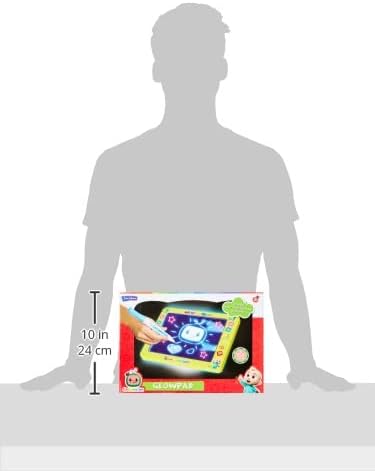
Image: The GLOWPAD shown with approximate dimensions for scale.
9. Warranty and Support
For warranty information or technical support, please refer to the contact details provided on the product packaging or visit the official John Adams website. Keep your proof of purchase for warranty claims.