Introduction
This manual provides comprehensive instructions for the safe and efficient use of your Lenovo Tab M8 (3rd Gen) tablet. Please read this manual thoroughly before operating the device and retain it for future reference. It covers essential information regarding setup, operation, maintenance, troubleshooting, and product specifications.
Safety Information
To prevent injury, property damage, or damage to your device, observe the following safety precautions:
- Do not expose the tablet to extreme temperatures, direct sunlight, or excessive moisture.
- Avoid dropping or subjecting the tablet to strong impacts.
- Use only approved chargers and accessories to prevent damage and ensure safety.
- Do not attempt to disassemble, repair, or modify the tablet yourself. Refer to qualified service personnel.
- Keep the tablet away from medical devices, as it may interfere with their operation.
- Dispose of the tablet and its battery responsibly according to local regulations.
What's in the Box
Upon unboxing your Lenovo Tab M8 (3rd Gen), you should find the following items:
- Lenovo Tab M8 (3rd Gen) Tablet
- USB-C 2.0 Cable
- Power Adapter
- Quick Start Guide
- Safety, Warranty & Setup Guide
- EAT Cloth
Product Overview
Familiarize yourself with the physical features and key components of your tablet.

Figure 1: Front View of the Tablet. This image shows the tablet's 8-inch HD IPS glossy touch display, featuring a vibrant home screen with Google apps and other utilities. The front-facing camera is visible at the top center.

Figure 2: Performance and Storage. The image illustrates the tablet's internal specifications, including its MediaTek Helio P22T Octa-Core Processor, 3GB RAM, 32GB eMMC storage, and Android 11 operating system, emphasizing its capability for multimedia entertainment.

Figure 3: Kids Mode and Expandable Storage. This view demonstrates the tablet's Kids Mode feature, designed to provide a safe and curated content environment for children. It also highlights the microSD card slot for expanding storage capacity.
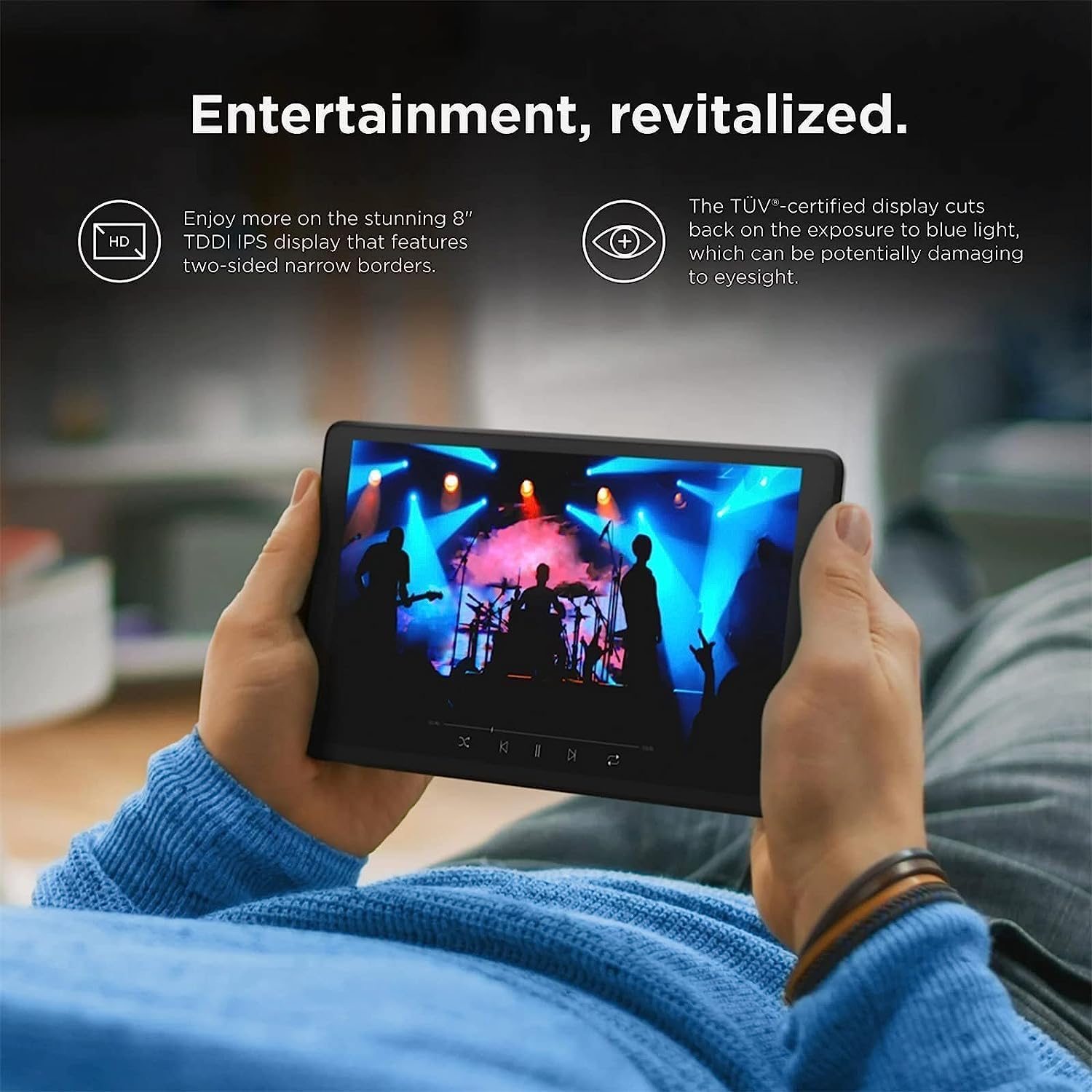
Figure 4: Display Features. The image focuses on the tablet's 8-inch HD TDDI IPS display, noting its narrow bezels and TÜV-certified blue light reduction for eye comfort during extended use.

Figure 5: Design and Aesthetics. This image highlights the tablet's sleek and modern design, featuring a full metal cover that contributes to its premium feel and durability.

Figure 6: Battery and Audio. The image illustrates the tablet's extended battery life, offering up to 18 hours of web browsing, and its Dolby Audio-tuned speakers for an enhanced audio experience.

Figure 7: Key Specifications Overview. This image provides a quick summary of the tablet's core features, including its model name (Tab M8 FHD), 8.0-inch screen size, Android 11 operating system, and 32.0 GB memory storage capacity.
Setup
- Charge the Tablet: Before first use, fully charge the tablet using the provided USB-C cable and power adapter. Connect the USB-C cable to the tablet's USB-C port and the adapter to a power outlet. The charging indicator will illuminate.
- Power On: Press and hold the Power button (located on the side) until the Lenovo logo appears on the screen.
- Initial Setup: Follow the on-screen prompts to complete the initial setup. This includes selecting your language, connecting to a Wi-Fi network, signing in with your Google account, and setting up security features (e.g., PIN, pattern, or password).
- Insert MicroSD Card (Optional): If you wish to expand storage, locate the microSD card slot on the side of the tablet. Gently insert a compatible microSD card until it clicks into place.
Operating Instructions
Basic Navigation
- Home Screen: Swipe left or right to navigate between home screens. Tap an app icon to open it.
- Notifications: Swipe down from the top of the screen to access the notification panel and quick settings.
- Recent Apps: Tap the square icon (Overview button) on the navigation bar to view and switch between recently used applications.
- Back: Tap the triangle icon (Back button) on the navigation bar to go back to the previous screen.
Connecting to Wi-Fi
- Go to Settings > Network & internet > Wi-Fi.
- Toggle Wi-Fi On.
- Select your desired Wi-Fi network from the list.
- Enter the password if prompted, then tap Connect.
Using Kids Mode
Kids Mode provides a safe and controlled environment for children. To access and configure Kids Mode:
- Locate and tap the Kids Space icon on the home screen.
- Follow the on-screen instructions to set up a child profile, including content restrictions and screen time limits.
- To exit Kids Mode, you will typically need to enter a PIN or password set during the initial setup.
Maintenance
- Cleaning: Use a soft, lint-free cloth, such as the provided EAT cloth, to clean the screen and body of the tablet. Do not use abrasive cleaners or solvents.
- Software Updates: Regularly check for and install system updates to ensure optimal performance and security. Go to Settings > System > System update.
- Storage Management: Periodically review your installed apps and files. Uninstall unused apps and delete unnecessary files to free up storage space. You can also move large files to a microSD card.
- Battery Care: To prolong battery life, avoid fully discharging the battery frequently. Charge the tablet when the battery level is low, and avoid leaving it plugged in for extended periods after it's fully charged.
Troubleshooting
If you encounter issues with your tablet, try the following solutions:
- Tablet Not Turning On:
- Ensure the battery is charged. Connect the charger and wait a few minutes before attempting to power on again.
- Press and hold the Power button for at least 10-15 seconds to perform a forced restart.
- Screen Unresponsive:
- Restart the tablet.
- Clean the screen with a soft cloth to remove any dirt or smudges.
- Wi-Fi Connectivity Issues:
- Turn Wi-Fi off and then on again in Settings.
- Restart your Wi-Fi router.
- Forget the network and reconnect by re-entering the password.
- Apps Crashing or Freezing:
- Close the app and reopen it.
- Clear the app's cache and data in Settings > Apps & notifications > [App Name] > Storage & cache.
- Update the app from the Google Play Store.
- Slow Performance:
- Close unnecessary background apps.
- Clear cached data from apps.
- Ensure sufficient free storage space.
- Restart the tablet regularly.
Specifications
| Feature | Specification |
|---|---|
| Brand | Lenovo |
| Model Name | Tab M8 FHD |
| Item Model Number | ZA5 |
| Operating System | Android 11 |
| Standing Screen Display Size | 8 Inches |
| Screen Resolution | 1280 x 800 pixels |
| Max Screen Resolution | 1280 x 800 Pixels |
| Processor | 1.8 GHz MediaTek Helio P22T (8C, 4x A53 2.3GHz + 4x A53 1.8GHz) |
| RAM | 3 GB Soldered LPDDR4x |
| Hard Drive | 32GB eMMC (eMCP4x) |
| Graphics Coprocessor | Integrated IMG PowerVR GE8320 GPU |
| Wireless Type | 802.11ac, 1x1 + BT5.0 |
| Average Battery Life (in hours) | 7 Hours (up to 18 hours web browsing) |
| Front Camera | 2.0MP |
| Rear Camera | 5.0MP |
| Speakers | Single speaker, optimized with Dolby Atmos |
| Standard Ports | 1x USB-C 2.0 (support data transfer, OTG and Power Delivery), 1x Headphone / microphone combo jack (3.5mm), 1x microSD card slot (WLAN models) |
| Item Weight | 10.7 ounces (0.67 lbs) |
| Product Dimensions | 7.80 x 4.83 x 0.32 inches |
| Color | Iron Grey |
Warranty and Support
Your Lenovo Tab M8 (3rd Gen) is covered by a limited warranty. For detailed warranty terms and conditions, please refer to the Warranty & Setup Guide included in your product packaging or visit the official Lenovo support website. For technical assistance, troubleshooting, or service requests, please contact Lenovo customer support through their official channels.
For more information, visit the Lenovo Store on Amazon.