
Introduction
The Zoom B6 is a powerful bass multi-effects processor designed to provide bassists with a comprehensive suite of tools for tone shaping, performance, and recording. Featuring an intuitive touchscreen interface, a wide array of effects and amp models, four iconic DI models, an A/B switcher, looper functionality, and a USB audio interface, the B6 offers versatility for any musical setting. This manual provides essential information for setting up, operating, and maintaining your B6 unit.

Image: Front view of the Zoom B6 Bass Multi-Effects Processor, showcasing its layout with footswitches, knobs, and the central touchscreen display.
Key Features
- Multi-effect processor for Bass with app-based touchscreen interface.
- 4 Iconic DI models, including 2 solid-state and 2 tube options.
- Integrated A/B switcher for seamless instrument switching.
- Ultimate Zoom FX processor technology with customized amp modeling.
- Integrated pedal board with 9 stomp switches.
Setup
Unpacking
- Carefully remove the Zoom B6 unit and all accessories from its packaging.
- Verify that all components listed in the packing contents are present.
- Retain the packaging for future transport or storage.
Power Connection
- Connect the supplied AC adapter to the DC 9V input jack on the rear panel of the B6.
- Plug the AC adapter into a standard wall outlet.
- Ensure the power switch is in the OFF position before connecting the adapter.
Connecting Your Bass
- Connect your bass guitar to either the INPUT-1 or INPUT-2 jack on the rear panel using a standard 1/4-inch instrument cable.
- The B6 features an A/B switcher, allowing you to connect two instruments simultaneously and switch between them seamlessly during performance.
Output Connections
- To an Amplifier: Connect the L/MONO and R OUTPUT jacks to your bass amplifier's input using 1/4-inch instrument cables.
- To a PA System/Mixer: Use the BALANCED OUTPUT (XLR) jacks for direct connection to a PA system or mixing console.
- Headphones: Connect headphones to the PHONES jack for silent practice.
- USB Audio Interface: Connect the B6 to your computer via the USB port to use it as an audio interface for recording.

Image: Rear panel of the Zoom B6, showing various input and output jacks for connecting instruments, amplifiers, PA systems, and computers.
Operating the Zoom B6
Touchscreen Interface
The B6 features a 4.3-inch color touchscreen for intuitive navigation and editing of effects, amp models, and patches. Simply tap, swipe, and drag-and-drop elements to customize your signal chain and settings.
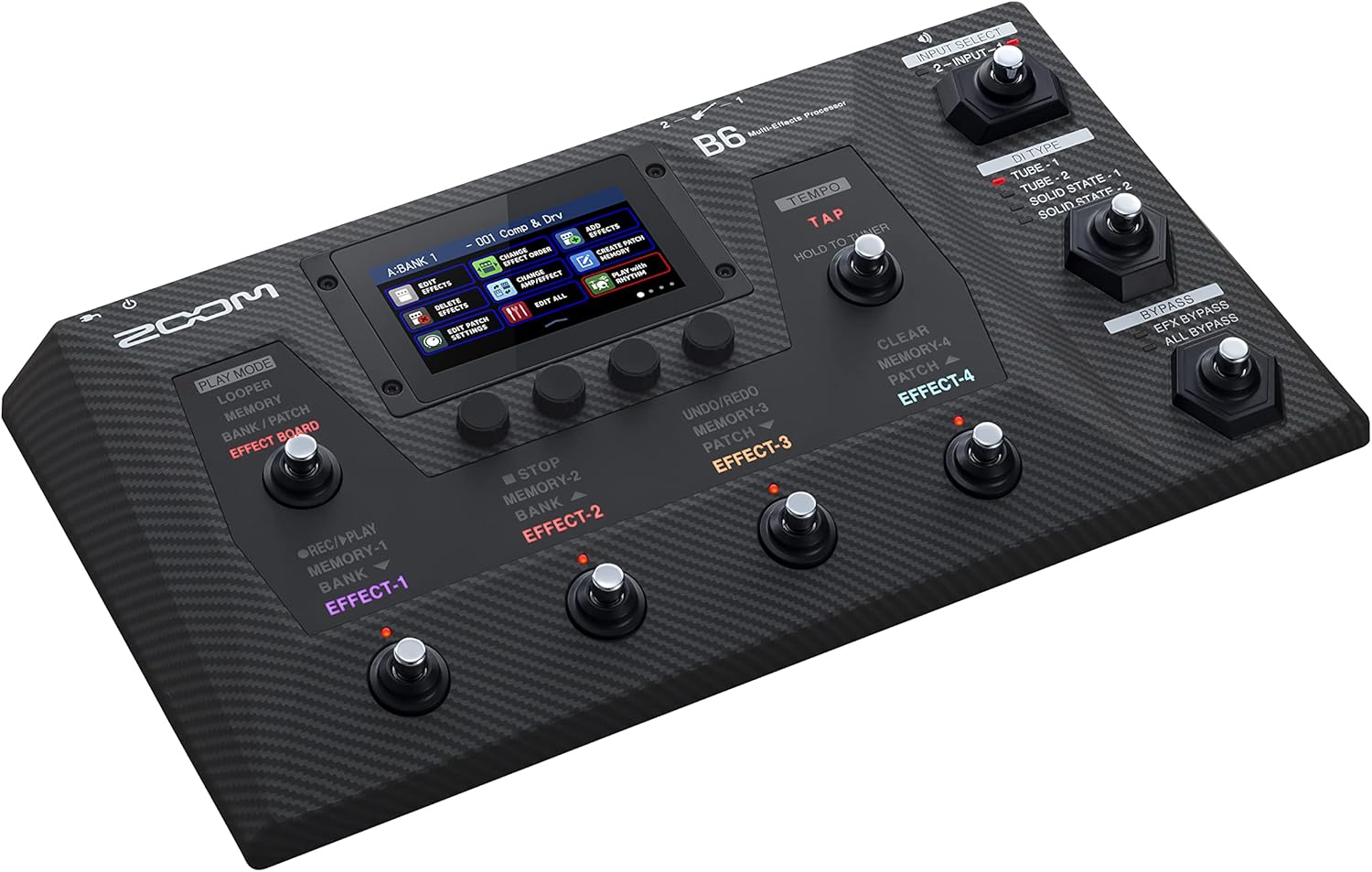
Image: Close-up of the Zoom B6 touchscreen, showing a visual representation of an effect chain with various effects blocks.

Image: A hand touching and interacting with the Zoom B6's touchscreen interface, demonstrating its ease of use for editing.
DI Models
The B6 includes four iconic DI (Direct Injection) models, offering diverse tonal characteristics:
- Tube-1: Emulates a classic tube DI for warm, rich tones.
- Tube-2: Another tube-based DI with distinct sonic qualities.
- Solid State-1: Provides a clean, transparent solid-state DI sound.
- Solid State-2: A second solid-state option for varied clean tones.
These DI models can significantly impact your sound, allowing you to choose the best direct tone for your instrument and musical style.

Image: Close-up of the DI Type selection area on the Zoom B6, showing indicators for Tube-1, Tube-2, Solid State-1, and Solid State-2.
A/B Switcher
The integrated A/B switcher allows you to connect two different basses or instruments to the B6 and switch between them instantly. This is ideal for live performances where you might use multiple instruments with different tunings or tonal requirements.

Image: The Zoom B6 with an emphasis on the A/B switcher, illustrating its capability to manage two distinct input signals.
Effects and Amp Modeling
The B6 offers over 100 built-in effects and a range of customized amp models, allowing for extensive sound design. You can combine up to six effects and amp models simultaneously to create complex and unique tones.
Looper and USB Audio Interface
Utilize the integrated looper for practice, songwriting, or live performance. The B6 also functions as a 2-in/2-out USB audio interface, enabling direct recording to your computer with high-quality audio.
Official Product Video: Carlitos Del Puerto and the Zoom B6
Video: Carlitos Del Puerto discusses his experience with the Zoom B6, highlighting its features like the DI models, A/B switcher, and multi-effects capabilities. This video provides a practical overview of the unit's functionality from a professional bassist's perspective.
Specifications
| Feature | Detail |
|---|---|
| Item Weight | 1 pounds |
| Product Dimensions | 16"L x 9"W x 2"H (approx. 8.98 x 16.46 x 2.56 inches) |
| Model Number | B6 |
| Brand | Zoom |
| Voltage | 9 Volts |
| Power Source | Corded Electric |
| Material Type | Stainless Steel |
| Hardware Interface | USB |
| Signal Format | Analog |
| Color | Black |
Maintenance
- Cleaning: Use a soft, dry cloth to clean the unit. Avoid abrasive cleaners or solvents.
- Storage: Store the B6 in a cool, dry place away from direct sunlight and extreme temperatures. If transporting, use appropriate protective casing.
- Software Updates: Periodically check the Zoom website for firmware updates to ensure optimal performance and access to new features.
Troubleshooting
- No Power: Ensure the AC adapter is securely connected to both the B6 and a working power outlet. Check the power switch position.
- No Sound: Verify all instrument and output cables are correctly connected. Check volume levels on the B6, your amplifier, and any connected devices. Ensure effects are not bypassed or set to extreme parameters.
- Effects Not Working: Confirm that the desired effects are active within your patch. Check individual effect parameters on the touchscreen.
- Touchscreen Unresponsive: Try restarting the unit. If the issue persists, consult Zoom's official support resources.
Warranty and Support
The Zoom B6 Bass Multi-Effects Processor comes with a manufacturer's warranty. For detailed warranty information, technical support, or service inquiries, please refer to the official Zoom website or contact their customer service department. Keep your proof of purchase for warranty claims.


