
Introduction
The hohem iSteady Pro 4 is a versatile 3-axis gimbal stabilizer designed for action cameras, ensuring smooth and stable footage in various shooting conditions. Featuring advanced anti-shaking algorithms and a splash-proof design, it is an ideal tool for capturing dynamic moments. This manual provides comprehensive instructions for setting up, operating, maintaining, and troubleshooting your iSteady Pro 4 gimbal.

Image: The hohem iSteady Pro 4 gimbal stabilizer shown with its included accessories, including a mini tripod and charging cables.
What's in the Box
Verify that all items are present in your package:
- Mini Tripod x1
- Carry Case x1
- Camera Charging Cable x3 (Type C, Micro USB, Mini USB)
- Gimbal Charging Cable x1 (Type C)
- User Manual (Includes Warranty Card) x1
- Quick Start Guide x1
Setup
1. Charging the Gimbal
Before first use, fully charge the iSteady Pro 4 using the provided Type-C gimbal charging cable. Connect the cable to the gimbal's charging port and a USB power adapter (not included). The battery indicator lights will show charging progress.
2. Mounting the Action Camera
The iSteady Pro 4 features a quick-release clip design for easy camera mounting. Ensure the gimbal is powered off before mounting the camera.
- Pull the quick-release clip (spring-loaded) upwards.
- Carefully insert your action camera into the groove, ensuring it is securely seated.
- Release the clip to lock the camera in place.
Important Note:
- ● Do not turn on the gimbal without an action camera mounted on it.
- ● If the camera's power button or charging port is blocked after mounting, adjust the direction of the motor axis as needed to ensure accessibility.
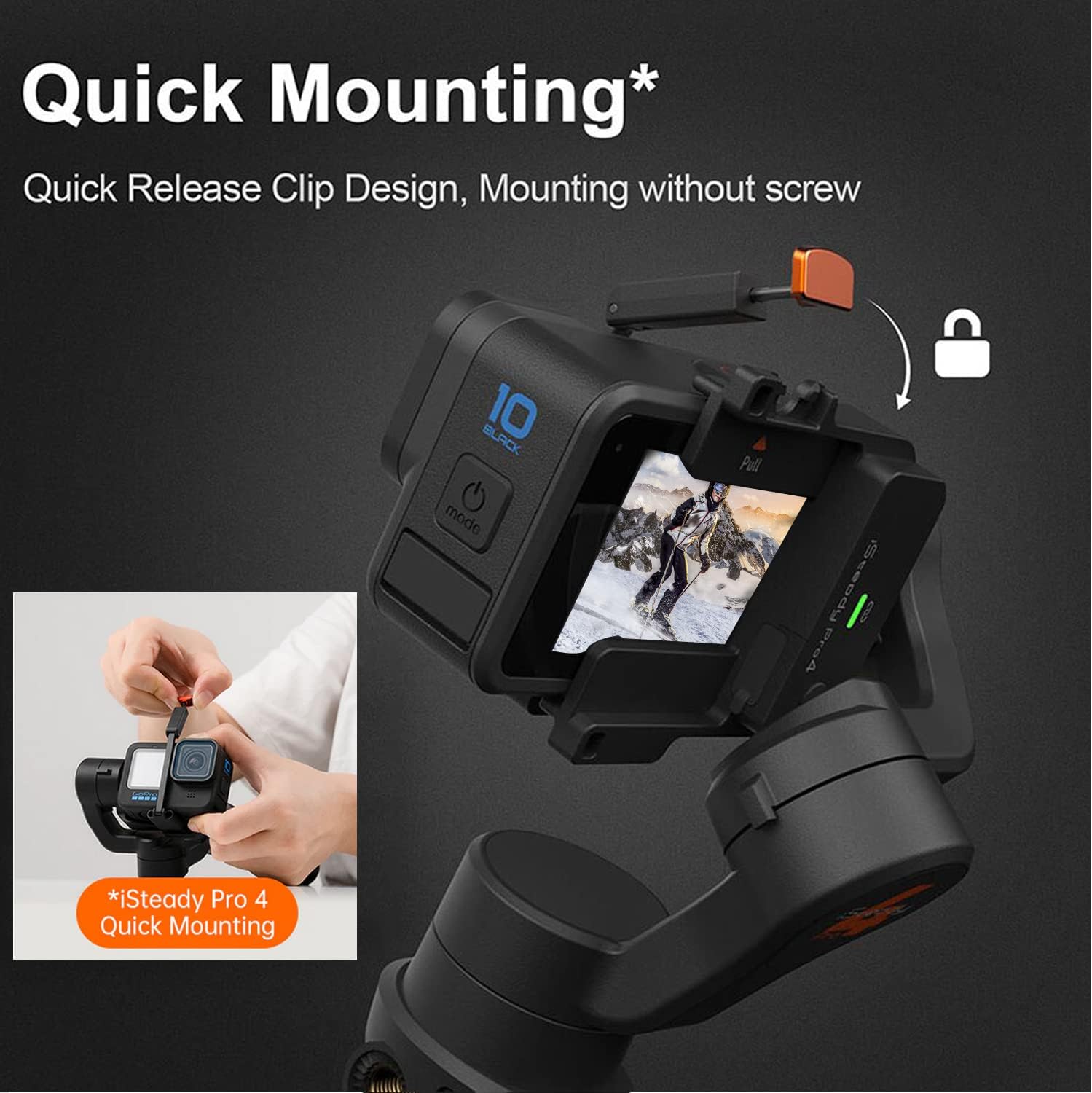
Image: Demonstrates the quick-release clip mechanism for mounting an action camera onto the gimbal.
3. Compatibility
The iSteady Pro 4 is compatible with most action cameras weighing up to 150g, with a maximum height of 51mm and depth of 30mm. This includes GoPro Hero 12/11/10/9/8/7/6/5/4/3, Osmo Action, and other similar action cameras. Note that the connect function (Bluetooth & Cable Control) is primarily for GoPro Hero 13/12/11/10/9/8/7/6/5 Series.
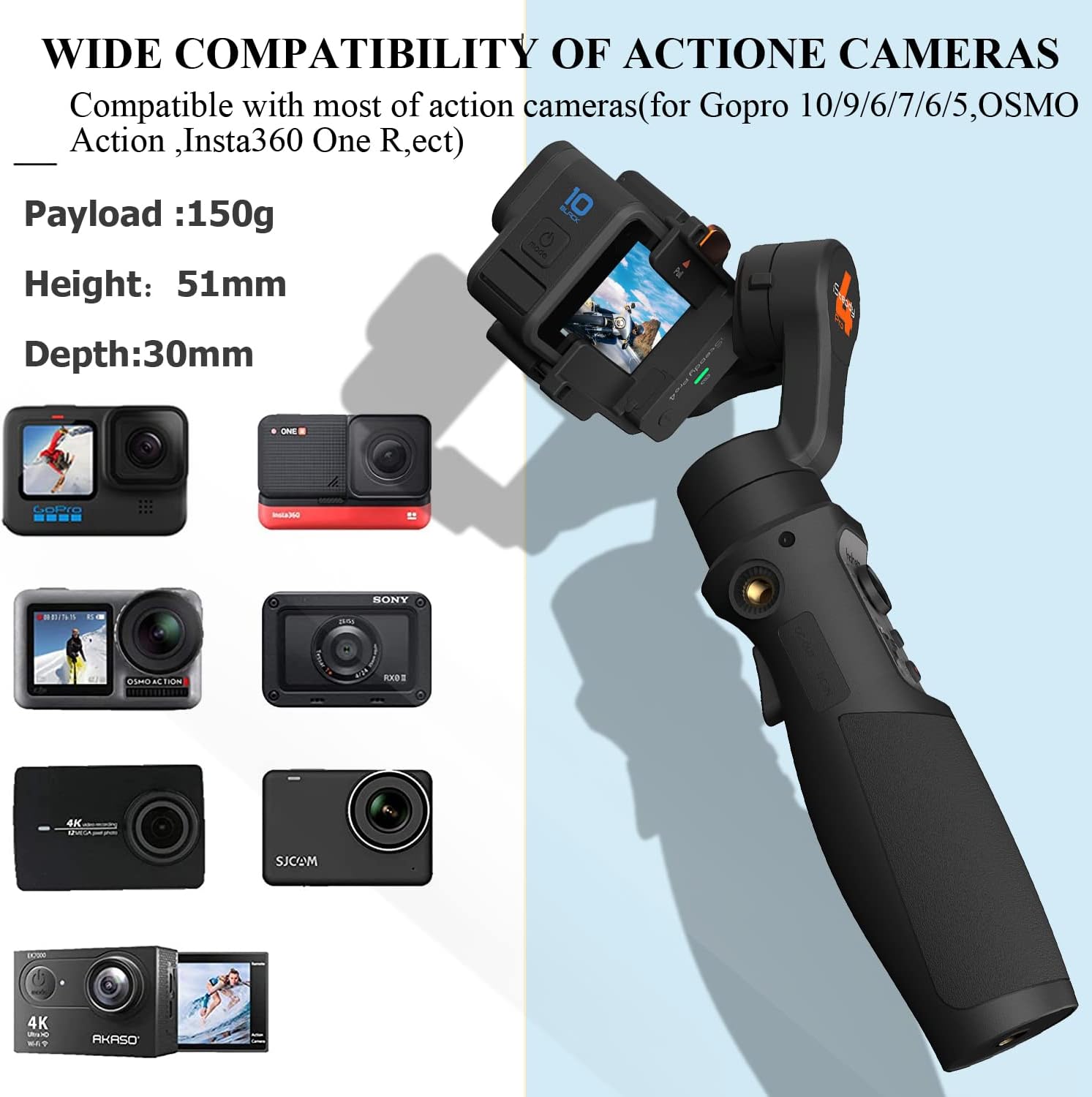
Image: Illustrates the wide range of action cameras compatible with the hohem iSteady Pro 4, showing various models and their size constraints.
Operating Instructions
1. Power On/Off
Press and hold the power button for 3 seconds to turn the gimbal on or off.
2. Gimbal Modes
The iSteady Pro 4 offers multiple operating modes to suit different shooting scenarios. Switch between modes by tapping the mode button:
- Pan Following (Single Click): The camera pans left/right following your movement, while tilt and roll axes are locked.
- All Locked (3 Times Click): All three axes (pan, tilt, roll) are locked, keeping the camera pointing in a fixed direction.
- Pan and Tilt Following (Double Click): The camera follows your pan and tilt movements, while the roll axis is locked.
- All Following (4 Times Click): All three axes follow your movements, providing dynamic and fluid shots.
- 600° 3D Inception Mode: Achieves a spinning shot effect.
- Sport Mode: Provides faster motor response for quick movements and transitions. Activate by holding the trigger button.
- POV Mode: All three axes follow your movements, but with a smoother, more cinematic feel.

Image: Visual representation of the four primary gimbal modes and their corresponding button clicks.
3. Wireless Control & App Integration
The iSteady Pro 4 supports Bluetooth control for compatible GoPro cameras (Hero 10/9/8/7/6/5, excluding Hero 7 White and Silver models). This allows for one-click video recording and photo capture directly from the gimbal.
For advanced control and features, download the Hohem Joy app. The app enables firmware updates, calibration, motor settings adjustment, and remote control, including motion timelapse functions.
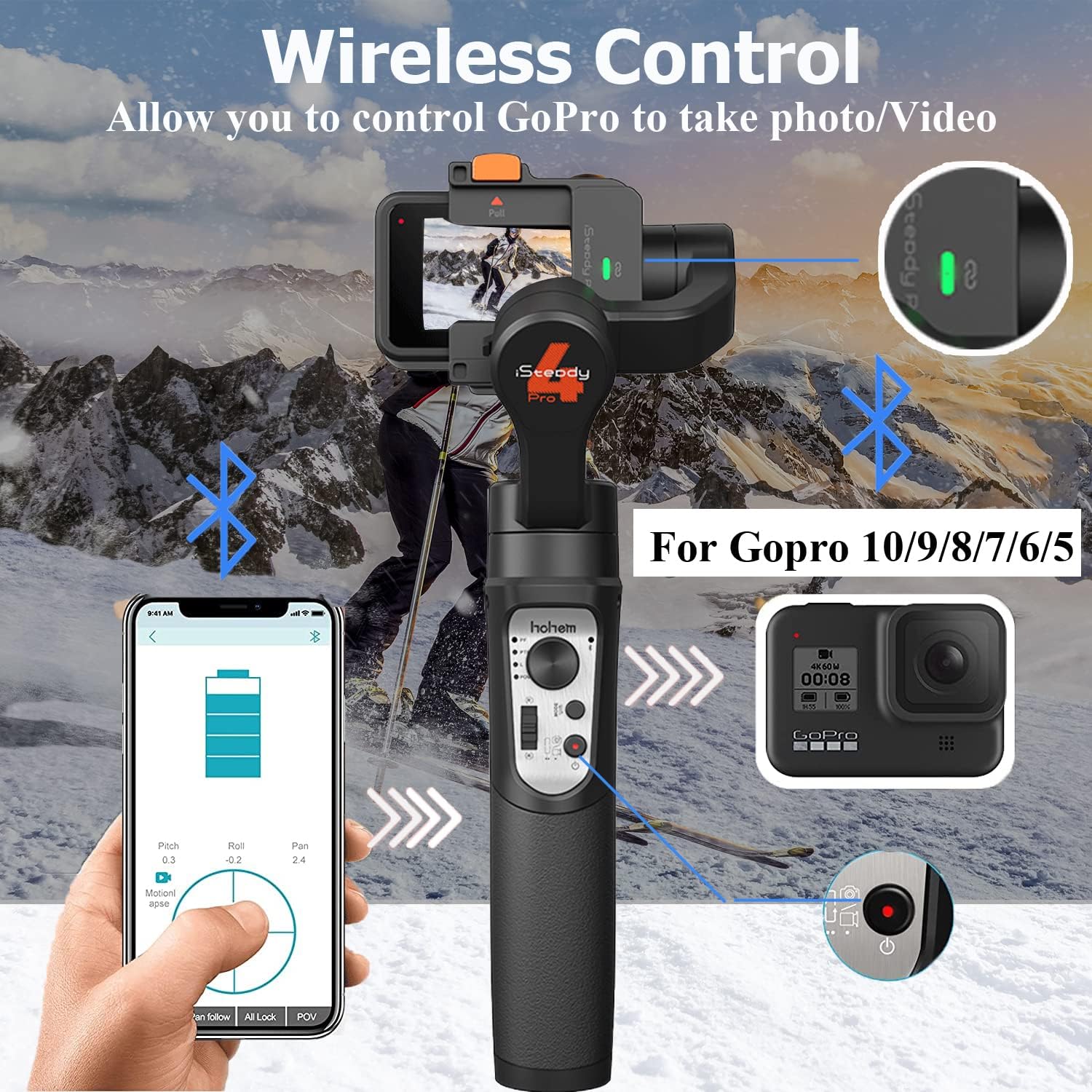
Image: Depicts the wireless control functionality, showing the gimbal connected to a smartphone via Bluetooth for remote operation and camera control.
4. Joystick Control
Use the joystick to manually control the pan and tilt movements of your camera for precise framing.
Maintenance
1. Cleaning
Wipe the gimbal with a soft, dry cloth. Avoid using harsh chemicals or abrasive materials.
2. Storage
Store the gimbal in its carry case in a cool, dry place away from direct sunlight and extreme temperatures.
3. Battery Care
The iSteady Pro 4 has a 3600mAh battery, providing up to 14 hours of operation. It can also function as a power bank to charge your action camera while recording. For optimal battery life, charge the gimbal regularly and avoid fully discharging it for extended periods.
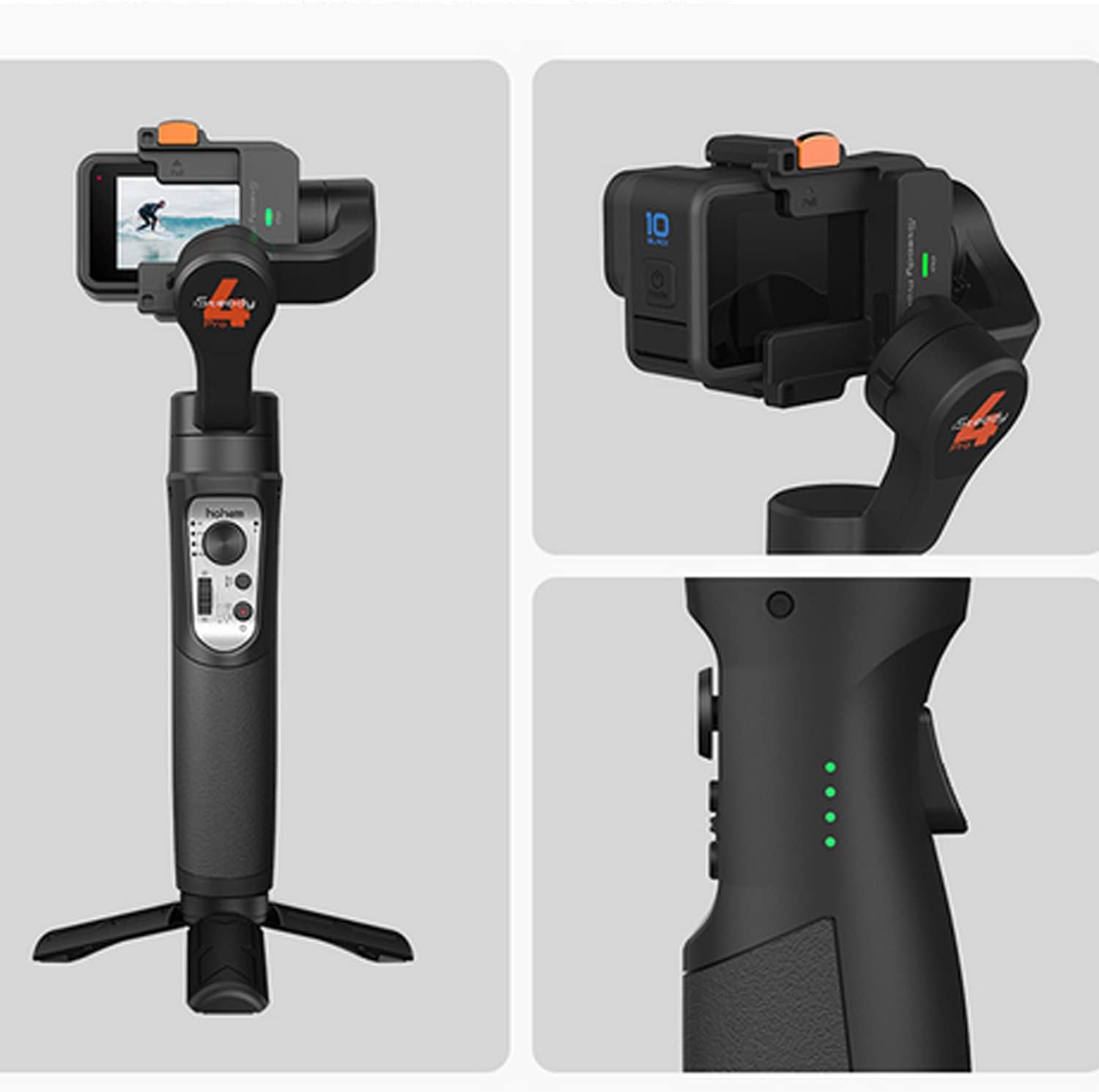
Image: Close-up of the hohem iSteady Pro 4 showing the battery indicator lights, which provide a visual cue of the remaining power.
4. Splash Proof Design
The iSteady Pro 4 is IPX4 splash-proof, meaning it can withstand splashes from any direction. This makes it suitable for use in light rain or near water. However, it is not designed for submersion in water.
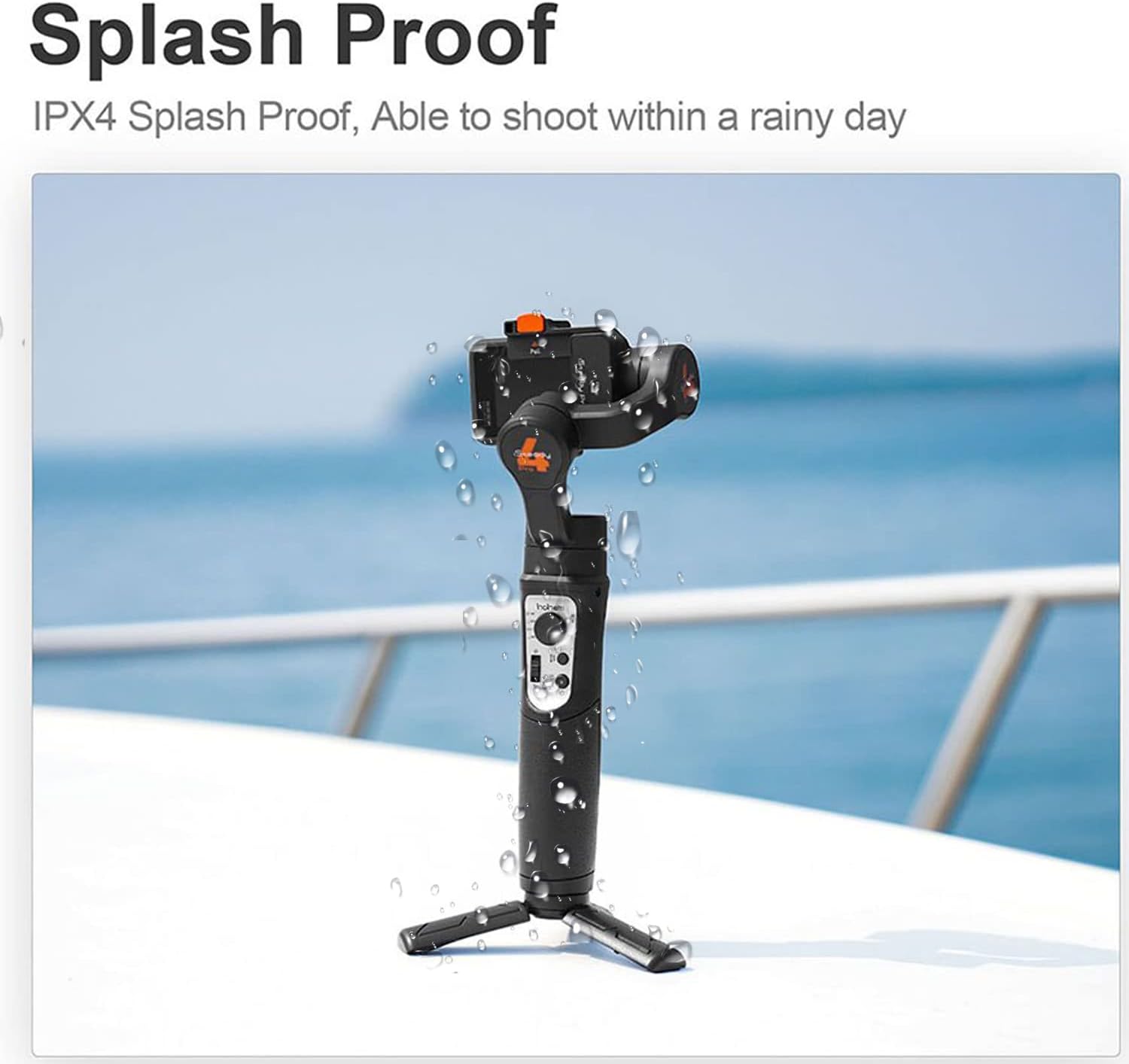
Image: The hohem iSteady Pro 4 shown with water droplets, illustrating its IPX4 splash-proof capability.
Troubleshooting
| Problem | Possible Cause | Solution |
|---|---|---|
| Gimbal vibrates or does not stabilize properly. | Camera not balanced; Gimbal not calibrated; Overloaded. | Ensure camera is securely mounted and balanced. Calibrate the gimbal via the Hohem Joy app. Check camera weight against maximum payload (150g). |
| Cannot connect to GoPro via Bluetooth. | Incompatible GoPro model; Bluetooth not enabled; Pairing issue. | Verify GoPro model compatibility (Hero 10/9/8/7/6/5 series, excluding Hero 7 White/Silver). Ensure Bluetooth is on for both devices. Re-attempt pairing. |
| Gimbal does not power on. | Low battery; Power button not held long enough. | Charge the gimbal fully. Press and hold the power button for 3 seconds. |
| App functions not working correctly. | Outdated firmware; App glitch. | Update gimbal firmware via the Hohem Joy app. Restart the app and gimbal. |
Specifications
- Product Dimensions: 11.81 x 5.12 x 1.97 inches (Folded Size: 11.81 inches (h) x 5.12 inches (w) x 1.97 inches (d))
- Item Weight: 5.3 ounces (150 Grams)
- Maximum Weight Recommendation: 150 Grams
- Batteries: 1 Lithium Polymer battery required (included)
- Battery Life: Up to 14 hours
- Compatibility: Action cameras, for GoPro Hero 13/12/11/10/9/8/7/6/5/4/3, Osmo Action, etc.
- Splash Proof Rating: IPX4
- Anti-shaking Algorithm: iSteady 5.0
- Pan Rotation: 600°
- Model Number: hohem Pro 4 international
- UPC: 727542071359
- Manufacturer: hohem
- Country of Origin: China
Warranty and Support
The hohem iSteady Pro 4 comes with a user manual that includes warranty information. For detailed warranty terms and conditions, please refer to the warranty card provided in your package.
For further assistance, technical support, or to explore additional products, please visit the official hohem website or contact their customer service. You can also refer to the User Manual (PDF) for more detailed information.
Protection plans are available for extended coverage:
- 2-Year Protection Plan
- 3-Year Protection Plan
- Complete Protect (monthly plan)
These plans can be purchased separately to safeguard your investment.


