
1. Introduction
Thank you for choosing the Teleco TLH10B DVB-T2 Digital Terrestrial Decoder. This device allows you to receive digital terrestrial television broadcasts, including High Definition (HD) channels, and offers multimedia playback capabilities. This manual provides essential information for the correct installation, operation, and maintenance of your decoder. Please read it carefully before use and retain it for future reference.
2. Safety Information
- Power Supply: Use only the power adapter supplied with the decoder. Ensure the voltage matches your local power supply.
- Ventilation: Do not block ventilation openings. Place the decoder on a stable, flat surface, away from direct sunlight, heat sources, and excessive dust.
- Water and Moisture: Do not expose the decoder to rain, moisture, or dripping/splashing liquids. Do not place objects filled with liquids, such as vases, on the decoder.
- Cleaning: Disconnect the power before cleaning. Use a soft, dry cloth. Do not use liquid or aerosol cleaners.
- Servicing: Do not attempt to open or repair the decoder yourself. Refer all servicing to qualified personnel.
3. Package Contents
Please check the package for the following items:
- Teleco TLH10B DVB-T2 Digital Terrestrial Decoder
- Remote Control
- Power Adapter
- User Manual (this document)
- (Note: HDMI cable may or may not be included depending on the specific package. Please check your box.)
4. Product Overview
The Teleco TLH10B decoder is designed for ease of use and efficient performance. Below is an overview of its main components and connections.
4.1 Front Panel
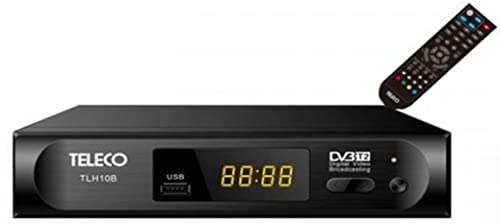
Image: Front view of the Teleco TLH10B DVB-T2 Digital Terrestrial Decoder. The front panel typically features an LED indicator for power status and a display for channel numbers or time.
- LED Indicator: Shows the power status (e.g., red for standby, green for on).
- Display: May show current channel number or time.
- USB Port (Front): For connecting USB storage devices for multimedia playback or software updates.
4.2 Rear Panel Connections
- ANT IN: Connect your terrestrial antenna cable here.
- HDMI OUT: Connect to your TV's HDMI input for high-definition video and audio.
- ETHERNET (RJ-45): For wired network connection (optional).
- USB Port (Rear): Additional USB port for storage devices.
- DC IN: Connect the supplied power adapter here.
4.3 Remote Control
The remote control allows you to operate all functions of the decoder. Insert two AAA batteries (not included) into the battery compartment, ensuring correct polarity.
- POWER: Turns the decoder on/off or to standby.
- CH+/CH-: Changes channels.
- VOL+/VOL-: Adjusts volume.
- MENU: Accesses the main menu.
- OK: Confirms selections.
- EXIT: Exits current menu or screen.
- INFO: Displays channel information.
- EPG: Electronic Program Guide.
- Multimedia Buttons: Play, Pause, Stop, Fast Forward, Rewind for media playback.
5. Setup
5.1 Connecting the Decoder
- Connect Antenna: Connect your terrestrial antenna cable to the ANT IN port on the rear of the decoder.
- Connect to TV: Use an HDMI cable to connect the HDMI OUT port on the decoder to an available HDMI input on your television.
- Connect Power: Plug the power adapter into the DC IN port on the decoder, then plug the adapter into a wall outlet.
- Power On: Turn on your TV and select the correct HDMI input source using your TV's remote control. The decoder should power on automatically or can be turned on using its remote.
5.2 First-Time Installation
Upon first power-on, the decoder will typically guide you through an initial setup wizard.
- Language Selection: Choose your preferred language for the menu.
- Country Selection: Select your country. This helps in setting up regional channel parameters.
- Channel Scan: The decoder will prompt you to perform an automatic channel scan. Select "Auto Scan" or "Automatic Search" to find available digital terrestrial channels. This process may take several minutes.
- Save and Exit: Once the scan is complete, the decoder will save the channels and usually tune to the first available channel.
5.3 Wi-Fi Setup
The Teleco TLH10B features integrated Wi-Fi for network connectivity.
- Press the MENU button on your remote control.
- Navigate to the "Network" or "Settings" section.
- Select "Wi-Fi Settings" or "Wireless Network".
- The decoder will scan for available Wi-Fi networks. Select your network from the list.
- Enter your Wi-Fi password using the on-screen keyboard and confirm.
- Once connected, the decoder will indicate a successful connection.
6. Operating Instructions
6.1 Basic TV Viewing
- Power On/Off: Press the POWER button on the remote control.
- Channel Change: Use CH+/CH- buttons to cycle through channels or enter the channel number directly using the numeric keypad.
- Volume Control: Use VOL+/VOL- buttons to adjust the audio volume.
- Mute: Press the MUTE button to temporarily silence the audio.
- Info: Press the INFO button to display current program information.
6.2 Menu Navigation
Press the MENU button to access the main menu. Use the arrow keys (Up/Down/Left/Right) to navigate through options and OK to confirm. Press EXIT to return to the previous screen or exit the menu.
- Program: Manage channels (edit, delete, move, lock).
- Picture: Adjust display settings (aspect ratio, resolution).
- Sound: Adjust audio settings.
- Time: Set time and date, timer functions.
- Option: Language settings, subtitle settings, audio track selection.
- System: Parental control, factory reset, software update.
- USB: Access multimedia player for photos, music, videos from a connected USB device.
6.3 Multimedia Playback
Insert a USB storage device (USB flash drive or external hard drive) into one of the USB ports on the decoder. Navigate to the "USB" or "Multimedia" section in the main menu to browse and play compatible media files.
- Supported video formats: AVC, H.264, H.265, HEVC, MPEG2, MPEG4.
- Supported audio formats: Check decoder specifications for full list.
- Supported image formats: Check decoder specifications for full list.
7. Maintenance
- Cleaning: Ensure the decoder is unplugged before cleaning. Use a soft, dry, lint-free cloth to wipe the exterior. Do not use abrasive cleaners or solvents.
- Software Updates: Periodically check the manufacturer's website for available software updates. Updates can improve performance and add new features. Follow the instructions provided with the update file carefully. Typically, updates are performed via USB.
- Ventilation: Ensure the ventilation slots are not obstructed to prevent overheating.
8. Troubleshooting
| Problem | Possible Cause | Solution |
|---|---|---|
| No power | Power adapter not connected; power outlet faulty. | Check power adapter connection; try a different outlet. |
| No picture/sound | Incorrect TV input selected; HDMI cable loose/faulty; decoder in standby. | Select correct HDMI input on TV; check HDMI cable; press POWER on remote. |
| "No Signal" message | Antenna not connected; antenna signal weak; channels not scanned. | Check antenna connection; adjust antenna position; perform a channel scan. |
| Remote control not working | Batteries depleted/incorrectly inserted; obstruction between remote and decoder. | Replace batteries; ensure correct polarity; remove obstructions; point remote directly at decoder. |
| Cannot connect to Wi-Fi | Incorrect password; Wi-Fi signal too weak; router issues. | Re-enter password carefully; move decoder closer to router; restart router. |
9. Specifications
| Model: | TLH10B |
| Brand: | Teleco |
| Channels: | Up to 1000 |
| Video Formats Supported: | AVC, H.264, H.265/HEVC, MPEG2, MPEG4 |
| Audio Output Modes: | Stereo, Surround (5.1 channels) |
| Connectivity: | HDMI (1 port), USB (1-2 ports, front/rear), Ethernet (RJ-45), Wi-Fi (integrated) |
| Color: | Black |
| Power Output: | 10 Watt |
| Control Method: | Remote Control |
10. Warranty and Support
This Teleco product is covered by a standard manufacturer's warranty. Please refer to the warranty card included in your package or visit the official Teleco website for detailed warranty terms and conditions specific to your region.
For technical support, troubleshooting assistance, or service inquiries, please contact Teleco customer support through their official website or the contact information provided in your product documentation.
Please retain your proof of purchase for warranty claims.